
Use Flux from the AI tools that you already work in. Your coding agent or chat assistant reads the live design and hands hardware design work to Flux.
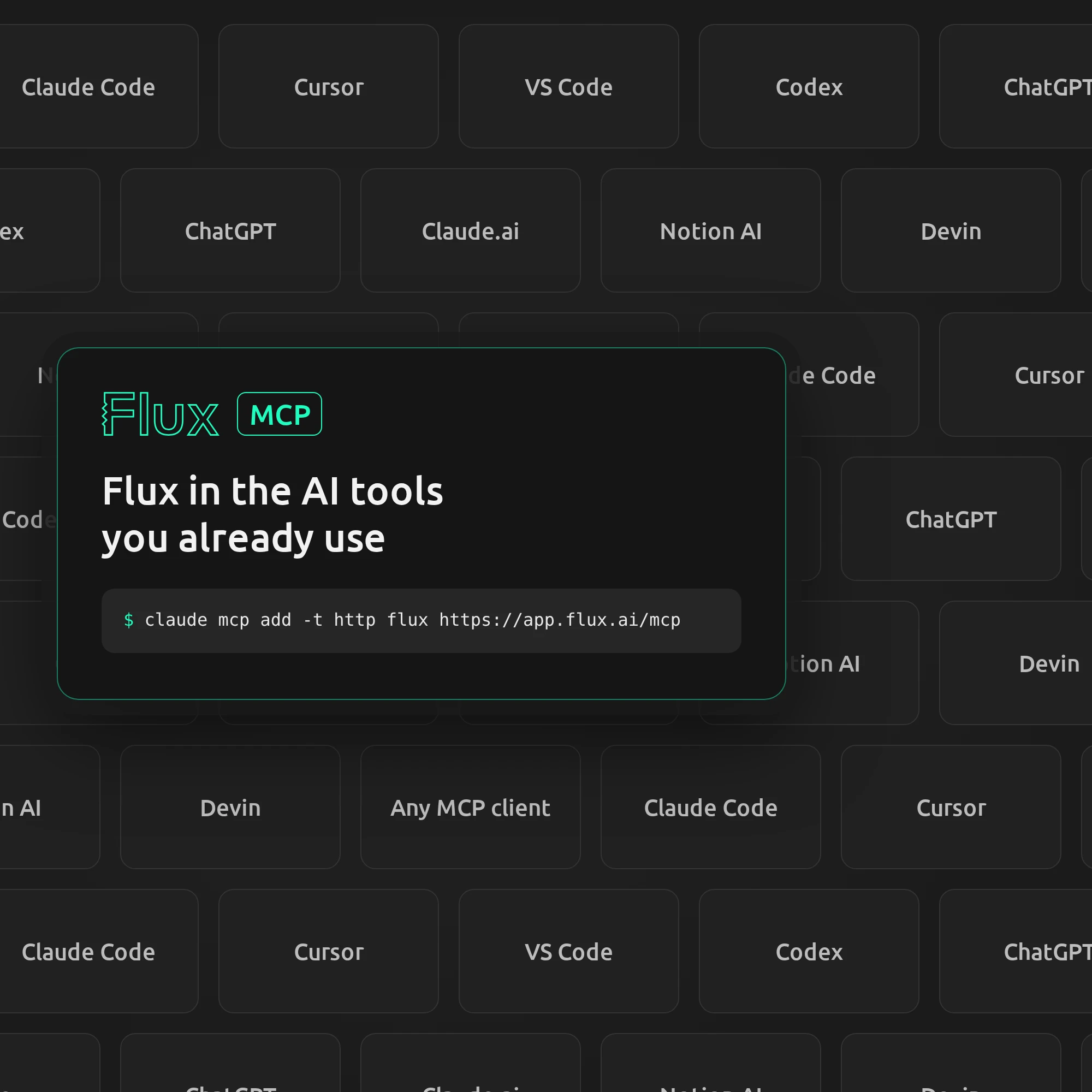
The Flux MCP server connects external AI clients to your Flux projects. A connected client can read live project information, start a design thread, and ask Flux to make changes.
What you can do
Use a connected client to:
Read project names, components, pins, nets, and PCB information.
Start a thread with Flux and describe a design change.
Read the updated project after Flux completes the work.
Use project design information to keep firmware and hardware aligned.
Supported clients
Flux provides setup steps for Claude Code, Claude.ai, Cursor, VS Code, Codex, ChatGPT, and Notion AI.
Connect a client
Use a client that supports remote MCP connections. The production server address is https://app.flux.ai/mcp. Open the setup steps in Flux:
Open a project and select AI Integrations in the chat composer.
Select Manage integrations.
Select Flux MCP.
Select your client and follow its setup steps.
Flux uses OAuth when a client connects. Sign in with your Flux account in the browser window that opens.
Use an API key
Create an API key in Settings → API Keys. Configure the client to send the key as a bearer token:
API key permissions control which projects and actions the client can access. Grant project read access to read project data, write access to make design changes, and agent access to ask Flux to complete design work.
Claude Code
Add the Flux server from a terminal:
claude mcp add -t http flux https://app.flux.ai/mcpRun
/mcpin Claude Code.Complete the Flux sign-in in your browser.
Claude.ai
Open Settings → Connectors.
Select Add custom connector.
Enter a name, such as Flux, and the server address
https://app.flux.ai/mcp.Select Add and complete the Flux sign-in.
Cursor
Open Settings → Tools & MCP → New MCP Server.
Add the Flux server URL:
{"mcpServers": {"flux": {"url": "https://app.flux.ai/mcp"}}}Save the configuration and complete the Flux sign-in.
VS Code
Open the Command Palette and run MCP: Add Server.
Select HTTP and enter
https://app.flux.ai/mcp.Name the server
flux.Complete the Flux sign-in.
Codex
Add the Flux server:
codex mcp add flux --url https://app.flux.ai/mcpStart a Codex session and run
/mcp.Complete the Flux sign-in.
ChatGPT
Open Settings → Connectors.
In Advanced settings, enable developer mode.
Select Create and add a remote MCP server at
https://app.flux.ai/mcp.Complete the Flux sign-in.
Notion AI
Ask a workspace owner to enable custom MCP connections under Settings → Notion AI → AI connectors.
In the agent's Tools & Access settings, select Add connection → Custom MCP server.
Enter
https://app.flux.ai/mcp.Complete the Flux sign-in.
Verify the connection
Ask the connected client to list your Flux projects. Then ask it to open a project and summarize its components and nets. The project list and design summary confirm that the connection works.
Example workflow
Use a coding client to review the board, ask Flux to update the schematic, and read the revised design:
For a mechanical design workflow, ask Flux to add a part that fits the board:
Restrict access to an organization
For OAuth, select the organization on the consent page. For an API key, select the organization when you create the key. The client can then access projects owned by that organization.
FAQs
Can I use Flux from another AI client?
Yes. Connect a client that supports remote MCP. Flux provides setup steps for the clients listed above.
Can a connected client read and edit a project?
Yes. The client can read project information and ask Flux to make design changes in the project.
How do I reconnect a client?
Open the client's MCP settings, select the Flux connection, and complete the Flux sign-in again.
How do I use Flux with another client?
Open AI Integrations → Manage integrations → Flux MCP and follow the setup steps for that client.