
Ask Flux to help you plan a name, find useful search terms, and organize projects before you use project controls.
Rename a project
Ask Flux to suggest a concise name and description for the project.
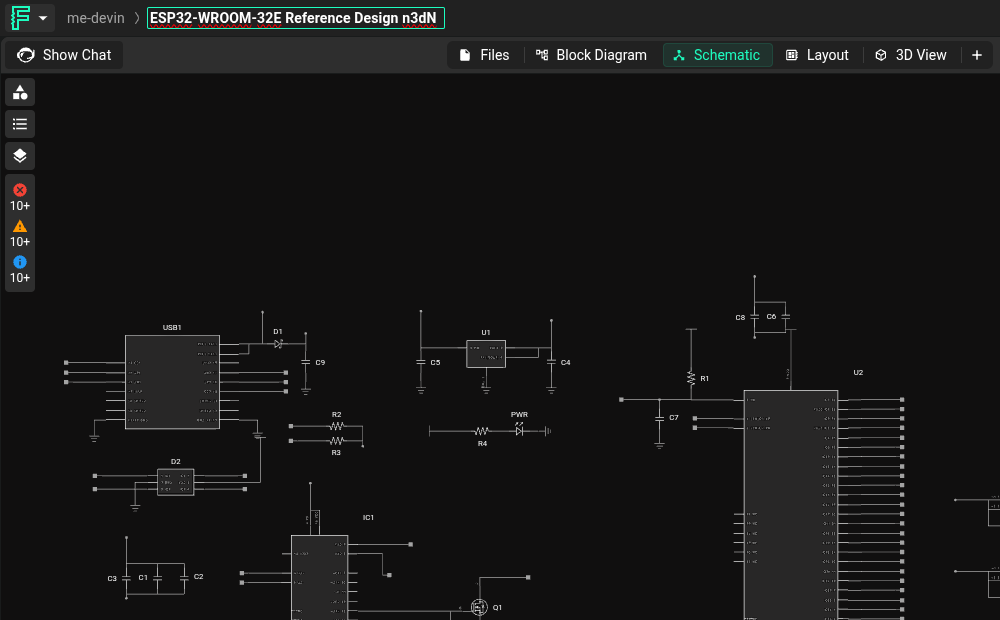
Select the project name in the top navigation bar. Enter the new name, then press Enter or select outside the field to save it. The project URL changes with the name. Update shared links that use the previous URL.
Use a descriptive, concise name. Add a version number or key specification when it helps identify the design. Use consistent names for related projects.
Search for projects and templates
Ask Flux to suggest search terms for the design, platform, or use case you want to find.
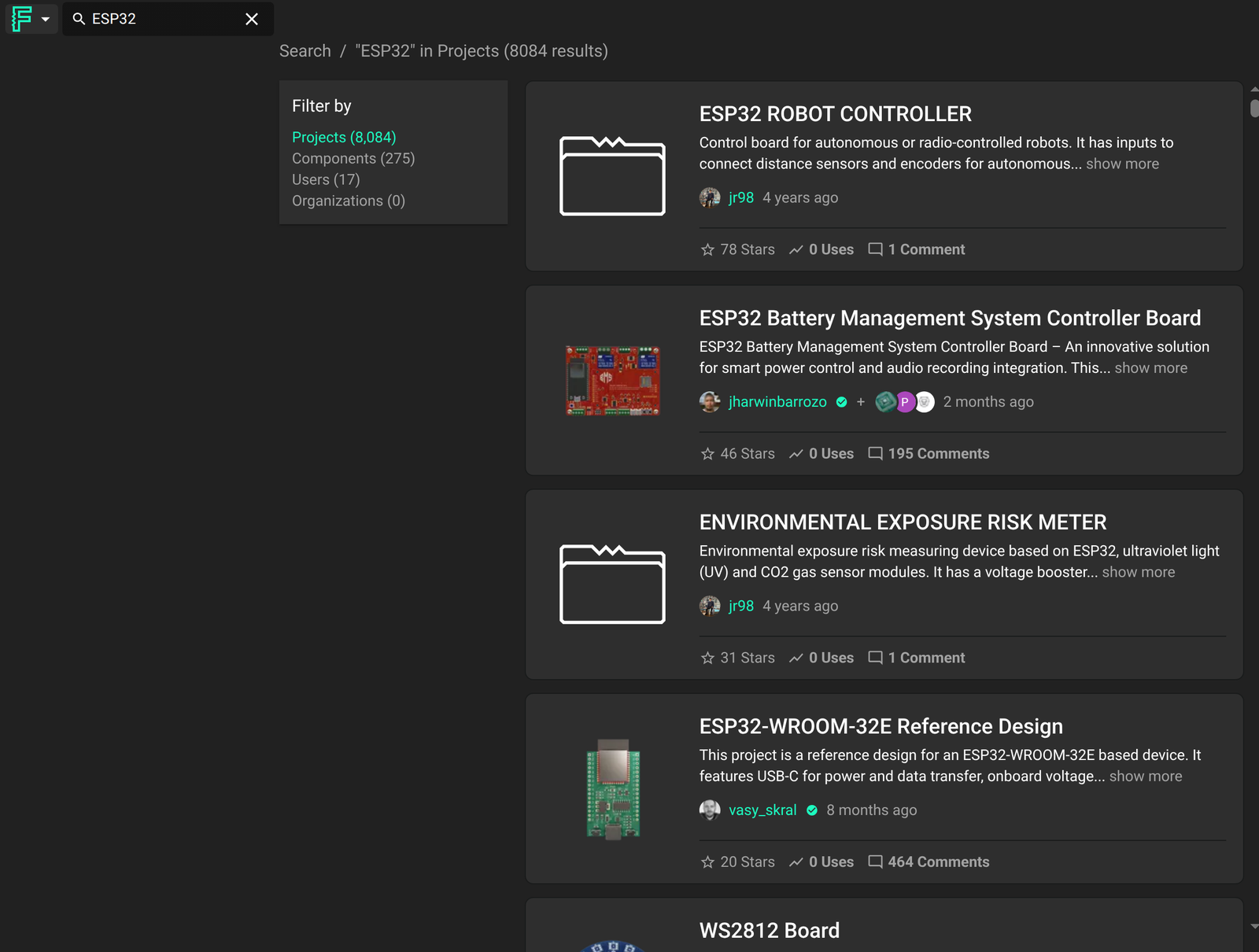
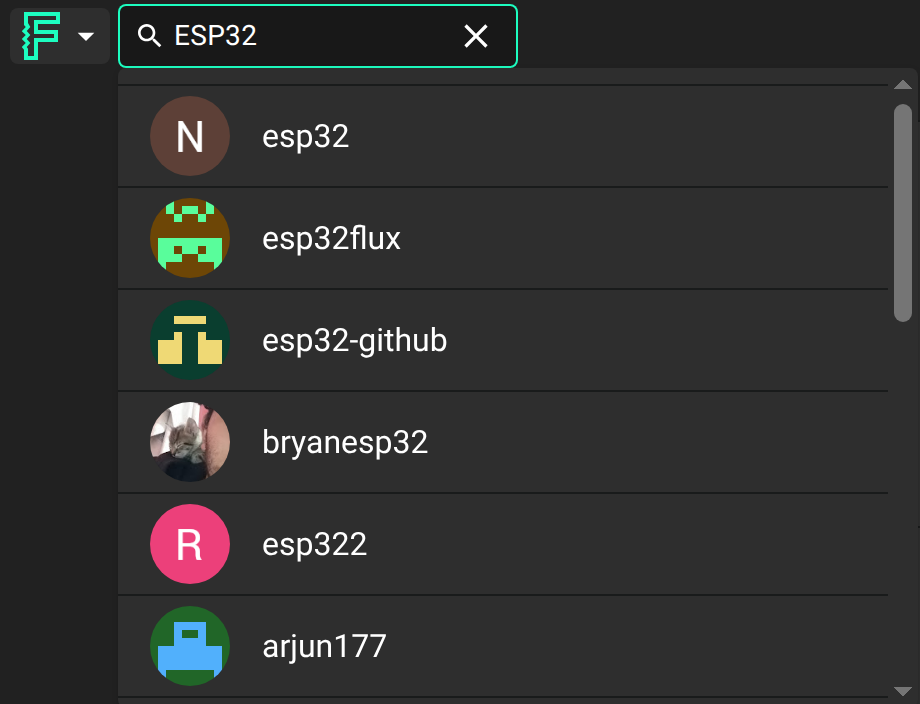
Select the search field at the upper left of the navigation bar and enter a query. Select a suggestion to open a result, or press Enter to see the full results. Filter results by Projects, Components, Users, or Organizations.
Use double quotes to search for an exact phrase. Add a minus sign at the start of a word to exclude results with that word. For example, Arduino -shield finds results with “Arduino” but not “shield”. A hyphen inside a word does not exclude it.
Star a project
Ask Flux to summarize the project and suggest words that will help you recognize it later.
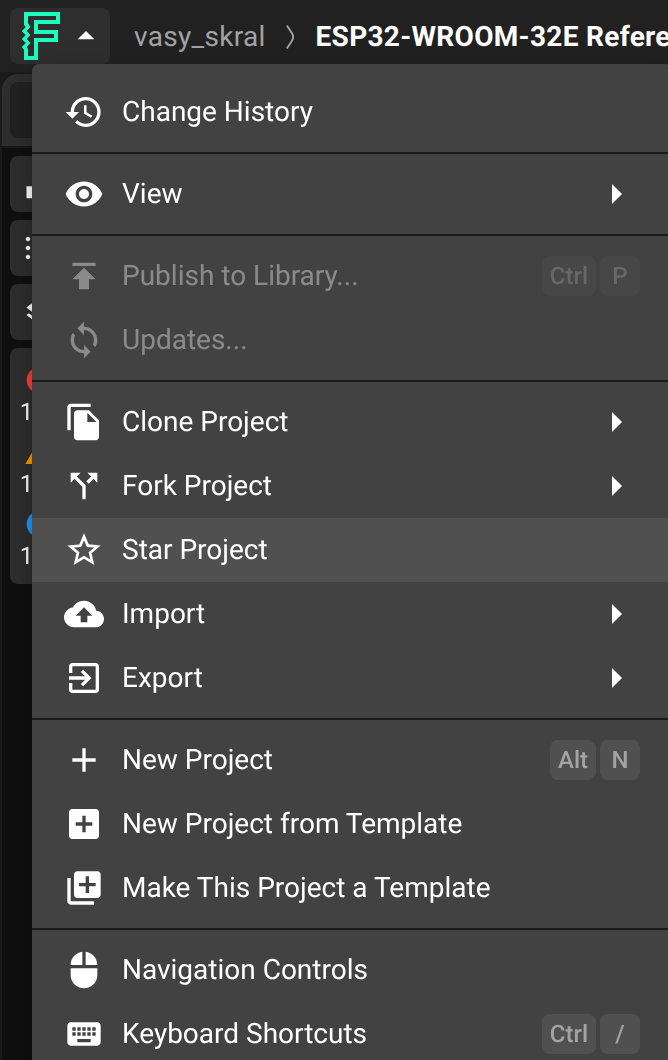
Select the star icon on a project to add it to your starred projects. Use the Starred filter in the project launcher to find starred projects. Projects with more stars rank higher in search results. You can also star parts and modules, then find them with the Starred library filter.
Archive or delete a project
Ask Flux to help you decide whether to keep a project active, archive it, or remove it.
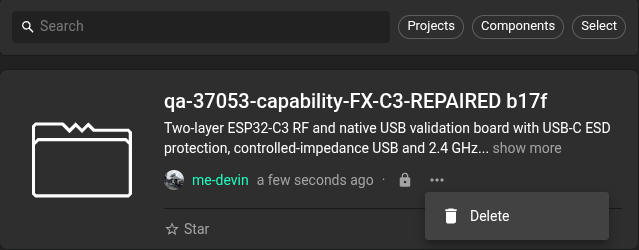
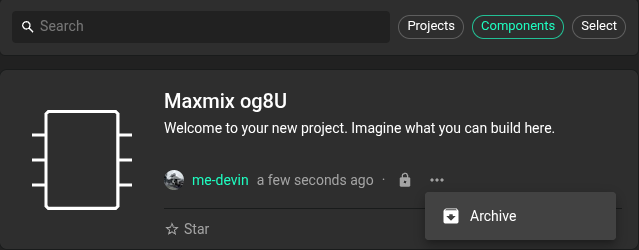
Open Account menu → Profile. Find the project and open its three-dot menu. Select Archive to move a project out of active project search. Archived projects do not appear in project search or when you start a new project. Select Delete to remove the project permanently.
For help retrieving an archived project, see Getting Help with Flux.