
On August 17, 2026 we shipped the biggest redesign in Flux's history. This page explains why, walks through where everything lives now, and answers the questions we expect you'll have. In a hurry? Skip straight to the Transition Guide.
Why Flux looks different today
Most EDA tools work the same way: you start with a schematic, then move to layout, usually from a blank canvas that gives you no hints about where to begin. We've always wanted Flux to be the best EDA tool out there, and we became convinced that meant rethinking the starting point, not just adding features around the edges.
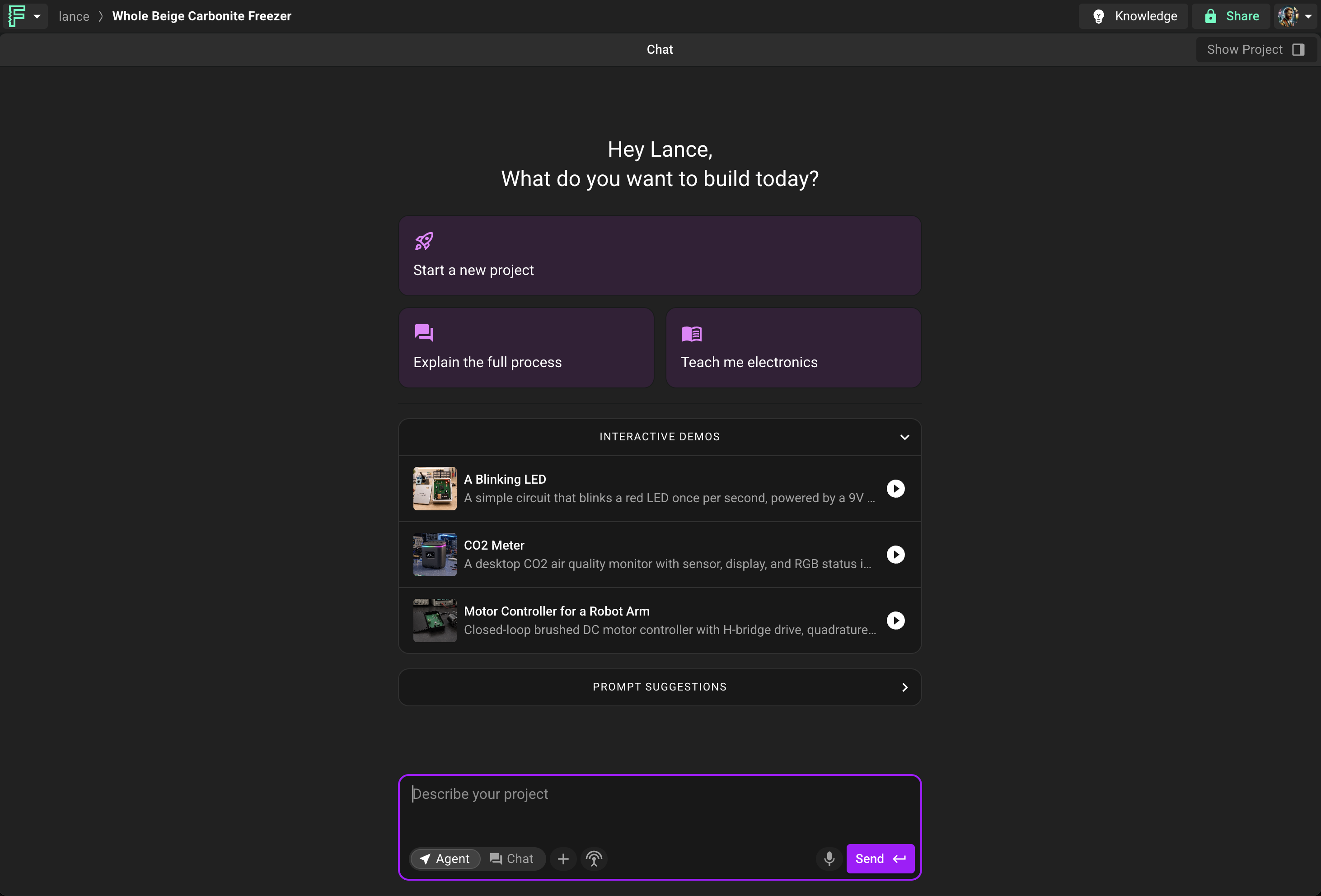
So a new project now starts with a fullscreen conversation. Describe the board or the problem you're working on, upload datasheets or requirements docs, and Flux asks the clarifying questions an engineer would ask. Use Chat Mode to argue about architecture and part choices before you've committed to anything. It's faster now and uses fewer ACUs. When you're ready to build, switch to Agent Mode and Flux gets to work while the workspace opens up around the conversation. Think of it less as a code generator and more as the engineer at the next desk you bounce ideas off.
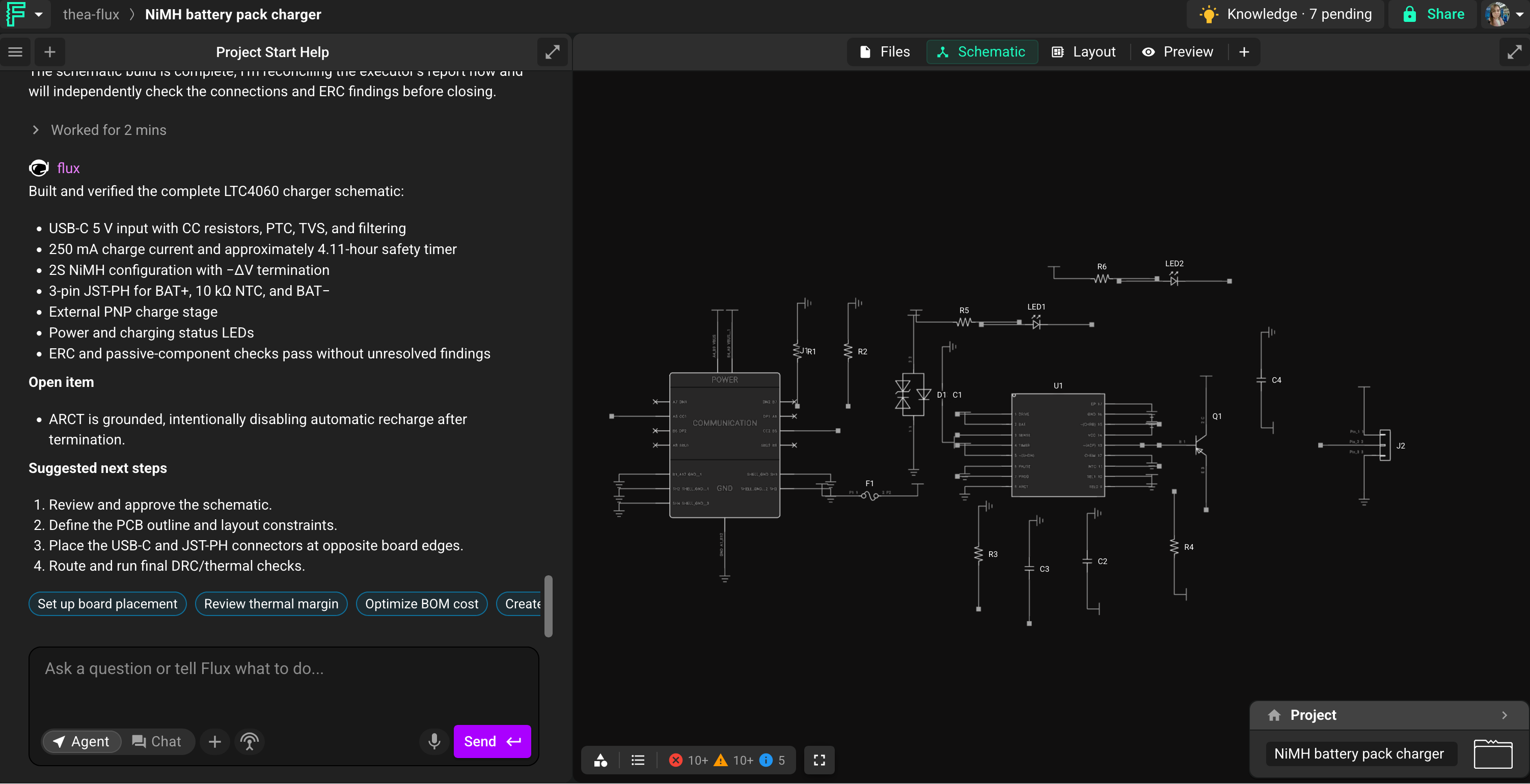
The other big change is that Flux stopped showing you everything at once. The workspace surfaces what's relevant to the step you're on and tucks the rest away. New tabs give you different ways to look at the same project:
Chat opens front and center on a new project. Minimize it whenever you want the full canvas.
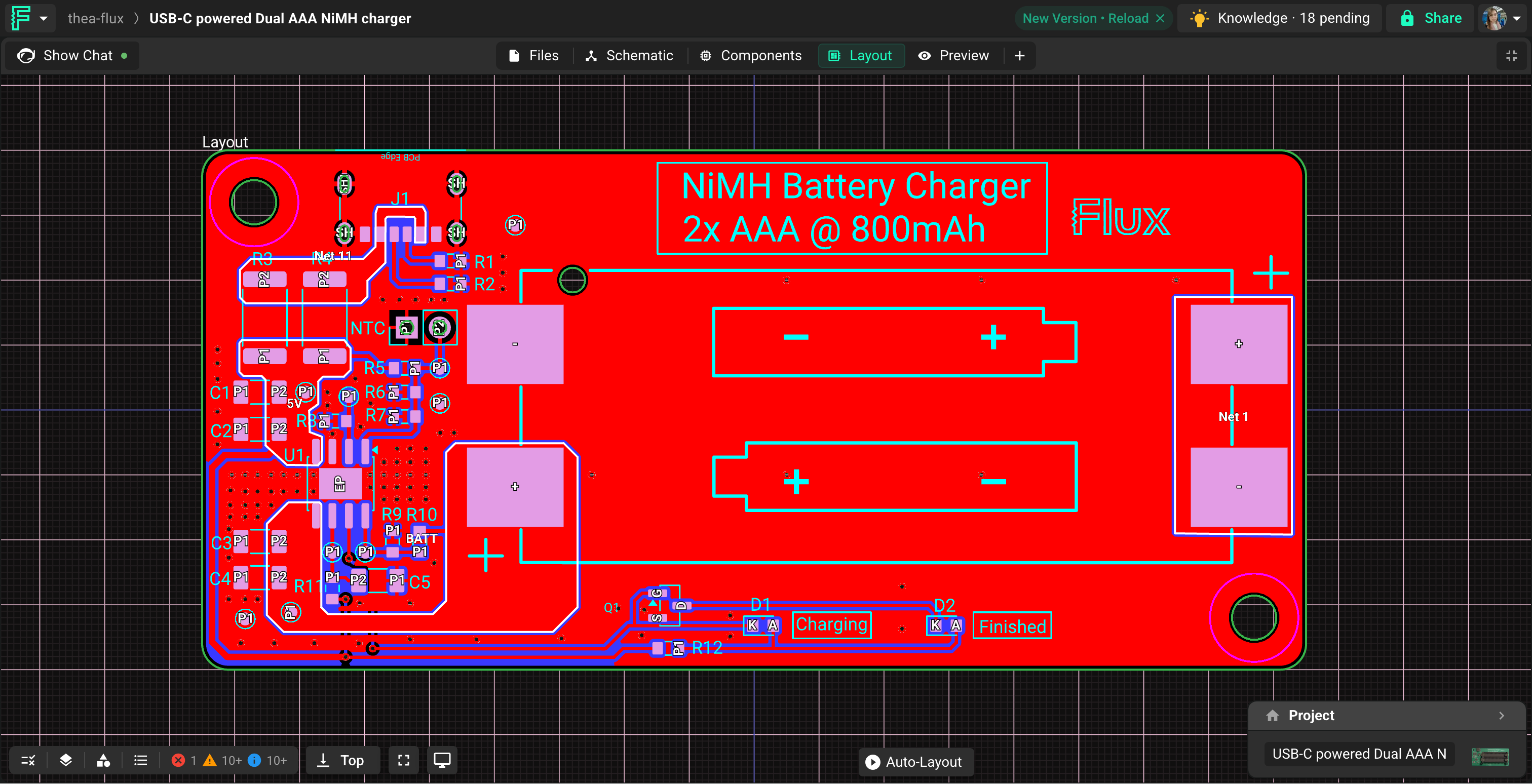
Schematic and Layout work like they always have, and going full screen is easier now.
New Components and BOM views put every part, price, and lead time in a table you can bulk edit and export. Flux can edit these from chat, or you can do it yourself.
A new Nets view lets you check and edit connections without opening the schematic.
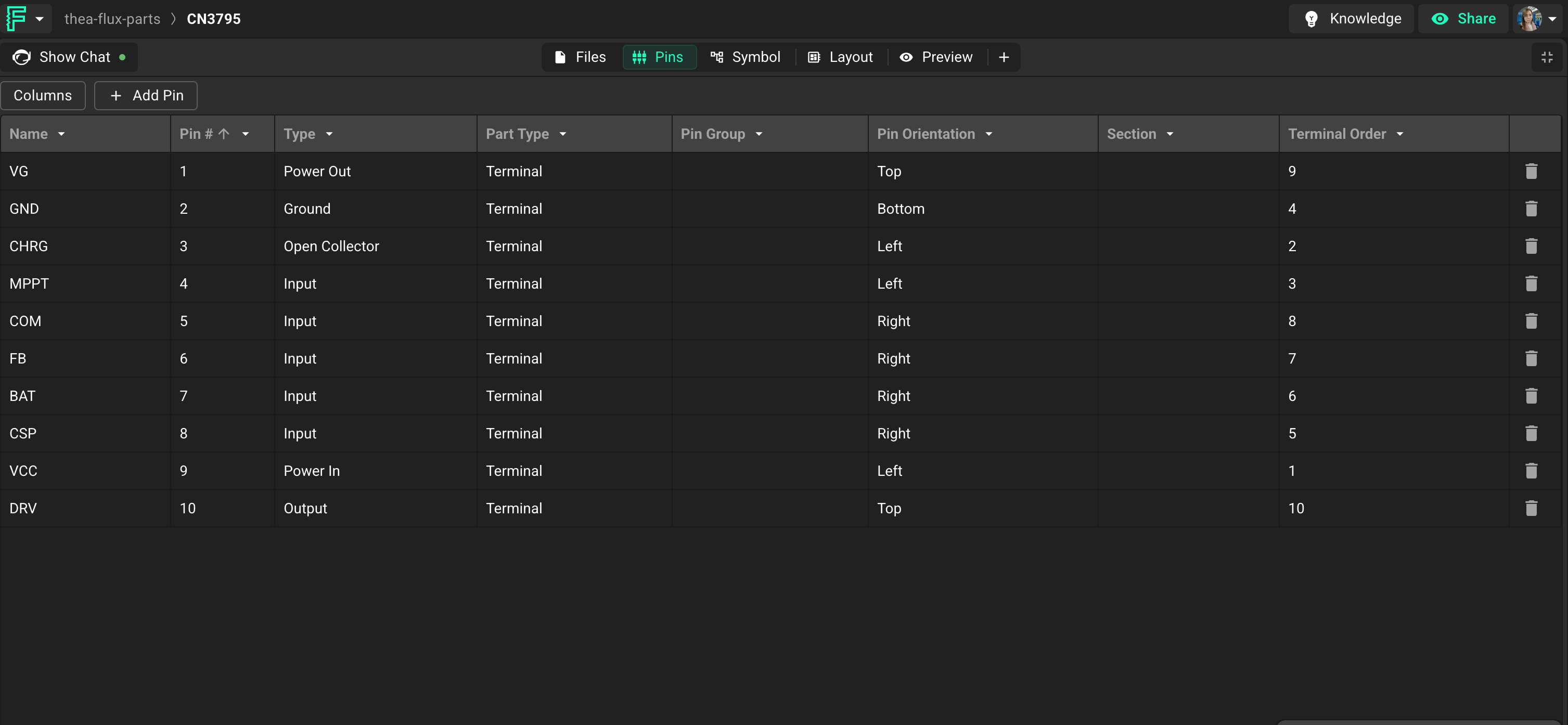
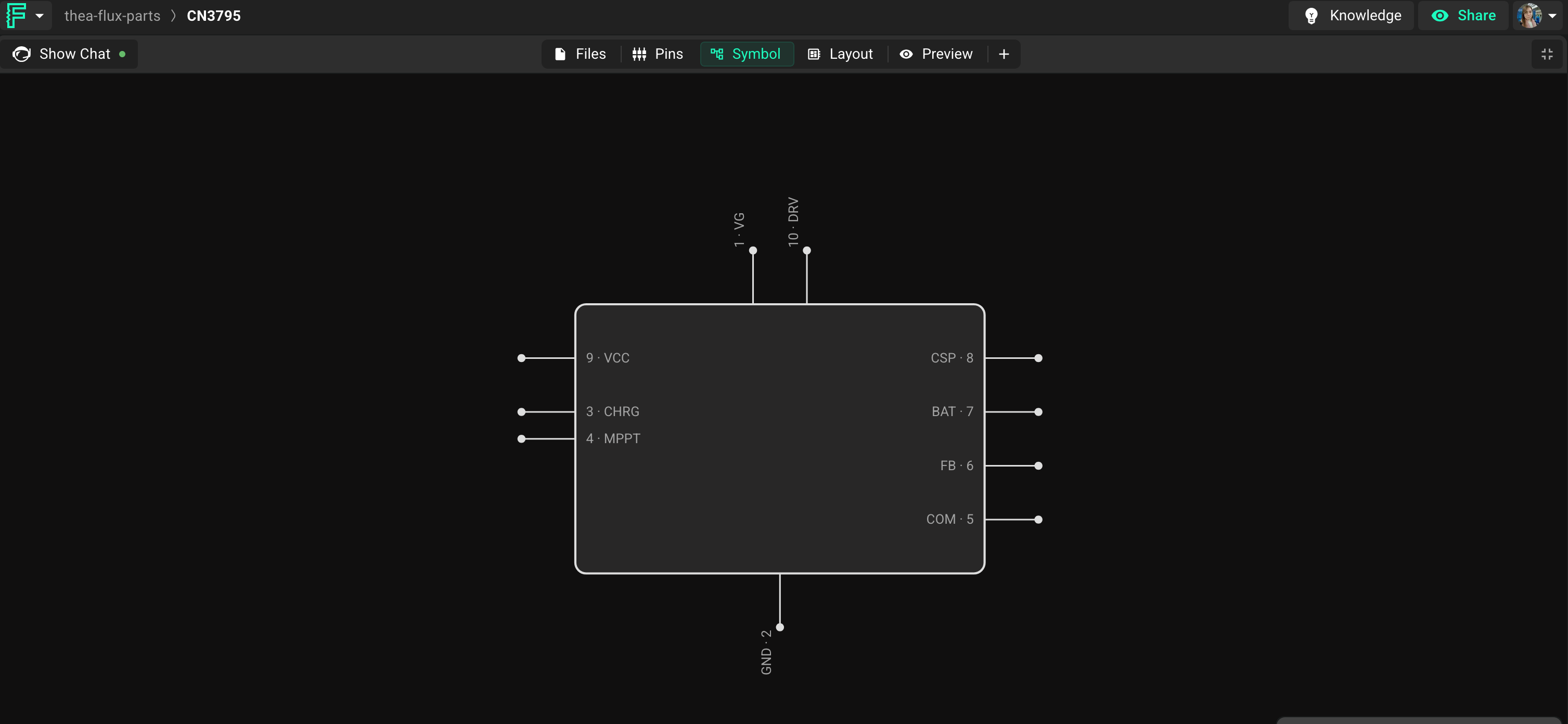
New Pins and & Symbol views make building component symbols much less painful. More on those below.
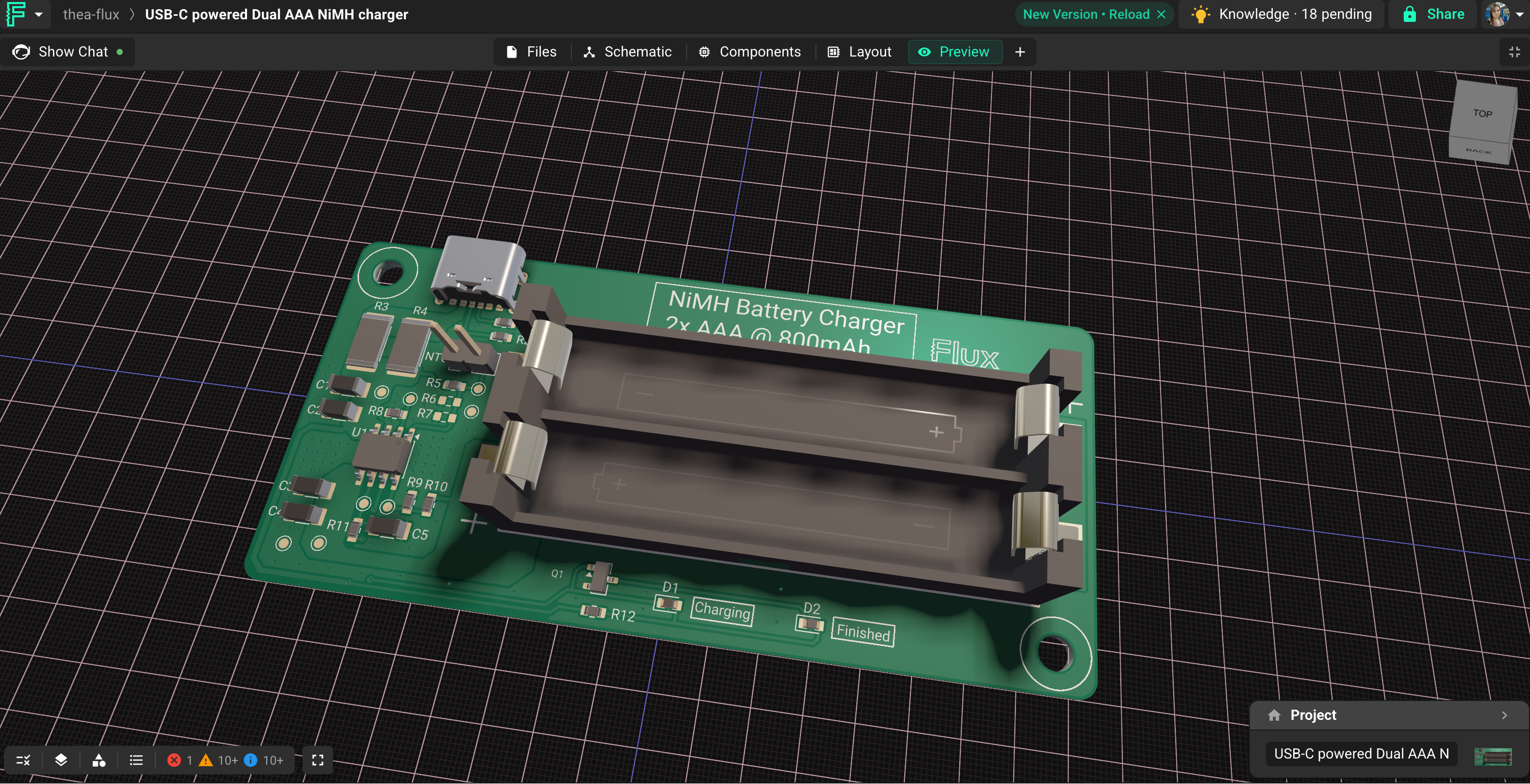
Preview is the 3D view, now in its own tab.
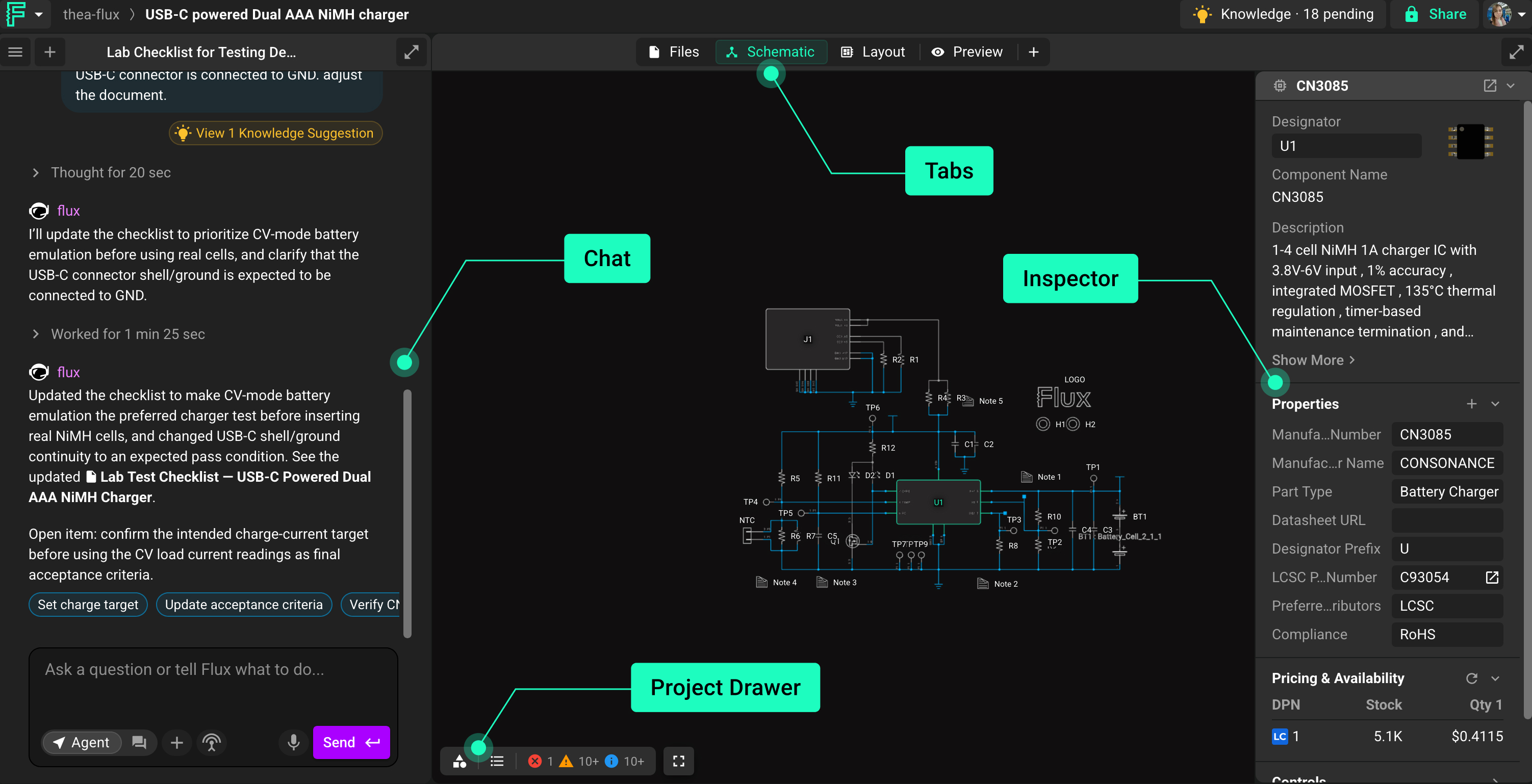
Use whichever view fits what you're doing. If that's the schematic editor with chat minimized, great. You're never required to use chat or the agent, and nothing about the manual workflow went away: schematic capture, placement, routing, rule sets, layers, and manufacturing outputs are all still here.
And your projects are untouched. Existing projects open in the new workspace with all their history and data intact.
Transition Guide
Here's where everything lives now.
Quick reference:
What you're looking for | Where it lives now |
|---|---|
Schematic, Layout, Files, 3D view | Tabs across the top of the workspace. The 3D view is now called Preview. |
Layers, Rule Sets, objects, manufacturing | The project drawer, bottom left. Open what you need, collapse the rest. |
Properties of whatever you selected | The Inspector, now its own column on the right. |
The AI chat panel | Chat, front and center when a project opens. Minimize it anytime. |
Fork | The actions dropdown in the top bar. |
Share | Unchanged, right where it was. |
Your parts and a project's bill of materials | New Components and BOM tabs, covered below. |
Connections without opening the schematic | New Nets tab. |
Pin details and symbols on a component project | Pins tab and the new Symbol tab. Component projects now open to Preview. |
Start a project
New projects open with the chat panel full width. You can also start from a suggestion or an interactive demo if you'd rather see it work first.
Want to start from the schematic instead? Minimize the chat panel and start from the schematic or layout editor as you always have.
Work with chat
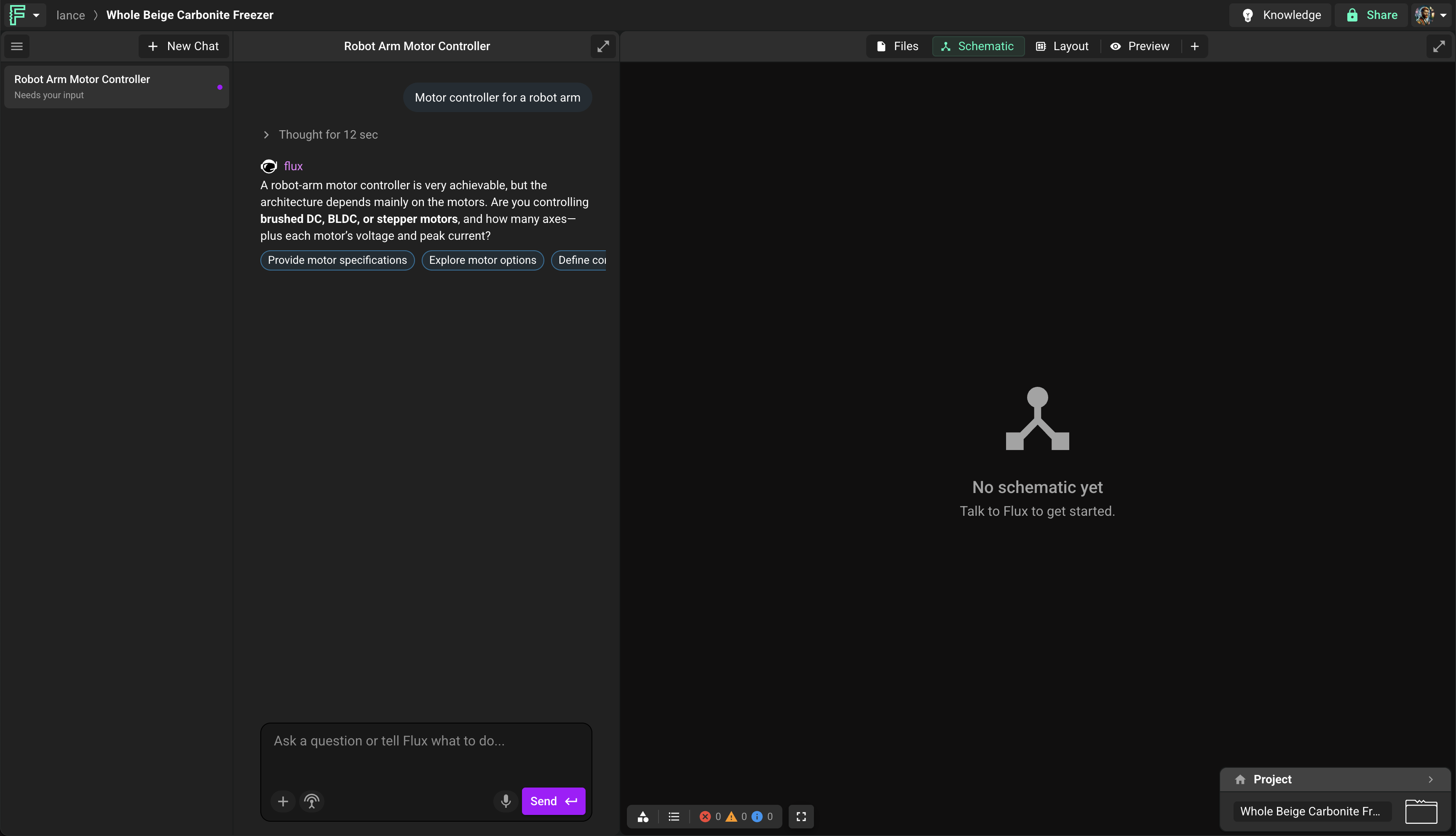
The status badge on the chat panel tells you when Flux needs something from you (for example, "Needs your input"), so you're not guessing whether it's still working.
Minimize the chat panel whenever you want the full canvas back. It comes back with a click.
Chat is for the entire design cycle, not just the first prompt: debating options, asking why a part was chosen, or requesting a change to a board you've already laid out.
Schematic
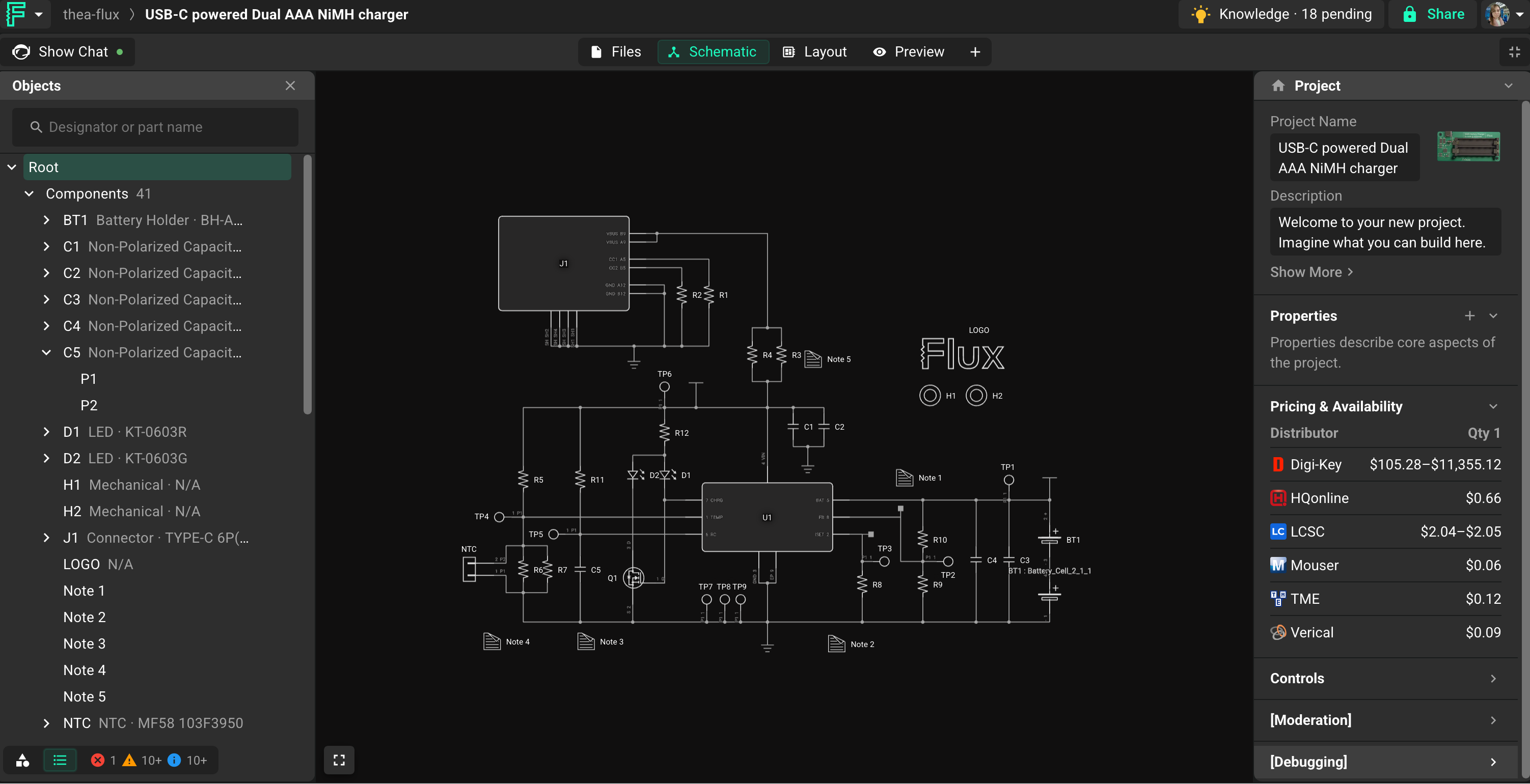
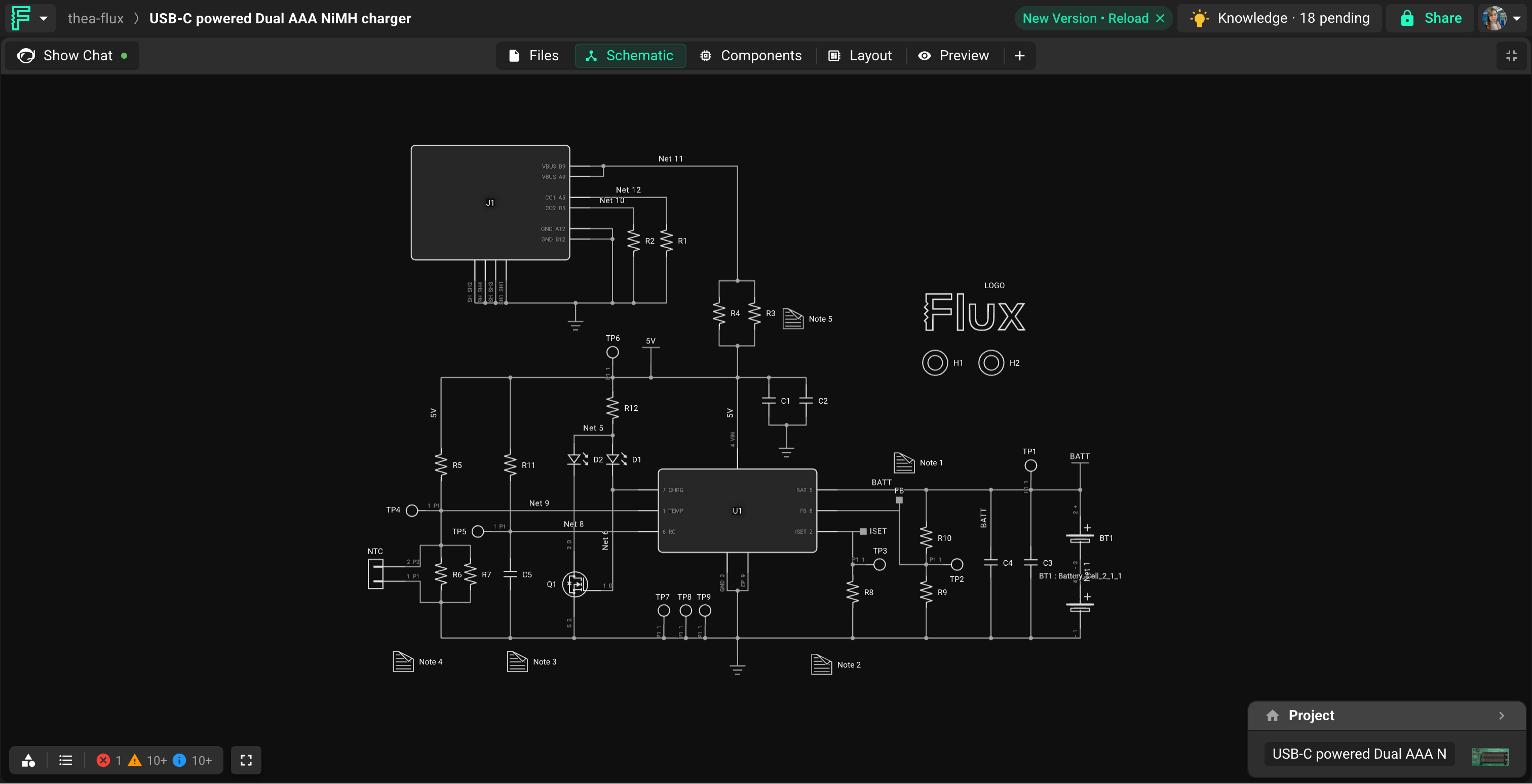
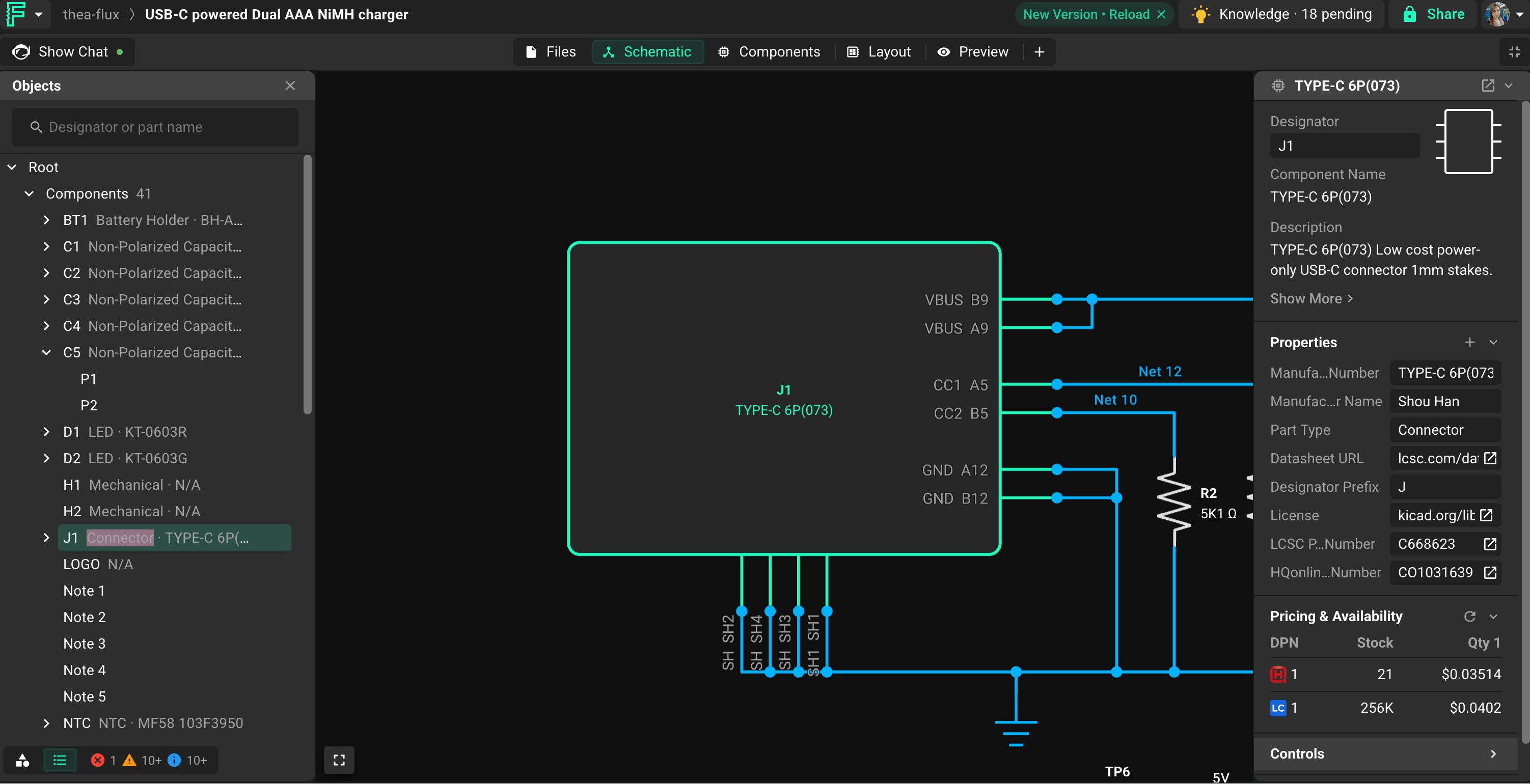
Everything the schematic editor did before, it still does. The library, objects, and DRC checks now live in the project drawer at the bottom left, and the Inspector sits on the right.
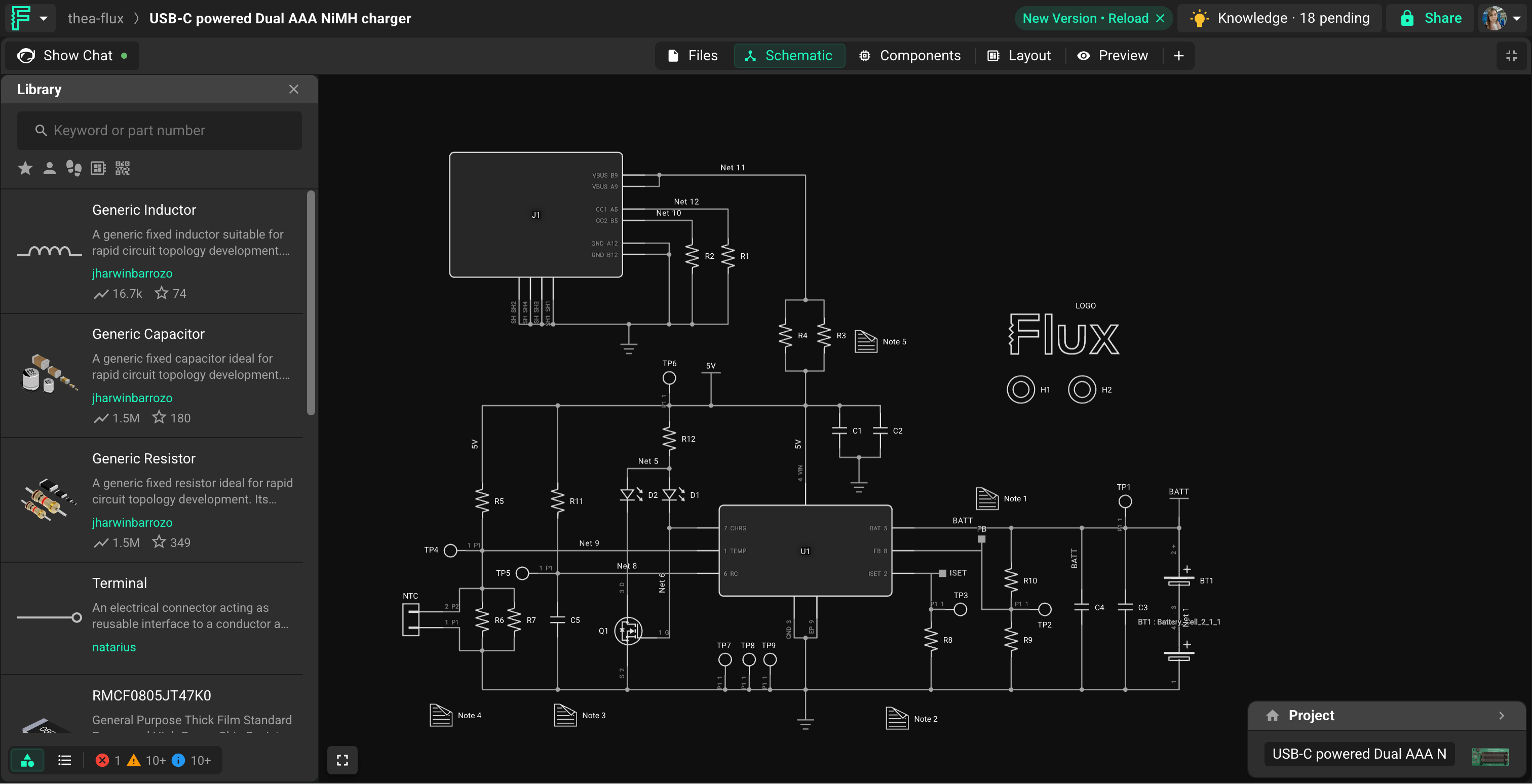
Library panel
The library panel now opens from the project drawer at the bottom left and expands when selected. Everything else works the way it did: search, filter, and drag components onto the canvas.
The Inspector
Click something in the schematic, the layout, or a row in one of the new tables, and the Inspector populates in its own column on the right. Select several instances of the same part and it shows what they share, so bulk edits stop being a per-part chore. When you don't need the full column, minimize it to a small floating badge in the corner that still shows what's selected.
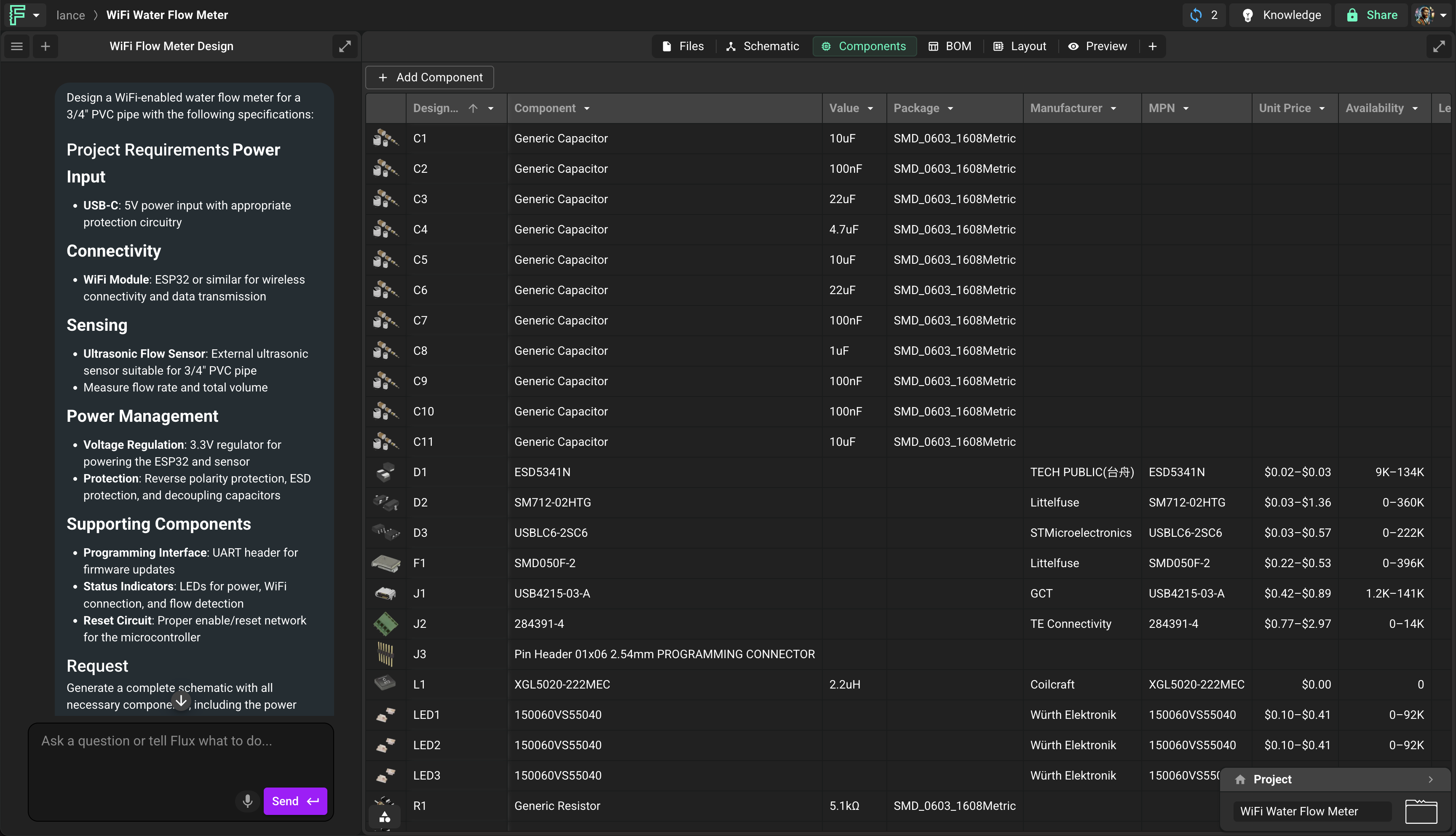
Components
The Components tab is a live table of every part in your project: designator, value, package, manufacturer, MPN, unit price, and availability. Flux can add and modify anything on this table from chat. Or do it yourself: expand the library and drag components onto the table, or double-click a value to edit it.
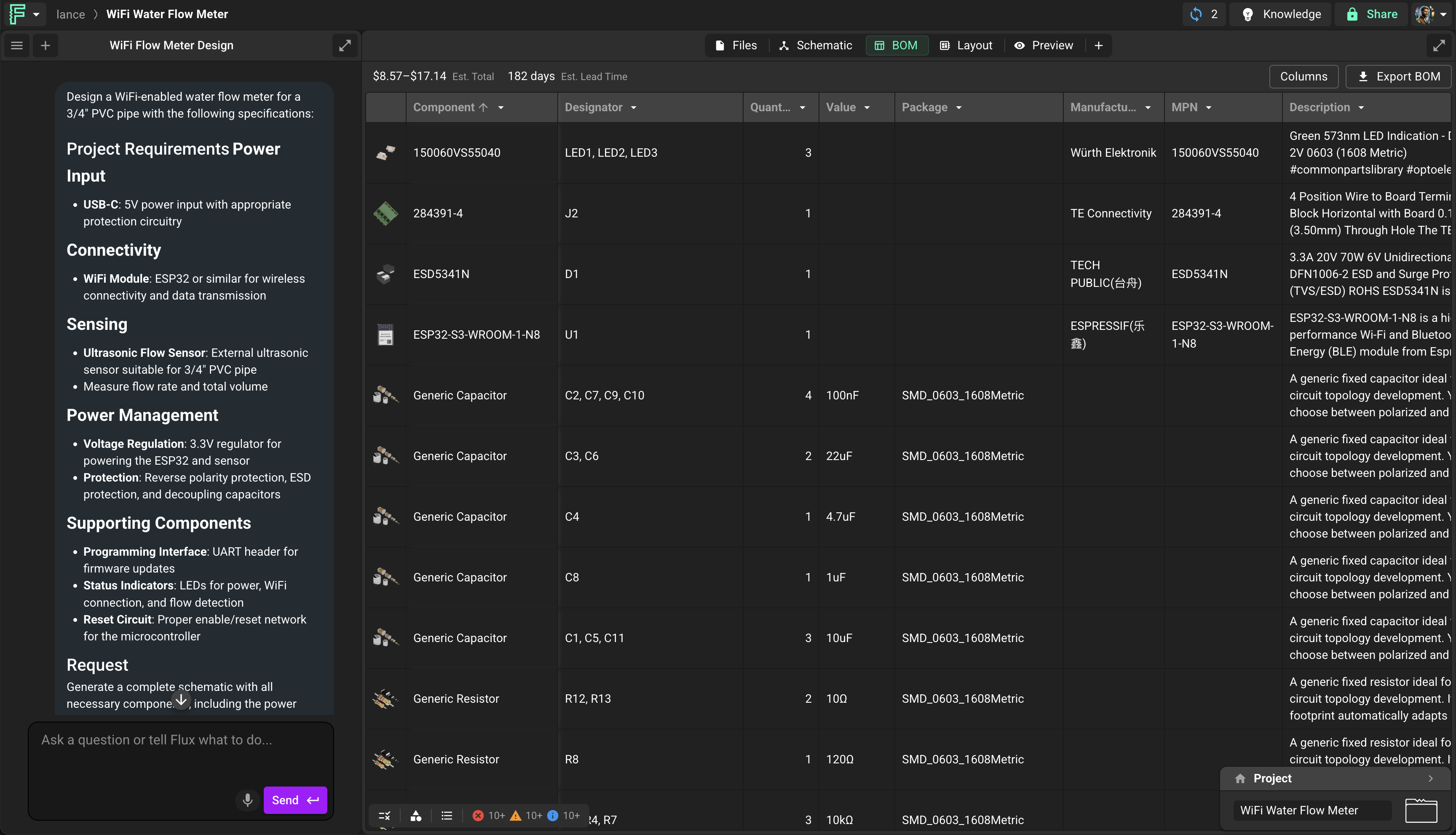
BOM
The BOM tab gives you a real bill of materials: estimated total cost and lead time for the design as it stands, customizable columns, and one-click export. You can bulk edit parameters here too.
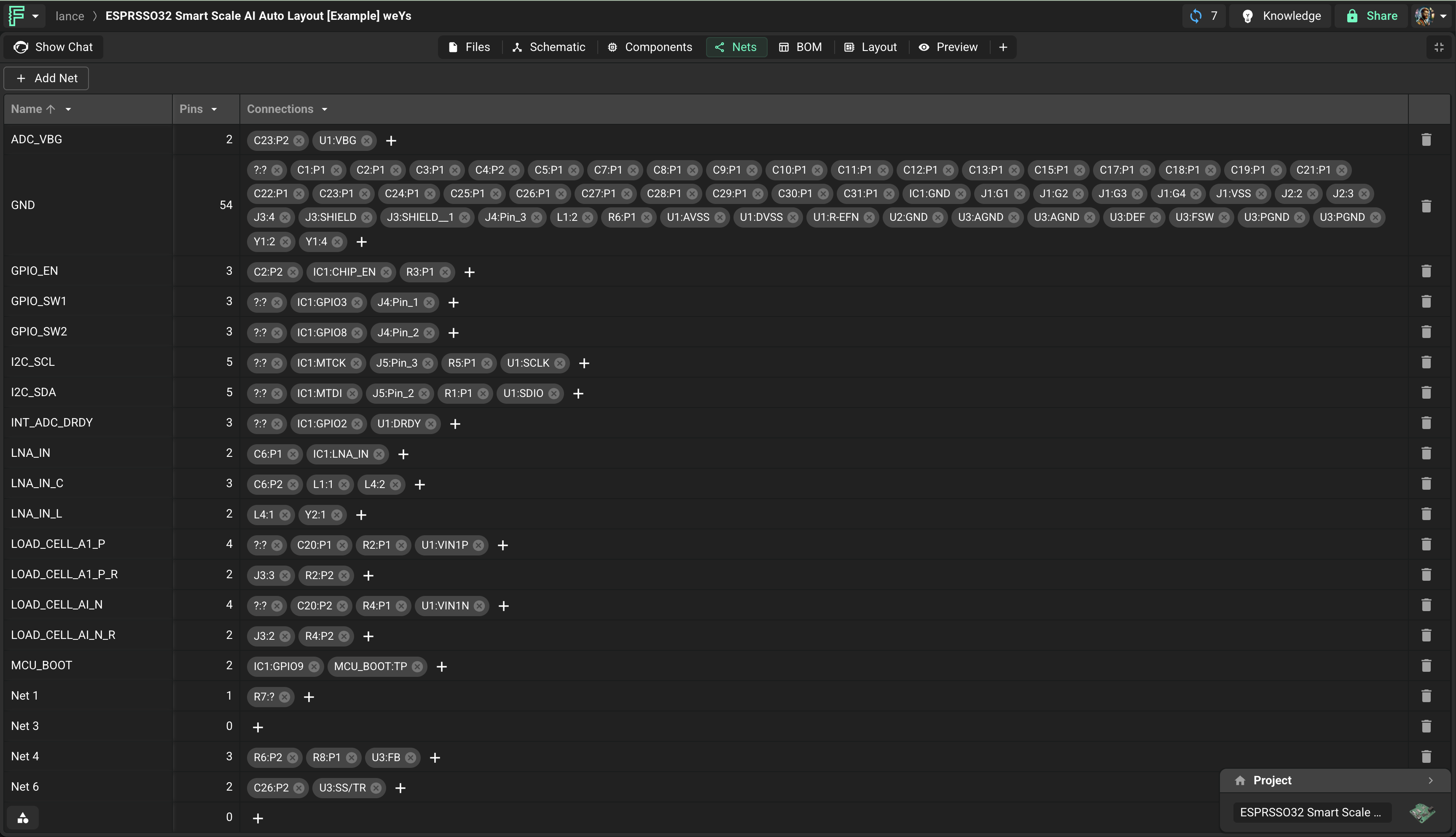
Nets
The Nets tab shows every net and its pin connections in one place. Add or edit nets and wire pins together without opening the schematic. Especially handy on connector-heavy boards, or when you just want a quick overview.
Layout
Same story as the schematic: full functionality, project drawer at the bottom left, Inspector on the right.
Preview
The 3D view now has its own tab, called Preview.
Editing components
Building component symbols used to be one of the more tedious parts of Flux. The new Pins and Symbol tabs fix that.
Pins
When you create a new component, the Pins tab opens automatically. From there, add pins and change their properties.
Symbol
The Symbol tab is one of the most requested features from Flux users. You can now preview a parametric symbol exactly as it will appear in the schematic, and edit it directly.
Drag pins to reposition them and create pin groups. Place pins away from the main symbol and Flux automatically creates a new symbol body, which makes multi-part symbols easy to build.
FAQ
What actually changed? Chat is front and center, new tabs (Components, BOM, Nets, Pins, Symbol) give you direct views into your project, utilities moved to the project drawer, and the Inspector has its own column. Nothing was removed.
Do I have to relearn Flux? No. The editors work the same way. What changed is where things live: tabs on top, utilities bottom left, Inspector on the right.
Am I forced to use AI now? No. Minimize the chat panel and you have the full editor. Every manual workflow works exactly as it did: schematic capture, placement, routing, rule sets, exports.
Chat takes up too much of my screen. Drag the edge to resize it, or minimize it entirely to get the full canvas back.
Where are Fork and Share? Fork moved to the actions dropdown in the top bar. Share is right where it was.
Where are Layers and Rule Sets? In the project drawer, bottom left, along with your objects, manufacturing, and the items that need your attention.
Where's the 3D view? It's the Preview tab. Component projects now open to Preview by default.
Where's the schematic or layout editor? Tabs at the top of the workspace, alongside Files and Preview. If a tab isn't showing, add it back from the + menu.
Can I switch back to the old interface? No. Maintaining two interfaces would slow down everything else we want to build. You can rearrange tabs and resize panels to make the workspace yours, though.
A project someone shared with me opened in an odd layout. Workspace layouts save per project, so a shared project opens in the creator's saved configuration. Rearrange tabs and panels however you like from there; your changes stick for you.
Does the new workspace cost more? The new workspace is included for everyone. It doesn't change your plan.