
What is billing information?
Billing information is the set of details that appear on your Flux invoices and receipts. It includes your legal name or company name, your billing address, and your VAT or tax ID if your country requires one.
You can add or change these details yourself at any time. Changes apply to future invoices only.
Where to find it
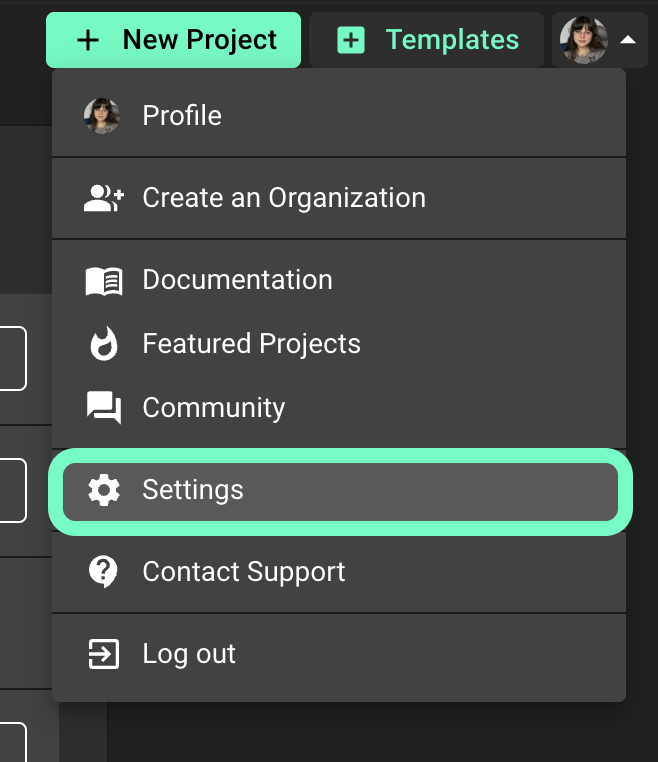
Open Flux and click your profile avatar in the top right corner.
Select Settings.
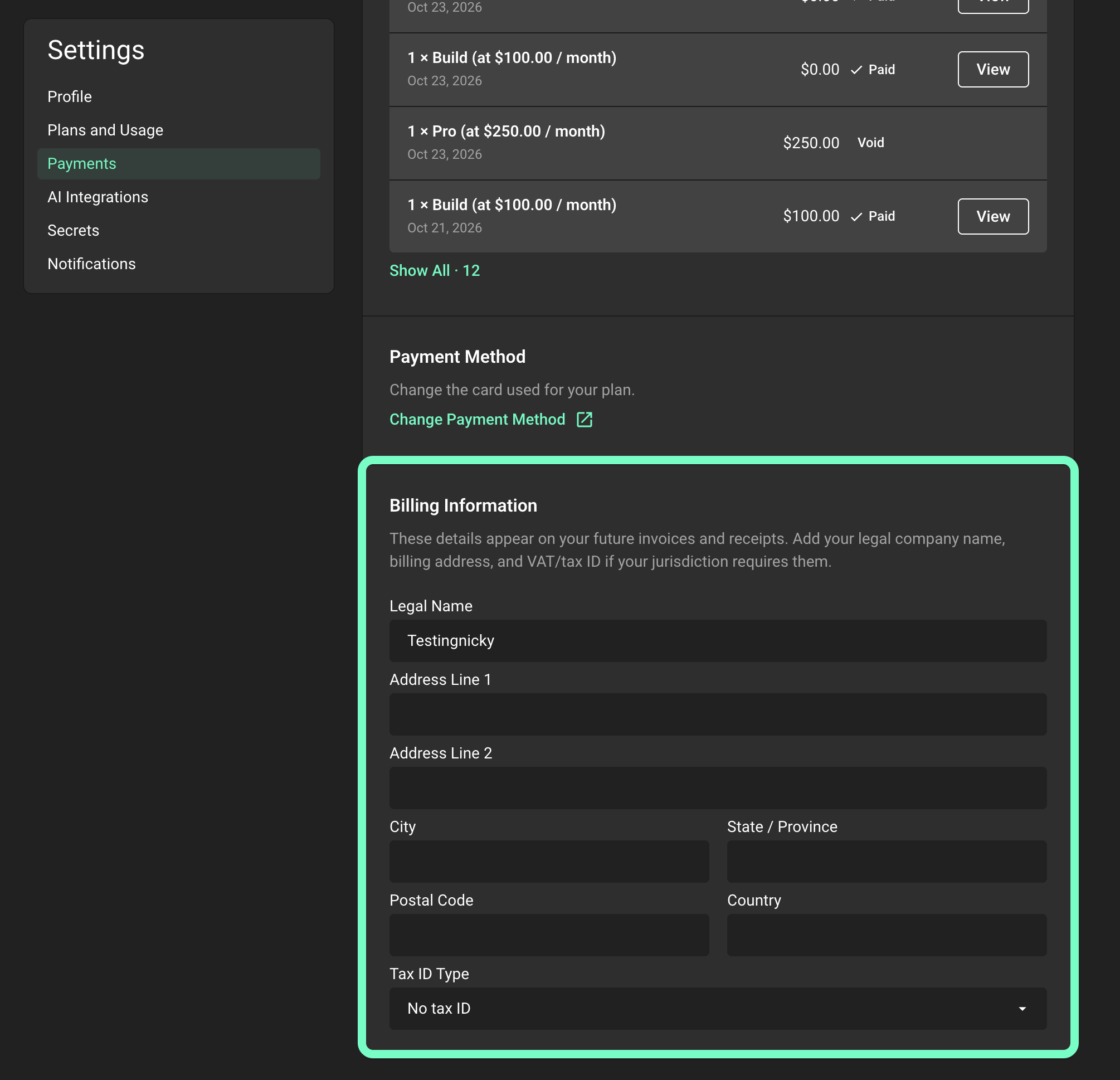
In the menu on the left, click Payments.
Scroll down to the Billing Information section, below your invoices.
Update your billing details
The Billing Information section has these fields:
Legal Name: your full name or the legal name of your company.
Address Line 1 and Address Line 2: your billing address.
City, State / Province, and Postal Code.
Country: use the 2-letter country code, for example US, DE, or IT.
Tax ID Type: pick your tax ID type from the list, for example EU VAT, United Kingdom VAT, or United States EIN. Leave it as No tax ID if you do not have one.
VAT / Tax ID: appears after you pick a tax ID type. Enter your number here, for example IT01234567890.
There is no Save button. Your changes save automatically a moment after you stop typing. Your VAT or tax ID saves when you click out of the field. You will see the message "Billing details saved. They will appear on future invoices."
Organization plans
If your organization pays for your plan, the organization's billing information is in the organization's Settings. Open the organization's profile, click the Settings tab, then click Payments. Only organization owners can see this page.
Need help?
If you cannot find the Billing Information section, if saving fails, or if you need a change on an invoice that was already issued, contact Flux support and include the email address on your Flux account and the details that you want on your invoice.