
Every Flux plan includes a set amount of AI usage, measured in ACUs (Agent Compute Units). To keep the agent fast and reliable for everyone, that included usage is spread out over a few rolling time windows instead of being available all at once. This article explains how those limits work, what happens when you reach one, and how on-demand usage lets you keep going.
Where to find your usage
Open Flux and click your profile avatar in the top right corner.
Select Settings.
In the menu on the left, click Plans and Usage.
Scroll to the AI Usage section.
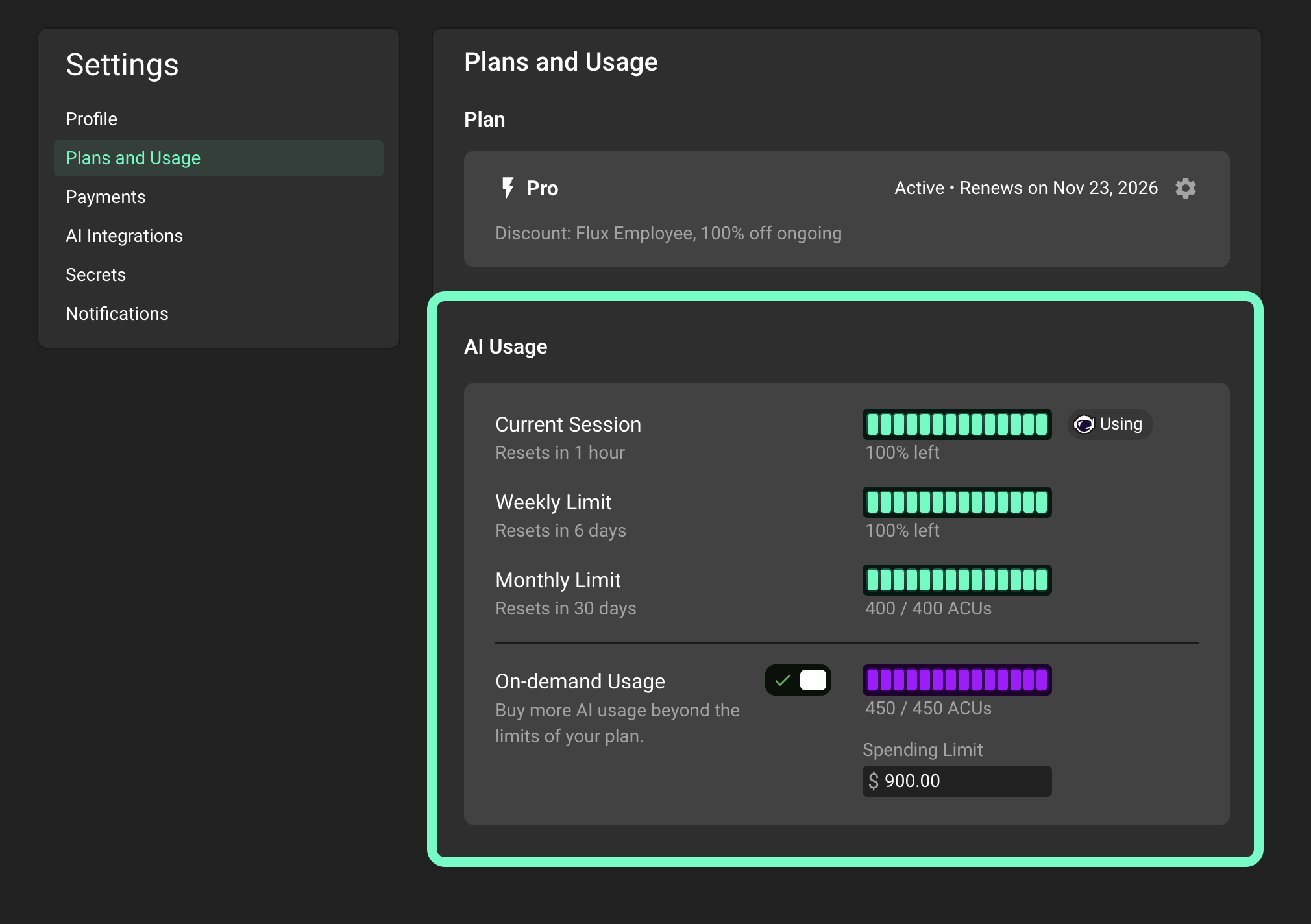
Here you see one bar for each limit on your plan, how much of it you have left, and when it resets. If you have a prepaid ACU bundle, it shows as an Extra Usage bar. The On-demand Usage toggle and spending limit are below the bars.
A Using chip shows next to the bar that the agent is using right now.
Your usage limits
Depending on your plan, you can see up to three limits:
Current Session: a short rolling window of a few hours. This is the one you notice most during a long working session with the agent. The caption shows the percent you have left, for example "99% left".
Weekly Limit: a rolling 7-day window. The caption shows the percent you have left.
Monthly Limit: the total ACUs included in your plan for the billing month. The caption shows your ACUs.
These limits are rolling, not fixed to the calendar. Each window starts the first time you use the agent, and it resets after its full length has passed. The Resets in label under each bar tells you how long to wait. If a bar says Not started, that window starts the next time you use the agent.
Usage counts toward all windows at the same time. So one agent run uses ACUs from your session, weekly, and monthly limits together.
The size of each limit depends on your plan. Higher plans get larger limits.

What happens when you reach a limit
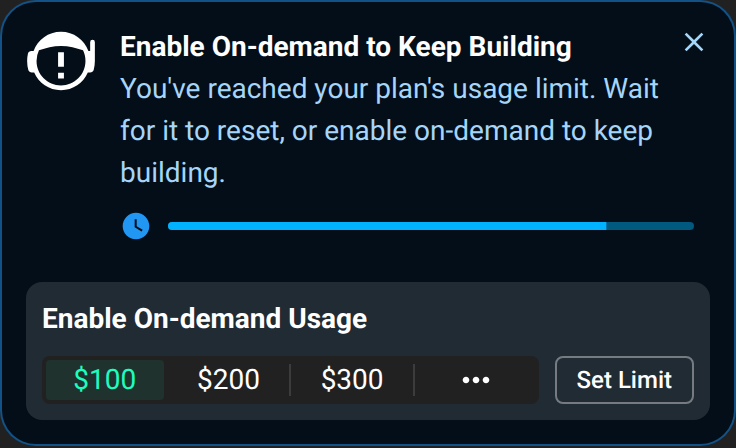
When you reach any one of your limits, Agent mode pauses until that window resets. The chat panel shows a notice that says "You've reached your plan's usage limit", with a countdown to the reset. Nothing is lost. Your project, your chat history, and your remaining usage in the other windows stay as they are. Chat mode stays available while you wait.
You have two options:
Wait for the window to reset. The countdown shows when.
Turn on on-demand usage to keep working right away. You can do this from the notice in the chat panel, or from Settings. See below.
How on-demand usage works
On-demand usage lets you buy more AI usage beyond the limits of your plan, paid per ACU. When it is on and you reach a limit, the agent keeps running. The extra ACUs are billed to your card, so you do not have to wait for the reset.
Which ACUs are used first
Flux always uses your ACUs in this order:
Included ACUs from your plan, as long as none of your limits is reached.
Any prepaid ACU bundles you have bought. These show as Extra Usage and also include promotion or courtesy ACUs.
On-demand usage.
So on-demand ACUs are only used while one of your limits is reached, or when your monthly included ACUs are used up. When Flux starts to use a bundle or on-demand ACUs, you see a short message, and the Using chip moves to that bar.
As soon as the window resets, the agent goes back to your included ACUs first. You do not need to turn off on-demand usage for this. Nothing is charged while your included ACUs cover your usage.
For example, you reach your Current Session limit at 2 pm with on-demand usage on. The agent keeps working on on-demand ACUs. When the window resets later that day, your next agent runs use your included ACUs again. On-demand is used again only the next time you reach a limit.
Turn on-demand usage on or off
Go to Settings → Plans and Usage.
In the AI Usage section, find On-demand Usage.
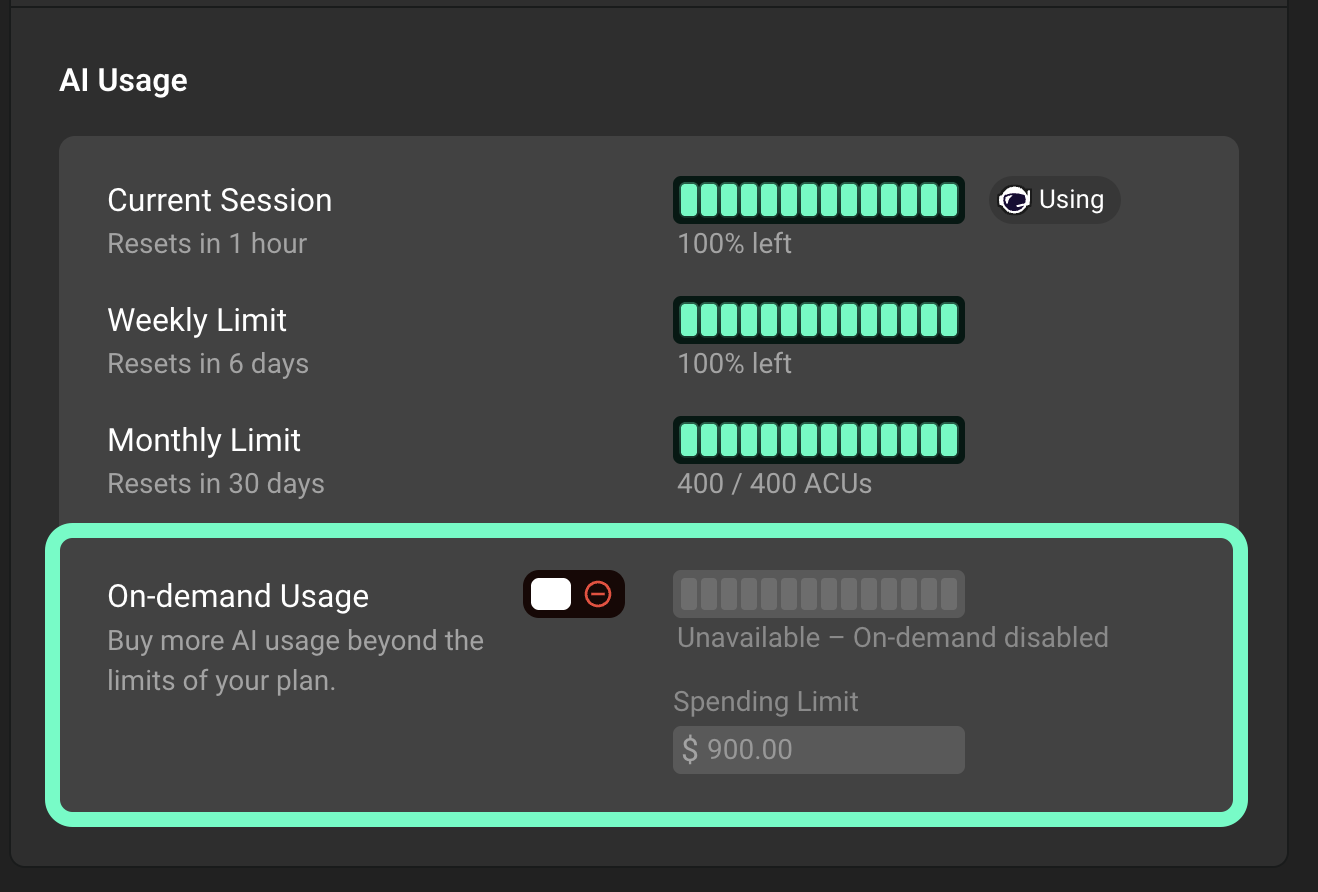
Click the toggle to turn it on or off.
You can turn it off at any time. When it is off, the agent pauses when you reach a limit, and nothing extra is charged. The on-demand bar then shows "Unavailable – On-demand disabled".
Set a spending limit
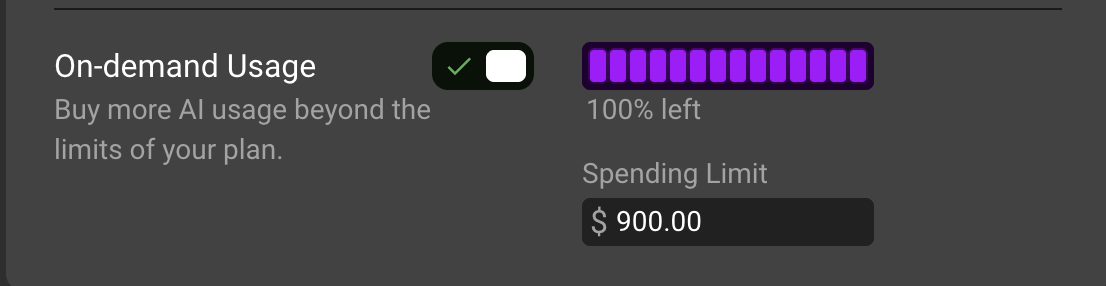
Below the toggle you find the Spending Limit field. This is the maximum amount in dollars that on-demand usage can bill you in a billing month. When your on-demand usage reaches this amount, the agent pauses again until your next billing cycle, or until you raise the limit.
Type the amount you want and press Enter, or click outside the field to save. The field is read-only while on-demand usage is off.
When you reach your spending limit, quick-add buttons show below the field. Each one raises the limit by a fixed amount in one click.
How you are billed
On-demand ACUs are billed in increments as you use them, not one by one and not all at the end of the month. The increment starts at 10 ACUs and can grow for accounts that use on-demand ACUs quickly. This gives you fewer, larger charges instead of many small ones. The price per ACU and your total stay the same for all increment sizes. Any on-demand usage that has not reached a full increment is charged at the end of your billing cycle.
You can find every on-demand invoice in Settings → Payments. For more detail, see How ACUs and on-demand charges work.
Can't find these options?
Depending on your plan and account setup, your Plans and Usage page can show an Included ACUs counter instead of the usage bars. In that case your plan does not use rolling limits, and your included ACUs reset on your renewal date. The on-demand toggle and the Monthly Spending Limit field work the same way and are in the same section.
If your plan is provided by an organization, the organization owner manages usage from the organization's profile, in the Settings tab under Plans and Usage.
If the on-demand bar shows "Unavailable – paid usage blocked", your account cannot use paid ACUs right now. This can happen during a trial, when there is no card on file, or when an invoice is unpaid. To pay an invoice or add a card, see How to download or pay your invoices and How to update your payment method.
Need help?
If a limit does not reset when the countdown ends, if on-demand usage does not start when you expect it to, or if you have a question about a charge, contact Flux support.