
Flux is an AI hardware engineer. On a team, every engineer works with Flux in the same shared projects, and Flux applies your team's parts, rules, and knowledge to every design.
A Flux organization is your team's shared space. It owns your team's projects, parts, knowledge, and keys, and each person gets the access they need. Engineers, reviewers, and Flux work in the same project for the electronics, mechanical, firmware, and manufacturing work, in the browser. Nothing to install.
Set up your team
To create an organization:
Click your profile avatar in the top right corner.
Under Organizations, select Create an Organization.
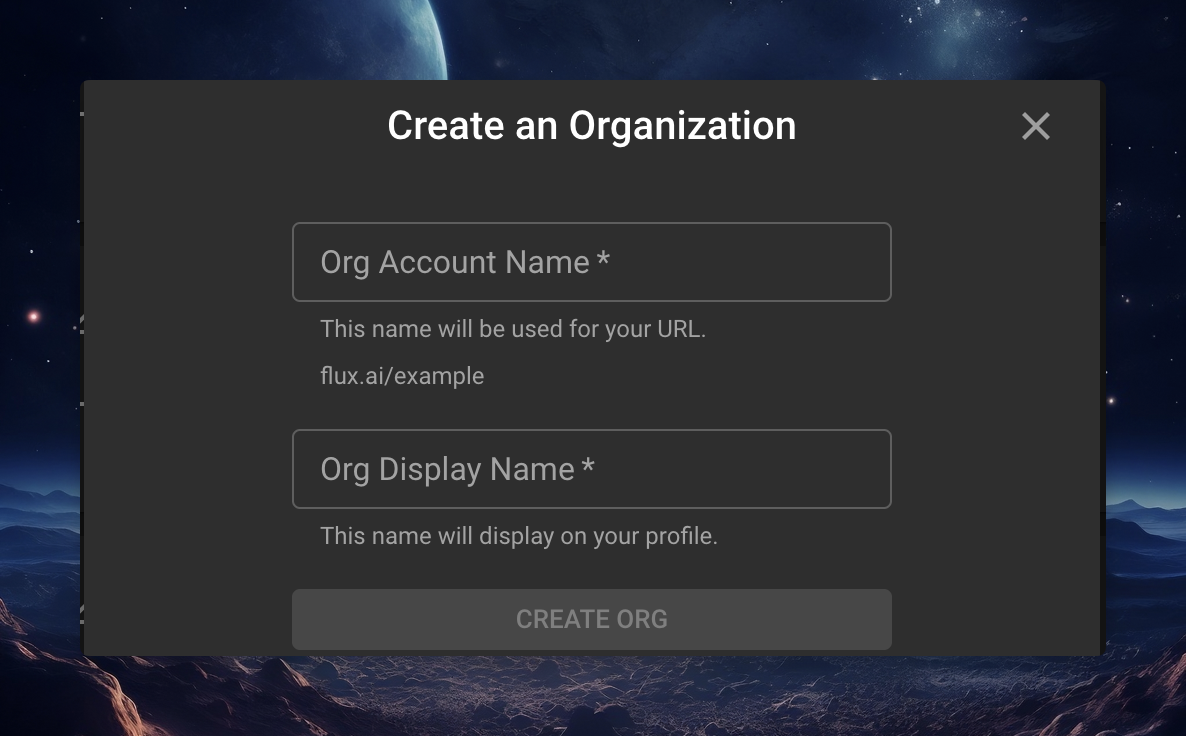
Enter an account name and a display name.
The account name is the username of the organization. It sets the organization's URL. For example, the account name neworg gives the URL www.flux.ai/neworg. The display name shows on the organization's page. It can contain spaces and special characters, for example My Org!.
Subscribe the organization to the Teams plan to use Flux in organization projects. The Teams plan includes five seats and one pool of AI usage that all members share. For seats and prices, see the pricing page.
To join an existing organization, ask an owner of the organization to add you. The organization then shows in your profile menu.
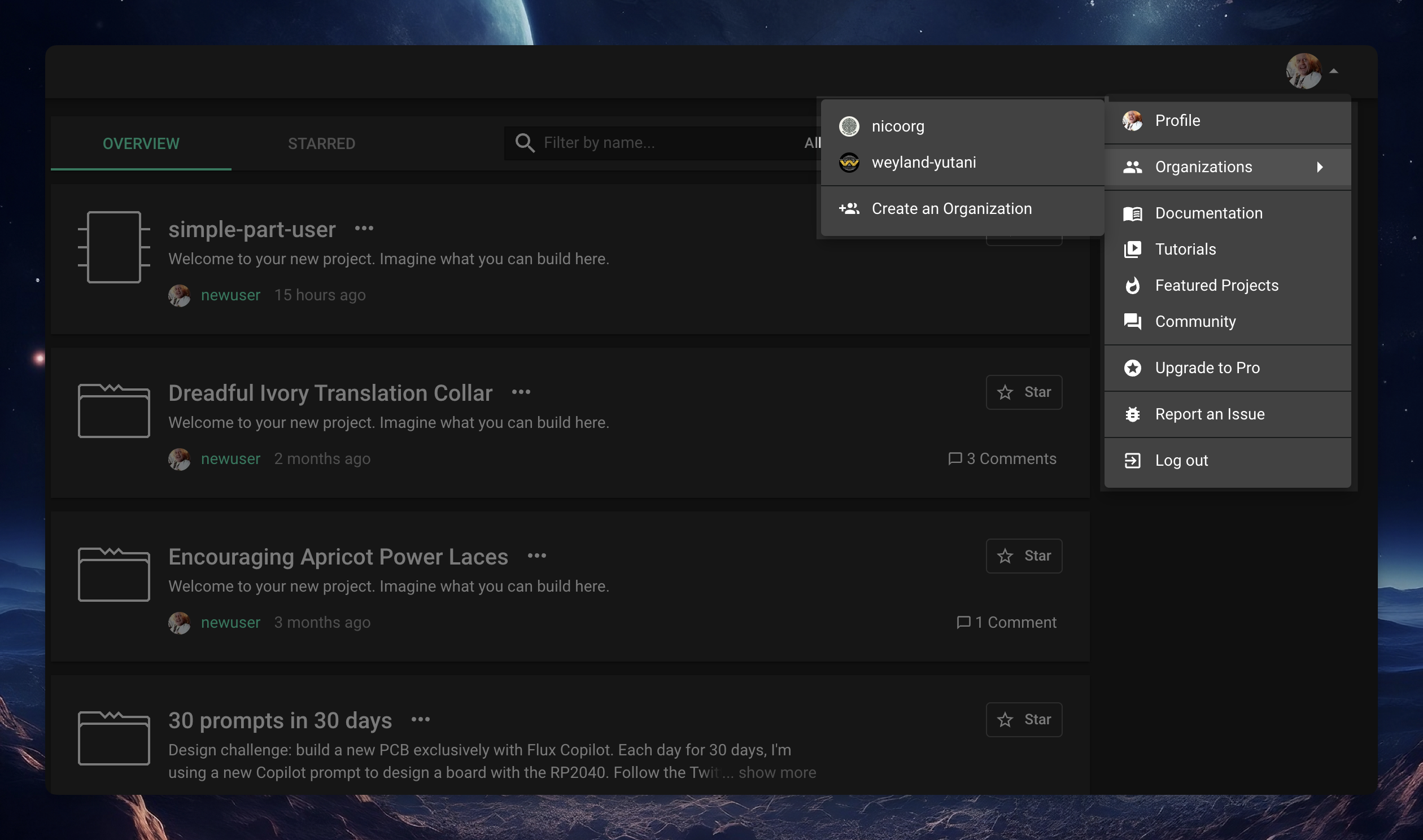
You can be a member of more than one organization.
Add and manage members
Manage the members on the organization's Members tab.
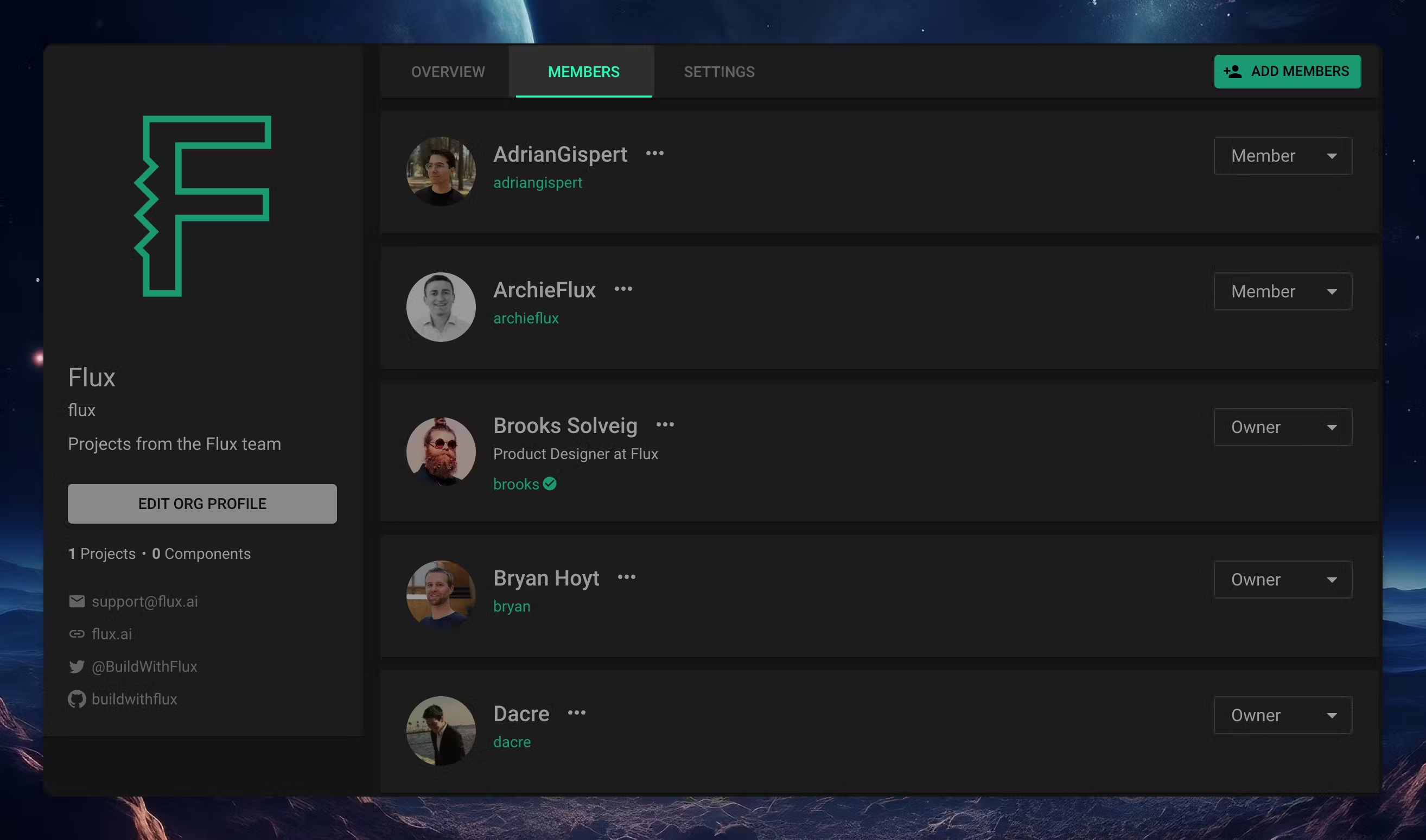
To add a member:
Open the organization's profile and select the Members tab.
Select Add members.
Enter the Flux username or the email address of each teammate.
Select Add.
To remove a member, select the three dots next to the member's name, then select Remove from Organization. Members can use the same command to leave the organization.
Owners and members
An organization has two roles: owners and members. An owner changes the role of a member in the role menu next to the member's name.
Members work in the organization's projects and parts library. A member can:
Create projects and parts in the organization.
Edit organization projects that are shared with organization members.
Delete the projects that they created.
Publish projects to the library.
Owners can do everything that members can do. An owner can also:
Add and remove members.
Change the role of a member.
View, edit, and delete every project in the organization.
Manage the organization's secrets, plan, and usage.
For how access levels combine, see Permission Tiers and Access Control.
Create projects that your team owns
Create team projects in the organization, so each member gets access to them.
Select Create new project.
At the top of the New Project dialog, select your organization as the owner.
Describe the product to Flux, or choose a template.
Describe the complete device to Flux, so the whole team starts from one project.
To move a personal project to your organization, fork the project and select the organization as the owner. See Forking and cloning.
Give each person the right access
By default, every member of the organization can edit a new organization project. To change this for one project:
Open the project.
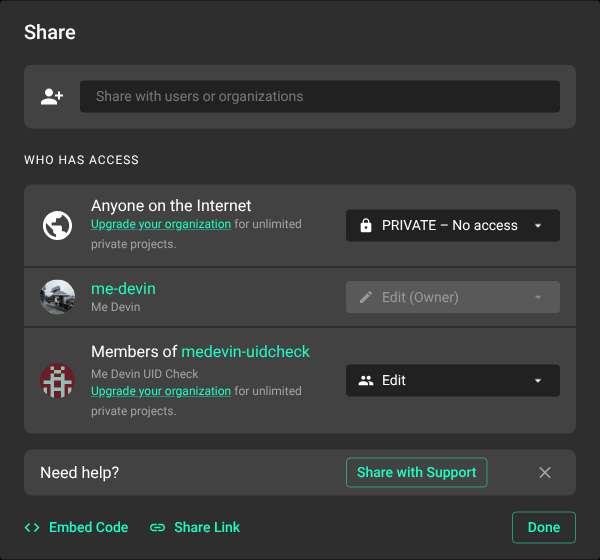
Select Share in the top right corner.
Select Members of [organization name] can edit, can comment, can view, or PRIVATE.
With PRIVATE, only the person who created the project and the organization owners can open it.
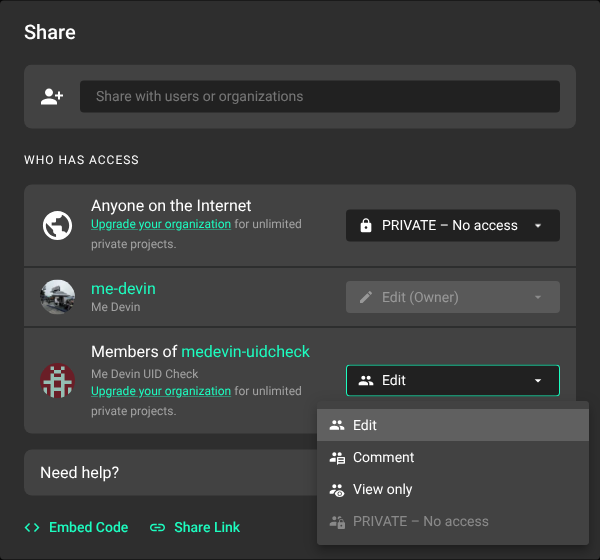
To bring in a supplier, a client, or a contractor, invite that person to one project. They get that project, not the rest of your organization.
Select Share, then select Advanced.
Enter the person's email address or Flux username.
Select Edit, Comment, or View only.
In Advanced, Anyone on the Internet sets the access for everyone at once, with or without a Flux account.
Work in the same project at the same time
Each person on the team works with Flux in the same live project. You see who is in the project and where they work, in real time. See Sharing and permissions.
Split the work so that each engineer and Flux work on a separate part of the device at the same time.
Each workstream has its own thread. Select Show All Threads in the Chat panel to follow the work of Flux and your teammates. See Parallel threads.
Review the design together
Ask Flux to check the design before a teammate reviews it.
Then review the design where it is. Right-click the point on the canvas and select Insert Comment. Type @ and a teammate's name to mention the teammate. The discussion stays with the design. See Comments.
Share parts through the library
Parts that your organization creates are available to the organization's projects. Ask Flux to use them.
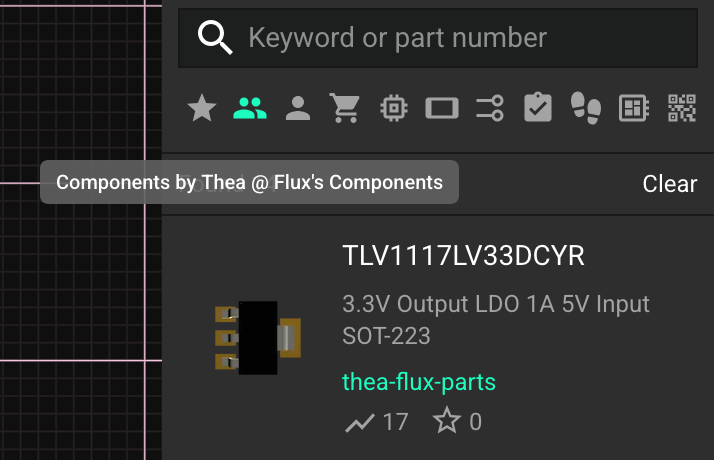
When you work in an organization project, the library shows:
Your own parts.
Parts shared with you.
Public parts from every user and organization.
The private parts of that organization.
The private parts of one organization do not show in the projects of another organization.
To show only the parts of an organization, open the library and select Filter by organization.
See Private and public projects.
Teach Flux your team's standards
Tell Flux your team's preferred parts, design guidelines, layout rules, and lessons learned once. Flux applies organization knowledge in every project that your organization owns.
Tell Flux the rule in a project that your organization owns.
Flux suggests a knowledge entry in the chat. To save it for the whole team:
Select View 1 Knowledge Suggestion.
Select Edit suggestion.
Set Context to Organization.
Select Accept.
Organization owners can edit and delete every organization entry. Members can edit and delete the entries that they added. See Team and project knowledge.
Share keys and integrations with your team
Ask Flux to use a service that needs a key. Flux asks for the key in the chat.
In the Provide secrets dialog, under Make available to, select Everyone in [organization name]. Every member can then use the key in organization projects. Nobody sees the key value.
An organization owner can also add a key once for the whole organization:
Open the organization's profile and select the Settings tab.
Select Secrets.
Select Add secret.
Share AI usage
The organization has one pool of AI usage. When you work in a project that your organization owns, Flux uses the organization's ACUs, not your personal ACUs. Work does not wait on the usage of one seat.
The organization owner manages the organization's usage:
Open the organization's profile and select the Settings tab.
Select Plans and Usage.
Review the usage, turn on-demand usage on or off, and set a spending limit.
See How on-demand usage and usage limits work and How ACUs and on-demand charges work.
Track changes and try ideas without risk
Flux records each change, who made it, and when. Open an earlier version from the change history, or restore it. See Version control.
To try an idea without a change to the main design, ask Flux to work on a copy.
See Forking and cloning.
Use Flux from your team's agents
Engineers can use Flux from Claude Code, Cursor, VS Code, Codex, ChatGPT, and other MCP clients. Select your organization when you connect, so the client works on your organization's projects. See Flux MCP server.