
Work on one live project with your team, your suppliers, and your clients.
Share your project with other team members or make it public. You control who has access to your project.
Summary
Using the share menu, you can control who has access to your project. Every project is private by default, meaning that only you have access to it. Anyone with access to your project can open it with the URL.
Share menu
The default share dialog has three main components:
Copy link: this link allows users with the right permission to access your project.
Embed Code: This snippet allows you to embed a Flux project in another website.
General permissions: sets permissions to every user. User-specific permissions are managed through the Advanced share menu.
Advanced share menu
The advanced share dialog allows you to grant specific users access to a project. You can use the user's email address or username to invite them. Invited users will receive an email notification that they need to accept to access the shared project.
Access levels
Each person gets view, comment, or edit access. For what each access level allows, and how access works for organizations and enterprises, see Permission Tiers and Access Control.
Work live together
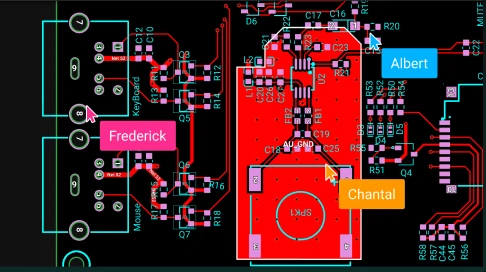
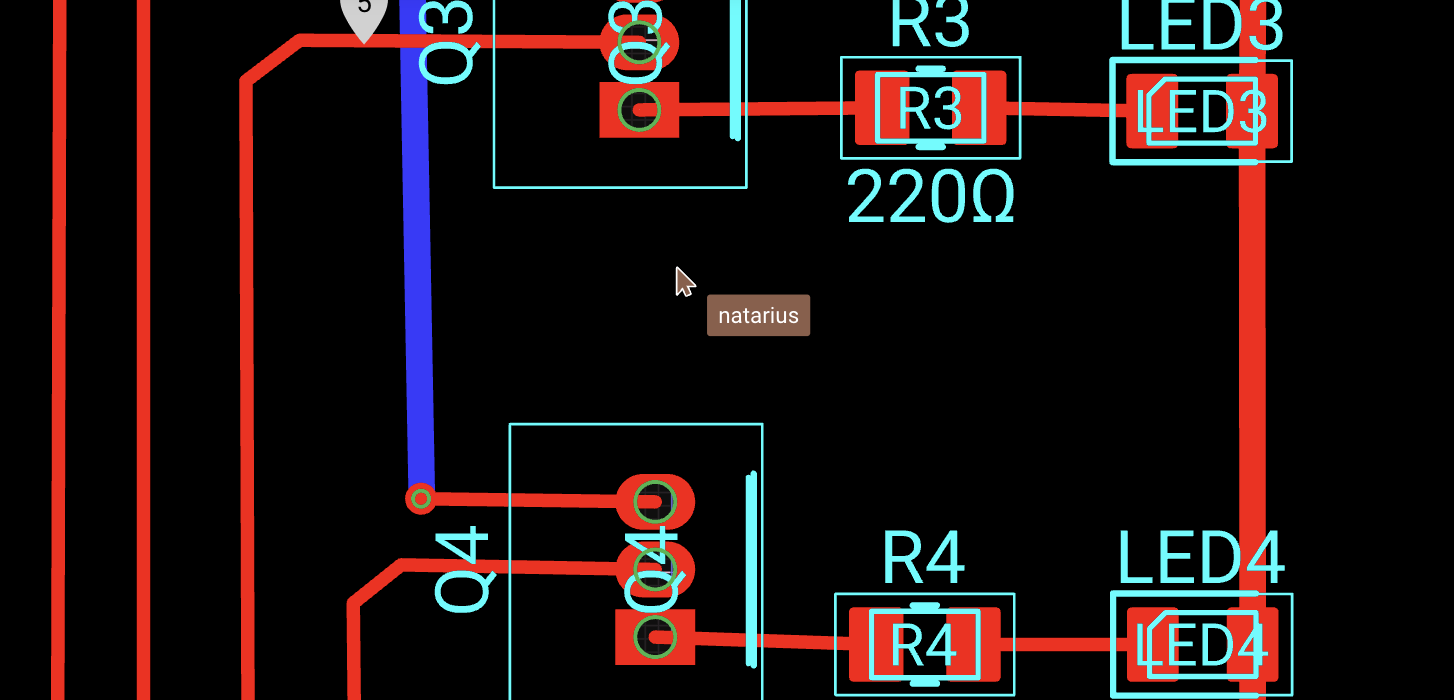
See where your teammates work in the project, in real time. Flux shows the cursors of all other collaborators who have the project open.
Hide cursors
Cursors are visible on the canvas by default. To hide or show the cursors, press Ctrl + Shift + \ (⌘ + Shift + \ on Mac).