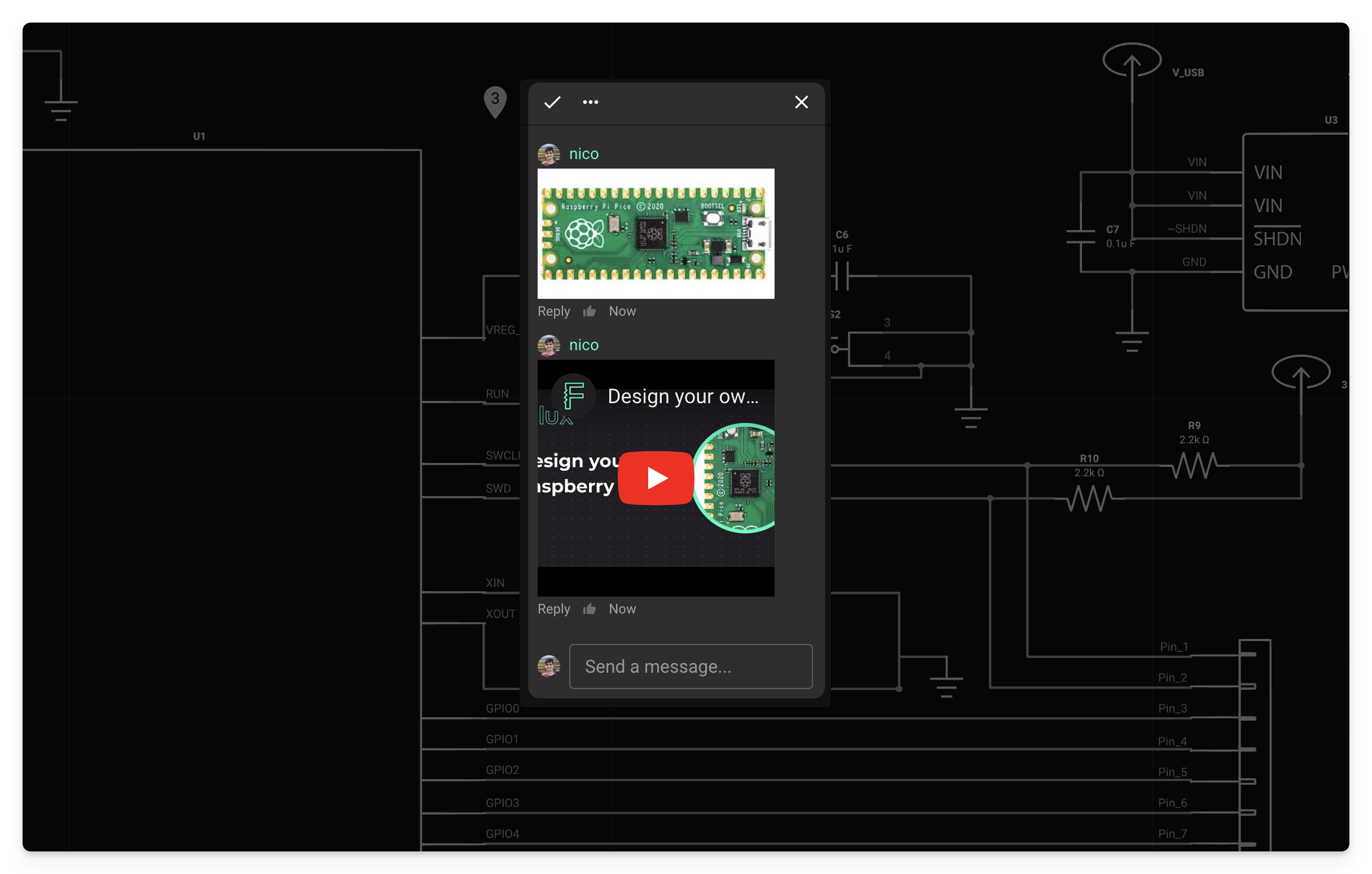
Review the design where it is. The discussion stays with the design, so your team does not lose it in email or chat.
View comments
Comments in a project are pinned to the point of the canvas selected by the commenter. How comments display depends on your zoom level of the canvas and the amount of comments.
A pin icon shows each comment on the canvas. Hover over a pin to preview the comment. Click the pin to open the comment modal, where you can reply.
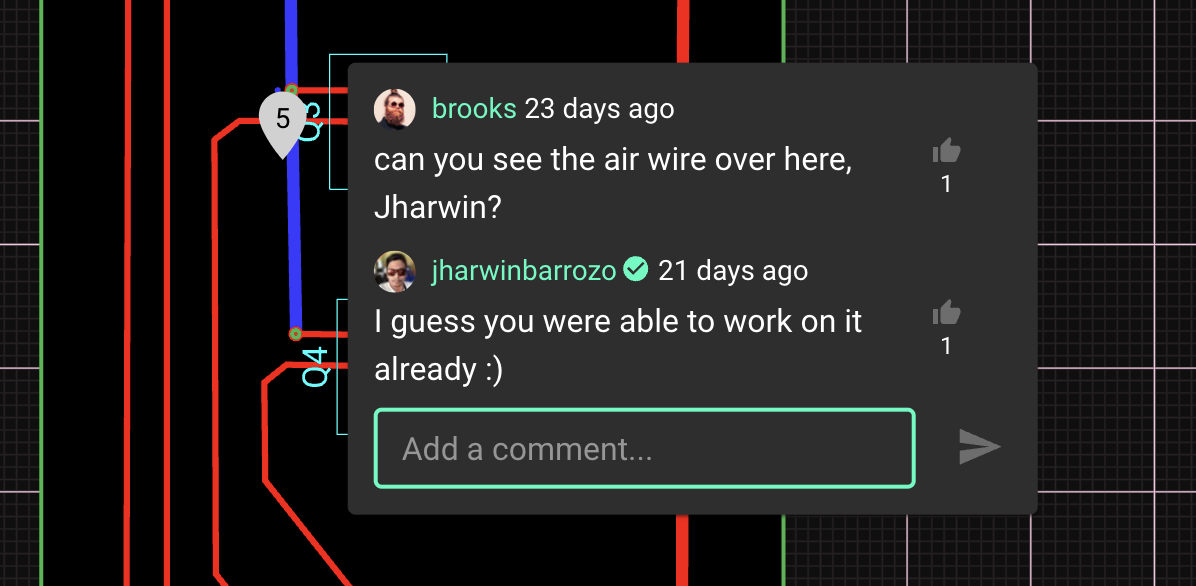
Add comments
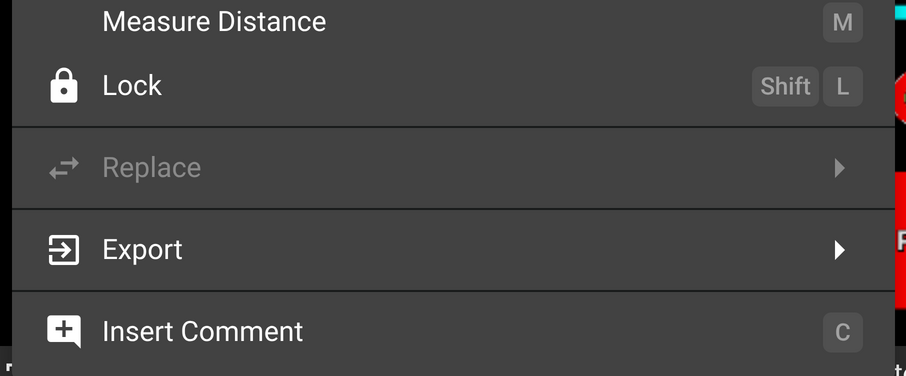
To add a comment, right-click exactly where you want to add the comment and select "Insert Comment"
Comments Menu
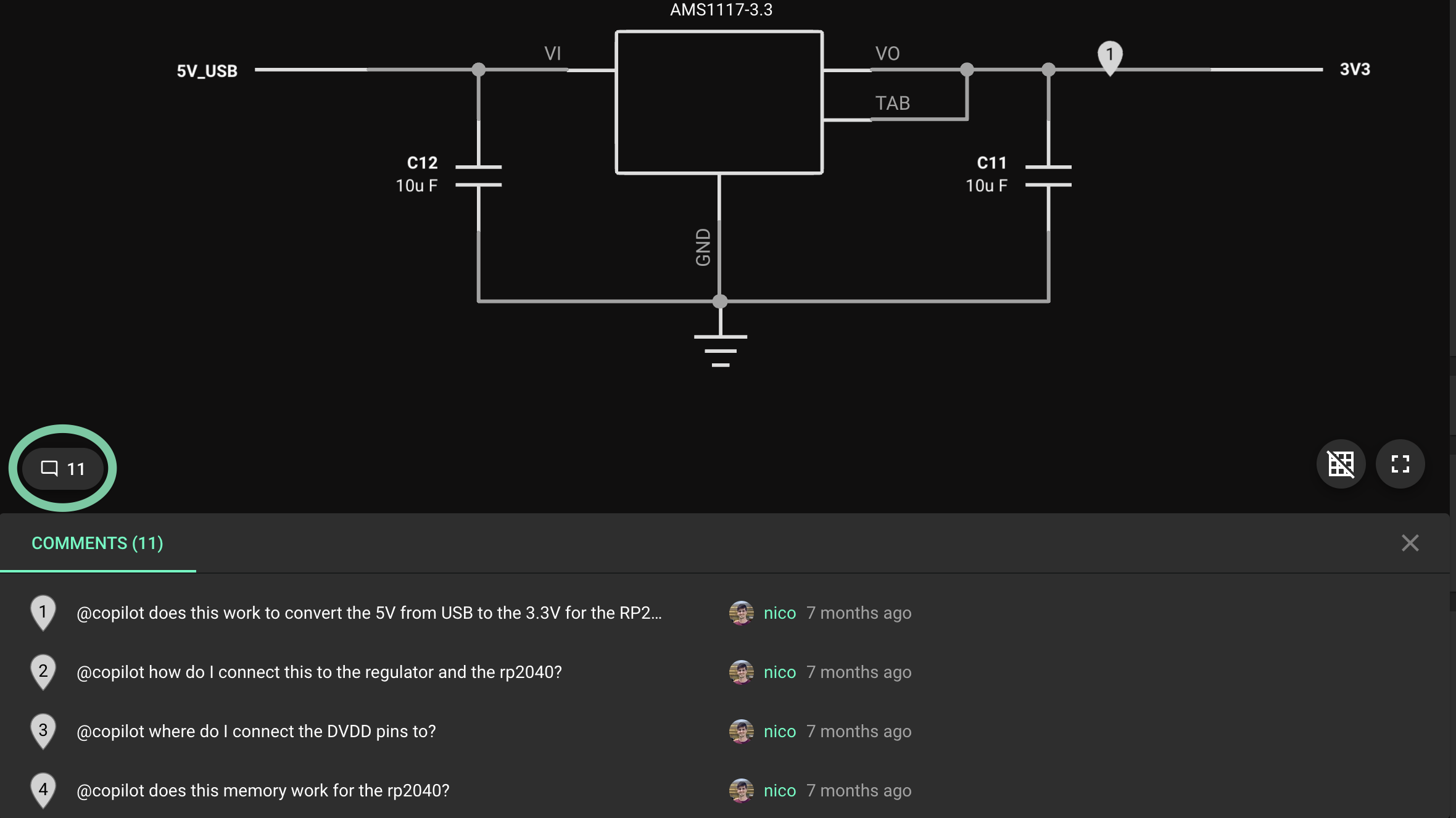
The comments menu provides a summarized view of all the comments in your project. To open the comments menu, click on the icon in the bottom-left corner of the Schematic or PCB editors.
Comment options
To access the comment options, click on the three dot icon in the top right of the comment modal.
Pin a comment thread
Pin a comment to keep the thread open at all times. Use the open thread as a reference while you change your design.
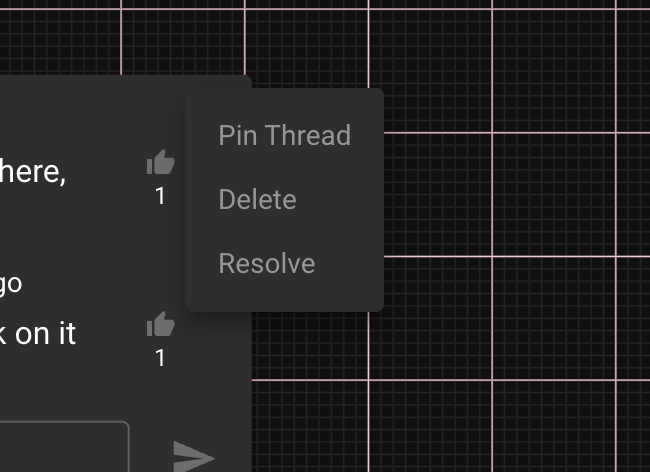
Delete Comment
Deletes the comment
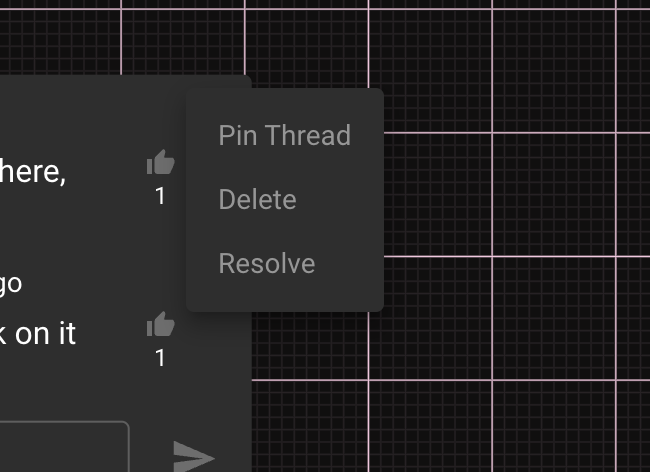
Resolve Comment
Marks the comment as resolved without deleting it.
Hide all comments
Comments are always visible on the canvas by default, whether or not you're in comment mode. You can hide comments from the canvas at any time and see them only in comment mode.
To hide comments, use the keyboard shortcut ⇧C.
Embedding content in a comment
You can embed external URLs in comments like YouTube videos or images when you paste the URL in the comment.