
Get back on track after unintended changes in your project.
Overview
Flux provides two main ways to reverse changes in your design. For recent edits, you can use Undo or Redo. For more substantial modifications, you can revert the project to a previous version using the Change History feature.
Undo and Redo
Use the Undo function to revert recent changes. Use the Redo function to restore actions reverted by Undo. Redo works after using Undo and before making any further changes.
You can access Undo and Redo in the interface or with keyboard shortcuts. Here's how:
In the interface:
Select Flux menu → Undo or Flux menu → Redo.
Using keyboard shortcuts:
On Mac:
To Undo, tap
⌘**Z**.To Redo, tap
**⇧**⌘Z.
On Windows:
To Undo, tap
CtrlZ.To Redo, tap
ShiftCtrlZ.
The Change History
Use the Change History to revert more substantial changes, or when you want a visual interface to browse changes.
Accessing the Change History
Ask Flux to show the change history of the project.
To do it in the UI:
To access the Change History:
Click on the Flux menu in the top left.
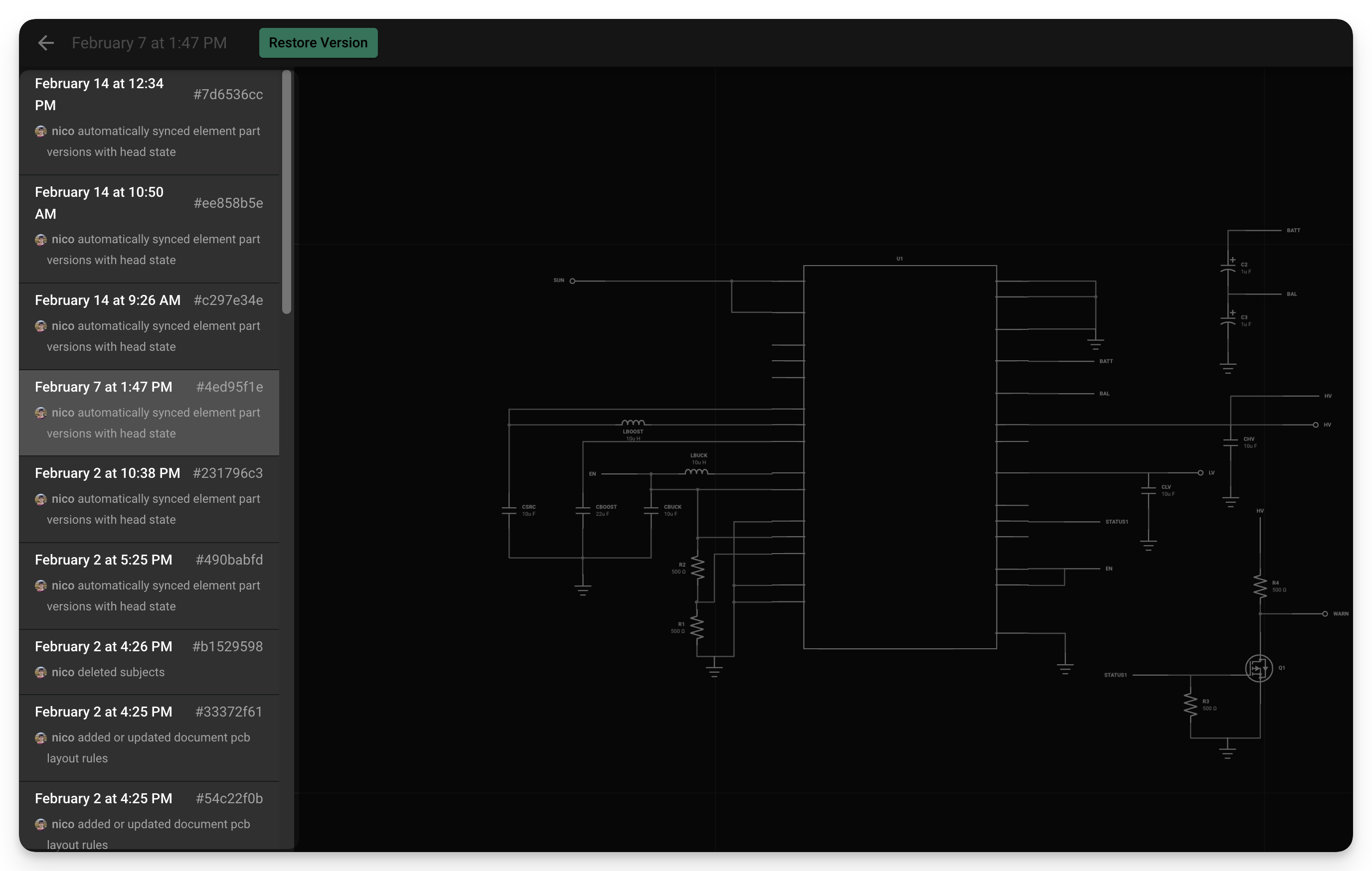
Click on the "Change History" menu to access a list of previous versions of your project.
The left-side menu will show a list with every version (change) in the project. Select one to see how the project looked at that point in time.
Pro tip: Keep an eye on the top-left corner of the editor; it will briefly display "Saving" whenever a change is automatically committed to the history.
Restoring a Previous Version
Ask Flux to restore a previous version of the project.
To do it in the UI:
To restore a previous version:
Click on the Flux menu in the top left.
Click on the "Change History" menu to access a list of previous versions of your project.
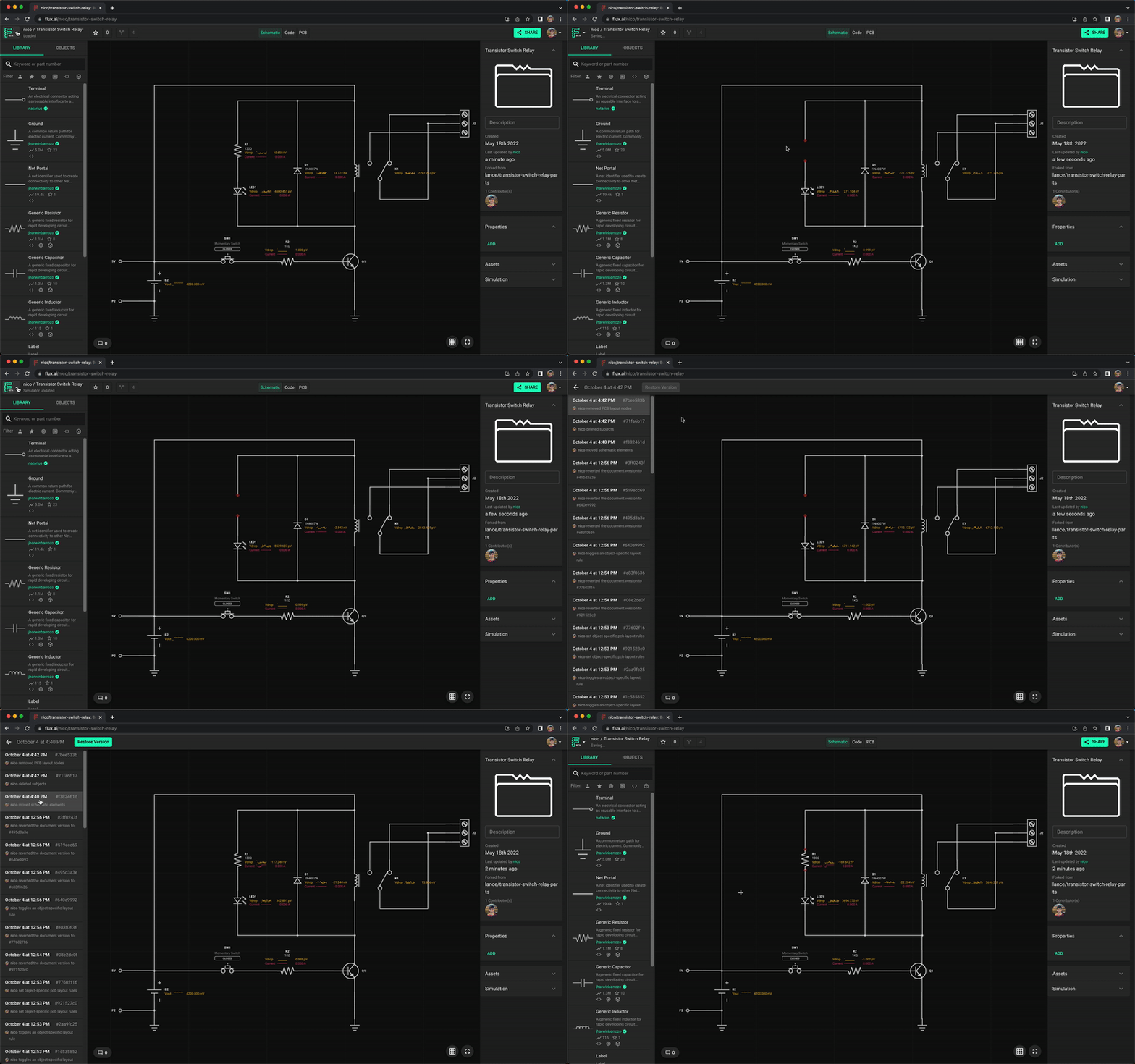
The left-side menu will show a list with every version (change) in the project. Select the version you want to restore.
Once you've found the version you want to roll back to, click on "Restore Version." A notification at the top of the screen will display confirming that the document has been reverted to that specific version number.
Releases and revisions
Flux prepares the first release as revision A. It creates release notes and manufacturing files for that revision. Flux then plans the next revision from the changes you describe.
To do it in the UI:
Open Chat and ask Flux to prepare the release.
Open the project Files to review the release notes and manufacturing files for revision A.
Tell Flux what to change in the next revision.
When to Use Undo, Redo, or the Change History
Here are some example scenarios where you might want to use Undo, Redo, or the Change History:
You accidentally delete your layout. Use Undo or browse versions in the Change History.
A rule you knew was there is missing. Browse versions in the Change History and restore a version where the rule is present.
A collaborator made a change you don't like. Use the Change History to restore a previous version which you do like.
You're not sure you like a change you made. Use Undo and Redo to toggle between the changes.