
Check your board for common errors.
Overview
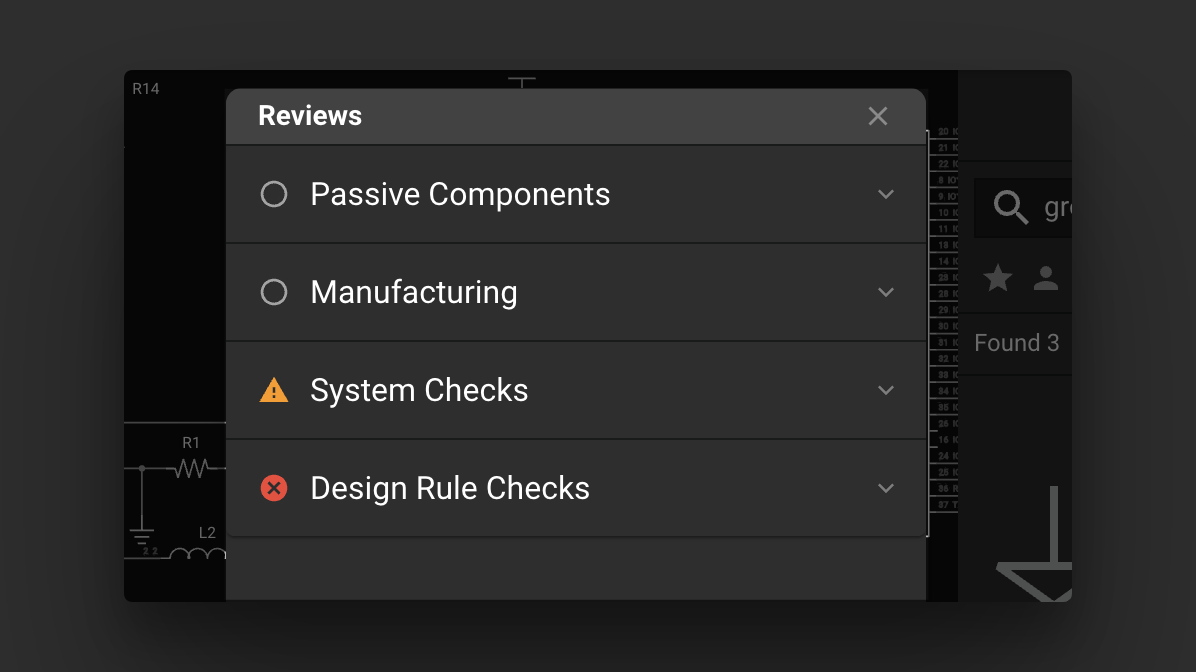
Design Reviews – also known as Design Rule Checks or DRCs in other tools – ensure that your design adheres to physical layout rules, like spacing and clearance, essential for manufacturability and functionality. Unlike on other ECAD tools, Reviews in Flux run automatically each time there's a change to the PCB layout, so you'll receive real-time feedback on issues as you work.
For a comprehensive list of all the available Reviews, please refer to the Design Rule Check (DRC) documentation page.
Viewing Check Details
Some checks provide additional context about why they were flagged. When a check has more information available, an info icon appears in the check row. Click the info icon to expand the row and view the check's detailed description inline, without leaving the review panel.
Muting Checks
If a check result isn't relevant to your design or you'd rather ignore it, you can mute it. Hover over a check row and click the ... button that appears, then select Mute. You can also right-click the check row to access the same option.
Muted checks are visually distinguished from active checks and won't count towards the total number of errors, warnings, or info items shown for the review or category. This helps you focus on the issues that matter most.
To unmute a check, open the same menu and select Unmute.
Fix It with AI
Need assistance resolving a check? Get help with Flux's AI. Hover over a check row, click the ... button, and select Help Me Fix It. This opens a new chat thread with a prompt that includes the relevant context — the review name, check name, status, and details — so Flux can provide targeted guidance on how to address the issue.
You can also access this option by right-clicking the check row.