
Overview
All of your Flux invoices live in one place in your account settings. From there you can pay any open invoice and download a PDF copy of any paid invoice. This article walks you through both.
Where to find your invoices
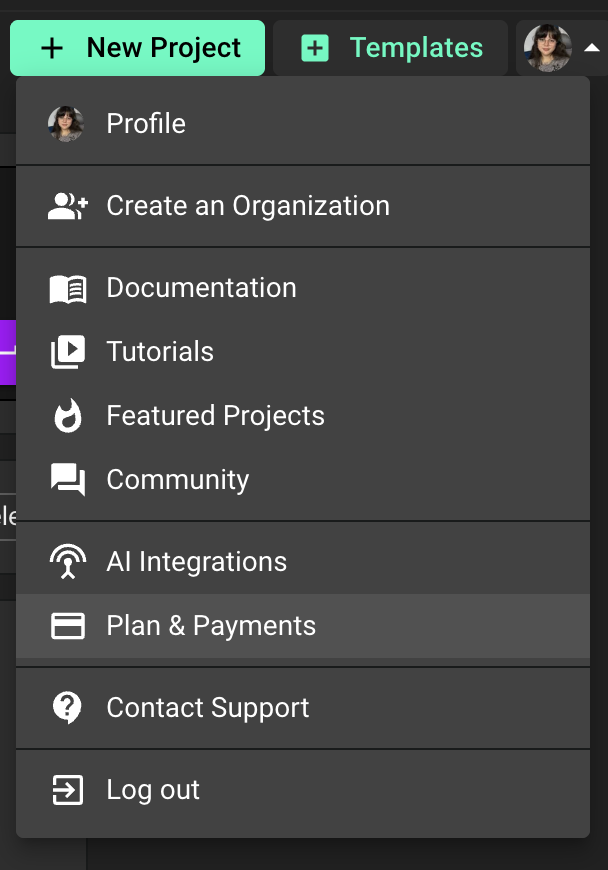
Open Flux and click your profile avatar in the top right corner.
Select Settings.
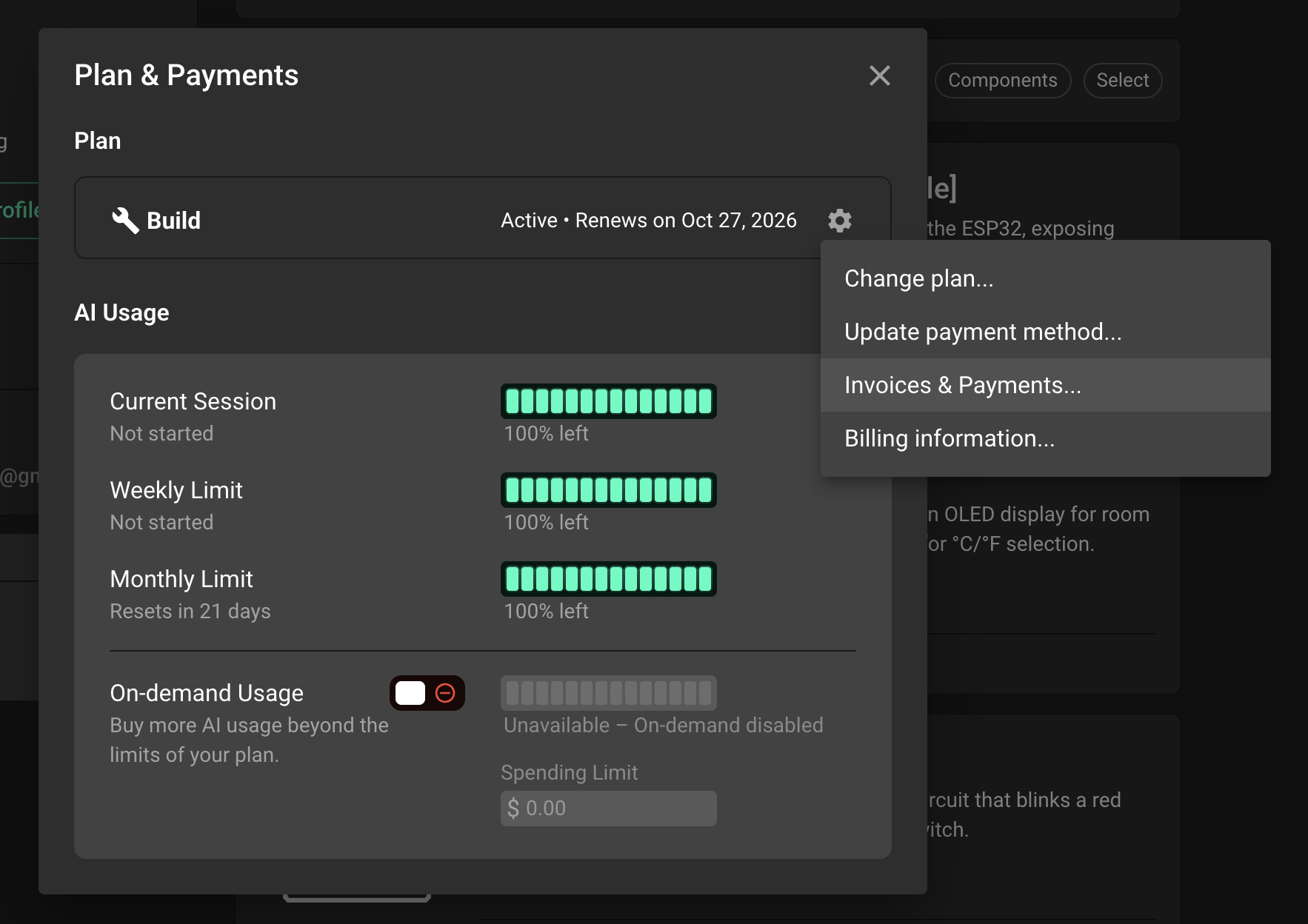
Go to Plan & Payments.
On your plan card, click the gear icon on the right side.
Select Invoices & Payments... from the menu.
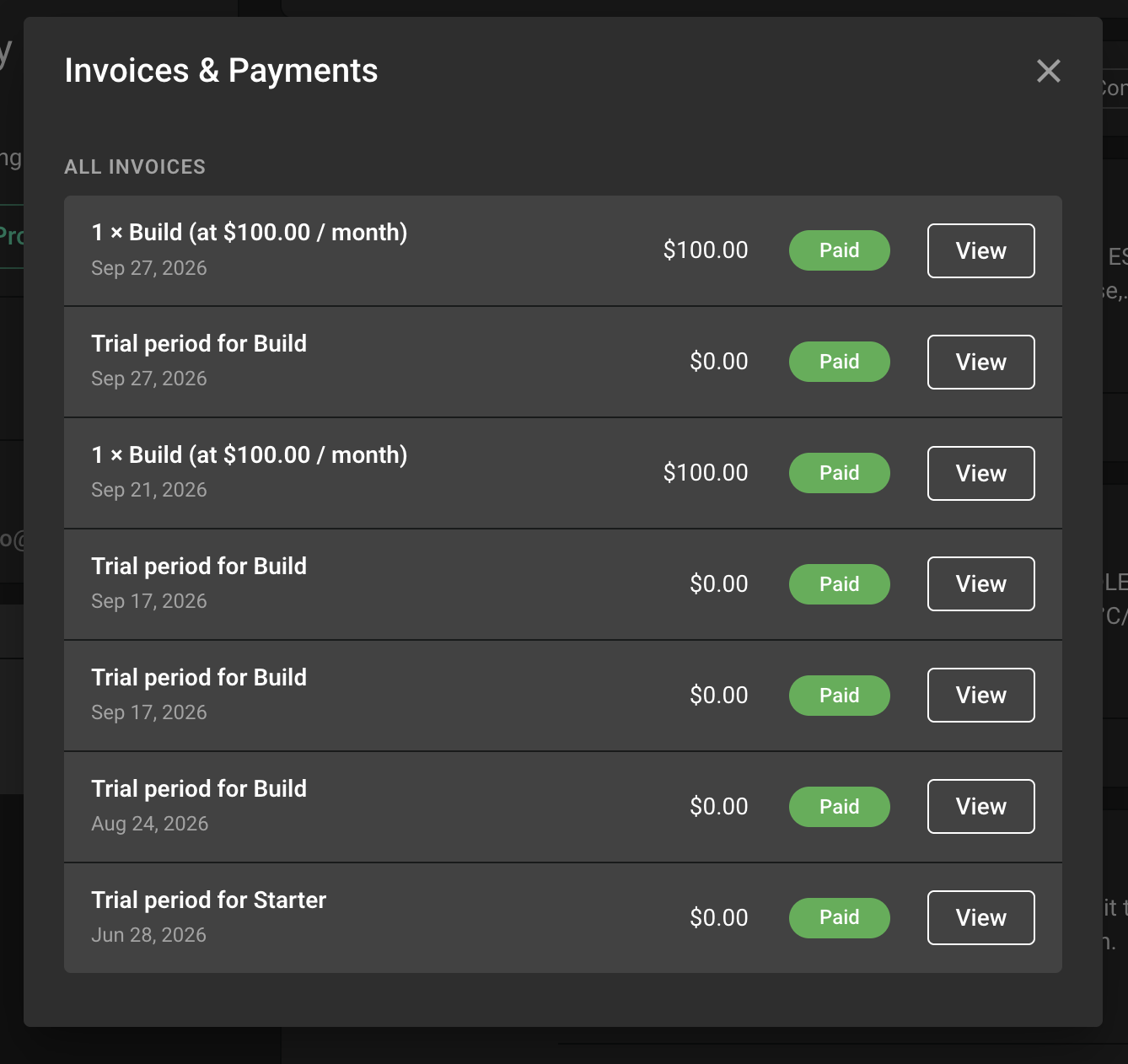
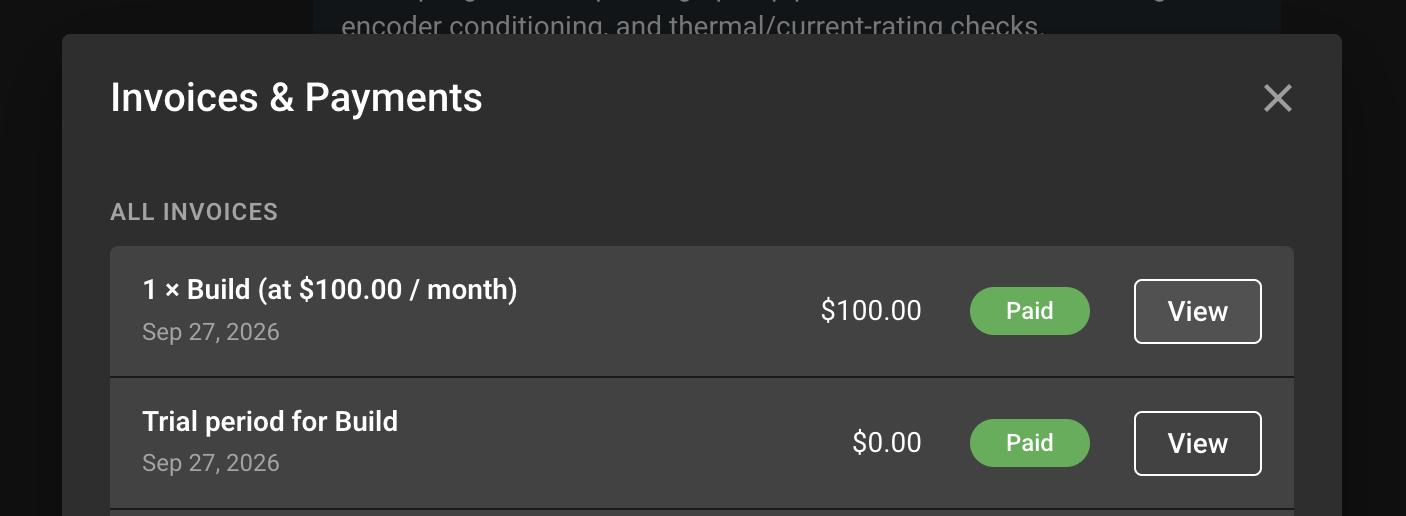
Each invoice row shows the description, the date, the amount, and a status chip: Paid, Open, Past due, or Refunded. Unpaid invoices are grouped at the top of the list.
Pay an open invoice
An invoice with the status Open or Past due still needs to be paid. These rows show a Pay button.
Click Pay on the invoice you want to settle.
A secure Stripe payment page opens in a new tab.
Confirm or update your card details and complete the payment.
Return to Flux. The invoice status changes to Paid within a few moments. Refresh the page if it does not update right away.
If your plan was paused or limited because of an unpaid invoice, access is restored once the payment goes through.
Payment did not go through?
If the payment fails, the most common causes are an expired card, insufficient funds, or a bank that declined the charge. Try these steps:
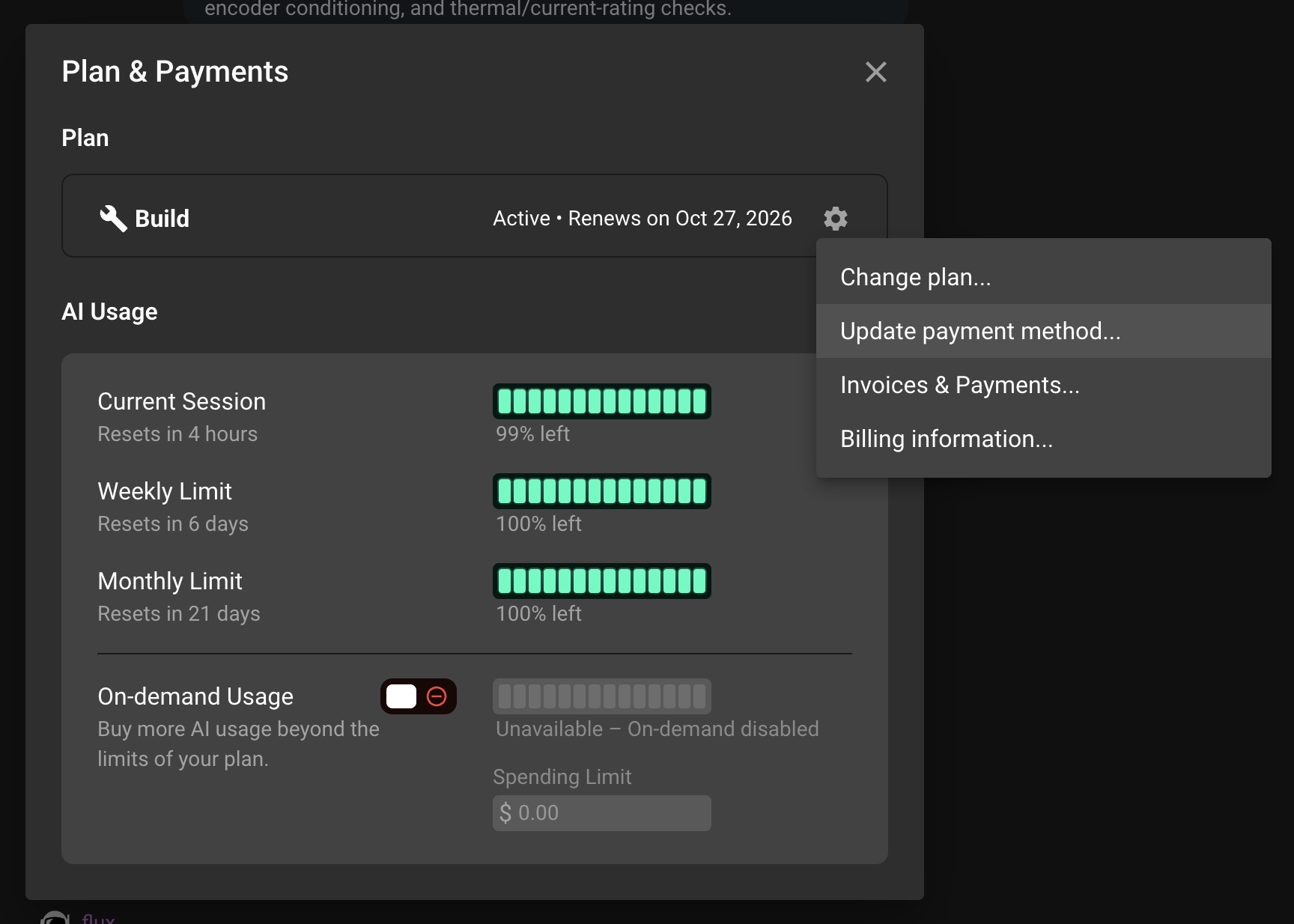
From the same gear icon menu, select Update payment method... and add a current card.
Go back to Invoices & Payments... and click Pay again.
If it still fails, let us know and we will look into it with you.
Download an invoice
Any invoice with the status Paid shows a View button.
Click View on the invoice you need.
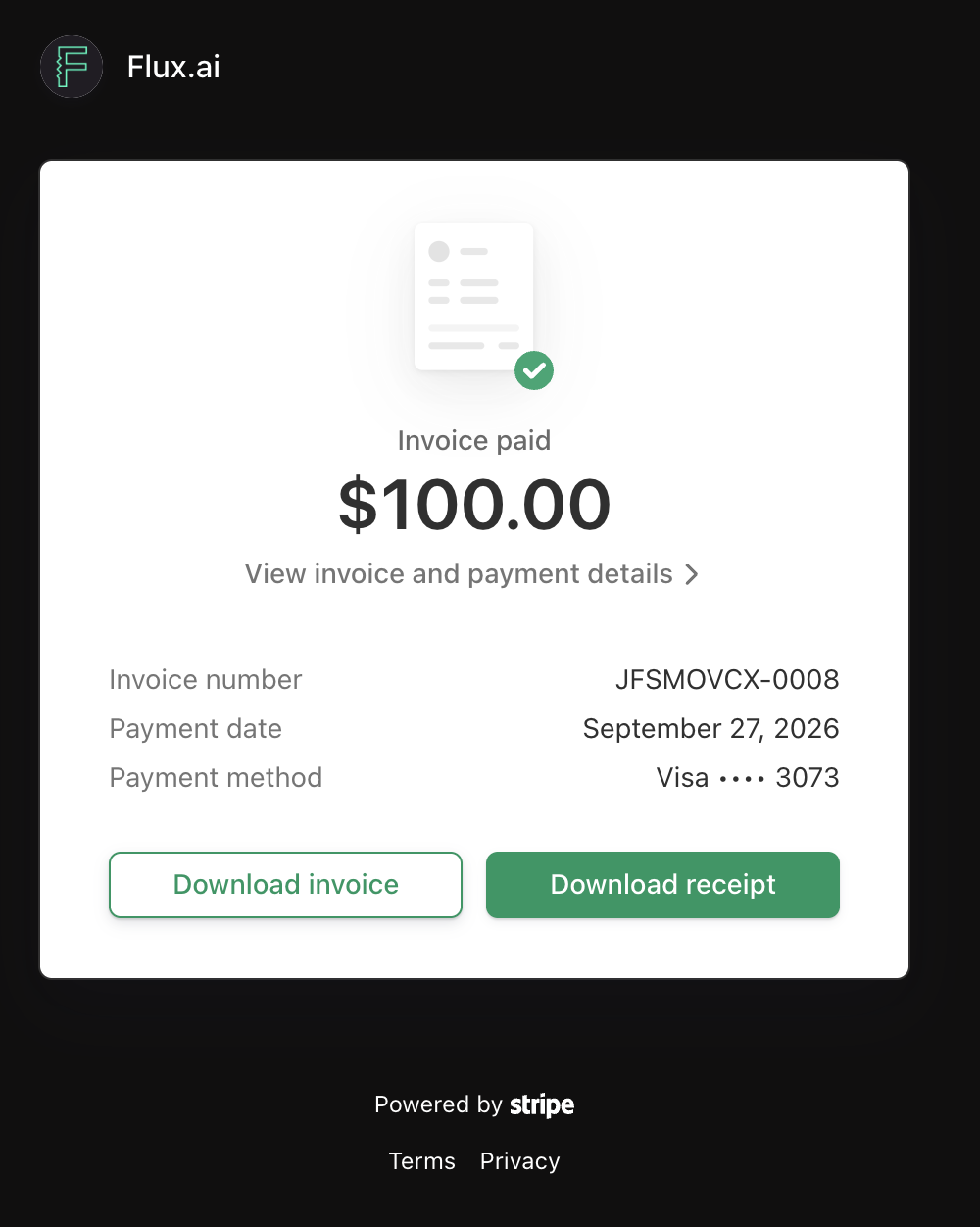
The invoice opens in a new tab on a secure Stripe page.
Click Download invoice to save the PDF. Click Download receipt if you need the receipt as well.
The PDF shows the billing details saved on your account, such as your company name, address, and tax ID. To change these for future invoices, see our article on updating your billing information.
Can't find the option there?
If you do not see Invoices & Payments... in the gear icon menu, make sure you are on your own plan card and not a team or organization card. Organization invoices are handled by an organization admin from the organization's settings.
If nothing happens when you click Pay or View, your browser may have blocked the new tab. Allow pop-ups for flux.ai and try again.
Need help?
If you cannot find an invoice, a payment keeps failing, or you need a change on an invoice that was already issued, please contact our support team. Include the email address on your Flux account and the invoice date or amount, and we will take care of it for you.