
Flux is an AI hardware engineer. It simulates and checks the greenhouse monitor across its circuit, board, enclosure, and use conditions.
Check the circuit and power
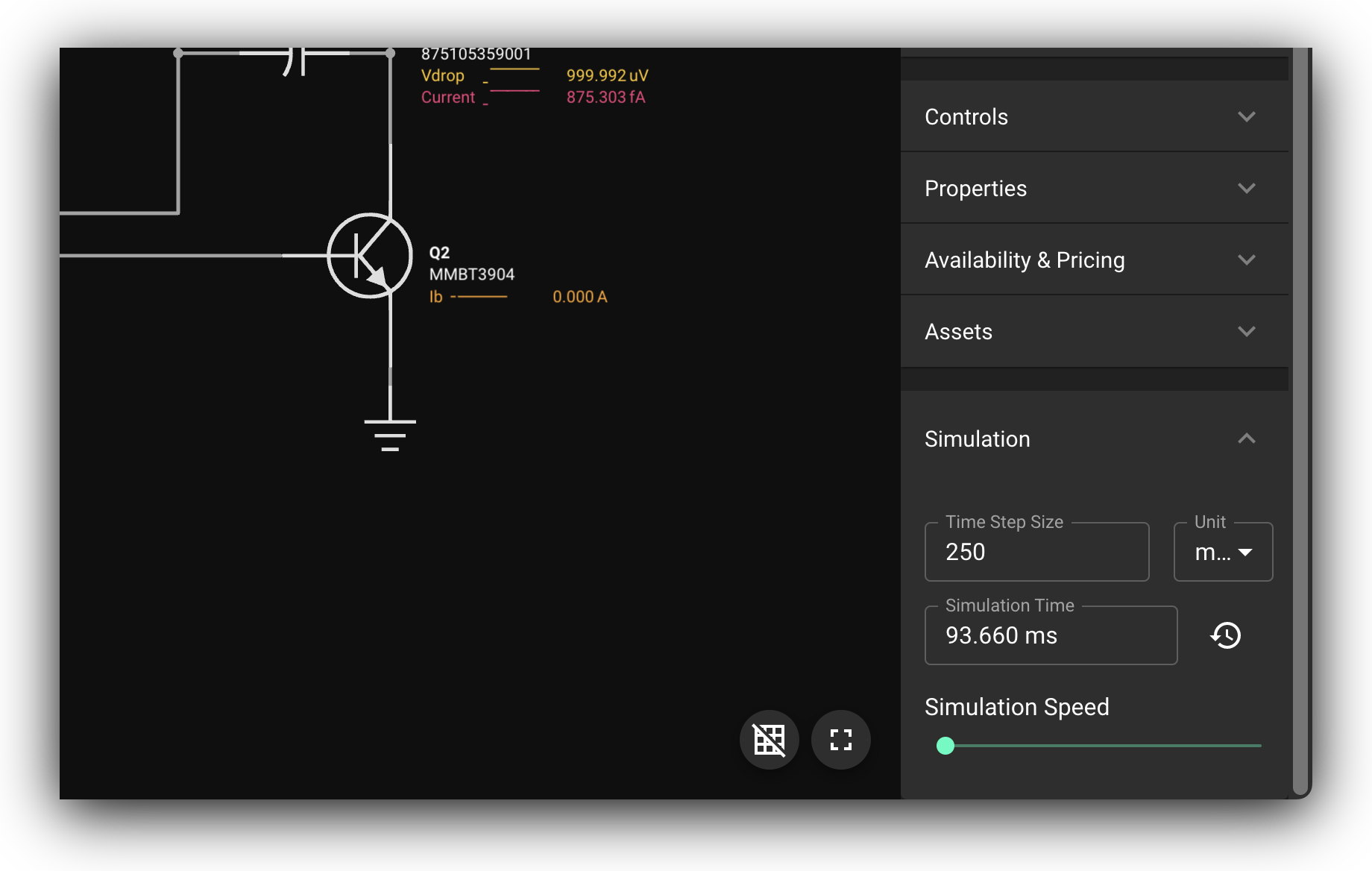
Ask Flux to simulate the circuit and calculate power use from the project requirements.
See Simulation for circuit and power analysis.
Check the probe and power behavior
Ask Flux to compare the circuit results with the monitor's requirements.
Use the results to update the power design and firmware schedule.
Check wireless and PCB behavior
Ask Flux to analyze the routed wireless feed and check board temperature under the expected load.
See Simulation for electromagnetic and thermal analysis.
Check the board and enclosure
Ask Flux to check the routed board, wireless area, board temperature, and mechanical fit.
Open Review to inspect electrical and layout checks. See Design Rule Checks, Fit and clearance, and Mechanical analysis.
Review mechanical fit and enclosure temperature
Ask Flux to check the assembly and enclosure under the greenhouse operating conditions.
Use the 3D view to inspect fit and cross sections. Repeat the simulation after you change the enclosure or board.
Simulate circuit behavior
Ask Flux to run a circuit simulation from the schematic or a circuit you describe. State component values, source conditions, and the behavior you want to inspect.
Use an operating-point simulation to inspect bias voltages and currents. Use a transient simulation to view a changing sensor or supply. Use an AC sweep for frequency response. Ask Flux to report the conditions and values that relate to the Project Specification.
Name the schematic block or input circuit.
Provide component values and source conditions.
Choose the simulation interval or frequency range.
Ask Flux for the voltage, current, gain, ripple, or response plot.
Change the circuit and repeat the simulation to compare results.
Estimate battery and power behavior
Ask Flux to calculate a power budget for active, idle, and sleep modes. Provide the current for each part or ask Flux to read it from the schematic and datasheets. Include the reading interval and wireless schedule.
Ask Flux to include each rail and operating mode. Use the budget to update the regulator, charging circuit, battery choice, or firmware duty cycle. Keep the assumed reading interval and load profile with the results.
Name the battery and its capacity.
Describe sensor, controller, and radio activity by mode.
Ask Flux to calculate current and power for each rail.
Compare the estimated run time with the specification.
Adjust the duty cycle or hardware, then repeat the calculation.
Analyze wireless behavior and board temperature
Ask Flux to analyze the routed antenna feed and PCB under the monitor's operating conditions.
For electromagnetic analysis, name the net or differential pair and frequency range. Ask for impedance, S-parameters, crosstalk, or field maps. For PCB thermal analysis, state the input voltage and load currents or component power. Ask Flux to report component temperatures and show the heat map.
Select the routed feed or pair to analyze.
State the frequency range and result you need.
Provide the board conditions for thermal analysis.
Ask Flux to connect the results to the antenna area, power parts, and enclosure.
Update routing or enclosure, then compare the analysis again.
Check electrical and layout rules
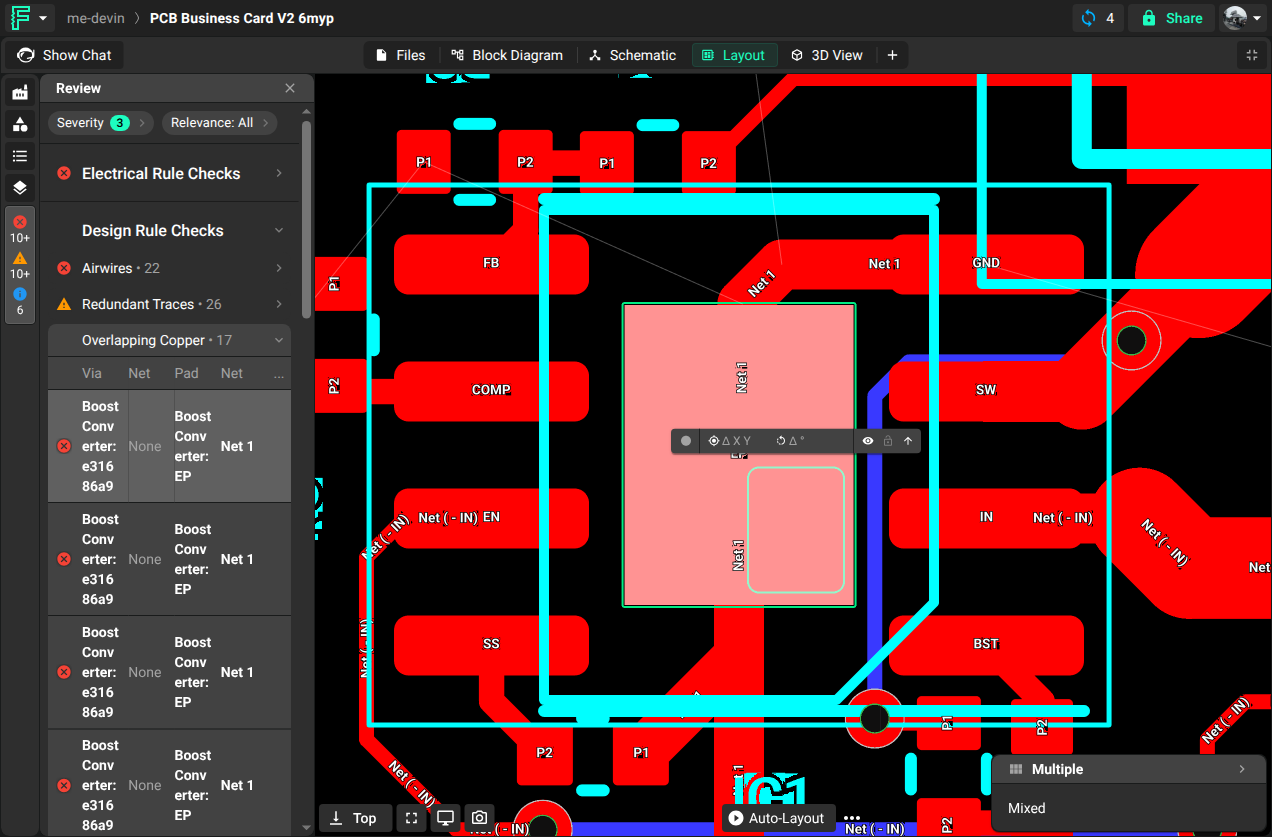
Ask Flux to review the schematic and PCB before manufacturing. Check electrical findings and layout rules with the design.
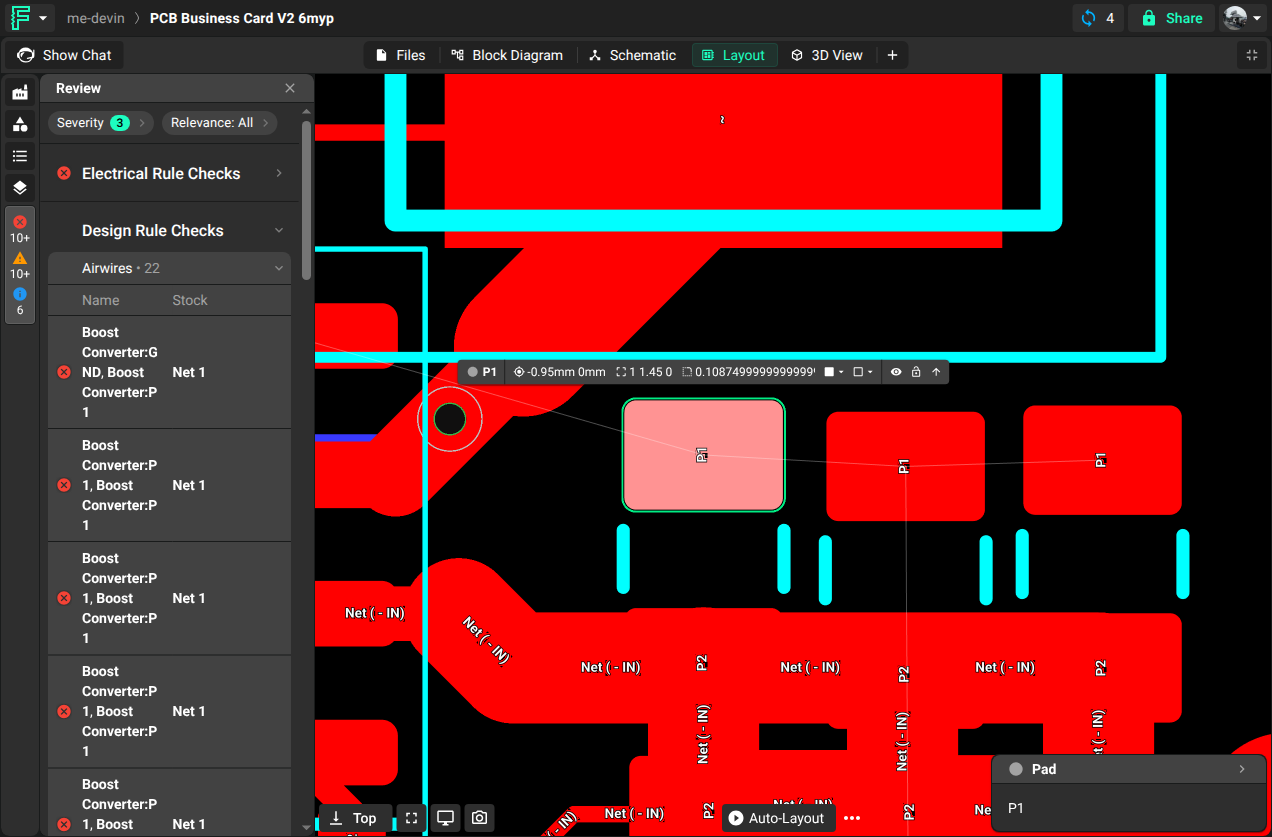
Open Review to inspect electrical and layout findings. Use Design Rule Checks for common board findings. Resolve unconnected pins and nets in the schematic. Resolve airwires, clearances, missing footprints, and floating copper on the PCB.
Locate each finding by component, pin, net, or board feature.
Ask Flux to correct the schematic or layout issue.
Check the updated design again in Review.
Repeat checks after a change to the outline, component position, or routing.
Continue with Manufacturing.