
Flux is an AI hardware engineer. It prepares board and enclosure files, checks manufacturing details, and helps compare quotes for the greenhouse monitor.
PCB manufacturers need a specific set of files to prepare your design for fabrication and assembly. These files are used to create instructions for modern equipment and tooling required for PCB manufacturing.
Design for Manufacturing (DFM)
Ask Flux to complete this step before you use the editor controls.
Design for Manufacturing (DFM) is the set of guidelines, principles, and capabilities for designing PCBs in a way that optimizes ease of manufacturability. The main goal of DFM for PCBs is to ensure that the design of the circuit board allows for a smooth manufacturing process. Flux offers you a variety of tools enabling design for manufacturing (DFM) discussed below:
DFM-Related Layout Rules (discussed in Part 3)
Trace widths and spacing
Hole sizes and placements
Component placement and associated keep-outs
Layer stackup
DFM-Related Exporting Tools (discussed below)
Gerber export
Bill of material export
Review the BOM and manufacturing outputs. See Design Rule Checks and Fit and clearance.
Working with Gerber Files
Ask Flux to complete this step before you use the editor controls.
Gerber files are what you need to send to PCB manufacturers for them to fully build your PCB. To export them, open Flux menu → Export → Electronics → Manufacturing Files (Gerbers, etc) (.zip).
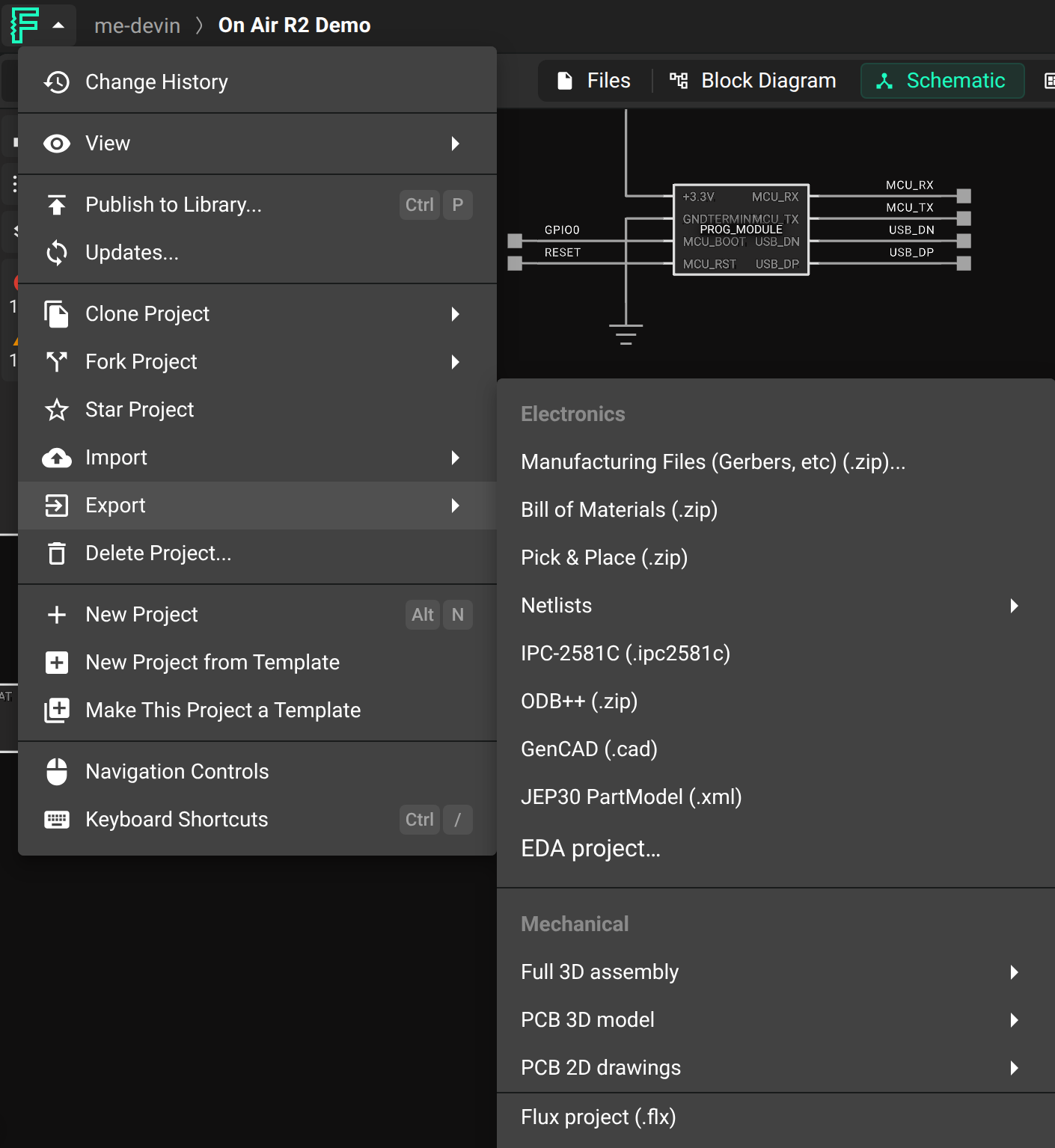
This will then generate a .zip file containing gerber files for the top and bottom layers:
Copper
Soldermask
Silkscreen
Solderpaste
In addition to copper data for any inner layers.
If you want to learn more about the different files and how they relate to the PCB manufacturing, take a look at this tutorial.
How to Validate Gerber Files
Ask Flux to complete this step before you use the editor controls.
After you export Gerber files, inspect each layer before you send them to the manufacturer.
Use an online checker such as tracespace.io to inspect the files.
After opening the website you'll be greeted by an option to upload your gerber and drill files.
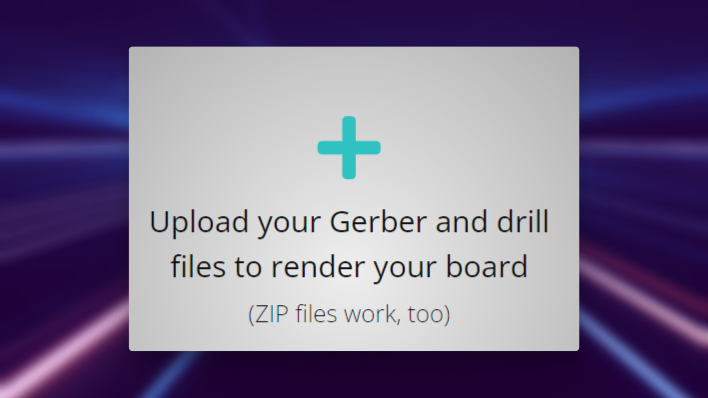
Upload the full .zip file to inspect each layer in the interface.
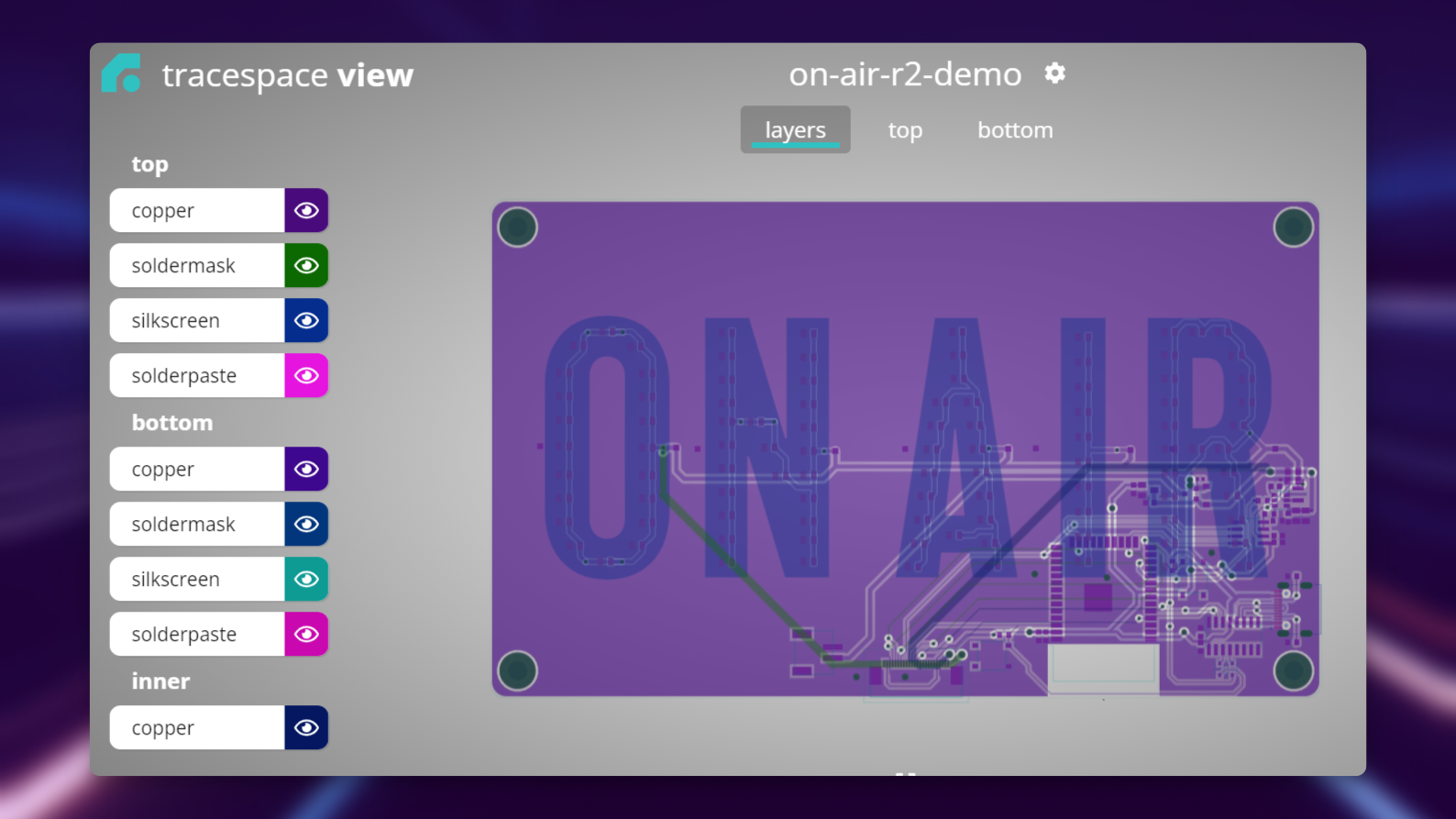
Inspecting Gerber Layers
Ask Flux to complete this step before you use the editor controls.
It's important to individually check every layer that your board appears as designed.
Checklist
Layer verification: Ensure all layers are included (top and bottom copper, silkscreen, and solder mask + internal layers)
Board outline: Check the shape and dimensions
Drill files: Check locations, and dimensions
Copper Layers: Check for gaps, trace wdiths, and spacing between traces
Solder mask: Ensure correct clearance and that all pads are exposed
Silkscreen: Check for readability and that there is no silkscreen on pads
Pad and Vias: Verify sizes and shapes, especially for SMD components such as ICs
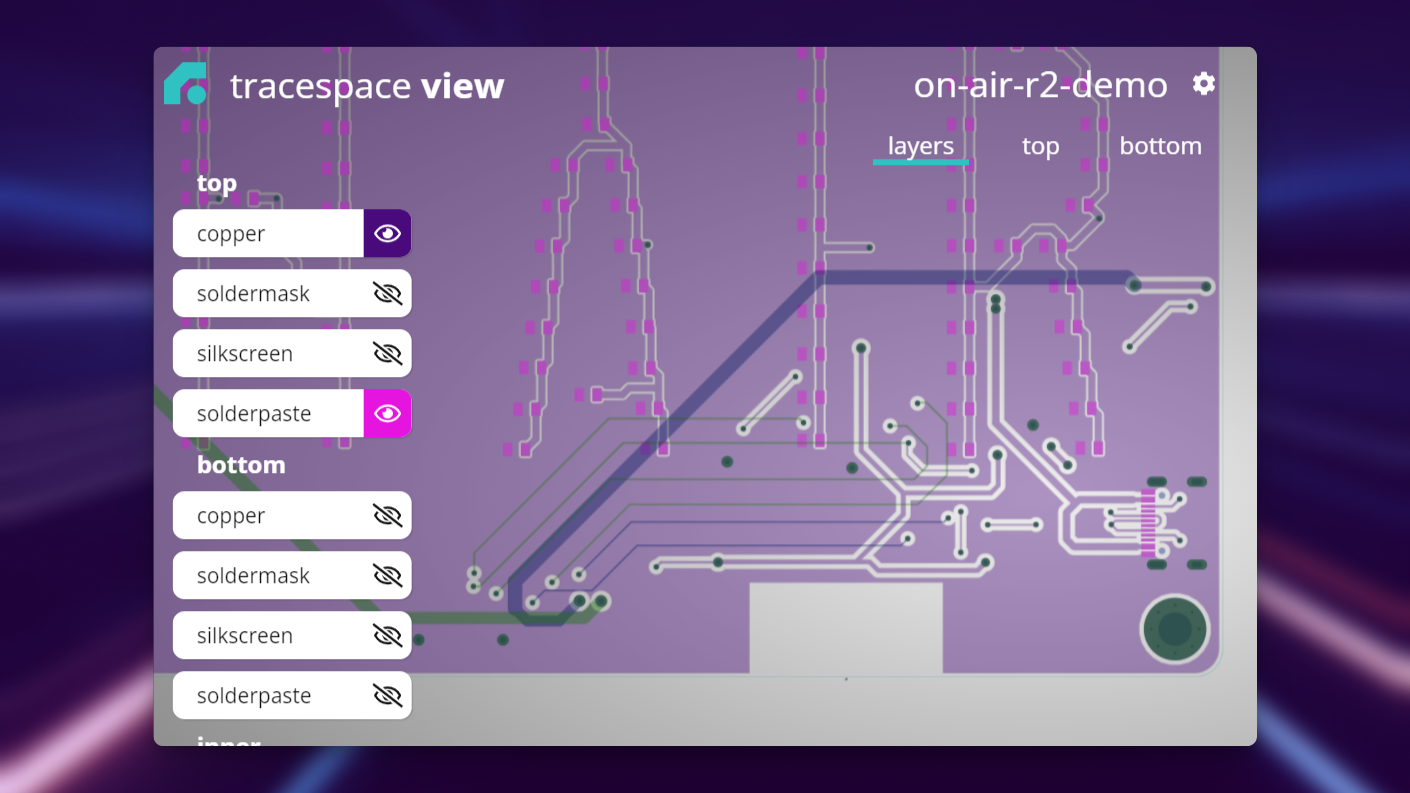
File Naming: tracespace will automatically assign each file to its respective top/bottom/internal copper/ silkscreen/solderpaste/soldermask. Check that when you select one in the viewer the associated layer is highlighted.
Working with the Bill of Materials (BoM)
Ask Flux to complete this step before you use the editor controls.
The Bill of Materials (BOM) in is a detailed list that contains the components, component-details, and quantities needed to assemble the PCB.
If your manufacturer assembles the PCB, send a complete bill of materials (BOM) with the design. Assembly is useful for high-volume orders or when you need machine-placed components.
Component details include:
Component value
Part type
Package
Values
Manufacturer Part Number
Manufacturer Name
Having a PCB software that allows for detailed and reliable BOM generation is necessary for reliable assembly down the line, ensuring the board can be constructed as intended.
How to Export a BoM in Flux
Ask Flux to complete this step before you use the editor controls.
To export a BOM, open Flux menu → Export → Electronics → Bill of Materials (.zip).
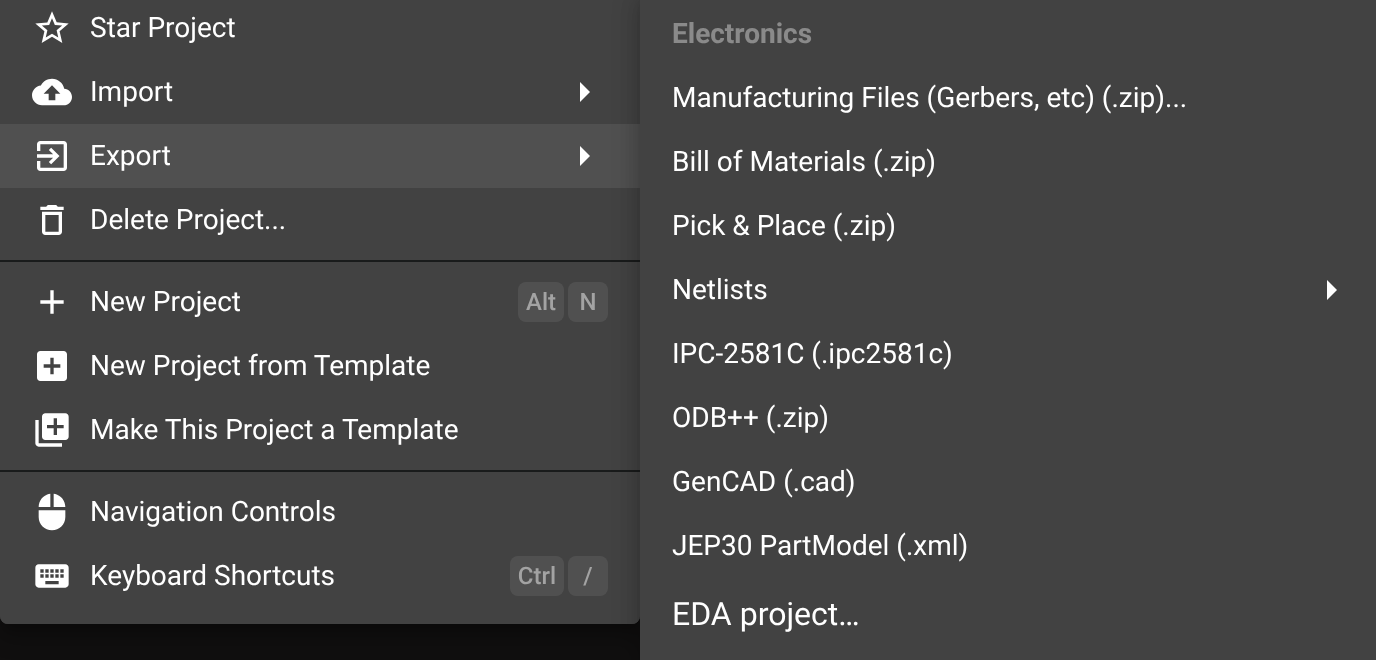
Flux will then generate multiple .csv files necessary depending on the manufacturer.
Different Manufacturers Require Different Formats
Ask Flux to complete this step before you use the editor controls.
When submitting a BoM to a manufacturer, it's important to note that different manufacturers expect different formats. For this reason, Flux exports multiple different spreadsheet (file extension .csv) for each manufacturer it supports.
Validate All Parts Have an MPN
Ask Flux to complete this step before you use the editor controls.
An MPN, or Manufacturer Part Number, is a unique identifier assigned by the manufacturer to a specific component. This identifier helps to distinguish components, such as one 10uF cap from another, (as they may have different breakdown voltages or other characteristics).
In any case, ensuring the MPN of each component you require in the BoM is mandatory.
Additional Manufacturing Files
Ask Flux to complete this step before you use the editor controls.
In addition to Gerber files and the BOM, you may need to export other files for manufacturing:
Pick and Place Files
Ask Flux to complete this step before you use the editor controls.
These files contain the X-Y coordinates and rotation information for each component, which is essential for automated assembly. Flux generates these files automatically when you export manufacturing files.
NC Drill Files
Ask Flux to complete this step before you use the editor controls.
These files contain information about the location, size, and type of all holes in the PCB. They are used by CNC drilling machines during the manufacturing process.
Assembly Drawings
Ask Flux to complete this step before you use the editor controls.
While not always required, assembly drawings can help manufacturers understand component placement and orientation, especially for complex boards.
Get Quotes and Order
Ask Flux to complete this step before you use the editor controls.
You can ask Flux to get manufacturing quotes and to place orders from the project. For example, ask "Get a PCB quote for 10 boards" or "Get a 3D-printing quote for the enclosure". Flux prepares the files, shows you the quote, and places the order when you ask it to.
Resolve export issues
Ask Flux to complete this step before you use the editor controls.
Gerber Export Problems
Ask Flux to complete this step before you use the editor controls.
Missing layers: Ensure your stackup is properly configured before export
Incorrect board outline: Verify that your board outline is a closed shape without gaps
Drill file issues: Check that all holes have appropriate sizes for your manufacturer's capabilities
BOM Export Challenges
Ask Flux to complete this step before you use the editor controls.
Missing MPNs: Review your components and ensure all have valid manufacturer part numbers
Duplicate designators: Check for components with the same reference designator, which can cause confusion
Inconsistent values: Ensure component values are consistent and follow standard notation
Manufacturing Validation
Ask Flux to complete this step before you use the editor controls.
Gerber viewer errors: If tracespace.io shows issues, verify your design in Flux before re-exporting
Layer alignment problems: Check that all layers align properly in the Gerber viewer
Clearance violations: Address any DRC errors before exporting manufacturing files
Review the exported board outline, copper, solder mask, silkscreen, drill files, and BOM before production. See Mechanical drawings and exports and Manufacturing files.
Order your Printed Circuit Board (PCB) from a manufacturer
Board and assembly orders
Ask Flux to complete this step before you use the editor controls.
This guide covers how to order a PCB after you complete the design in Flux. Choose a manufacturer, select board parameters, and decide whether you need PCB assembly (PCBA).
PCB and PCBA
Ask Flux to complete this step before you use the editor controls.
A PCB is the bare board with no components attached. If you're also looking to have the components soldered onto the board, this is referred to as PCBA (Printed Circuit Board Assembly). Manufacturers can fabricate a bare board or assemble the components on the board.

Choose a board manufacturer
Ask Flux to complete this step before you use the editor controls.
Make sure you have all the required Gerber files from the previous step. These files contain the information manufacturers need to produce your board. Export them from Flux if you haven’t already.
Compare manufacturers
Ask Flux to complete this step before you use the editor controls.
When choosing a manufacturer, there are a few key factors to consider:
Price vs. Speed: Some manufacturers offer faster turnarounds but at a higher cost. Determine your timeline and budget before selecting.
Location: Manufacturers located offshore may have lower costs, but longer shipping times and potential import taxes or fees. Local manufacturers may offer faster shipping, but at a higher price.
Reputation and Support: If you are new to PCB ordering, choose a manufacturer with strong customer support and a clear ordering process.
Upload board files and set parameters
Ask Flux to complete this step before you use the editor controls.
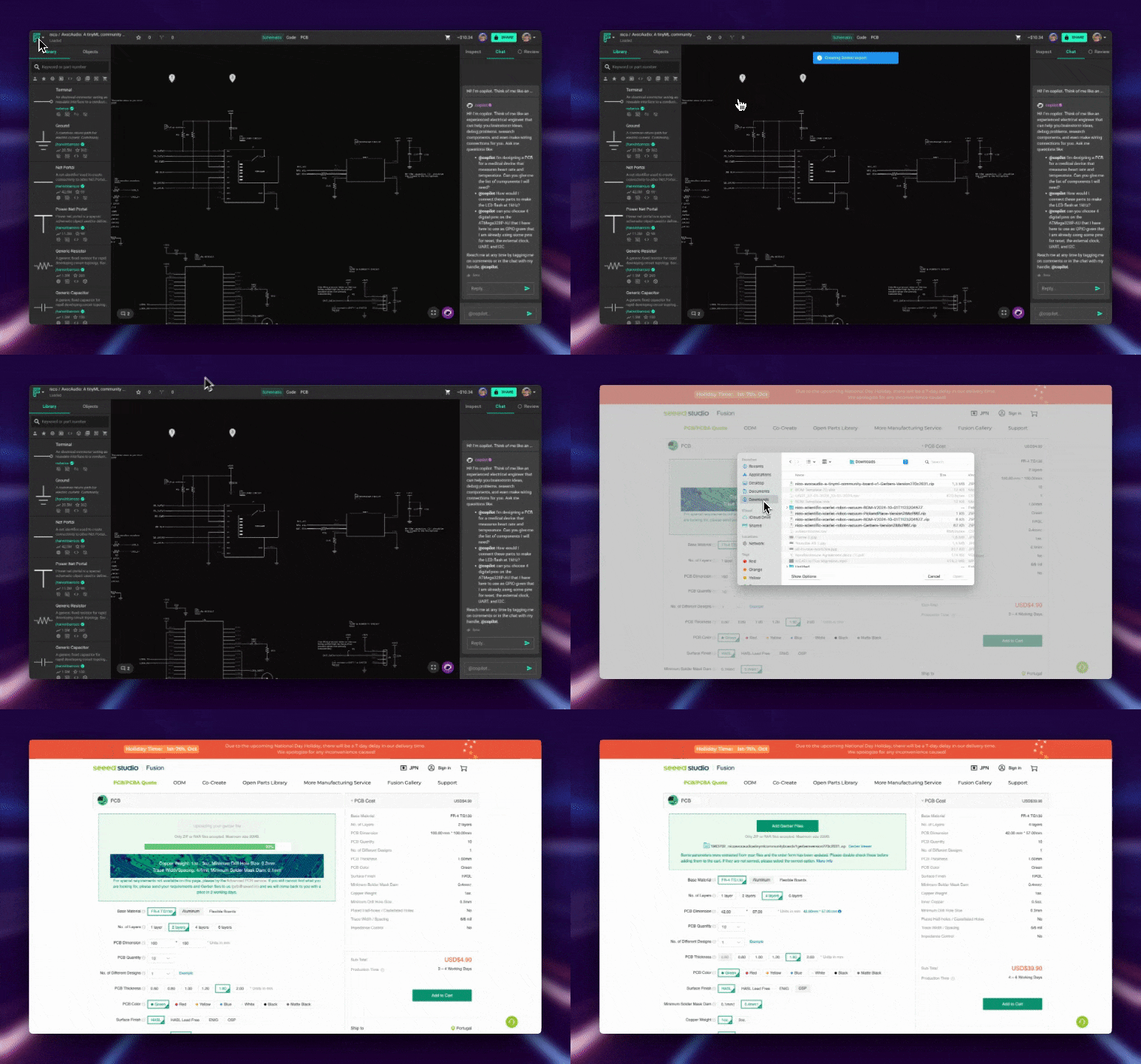
Most manufacturers provide online quoting tools for uploading files and specifying order details. The steps below use Seeed Studio as an example.
1- Upload Gerber Files
Upload the gerber files you exported from your Flux project to the manufacturer's website
Set board parameters
Ask Flux to complete this step before you use the editor controls.
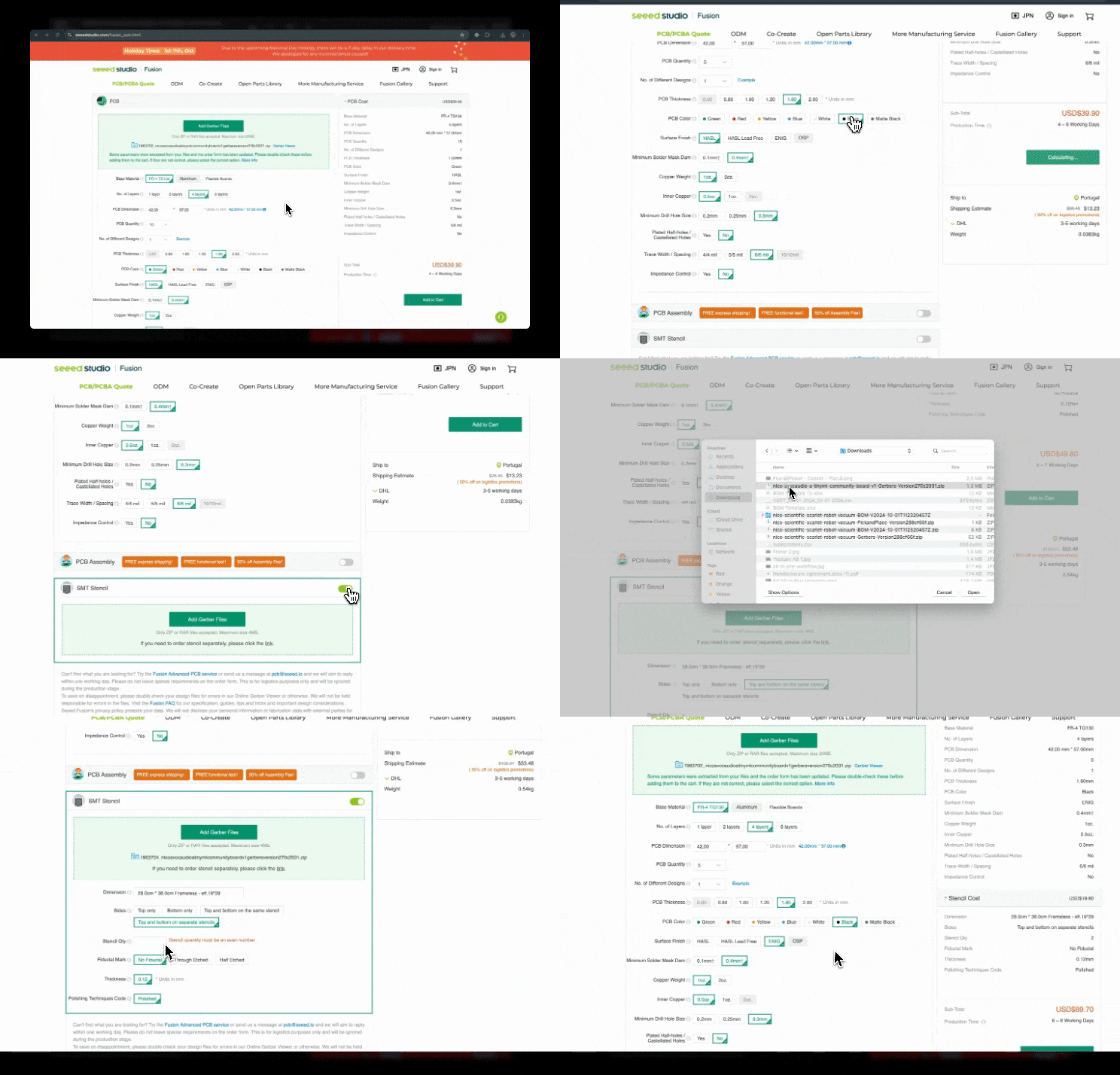
The second step is to define some additional parameters. Board parameters are the technical specifications you can customize for your PCB, such as the layer count, board thickness, material type, and more.
Most quoting tools detect parameters from the Gerber files. Adjust them for your design. Some options increase the PCB cost, so select the options your project requires. Key parameters include:
Parameter | Description | Tips for Selection |
|---|---|---|
Plating Finish | The surface coating on the PCB that affects solderability and longevity. |
|
Minimum Trace Width | The narrowest width of the conductive tracks on the PCB. |
|
Layer Count | The number of conductive layers in the PCB. |
|
Board Thickness | The thickness of the PCB, typically ranging from 0.5mm to 3.2mm. |
|
Material Type | The substrate material used, affecting thermal and mechanical properties. |
|
Via Type | Conductive pathways (through-hole, blind, buried) connecting different layers. |
|
These are some additional parameters you might want to consider:
Choose a different PCB color (soldermask) if needed.
Add a stencil to the order if you're planning to solder the components yourself.
If you want the manufacturer to solder components for you, please refer to the PCBA section below.
Order PCB assembly
Ask Flux to complete this step before you use the editor controls.
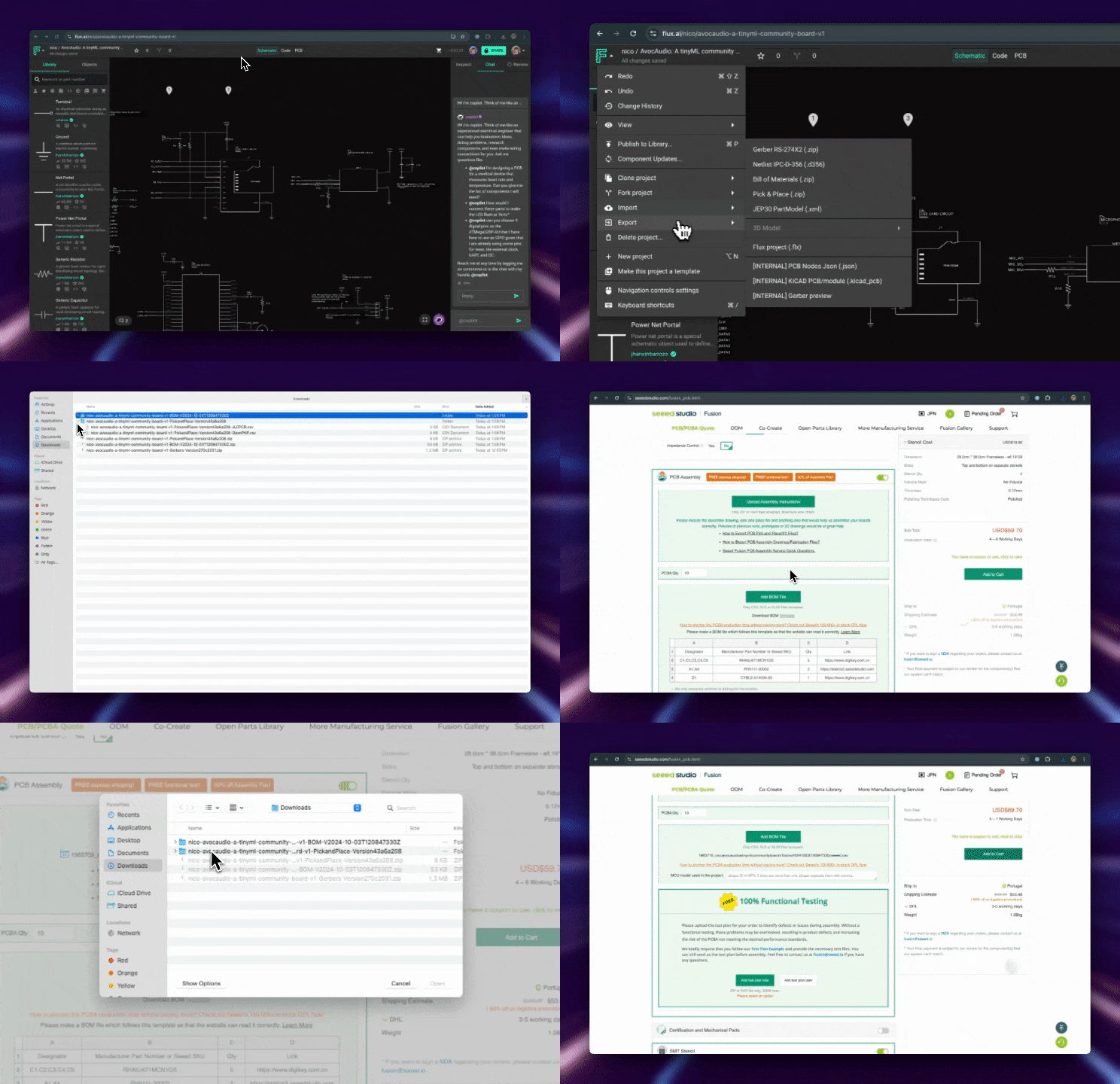
If you'd like the manufacturer to assemble the components for you, you can opt for PCBA services. This step is optional—you can always choose to solder the components manually, which may give you more control but requires additional time and tools.
Reasons to choose PCBA:
Speed: Manufacturers have the equipment to solder components quickly and accurately.
Precision: Ideal for boards with many small or complex components.
Cost Efficiency: For larger production runs, PCBA is often more cost-effective.
Uploading a BoM
Ask Flux to export the BoM file for the assembly order.
To request PCBA, you'll need to upload a Bill of Materials (BoM). The BoM includes component part numbers, quantities, and placement details and typically comes in a spreadsheet format (CSV or XLS). Flux automatically generates BoM files that are compatible with several popular manufacturers, such as:
Seeed
Advanced Circuits
AllPCB
Seeed Studio Fusion
Eurocircuits
JLCPCB
PCBWay
Aisler
OSH Park
Lion Circuits
If your manufacturer isn’t listed, modify a generated bill of materials file or contact Flux support to request support for that manufacturer.
Enclosure design for manufacturing
Ask Flux to prepare the greenhouse monitor enclosure for the selected process and material.
Describe the part, process, material, quantity, finish, and features that control fit. Use Make mechanical parts to compare processes and quote options.
Export enclosure models and drawings
Ask Flux to export the enclosure or assembly in the format used by the manufacturer.
Use Flux menu → Export → Mechanical → PCB 3D model for the board and assembly model, and Flux menu → Export → Mechanical → PCB 2D drawings for DXF, SVG, or PDF drawings. For a model asset, open Assets in the Inspector, select Manage Assets, then Add Item to create or add a part. See Mechanical drawings and exports.
Quote and order the enclosure
Ask Flux to compare enclosure manufacturing options using the same material and quantity.
Review the selected process, material, offer, and lead time. Choose an offer and ask Flux to place the order. Continue with Mechanical manufacturing.
Check the enclosure for manufacturing
Ask Flux to prepare each enclosure part for the selected process and quantity.
Give Flux the process, material, finish, quantity, and dimensions that control fit. Use a prototype quote to review the enclosure before you prepare the production version.
Prepare the mechanical quote files
Ask Flux to select the model and drawing files needed for each supplier.
Use STEP for the enclosure assembly and DXF or SVG for flat-part profiles. Export a board model or drawing when the quote needs the PCB outline, connectors, or mounting holes. Keep the exported files with the project revision used for the quote.
Prepare a 3D-printed enclosure
Ask Flux to prepare the enclosure parts for the selected printing process, material, and quantity. Include the lid, base, post mount, and printed cable features.
State the material and process in the quote request. Ask Flux to review the walls, openings, supports, mating surfaces, and fastener features for the selected part. Ask it to include board and connector geometry when it checks enclosure fit.
Select the enclosure part or assembly in the project.
Ask Flux to prepare it for the process and material.
State the quantity, finish, and dimensions that control fit.
Export the model asset in STL, 3MF, STEP, or another format that matches the next workflow.
Keep the exported model with the project revision used for the quote.
Use a 3D-print prototype to evaluate the assembly and service workflow. Update the model before you request a new quote when the material, process, or geometry changes.
Prepare machined and flat parts
Ask Flux to prepare a machined part or flat profile from the monitor assembly. Use a machined part for a bracket or plate with defined solid geometry. Use a flat profile for laser-cut or sheet-metal work.
For CNC machining, export the solid model as STEP. For sheet metal or laser cutting, use a DXF or SVG profile. Describe the material, thickness, finish, hole locations, and quantity. Ask Flux to keep the mounting and board-fit dimensions from the project.
Select the bracket, plate, or flat part.
State CNC machining, sheet metal, or laser cutting and the material.
Ask Flux to prepare the part and its mounting features.
Export STEP for a solid model, or DXF/SVG for a flat outline.
Keep the file name tied to the part and project revision.
The documented mechanical quote providers include Craftcloud, JLC 3D printing, PCBWay 3D printing, SendCutSend, and OSH Cut. Craftcloud provides 3D-printing and CNC options. SendCutSend and OSH Cut quote flat-part workflows from their accepted drawing formats.
Package drawings and model files
Ask Flux to prepare the files that a supplier needs to quote or make the enclosure.
Use STEP for solid parts or an assembly handoff. Use STL or 3MF for a printing workflow. Use DXF or SVG for a flat outline. Use PDF when the supplier or reviewer needs a drawing document. The board export can provide the board and mechanical context. The 2D drawing export can provide board outlines and mounting details.
Select Flux menu → Export → Mechanical → PCB 3D model to export the board and mechanical context. Select Flux menu → Export → Mechanical → PCB 2D drawings to export DXF, SVG, or PDF. For an individual mechanical asset, open Assets in the Inspector, select Manage Assets, then Add Item to add or create the model asset and choose its available output.
Ask Flux to identify the enclosure, lid, mount, and board files needed for the quote.
State units, material, finish, quantity, and dimensions in the quote package.
Export the model and drawing files for the selected process.
Keep the model and drawings with the matching project revision.
Ask Flux to compare the exported files with the board, connectors, and mounting features.
Compare mechanical quotes
Ask Flux to compare quote options for the same part, process, and material.
Review the process, material, price, shipping, and lead time for each offer. Save your Craftcloud login if you want to see your prices. Request a new quote when you change the part, material, or process so the offer matches the design.
Name the part, quantity, material, and process.
Ask Flux to get the quote from a documented provider.
Compare the available offers against the product and schedule.
Choose an offer when you are ready to order.
Ask Flux to place a Craftcloud order for the selected offer; pay the vendor directly to complete it.
Keep each order connected to the file and revision used for the quote. Store the selected offer details with the board and enclosure manufacturing records.
What's next
Ask Flux to compare the board and enclosure manufacturing files with the selected quotes.
Continue with Project setup to keep assembly and bring-up documents with the device.
Explore the Manufacturing reference pages:
Manufacturing Profiles to compare board rules and save stackups.
PCB Panels to create panel files.
Order from Flux to compare quotes and place orders.
Regulatory and Compliance Documents to prepare project documents.