
Trace width can be defined at trace, net, or global levels.
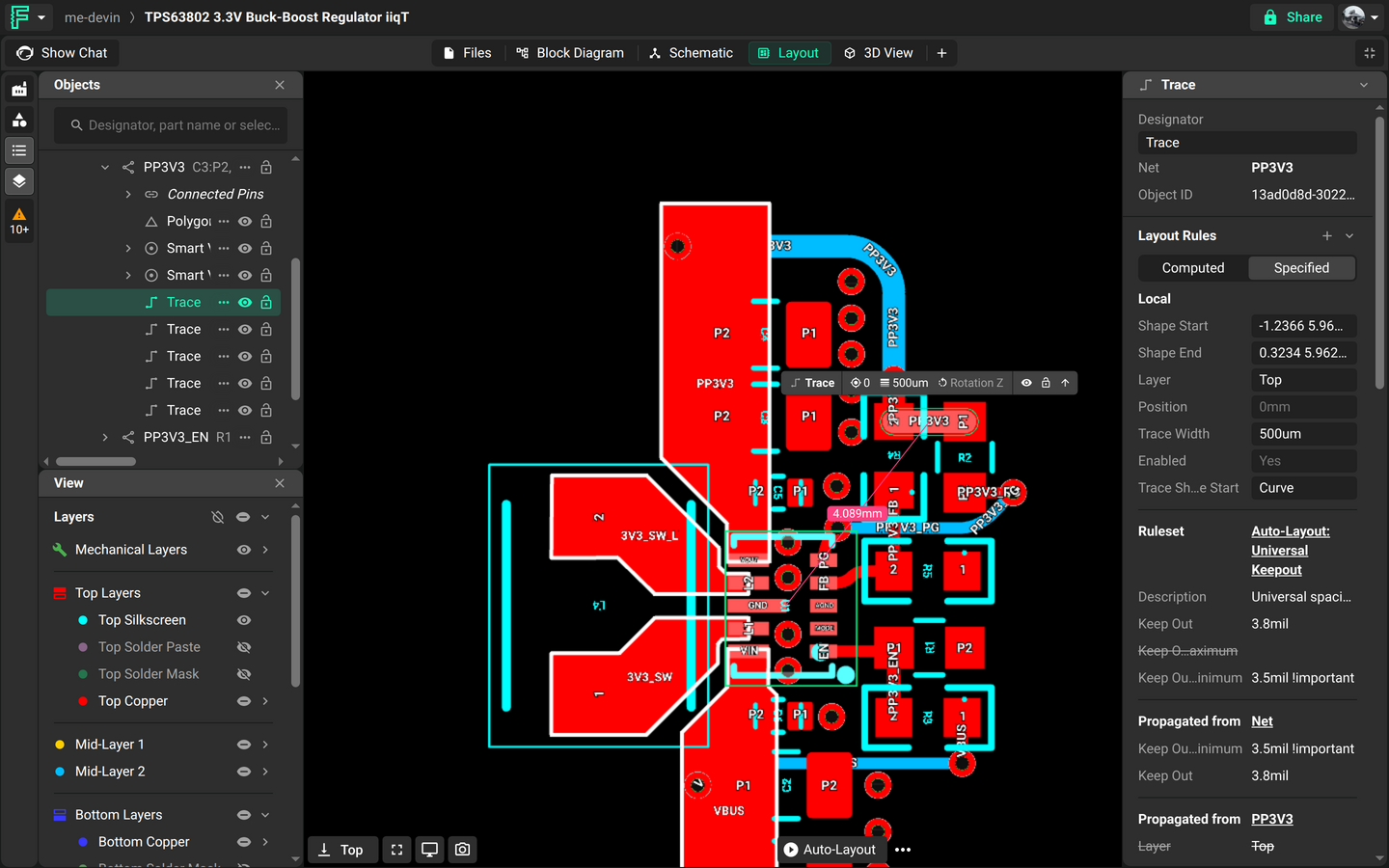
Overview
Different designs have different trace width requirements. In Flux, you can set trace widths at different levels, from a single trace segment to several nets at once.
Configuring trace width on a single trace segment
Ask Flux to set the width of one trace segment.
You can also do it in the editor.
In some cases, only a single trace segment needs to have a specific width.
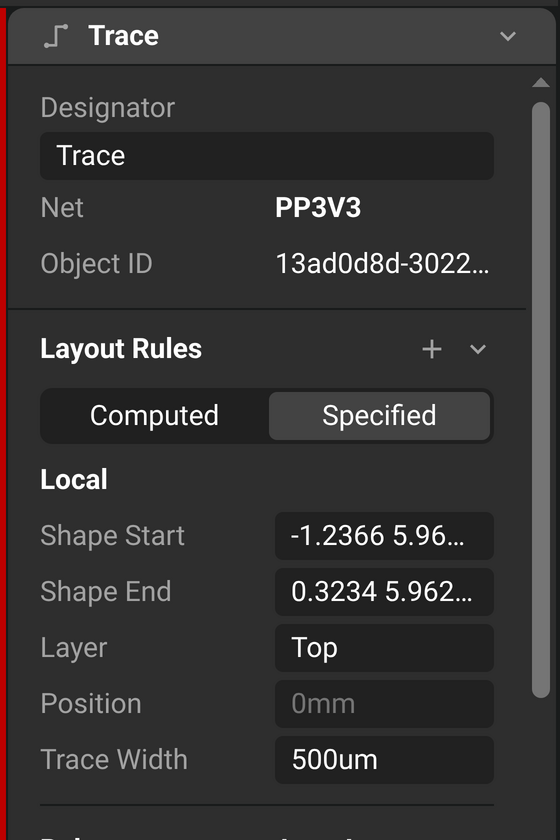
Changing the trace width for a single trace segment will override any other value set at net or global (selector) levels. For rule precedence, see Layout Rules Inheritance and Precedence.
Navigate to the PCB Editor
Select the trace segment you want to modify the width.
In the right-hand panel, navigate to "Object Specific Rules".
Select the "Edit" button and then select "Add".
Search for
Trace Widthin the rule selector and select "Add".You can also add "
Trace Width MaximumandTrace Width Minimumto further constrain the width.
In the property's field, enter the desired trace width.
Configuring trace width at net level
Ask Flux to set the trace width of a net.
You can also do it in the editor.
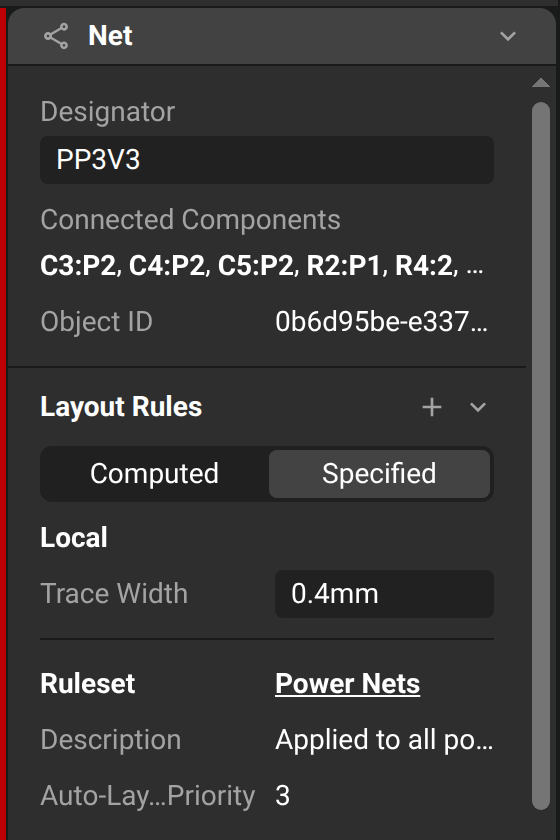
Setting up trace width at a net level ensures that every trace segment in that net will have the correct width.
Navigate to the PCB Editor
Select "Objects" on the left panel and select the net node you want to modify.
Tip: It can be helpful to rename the nets using the designator for quick future reference.
In the right-hand panel, navigate to "Object Specific Rules".
Select the "Edit" button and then select "Add".
Search for
Trace Widthin the rule selector and select "Add".You can also add "
Trace Width MaximumandTrace Width Minimumto further constrain the width.
In the property's field, enter the desired trace width.
Configuring trace width using rule selectors
Ask Flux to set the trace width of several nets with one rule.
You can also do it in the editor.
Selectors provide more flexibility to configure trace width at different levels. You can use selectors to configure several nets at once, several trace segments, or any combination.
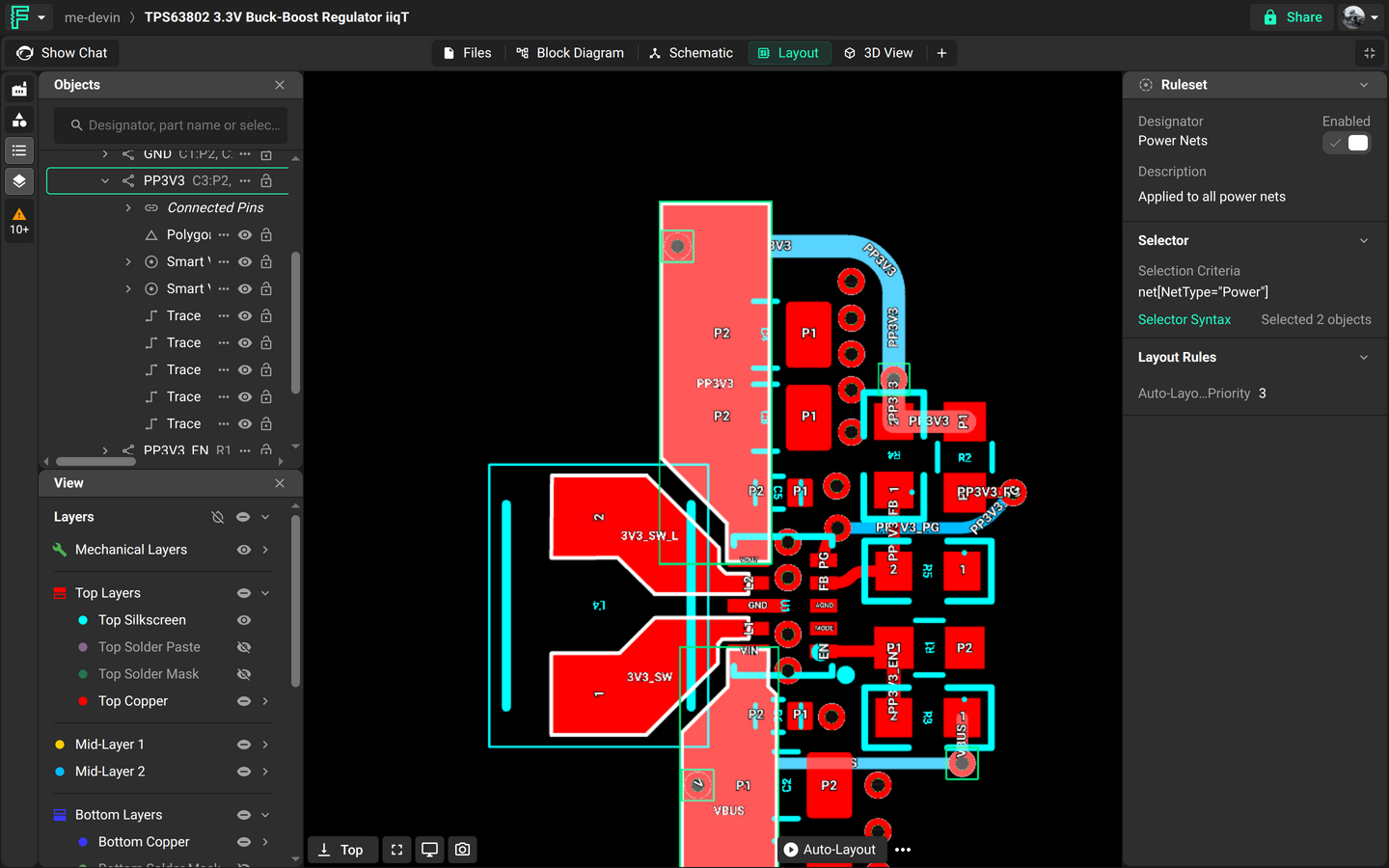
To change the width of several nets:
Navigate to the PCB editor.
Select "Rules" on the top left panel and "Add Ruleset".
Select the new ruleset, and in the right-hand panel, name the ruleset via the designator at the top.
In the "Selector" tab, add the designators of the nets you want to modify the trace width.
As shown in the example above, you can select nets using the "#" operator. You can also rename nets by bringing up the context menu for objects in the object panel.
Check out Selector-Based Layout Rules to learn more about using selectors.
In the "Layout Rules" tab, select the "Edit" button and then select "Add".
Search for
Trace Widthin the rule selector and select "Add".You can also add "
Trace Width MaximumandTrace Width Minimumto further constrain the width.
In the property's field, enter the desired trace width.
Set power trace widths
Ask Flux to set power and ground trace widths for the current and thermal requirements of your board.
Neckdowns on fine-pitch pads
Ask Flux to add neckdowns where wide traces meet fine-pitch pads. Flux keeps the neckdowns in place as it continues routing the board.
Trace and Net-Related Specific Rules
Flux has other related rules that customize the behavior of traces and nets, listed below. See the Layout Rules List for more information and examples for each rule.
Fill stitching density: creates vias in a ground or power net fill, known as fill stitching.
Fill stitching offset: allows for offsetting fill stitching.
Preferred trace width: sets a list of trace widths that you can switch between during routing.
Trace shape: defines the shape of a trace, either straight or curved.
Trace width: sets the width of a trace (or collection of traces).