
Bring your Eagle project to Flux and continue it here. Work on electronics, firmware, mechanical design, wire harnesses, simulation, and manufacturing in one project.
Overview
This guide explains how to move an Eagle project to Flux and use its schematic, PCB layout, library, and manufacturing features.
Import Your Eagle Project
Attach the Eagle files to a message in the Chat panel and ask Flux to import them.
To do it in the UI:
In Flux, select Import from the Flux menu, then select Project…. Upload your Eagle .sch and .brd files, a project folder, or a ZIP file. Each import creates a new project. It does not update an existing project or part.
To import Eagle libraries, select Flux menu → Import → Part… and upload .lbr files.
What you can do with your design in Flux
Flux is an AI hardware engineer. After the import, your design is a Flux project. Ask Flux to work on it. Flux works on the electronics, the mechanical parts, the firmware, and the manufacturing in the same project.
Turn the imported board into a complete device
Use the imported Eagle schematic and board as the starting point. Ask Flux to design an enclosure around the board, then write firmware for the microcontroller and peripherals in the schematic.
Use the board outline, mounting holes, connectors, and clearance needs from the imported design to shape the enclosure.
Use the imported schematic's pin assignments and connected parts to guide firmware for the microcontroller.
Review the imported design
Ask Flux to review the schematic and the board. Flux reads the datasheets of the parts and reports the problems that it finds, with a fix for each one. Flux can also make a failure mode and effects analysis (FMEA) report.
Find replacement parts
Ask Flux to find replacements for parts that are obsolete, out of stock, or too expensive. Flux checks live stock and pricing from distributors and compares the datasheets before it changes a part.
Create parts from datasheets
Ask Flux to make a part that is not in the library. Flux reads the datasheet and creates the symbol, the footprint, and the pin mapping.
Place and route the board
Ask Flux to place the components and route the board. Flux sets up the stackup and the layout rules, places the parts, routes the traces, and runs the design rule check. You can change any part of the layout by hand.
Simulate high-speed and RF signals
Ask Flux to run an electromagnetic simulation of the routed board. Use it for the impedance, losses, and coupling of high-speed traces, and for antennas and RF feed lines. Flux reports the results with plots.
Check the board temperature
Ask Flux to run a thermal simulation of the PCB. Flux calculates the temperature of the board and its components from the power that each part dissipates, and shows the hot spots.
Design the enclosure and mechanical parts
Ask Flux to design enclosures, brackets, mounts, mechanisms, and other mechanical parts and assemblies around the board. Flux uses the board outline, the mounting holes, the connectors, and the 3D models of the parts. In the 3D view, you can cut through the model to check the clearances. See Mechanical Design.
Edit your existing STEP files
Upload a STEP, IGES, or BREP file from your mechanical team and tell Flux what to change. Flux saves the result as a new model with editable CAD code. Your original file stays unchanged.
Check the mechanical parts and the air flow
Ask Flux to analyze the mechanical parts. Flux calculates the stress and the deflection of a bracket or a housing. Flux checks the fit and the clearances between the board and the parts around it. Flux also simulates the air flow and the cooling through an enclosure with a fan or vents. Flux reports the results with numbers and images.
Write the firmware
Ask Flux to write firmware for the microcontroller on the board. Flux uses the pin assignments of the design. Then it builds, analyzes, and unit tests the code.
Design the cables between boards
Ask Flux for a cable between two connectors in the design. Flux reads the pinout from the nets, finds the mating housings, and picks the wire. Then it gets a price, the lead time, and a checkout link from a harness manufacturer.
Get quotes and order
Ask Flux for PCB quotes from manufacturers such as JLCPCB, PCBWay, OSH Park, and AISLER, and order the boards. Ask for 3D-printing quotes and orders for the mechanical parts. You can also export the Gerber, drill, BOM, and pick-and-place files. See Manufacturing files.
Topics in This Guide
This guide covers Flux workflows, parts and footprints, high-speed routing, and PCB manufacturing.
Use these links to open each section.
Why Flux?
As Eagle is sunsetted, use this guide to move your projects to Flux.
Collaboration. Share a project link with people who have access. Sharing and permissions
Design help. Ask Flux to help with hardware design tasks. Flux design help
Version history. Flux saves project changes. Project history
Templates and examples. Start from an existing project. Start a project
Schematic Editor
Learn how schematic design works in Flux, how parts and libraries work, and how to add metadata to your parts.
SCH files and Flux's schematic editor. Schematic editor
Parts, modules, and projects are edited through the schematic diagram and PCB layout. Components
One parts library. Flux shows parts you can access in one library. Library management
Add manufacturer and distributor metadata to your parts. Parts fields and properties
Live pricing and availability for your parts. Pricing and availability
PCB Editor
Learn how to do PCB layout in Flux. Get familiar with layout rules, high-speed design and copper fills.
BRD files and Flux's PCB editor. PCB editor
Schematic and PCB data are automatically synchronized. Netlist and ECO
PCB object properties are called rules in Flux. Eagle properties vs. Flux rules
Route high-speed traces with the same routing tools as other traces. High-speed routing guide
Copper fills. Create copper fills connected to ground, power, or any other net. Copper fills and polygons
DRC checks find layout violations before manufacturing. DRC checks
Export your designs for manufacturing. Gerber files and fabrication export
Creating an Account
Create a Flux account at flux.ai/signup.
After you sign in, your profile shows projects you contributed to. Share your profile URL so others can see your public projects.
Sharing and Permissions
Projects are made private by default, meaning only you will be able to open and see those projects. If you want to give other users access to your projects or make them fully public, you’ll need to use the share menu.
Anyone with project access can use Flux in a browser.
Copy the project URL and share it with collaborators. Anyone with access can work on the same design.
AI-Assisted Hardware Design
Flux is an AI hardware engineer that does much of the design work for you.
Flux works inside your project and understands its components, connections, and datasheets. Ask Flux for a task, and Flux does the work: it selects parts, draws the schematic, places and routes the board, designs the enclosure, and runs simulations and design reviews. You review the result and give direction.
Files and Version Control
Ask Flux to show the project history or to restore an earlier version.
To do it in the UI:
Flux saves project changes in version history. Open Change History to view or restore an earlier version.
Starting Projects
Ask Flux to create a project or to fork an existing project.
To do it in the UI:
Select New project to start a project. You can also start from a template or example project. Open each project by its URL.
Browse public projects in either of these ways:
The search bar in the top left. Type #project or #template and a few keywords to filter for a type of project.
The Schematic Editor
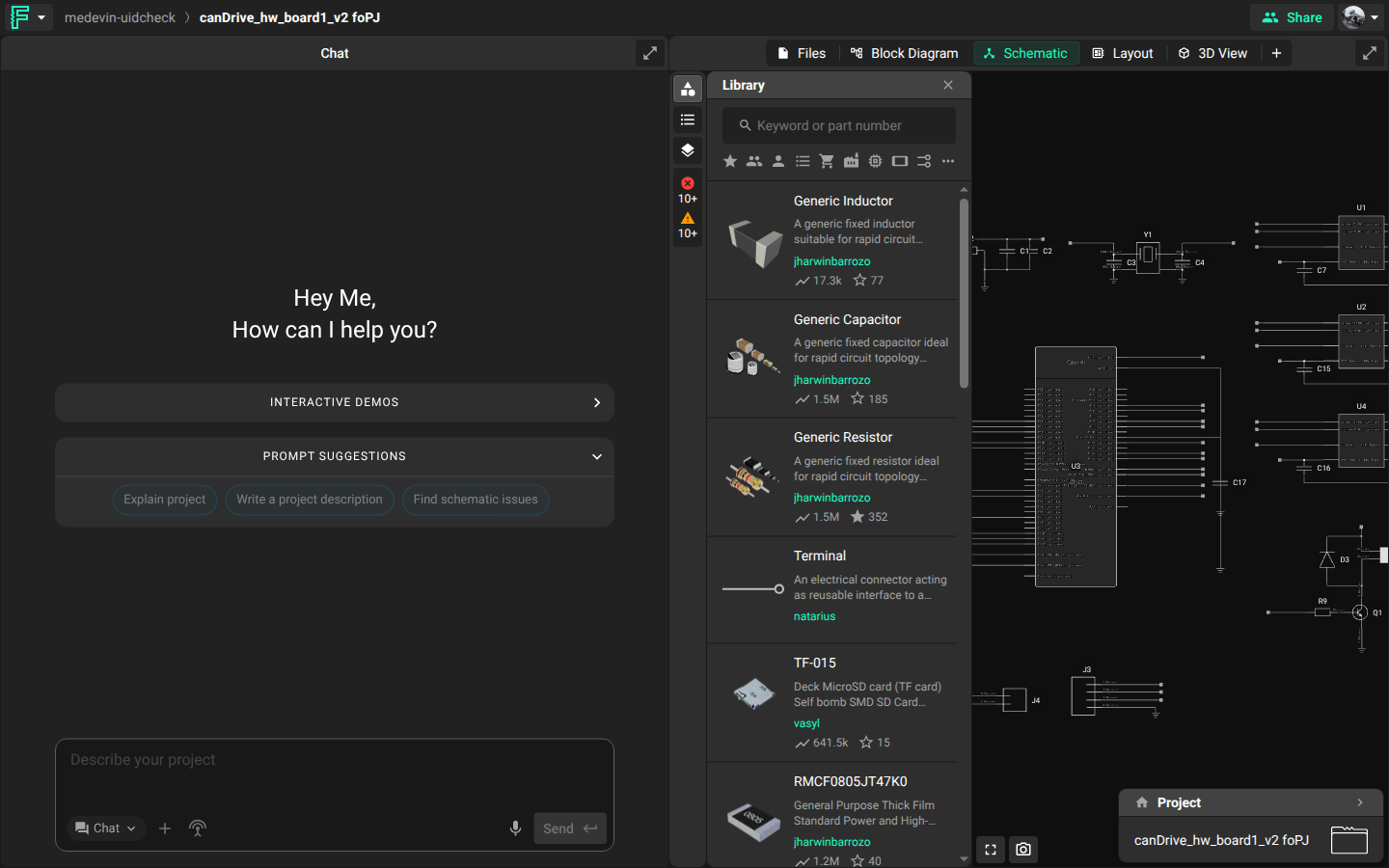
Flux keeps the schematic and the PCB in one project, so you do not synchronize .sch and .brd files. The schematic editor has three main sections:
The library on the right sidebar. This is where you'll find all the available parts and submodules.
The canvas in the middle. This is where you'll create schematics.
The Chat panel on the left side.
Parts, Symbols, and Footprints
This section explains Flux concepts and workflows.
Components
Ask Flux to create a component from a datasheet or from a description.
Flux components and Eagle devices have similar roles. A Flux component contains a footprint, a symbol, and a schematic. You can find components in the library and drag them into a schematic.
The main difference between a component in Flux and a device in Eagle is that to create a new component you first create a new project, add symbols and footprints, and then publish it to the library. Only when you publish it to the library the project becomes a component, and you can use it in other designs.
Schematic and Symbol
Flux uses schematics differently from Eagle. In this resistor example, the schematic contains two terminals and no symbol.
Components have two “views” in Flux:
Internal view: Open a part to see its contents. Resistors, ICs, connectors, and most discrete parts contain terminals. This view is useful when you work with submodules.
External view: Place a part in a project to see its symbol.
Footprints
For the most part, footprints work like packages do in Eagle. Each terminal you place on the schematic generates a pad on the PCB editor. For example, if you'd like to create a new part with ten pins, insert ten terminals from the library in the schematic.
Submodules
Ask Flux to publish the current project as a submodule.
Submodules are an extension of the concept of parts. They behave like parts in almost every way, but the key difference is that they contain multiple parts, traces, etc. They're essentially a project with their own layout that has been "converted" to a part to be reused in other projects.
Similar to parts, there will be one terminal (pin) in the submodule's symbol for each terminal in the submodule's schematic.
Open this USB-C receptacle submodule example. To create a submodule from a project, use the same process as for a part:
Go to the project you wish to convert to a submodule and click on the Flux menu in the top left corner.
Click on "Publish to library".
Library Management
Eagle uses local, cloud, global, and project-specific libraries. Flux has one library for parts and submodules that you can access.
The library includes community-made parts. You can also add your own parts.
Having access to a part or submodule can mean one of three things:
The part is public, and anyone can access it. There are thousands of public parts in the library to choose from.
Someone gave you access to that part in the share dialog.
It’s a part that you created or cloned yourself.
Parts' Fields and Properties
Ask Flux to add or update part properties, such as the MPN and the manufacturer.
In Flux, properties are equivalent to Eagle's part attributes. They allow you to add metadata (MPN, manufacturer, distributor, etc.) to your parts.
Flux provides real-time pricing and availability for parts with a valid manufacturer part number. Add an MPN property to a part.
Pricing and Availability
For parts that contain a Manufacturer Part Number property, Flux adds live pricing and availability information from the main distributors.
The PCB Editor
The PCB editor is where you create layouts and footprints. The Flux PCB editor contains three main sections:
The layout object tree on the left side: shows a list of all the objects present in the PCB layout.
The Selector-Based Layout Rules menu on the left side: where you create selector-based rules.
The Object-Specific Layout Rules menu on the right side: where you create object-specific rules.
Some menus are shared with the schematic editor, like the Part Library and Properties menus.
Netlist and ECO
Flux keeps the schematic and the layout synchronized. A change in one editor shows in the other immediately. You do not generate netlists or ECOs.
Eagle Properties vs Flux Rules
Flux uses rules to modify objects in a PCB layout. They work like Eagle properties and can set the board outline, trace width, or pad size.
Rules can also change a design. For example, a position rule moves an object to the specified coordinates. Flux has two main types of rules:
Object-specific Layout Rules: rules set here only apply to the selected object. You will see these rules on the right-side menu as soon as you select an object.
Selector-based Layout Rules: rules set here will apply to every object that matches the selector. You will see them when you go to the "Rules" menu on the left. An object-specific rule takes precedence over selector-based rules. This is similar to adding elements to a group and then modifying group properties.
Routing
Ask Flux to route the board, a net, or a differential pair.
To do it in the UI:
When two pads share a net, a white dot appears when you hover over a pad. Click the dot and route the trace. For multi-layer routing, right-click while routing and select the target layer. Flux places the required vias.
Flux uses impedance and differential-pair metadata from components during high-speed routing. When you route one trace in a differential pair, Flux routes its counterpart.
Copper Fills / Polygons
Ask Flux to add copper fills and polygons.
Flux supports both automatic full-board copper fills and custom-shaped copper areas using polygons. Full-board ground fills are created automatically when a ground symbol is placed in the schematic, and can be re-assigned to other nets to create power planes. For custom copper shapes — such as localized ground planes, split power planes, or RF structures — you can use polygons to define precise copper areas tied to specific nets.
To learn more about copper fills, how to enable or disable them, configure via stitching, or create custom copper shapes, refer to the polygons reference. To turn imported copper fills into live pours, see Turn imported copper fills into live pours.
DRC Checks
Ask Flux to run the design rule check and fix the violations.
Flux's layout rules prevent many mistakes. Run the design rule check (DRC) to find other violations, such as overlapping traces, unrouted nets, and missing footprints. Design Rule Check (DRC)
Gerber Files and Fabrication Export
Ask Flux to export the fabrication files.
Export the files that you need for fabrication, including Gerbers, BoM, and pick and place files. Manufacturing files