
Bring your EasyEDA project to Flux and continue it here. Work on electronics, firmware, mechanical design, wire harnesses, simulation, and manufacturing in one project.
Import Your EasyEDA Project
Attach the EasyEDA files to a message in the Chat panel and ask Flux to import them.
To do it in the UI:
In Flux, select Import from the Flux menu, then select Project…. Upload your EasyEDA Standard or Pro project files, a project folder, or a ZIP file. Flux supports .json, .epro2, and .epru files. Each import creates a new project. It does not update an existing project or part.
To import EasyEDA Standard parts, select Flux menu → Import → Part… and upload the .json file with its .step or .stp model.
What you can do with your design in Flux
Flux is an AI hardware engineer. After the import, your design is a Flux project. Ask Flux to work on it. Flux works on the electronics, the mechanical parts, the firmware, and the manufacturing in the same project.
Turn the imported board into a complete device
Use the imported EasyEDA schematic and board as the starting point. Ask Flux to design an enclosure around the board, then write firmware for the microcontroller and peripherals in the schematic.
Use the board outline, mounting holes, connectors, and clearance needs from the imported design to shape the enclosure.
Use the imported schematic's pin assignments and connected parts to guide firmware for the microcontroller.
Review the imported design
Ask Flux to review the schematic and the board. Flux reads the datasheets of the parts and reports the problems that it finds, with a fix for each one. Flux can also make a failure mode and effects analysis (FMEA) report.
Find replacement parts
Ask Flux to find replacements for parts that are obsolete, out of stock, or too expensive. Flux checks live stock and pricing from distributors and compares the datasheets before it changes a part.
Place and route the board
Ask Flux to place the components and route the board. Flux sets up the stackup and the layout rules, places the parts, routes the traces, and runs the design rule check. You can change any part of the layout by hand.
Simulate the circuit
Ask Flux to simulate a part of the schematic. Flux runs transient, AC, DC, and operating point analyses and shows the plots. See Circuit simulation.
Simulate high-speed and RF signals
Ask Flux to run an electromagnetic simulation of the routed board. Use it for the impedance, losses, and coupling of high-speed traces, and for antennas and RF feed lines. Flux reports the results with plots.
Check the board temperature
Ask Flux to run a thermal simulation of the PCB. Flux calculates the temperature of the board and its components from the power that each part dissipates, and shows the hot spots.
Design the enclosure and mechanical parts
Ask Flux to design enclosures, brackets, mounts, mechanisms, and other mechanical parts and assemblies around the board. Flux uses the board outline, the mounting holes, the connectors, and the 3D models of the parts. In the 3D view, you can cut through the model to check the clearances. See Mechanical Design.
Edit your existing STEP files
Upload a STEP, IGES, or BREP file from your mechanical team and tell Flux what to change. Flux saves the result as a new model with editable CAD code. Your original file stays unchanged.
Check the mechanical parts and the air flow
Ask Flux to analyze the mechanical parts. Flux calculates the stress and the deflection of a bracket or a housing. Flux checks the fit and the clearances between the board and the parts around it. Flux also simulates the air flow and the cooling through an enclosure with a fan or vents. Flux reports the results with numbers and images.
Write the firmware
Ask Flux to write firmware for the microcontroller on the board. Flux uses the pin assignments of the design. Then it builds, analyzes, and unit tests the code.
Design the cables between boards
Ask Flux for a cable between two connectors in the design. Flux reads the pinout from the nets, finds the mating housings, and picks the wire. Then it gets a price, the lead time, and a checkout link from a harness manufacturer.
Get quotes and order
Ask Flux for PCB quotes from manufacturers such as JLCPCB, PCBWay, OSH Park, and AISLER, and order the boards. Ask for 3D-printing quotes and orders for the mechanical parts. You can also export the Gerber, drill, BOM, and pick-and-place files. See Manufacturing files.
Overview
This tutorial explains how to move from EasyEDA to Flux. It covers the main workflow differences and shows you how to start designing circuit boards in Flux.
Why Transition from EasyEDA to Flux?
Flux combines hardware design, collaboration, and an AI hardware engineer in one workspace.
Key Features:
Design with Flux: Ask Flux to help with hardware design tasks.
Collaborate on projects: Share a project with other users.
Version history: Flux saves project changes and lets you open earlier versions.
Project sharing: Share a project link with people who have access.
Templates and examples: Start from an existing project.
Community projects: Explore projects shared by other designers.
Part creation: Create parts that are not in the library.
Project reuse: Fork projects to make your own copy.
Share Projects
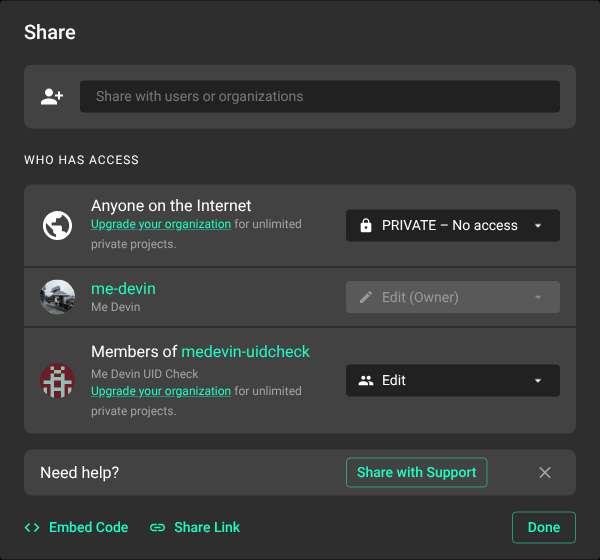
Flux runs in a browser. Share a project link to collaborate.
Projects are private by default. Use the share menu to give other users access or make a project public.
Copy and share the project URL. People with access can work on the same design.
Design with Flux
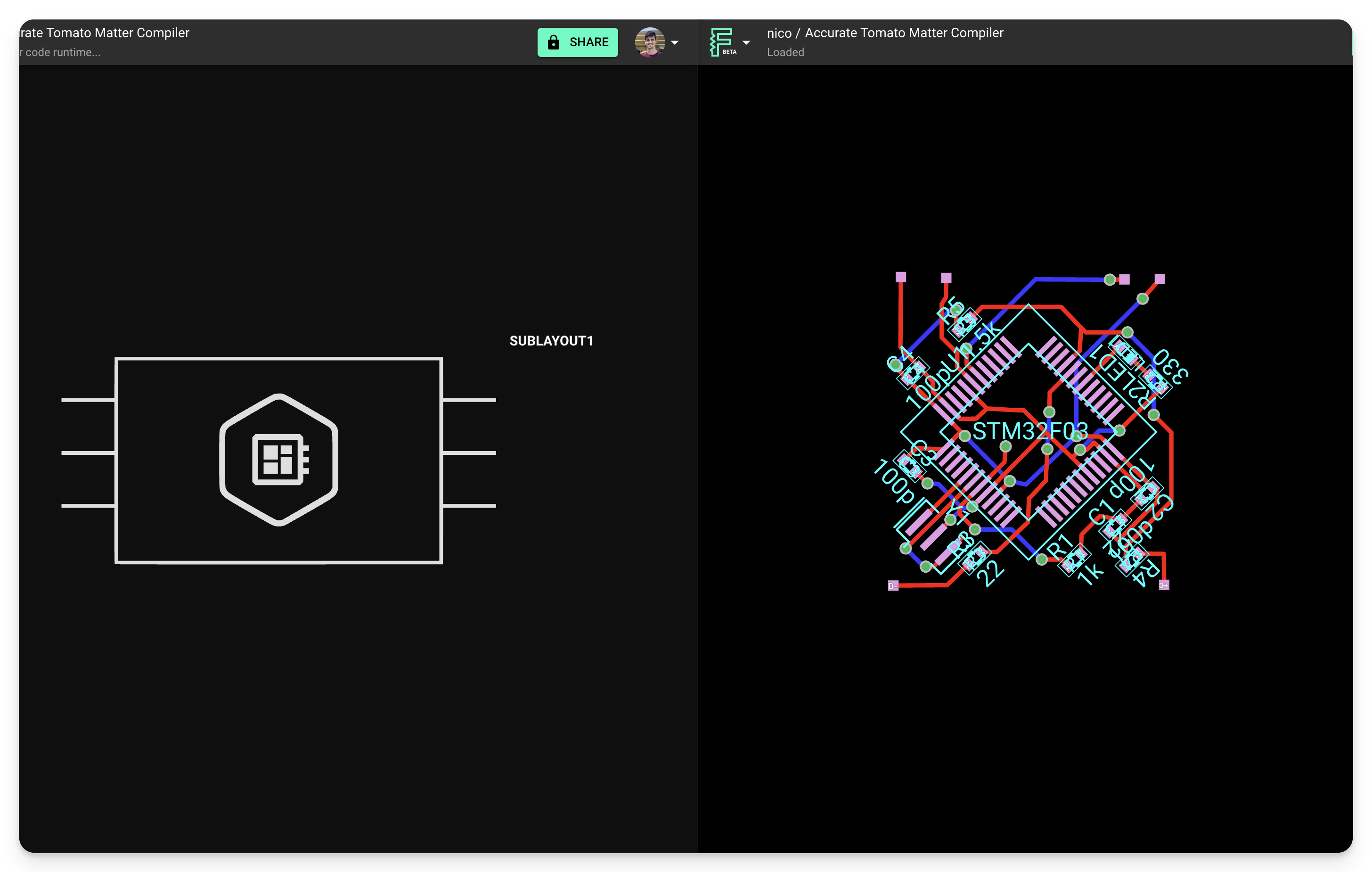
Flux works inside your project and understands its components, connections, and datasheets. Ask Flux for a task, and Flux does the work: it selects parts, draws the schematic, places and routes the board, designs the enclosure, and runs simulations and design reviews. You review the result and give direction.
Version History
Ask Flux to show the project history or to restore an earlier version.
EasyEDA stores design files in the cloud. Flux also stores projects in the cloud and saves changes in version history. Open Change History to restore an earlier version.
Project Links
Each Flux project has a URL that you can share. Open the URL to access the project.
Modules
Modules let you reuse circuit blocks, such as power converters and oscillators, in other projects. A module can include parts, traces, and vias. Each terminal in the module symbol corresponds to a terminal in its schematic.
Flux’s Unified Library
Flux and EasyEDA organize parts in different ways.
EasyEDA provides users with collection of three major component libraries: the common library, user-generated library, and a third library connected directly to a component parts vendor. EasyEDA also allows users to create custom components, enhancing the flexibility and versatility of their component choices within the platform.
Flux has one library for the parts you can access. It includes parts from you, your team, and the community, whether private or public. Search the library to find a part.
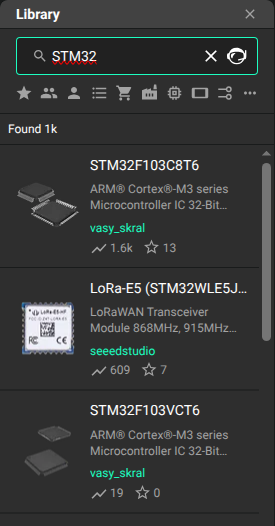
Can’t find a part? Add it to the library and set its permissions.
Part Creation
Ask Flux to create a part from a datasheet or from a description.
In EasyEDA, you can create custom parts with symbols, footprints, and properties.
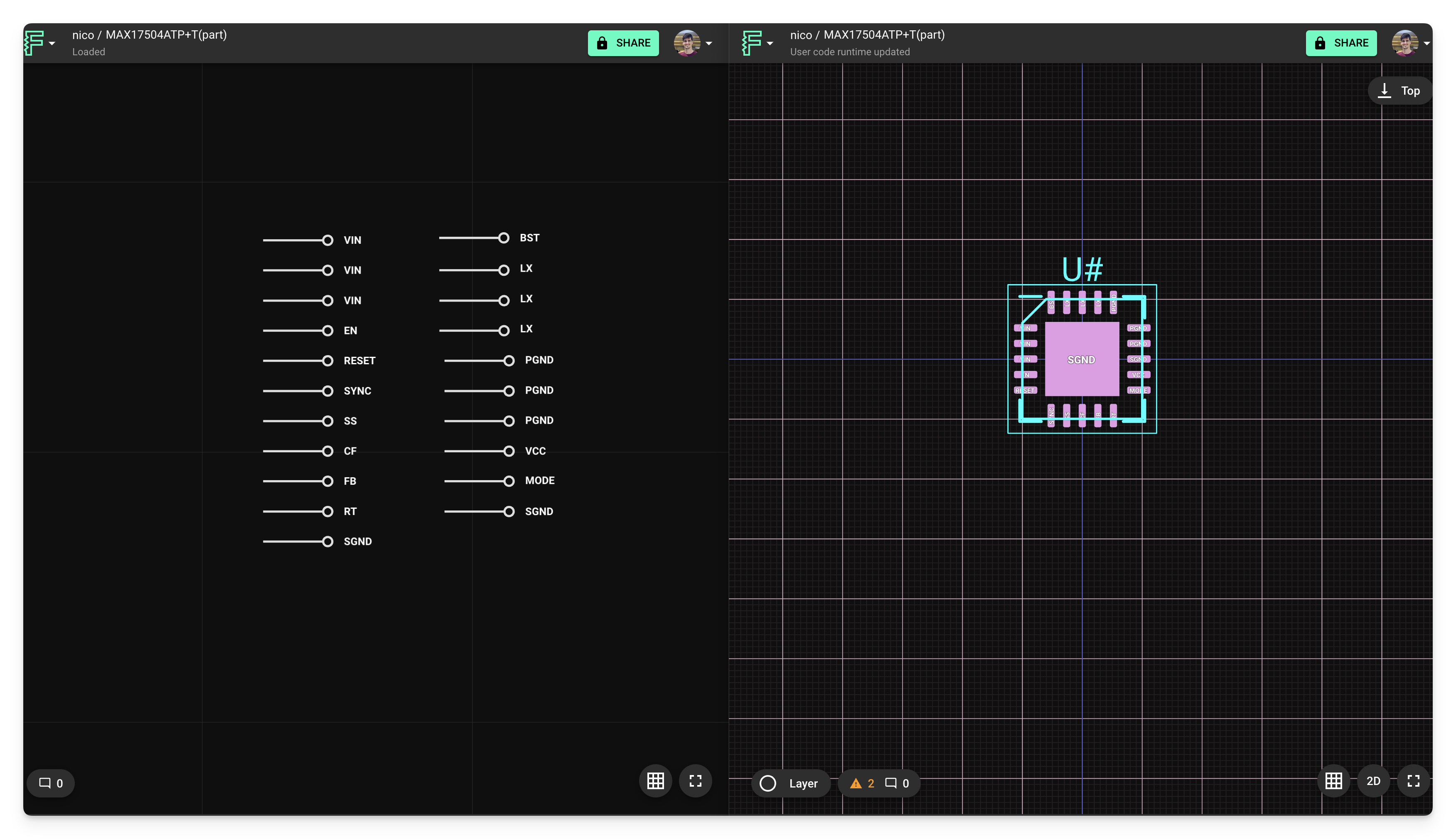
To create a part in Flux, create a blank project. Add terminals to the schematic. Each terminal creates a pad in the PCB layout. Configure the pads to define the footprint, then publish the project to add it to the library.
📖 Naming convention: pins (traditional) → terminals (Flux). Both have a similar function, but pins are called terminals in Flux.
In Flux, there is no “assigning” a footprint to a symbol or part. Every part, project, or module has a schematic and associated PCB layout, known as a footprint.
Generic Parts
You can choose from multiple footprints for a part. Each part includes its available footprints, so you can select one in the project.
Project Cloning and Forking
Ask Flux to fork a project.
Fork a project to preserve its change history and maintain a link to the original. Clone a project to create a copy without its history.
From EasyEDA Schematic Editor to Flux Schematic
Sheets
EasyEDA uses hierarchical sheets to organize a project. Flux uses modules for nested designs. Double-click a module in the schematic to open its contents.
Symbols
In both tools, a symbol represents a part or module in the schematic.
EasyEDA has a symbol editor for schematic symbols. Flux supports imported SVG symbols. Double-click a part to view its contents.
Wiring
Ask Flux to connect the pins and nets.
In EasyEDA, you can press W or click a part terminal to start a wire. In Flux, click a pin and route the wire.
Alignment
Ask Flux to arrange the schematic.
In EasyEDA, objects snap to the grid when you place them. In Flux, align symbols with the magnetic guides before you wire the schematic.
Flux Terminals, Net Labels, and Power Symbols act as EasyEDA’s Net Ports
In EasyEDA, net ports connect nodes across sheets. In Flux, terminals work like ports. Net labels and power symbols connect pins that have the same net name.
Ask Flux to connect the nets by name.
To do it in the UI:
Start a wire from a pin that has no connection. A menu opens next to the pin. Select Create a net or connect to an existing net and type the net name. Pins with the same net name are connected. Flux shows a power symbol for a net whose Net Type property is Power. To connect a pin to ground, select Connect to the GND net.
Bill of Materials (BoM), Pricing, and Availability
Ask Flux to check part availability or to export the BOM.
EasyEDA requires exporting its Bill of Materials (BoM) every time to view the latest part availability.
Flux shows live pricing and availability from distributors for each part with a manufacturer part number (MPN).
Export a CSV file that lists the components and their attributes.
Notes & Comments
In Flux, add notes to the schematic and place comments on the canvas.
From EasyEDA’s PCB Editor to Flux’s PCB Editor
Schematic and PCB Sync
EasyEDA requires you to go through an “import changes” wizard to facilitate any schematic changes being updated in the PCB.
Flux synchronizes schematic and PCB changes in real time. Use version history to restore an earlier version.
Set PCB Rules in Flux
Ask Flux to set the layout rules.
When you start a new PCB project in EasyEDA, the design rules panel is crucial. It lets you configure various aspects such as clearance distances, shapes, and properties of elements like traces, silkscreens, and components. Once you've set these parameters, you can further fine-tune the properties of individual objects on the PCB canvas through the properties panel. The typical workflow in EasyEDA involves setting up board rules, placing parts and routing (while making adjustments via the properties panel), followed by a design rule check. If you violate any rules, errors will be flagged in the final stage.
Flux uses rules to set object properties. It provides feedback as you place components and traces, and can adjust object properties to match your rules.
In Flux, specific layout rules are managed using the Inspector panel on the right. When you select an element, the layout rules menu appears, allowing you to add or modify rules and configure every detail, from parts and traces to the board itself.
Use rules to set PCB object properties, including position, rotation, and size. Read the layout rules guide for details.
Flux also offers selector-based layout rules, which let you apply changes to multiple elements simultaneously. For instance, you could adjust the width of several traces in a single net with one rule.
Consider a scenario where you're an engineer reviewing a previously designed PCB and you come across a trace with an unusual width.
In EasyEDA, the reason behind this specific width or the influencing factors might be unclear.
In Flux, an object rule or selector-based rule sets the trace width. Select the trace to see which rule applies.
Trace Routing and Impedance Matching
Ask Flux to route the board, a net, or a differential pair.
In both EasyEDA and Flux, click a pad node to start routing a trace.
Flux supports high-speed and standard routing.
Copy Pasting
Copy and paste objects on the canvas. Apply rules to an object, then copy it to reuse those settings.
Copper Fills / Polygons
Ask Flux to add copper fills and polygons.
Flux supports both automatic full-board copper fills and custom-shaped copper areas using polygons. Full-board ground fills are created automatically when a ground symbol is placed in the schematic, and can be re-assigned to other nets to create power planes. For custom copper shapes — such as localized ground planes, split power planes, or RF structures — you can use polygons to define precise copper areas tied to specific nets.
To learn more about copper fills, how to enable or disable them, configure via stitching, or create custom copper shapes, refer to the polygons reference.
Stackup Manager
Ask Flux to set the board stackup.
EasyEDA provides a layer manager for configuring the board stack-up. This includes setting up the number of copper layers, silkscreen, outlines, and more.
In contrast, Flux manages its stack-up configuration through constraints defined in the layout object. By default, new projects in Flux are set up with a 4-layer stack-up. If you need to configure a different stack-up in Flux, follow these steps:
Navigate to the "Objects" tab on the left panel of the PCB editor and locate the "layout" object.
Click on the "layout" object. In the right panel, you'll find the option to add an "Object Specific rule" named "Stackup.”
From there, you can select the appropriate stack-up from the provided list.
Flux offers multiple pre-made stackups tailored for commonly used manufacturers, including AISLER, JLCPCB, and PCBWay
Design Rules Check (DRC) and Constraints
Ask Flux to run the design rule check and fix the violations.
EasyEDA employs a system of design rule checks (DRC) and various other constraints, which are defined within its design manager.
Conversely, in Flux, these tools and settings are managed using the layout tools. Flux simplifies the process by eliminating the need to scour manufacturers’ websites for constraints or navigate through multiple rule import wizards. Instead, you can conveniently clone a template that already has all the necessary DRC presets.
Board Outline
Ask Flux to set the board outline.
The board outline appears as a separate object in the PCB object tree. Select the Layout object to edit its properties with rules.
Navigation & Shortcuts
Use the mouse wheel to zoom and the middle mouse button to pan. Flux also supports trackpad gestures.
To see the Flux shortcuts, open Keyboard Shortcuts from the top-left menu. Common shortcuts include:
Zoom to Fit:
0Rotate right:
]Rotate left:
[Flip a wire elbow:
FFinish a wire by double-clicking the canvas or clicking a terminal.
Simulator
In EasyEDA, users have the capability to simulate their circuits to detect errors and verify functionality before proceeding with PCB layout.
Flux can simulate circuits. Ask Flux to run analyses on your schematic. Example prompts:
Wrap Up
Feature | Flux | EasyEDA |
|---|---|---|
Circuit Simulation | Yes | Yes |
Reusable Designs/Components/Modules | Yes | Yes |
Bill of Materials (BOM) Generation | Yes | Yes |
Design Rule Checking (DRC) | Yes | Yes |
Cloud-based Storage | Yes | Yes |
Collaborative Design | Yes | Yes |
Gerber File Generation | Yes | Yes |
3D Viewer | Yes | Yes |
This guide compares EasyEDA workflows with Flux. Use Flux's library, collaboration, and simulation features to continue your design.
Getting Help
In case you need assistance, here are some additional resources:
Flux support: Contact support if you encounter bugs or unexpected behavior while using Flux.
Flux video tutorials: Watch tutorials, crash courses, and recorded events. Independent creators also publish Flux tutorials.
Flux support: Open the Flux home page and select "Contact us."