
Every time the Flux AI agent works for you, it uses ACUs (Agent Compute Units). You can see how many ACUs each chat thread used. This helps you understand which requests use more ACUs, so you can plan your usage.
Where to find it
From the open chat thread
Open your project and open the chat thread.
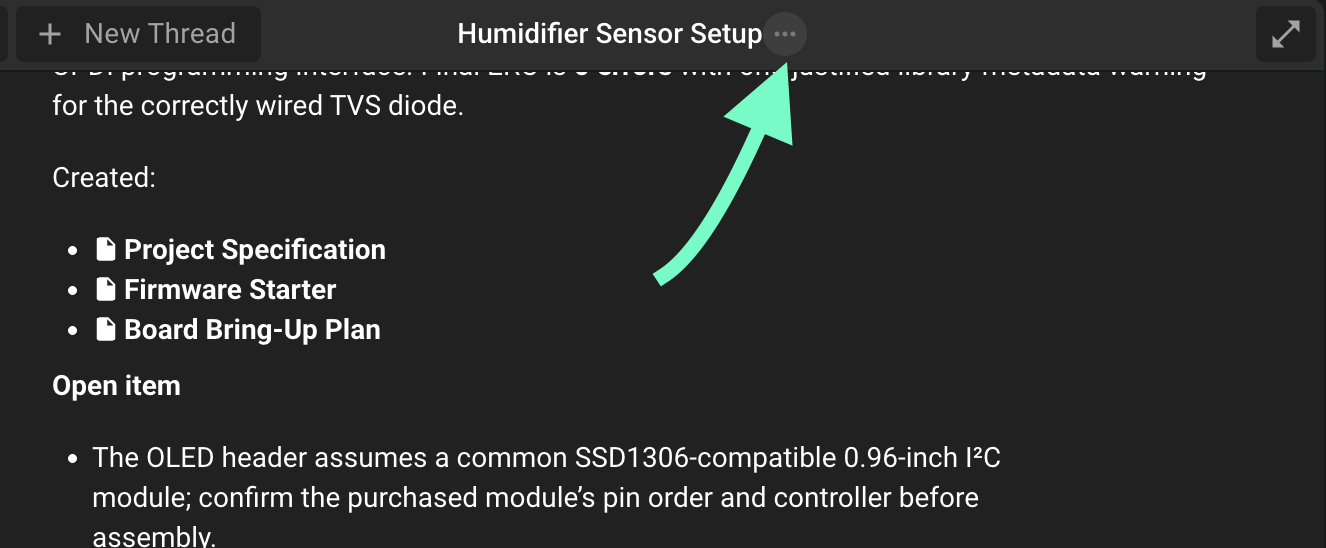
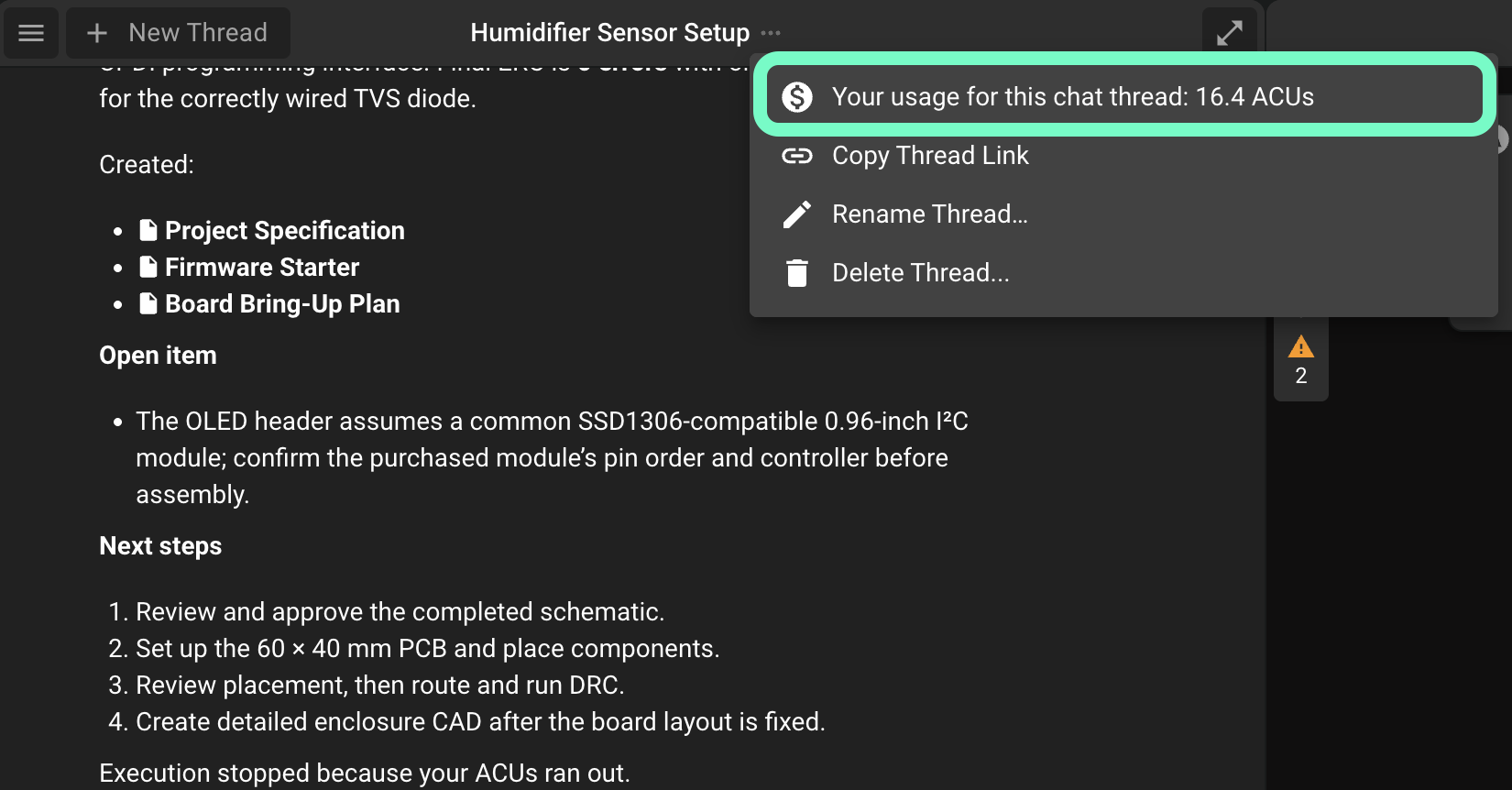
At the top of the chat, click the ... button next to the thread name.
The first line of the menu shows Your usage for this chat thread, with the number of ACUs.
From your list of chat threads
At the top of the chat, click History to open your list of chat threads.
Move your mouse over a thread and click the ... button next to it.
The first line of the menu shows the ACUs for that thread.
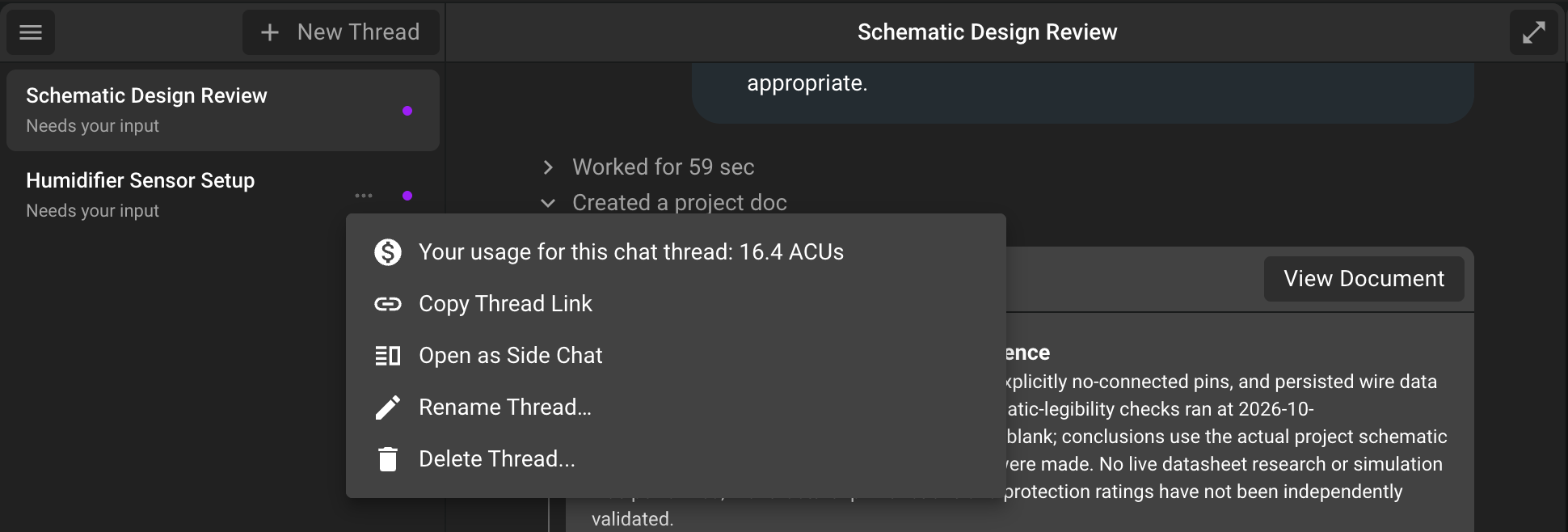
Use this to compare threads without opening each one.
What the number includes
The number is the total for the whole thread, from the first message to the last one.
It includes the work the agent did in the background for that thread, such as long, multi-step tasks.
It updates as the agent works. If the agent is still working, check again when it is done.
A new thread, or a thread that has used only Chat mode, shows 0 ACUs.
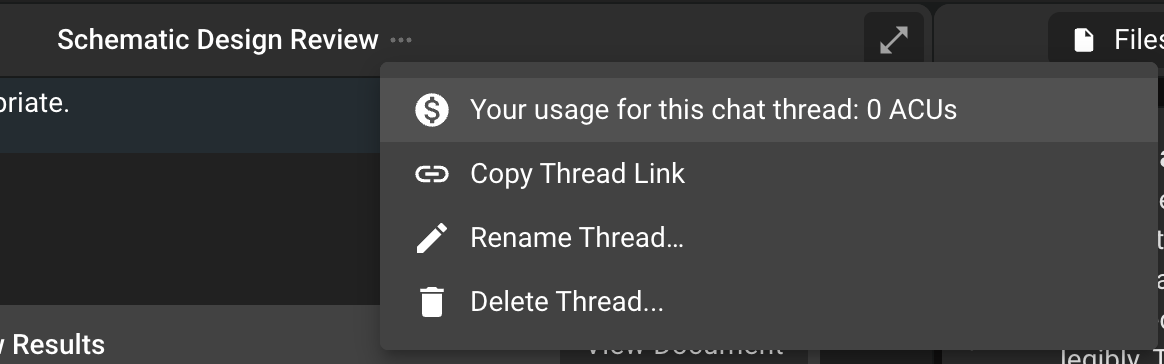
The number of ACUs depends on how complex the request and the project are. It is not possible to know before a request how many ACUs it will use.
To see how many ACUs you have left on your plan, go to Settings > Plans and Usage. For more information, see How on-demand usage and usage limits work.
Use Chat mode to save ACUs
Flux AI has two modes:
Chat mode is best for questions, explanations, reviews, and planning. It uses no ACUs.
Agent mode builds and changes your design for you. It uses ACUs.
When a request needs Agent mode, Flux shows a Continue in Agent Mode button. You decide when to switch.
A good way to save ACUs is to plan your design in Chat mode first, and then switch to Agent mode to make the changes.
For the full list of what each mode can do, see Chat & Agent Mode.
Whose ACUs are used?
If an organization owns the project, and you are a member of that organization, the thread uses the organization's ACUs.
In all other cases, the thread uses your own ACUs.
For more information, see Flux ACUs.
Need help?
If a thread used more ACUs than you expected, please contact our support team. Include the email address on your Flux account and a link to the thread. To get the link, click the ... button at the top of the chat and select Copy Thread Link. We will look into it with you.
Related articles: How ACUs and on-demand charges work and How on-demand usage and usage limits work.