
You can toggle the Flux AI between Chat and Agent modes. Both modes are equally smart but differ in the actions the AI can take and which tools are available.

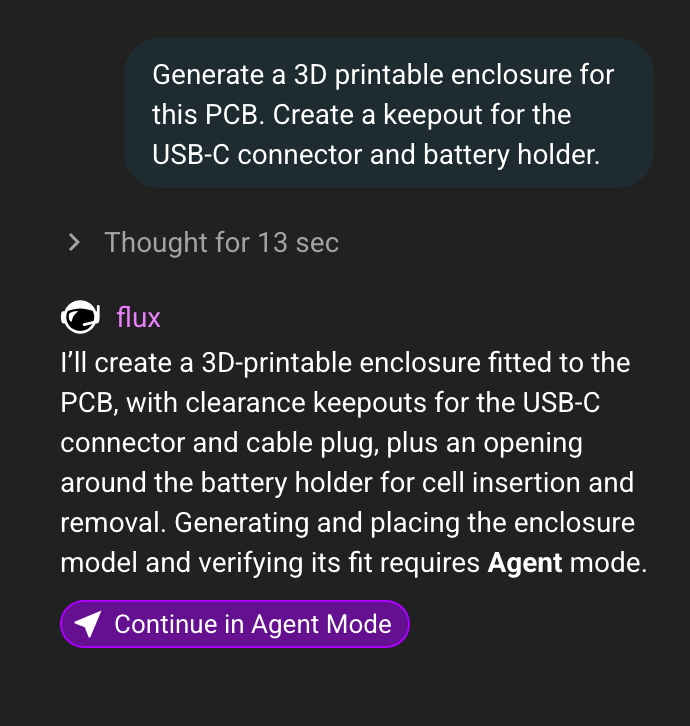
When an action requires Agent Mode, Flux will prompt you to change the mode to proceed.
Choosing Between Modes
Use Chat when you want to learn, review, or plan without using your plan's ACUs. Switch to Agent when you want Flux to make changes or carry out work for you.
Chat | Agent | |
|---|---|---|
Best for questions, explanations, reviews, and writing. | Building and changing your design. | |
Faster speed and uses no ACUs. | Can do more and uses ACUs. |
What Chat Mode Can Do
Understand your project
Read your schematic, PCB layout, 3D view, bill of materials (BOM), and nets
Look up component properties, layout rules, and manufacturing settings
Run design checks (ERC/DRC) and explain the results
Review your project’s version history and see what changed
List and open your other projects
Work with files and information
Read and summarize uploaded files
Run engineering calculations
Write and remember
Write and edit project documents, such as specs, requirements, plans, and design notes
Search Flux help docs and your knowledge base
Save notes and preferences for Flux to remember
Guide you
Answer electronics questions and explain how your design works
Let you know when a request needs Agent mode and show a
Continue in Agent Modebutton
What Agent Mode adds
Agent mode includes all Chat mode capabilities, plus the ability to:
Edit the schematic
Add, edit, and remove components
Connect and disconnect pins, and mark pins as no-connect
Create, rename, and remove nets
Arrange the schematic and draw wires
Rename designators and edit component and net properties
Lay out the PCB
Set up the board and stackup and edit layout rules
Place components automatically or in groups
Route traces using auto-routing, trace neck-downs, and USB-C breakouts
Clean up the layout
Find and create parts
Search the parts library and review datasheets
Create components, import files, and publish parts
Research and simulate
Search the web for current information
Run circuit simulations
Analyze data
View images and generate images
Manage projects
Rename projects and edit their descriptions and properties
Manage project assets
Restore an earlier version
Manufacture
Get PCB and 3D-printing quotes and place orders
Handle larger jobs
Plan and carry out long, multi-step tasks independently
Post progress updates while work is underway
Split work into parallel tasks
Get a second opinion on difficult engineering decisions