
Show your product before the first unit ships. Flux is an AI hardware engineer, and it makes product images and videos of the device that it designed with you. The images and videos show your board and your enclosure, not a stock picture of a similar product. Use them on a launch page, in a pitch deck, in a store listing, or on a crowdfunding page.

When the design changes, ask again. The next image or video shows the new design.
What you can make for a launch
Tell Flux what the image or video is for and where you use it.
Use | What to ask Flux for |
|---|---|
Launch page | A lifestyle shot, a hero image with a headline, and a short product video |
Social posts | A vertical product video |
Pitch deck | A studio shot and a lifestyle shot that show the product is real |
Store listing | A studio shot on a white background and a transparent cutout |
Crowdfunding page | A hero image with a headline, lifestyle shots, a product ad, and a story video with several shots |
Design review or customer update | A short video of the device in its real place |
Uploaded image edit | An edit to a photo that keeps the device as shown |
Sketch to render | A product render based on your sketch |
Variations | Several scenes, colors, or display expressions |
Clip edit | A new background, light, or format for a video |
Product in a video | A clip with your device in place of another product |
Presenter promo | A short video of a presenter showing your product |
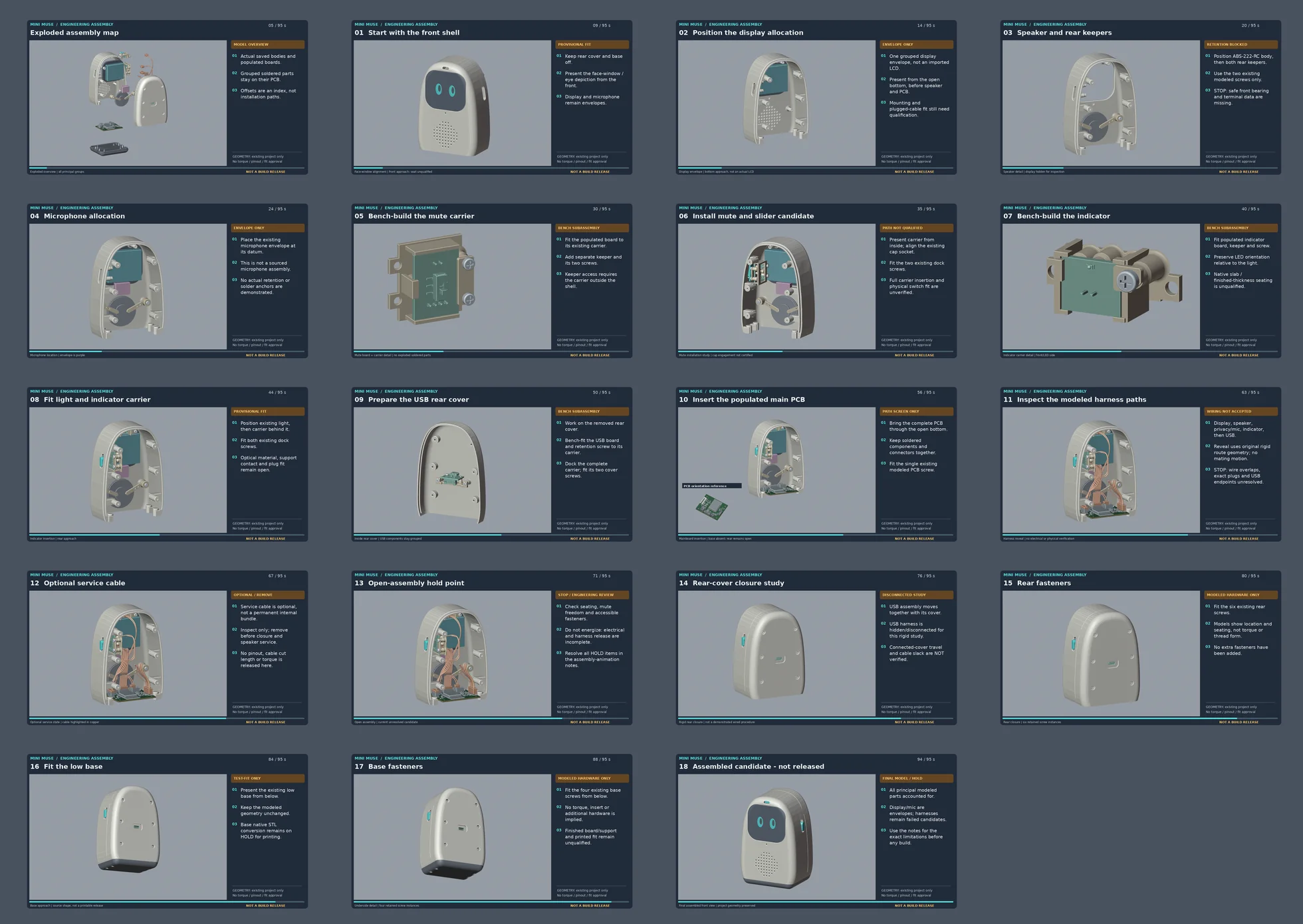
Create product images from your design
Ask Flux for a product image of the device in your project. Flux starts from the board and the enclosure in the 3D view. Say what the image is for, the scene, the camera angle, and the background.
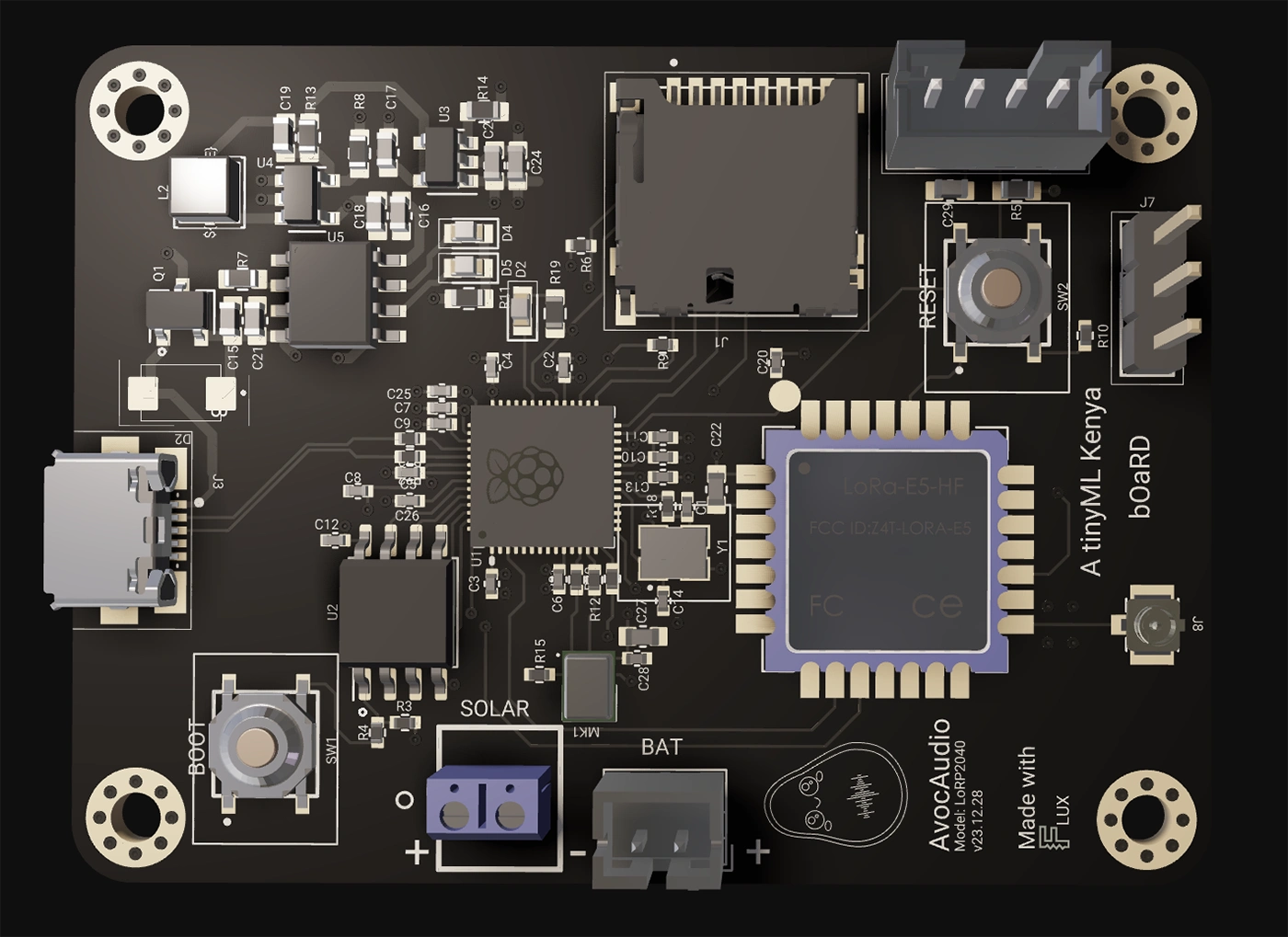
Open the project that has the board and the enclosure of the device.
Open the Chat panel.
Tell Flux what the image is for, for example a launch page or a store listing.
Describe the scene, the camera angle, the background, and the light.
Flux shows the image in the chat and saves it to the project assets.
Create lifestyle shots and hero images
Ask Flux for a lifestyle shot to show the product in use. Ask for a hero image to show the product with a headline. Write the exact words of the headline in quotation marks.
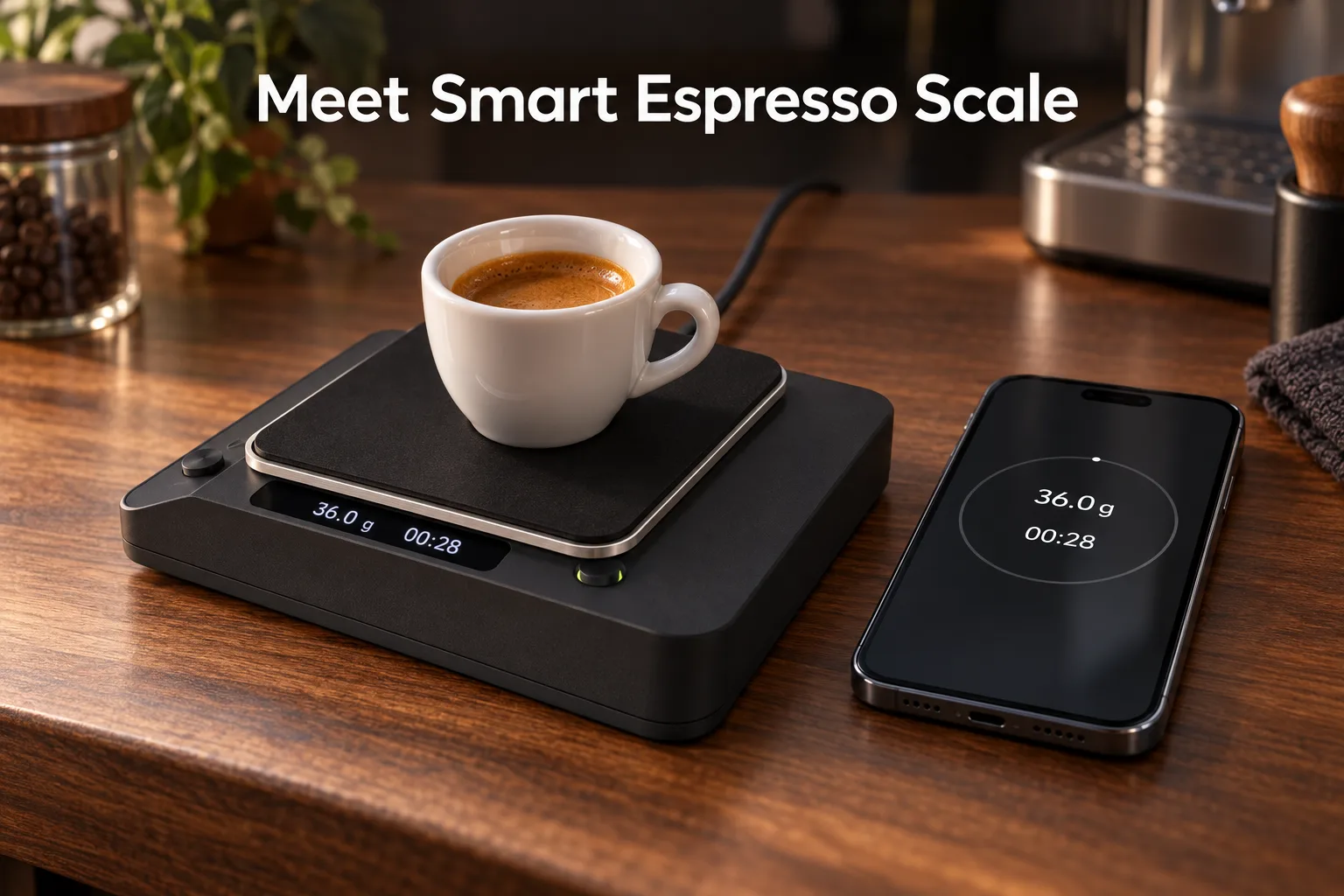
Open the project that has the device design.
Open the Chat panel.
Tell Flux what the image is for and describe the scene or headline.
Edit product images
Ask Flux to change an image that it made. Say what to change and what to keep the same. Ask for one change at a time.
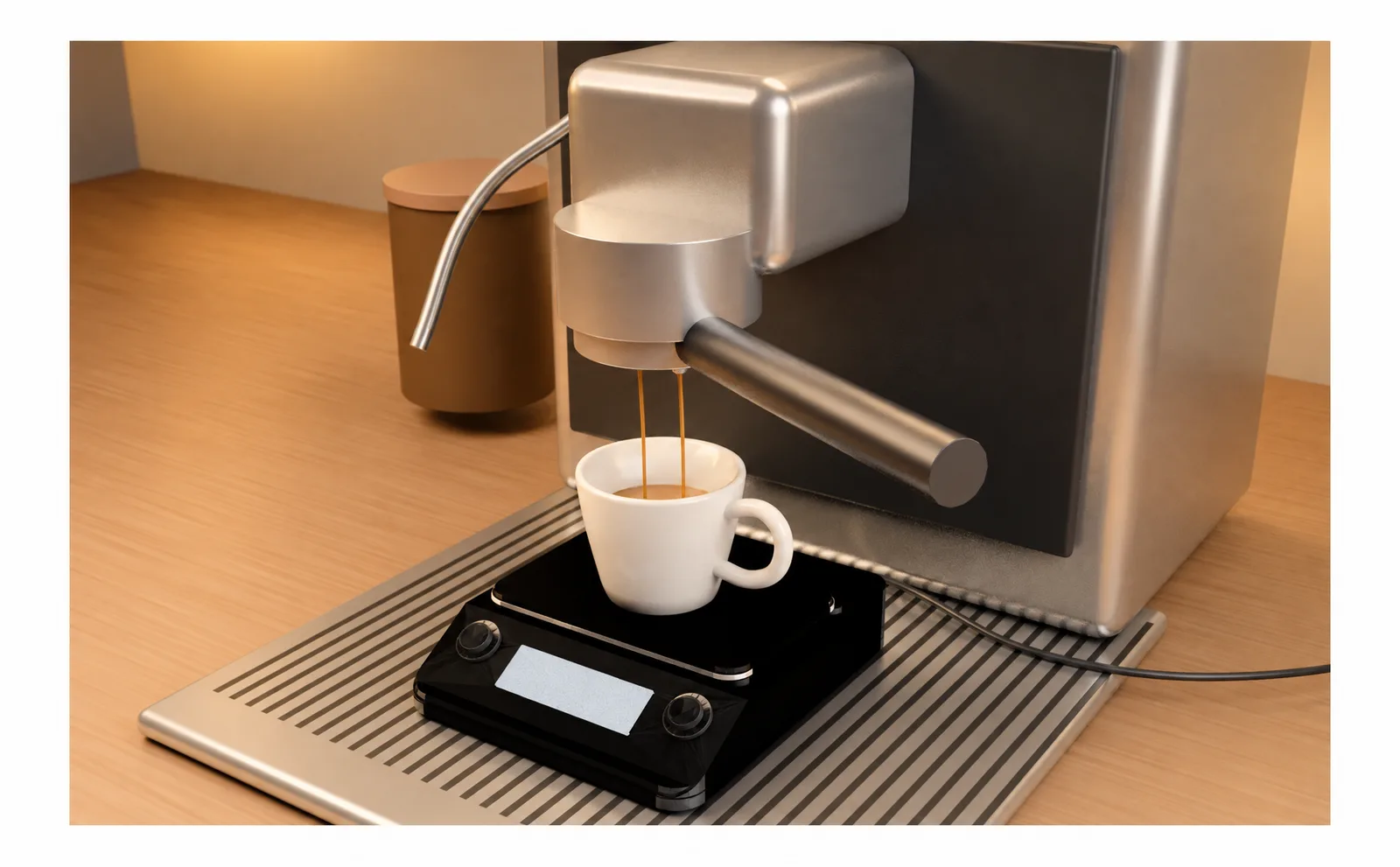
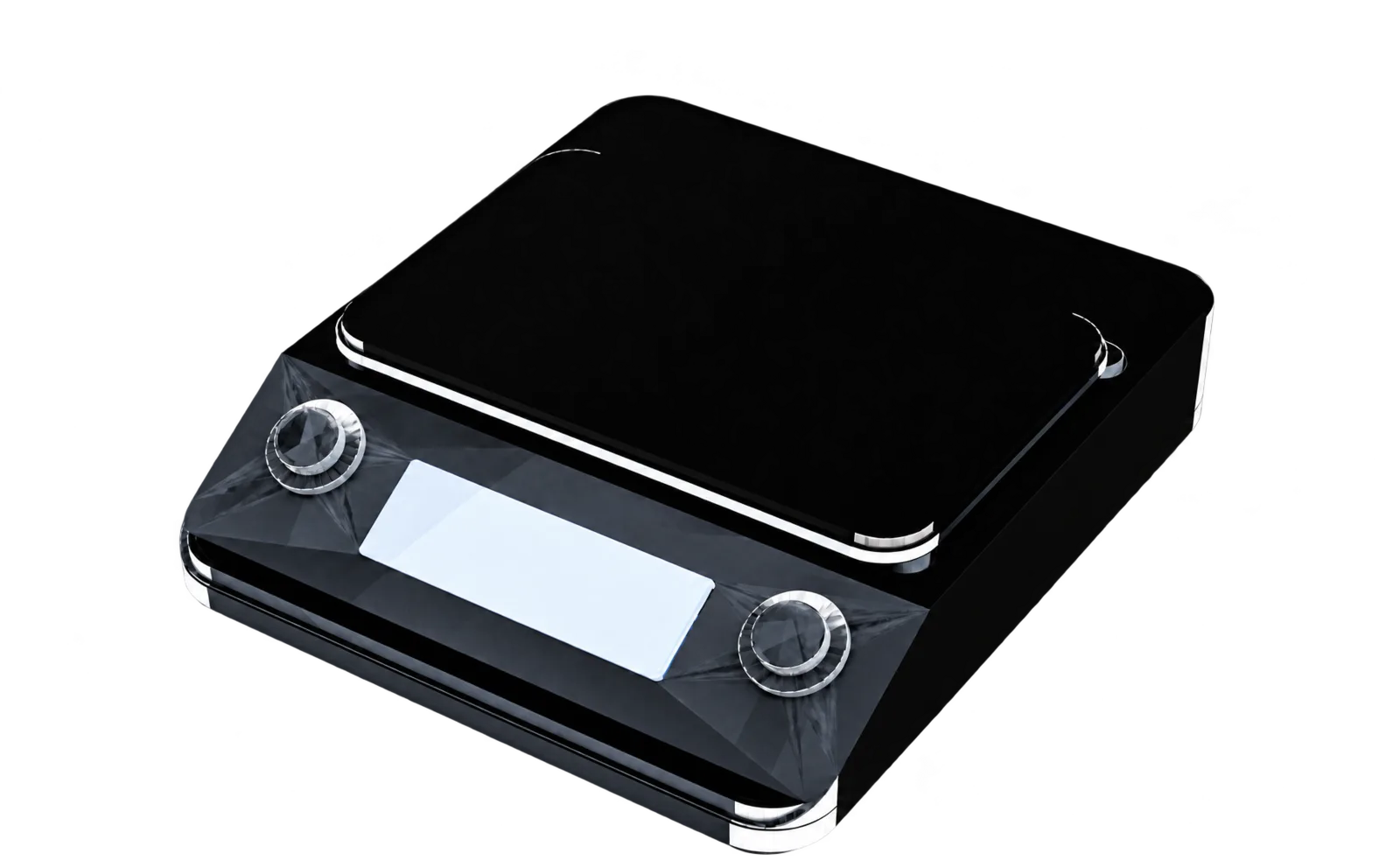
In the Chat panel, tell Flux which image to edit.
Say what to change and what to keep the same.
Flux shows the edited image in the chat and saves it to the project assets.
Edit an image that you upload
Attach a photo or paste its link. Tell Flux what to change and what to keep.
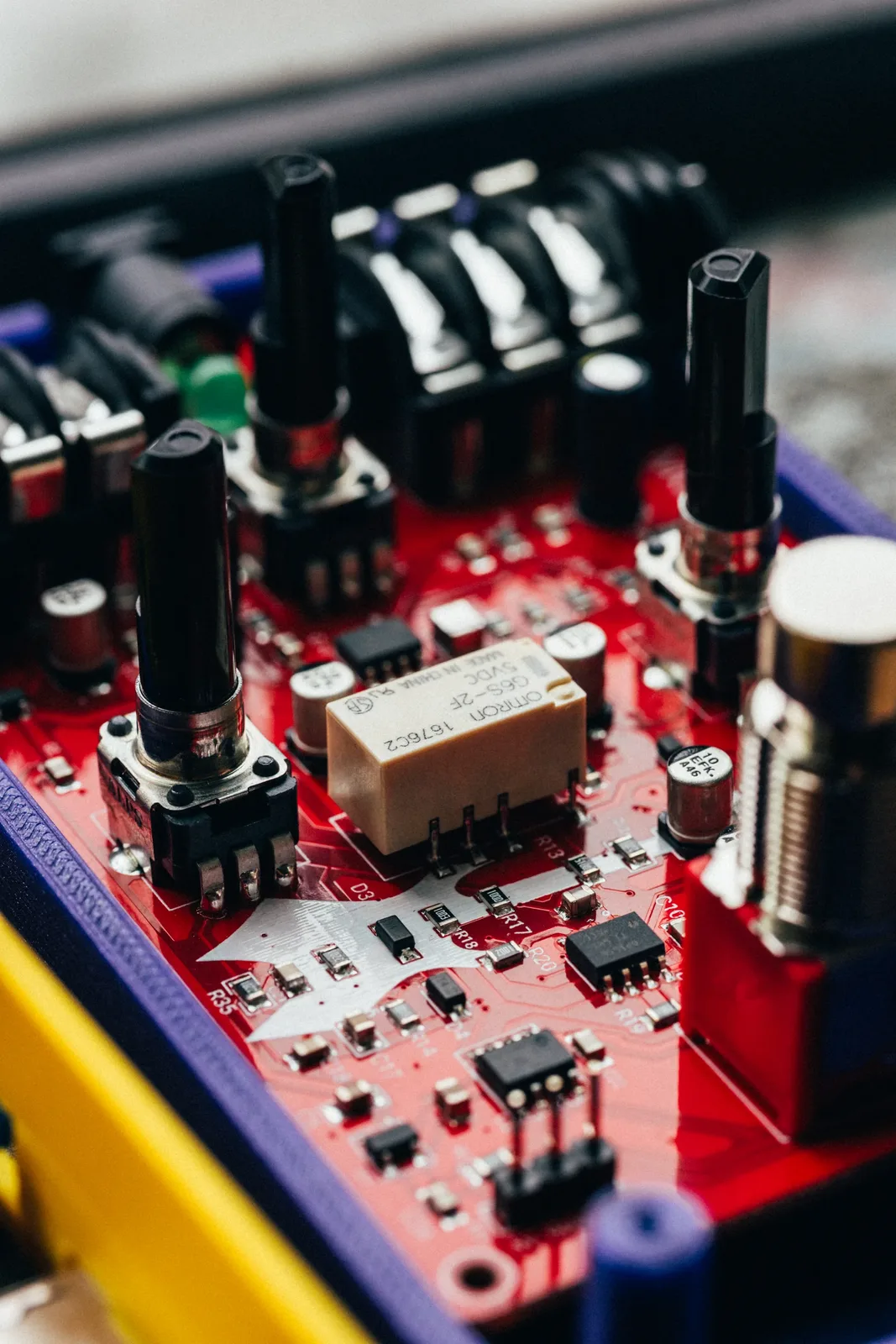
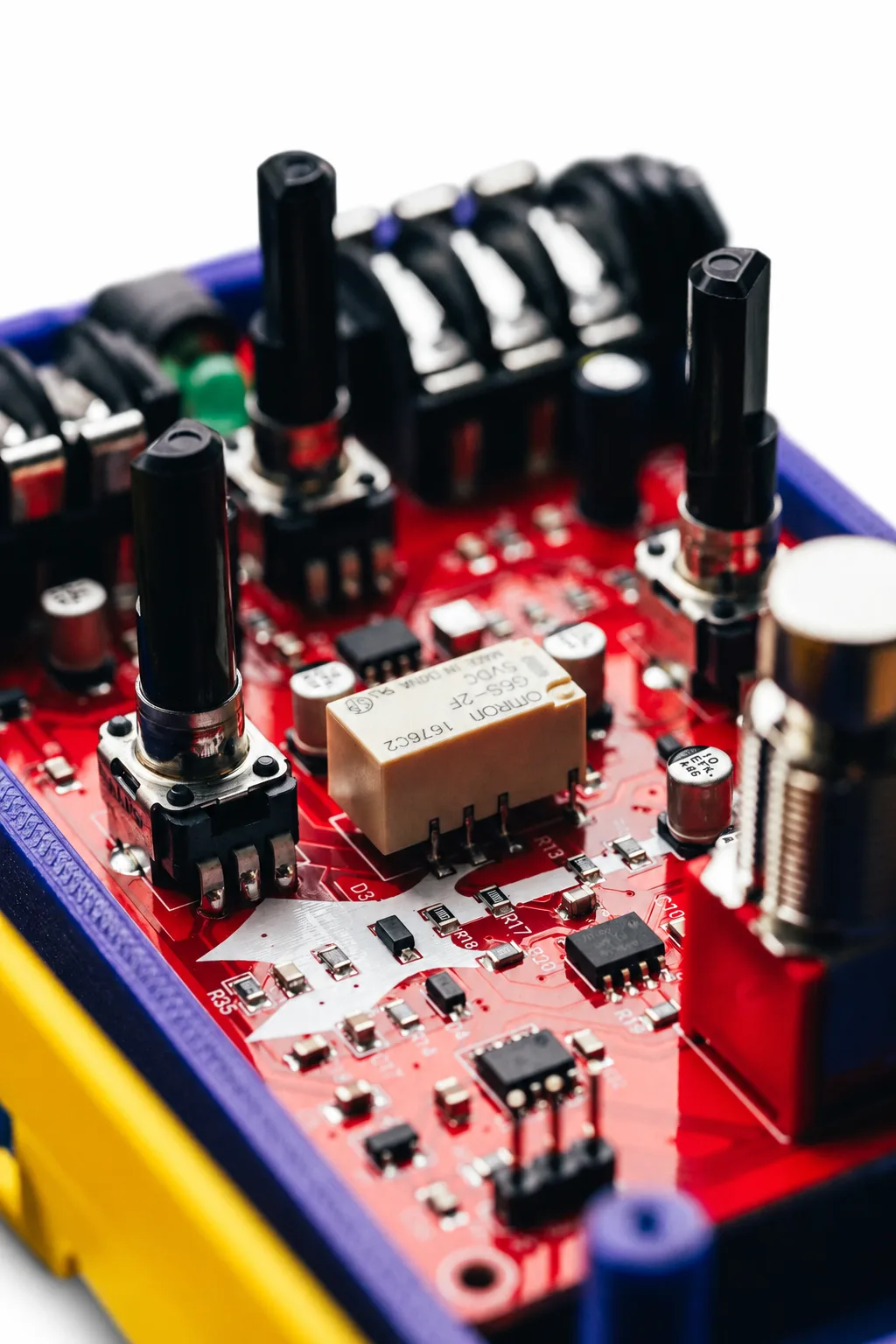
Open the Chat panel.
Attach the photo or paste its link.
Tell Flux what to change and what to keep.
Turn a sketch into a product render
Ask Flux to turn a sketch into a product render. Tell Flux the material, color, and background.
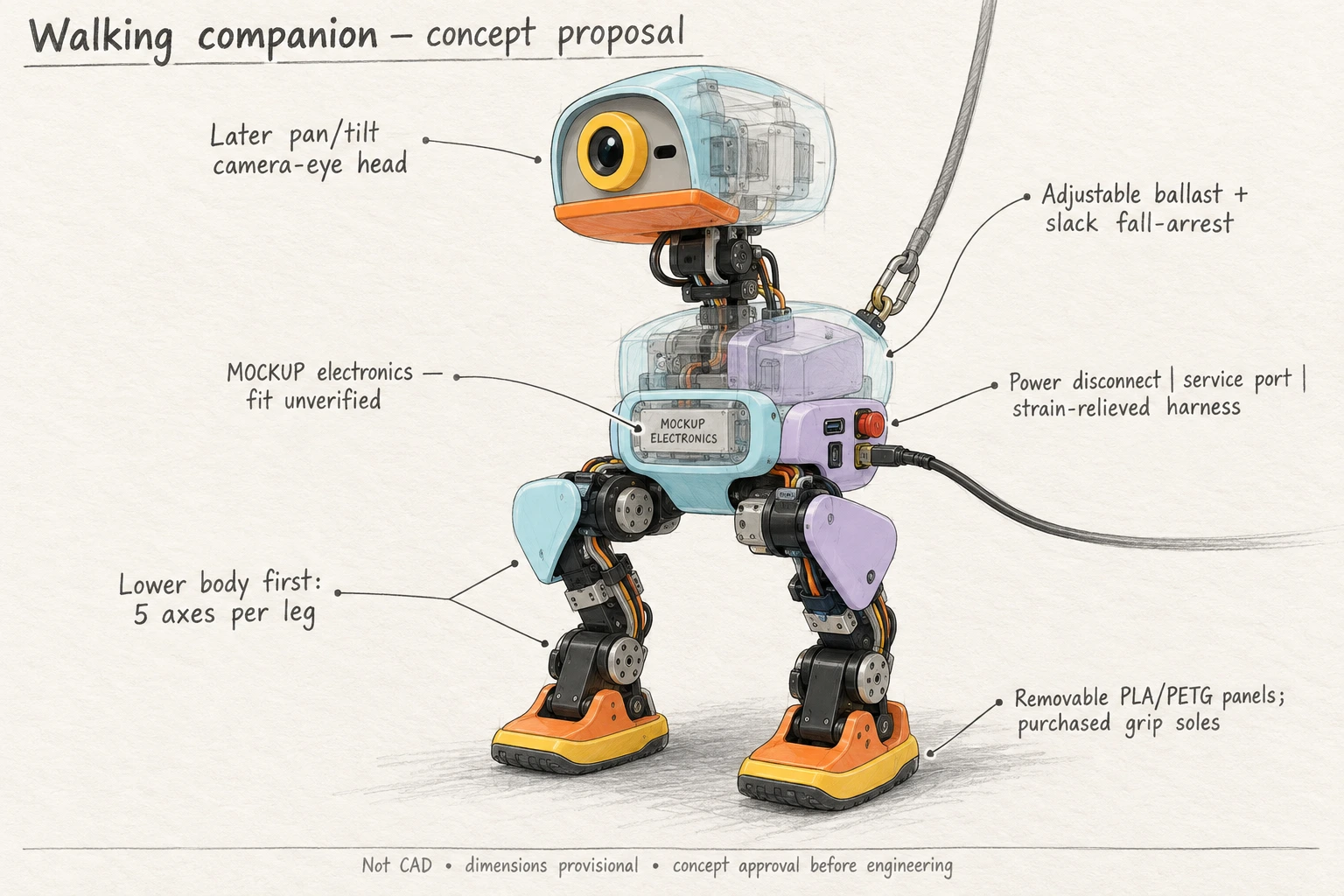
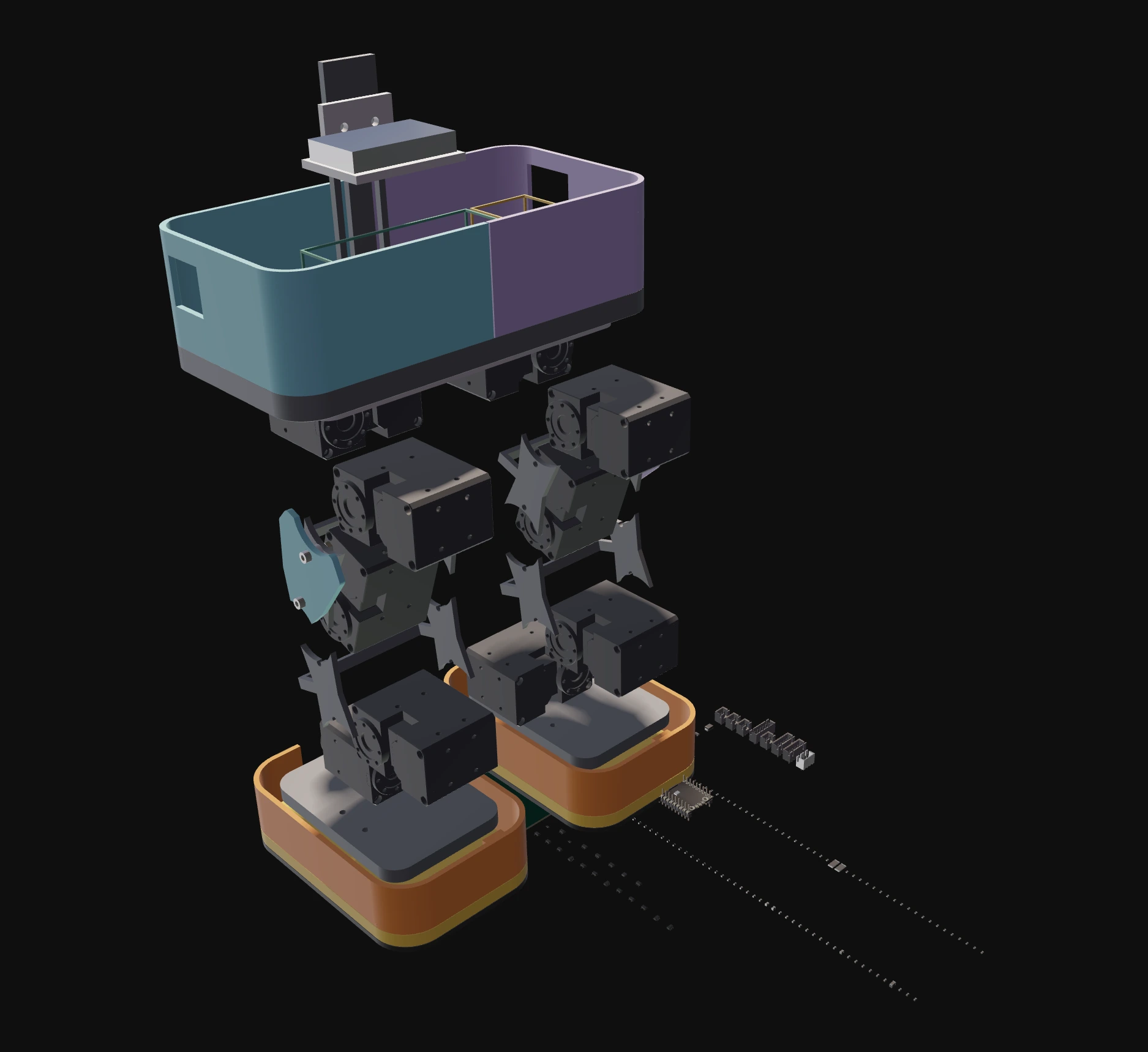
Attach the sketch in the Chat panel, or ask Flux for a concept sketch first.
Tell Flux the material, the color, and the background.
Make variations of one scene
Ask Flux to make variations of a scene, a product color, or an expression on a display.
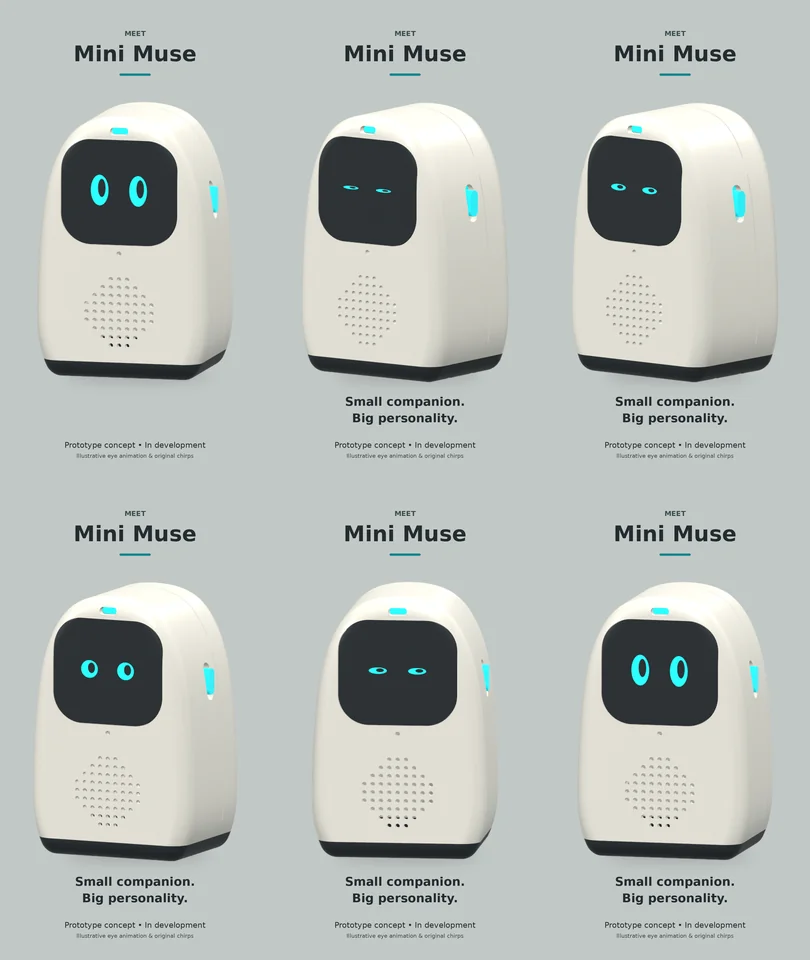
Open the Chat panel.
Tell Flux what to vary and describe each scene or variation.
Create product videos
Ask Flux for a product video of the device in your project. Flux makes a still image of your device in the scene that you ask for. Then Flux turns the image into a short clip. You get the clip in the chat.
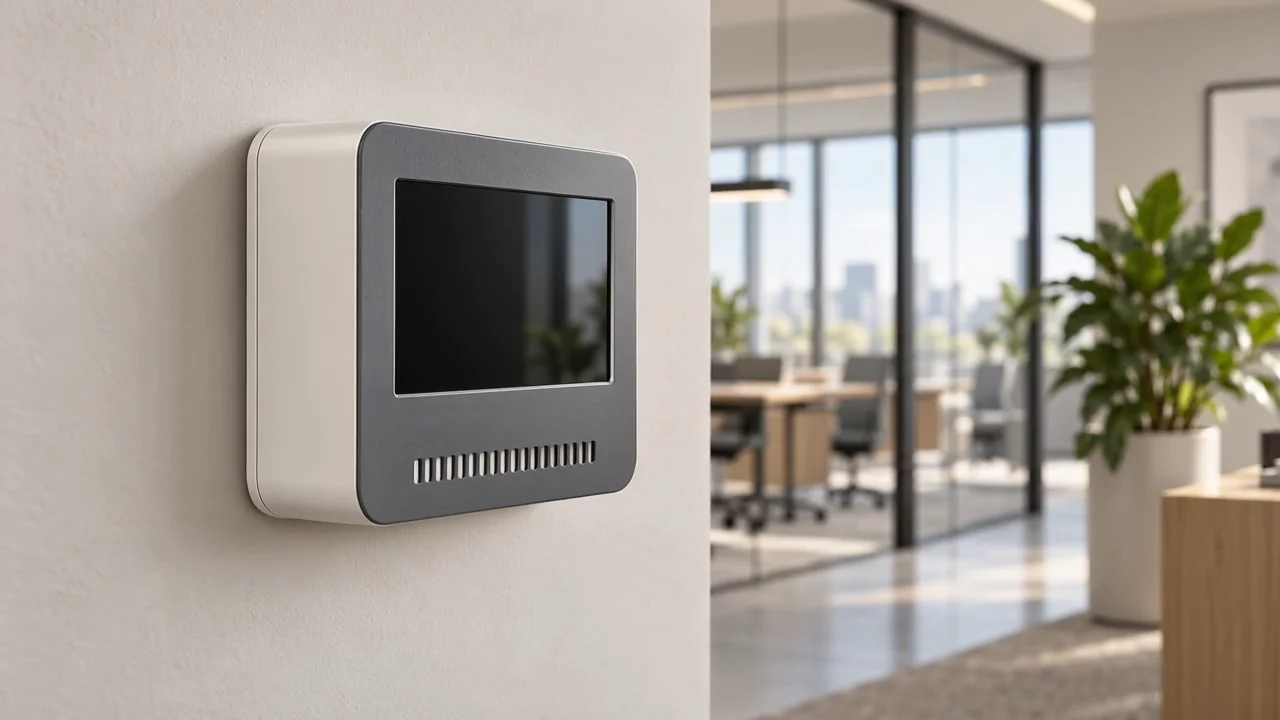
Watch the clip in the blog post Product videos from your design.
Open the project that has the board and the enclosure of the device.
Open the Chat panel.
Tell Flux what the video is for and who watches it.
Describe the scene and the camera movement, for example a slow push-in toward the device.
To get a different format, ask for a vertical clip, a longer clip, or a story with several shots.
Flux shows the clip in the chat.
To make a turntable video or an exploded-view animation from the 3D model, see 3D View.
Change a clip
Flux changes a clip that it made or that you give it. Tell Flux what to change and what to keep.
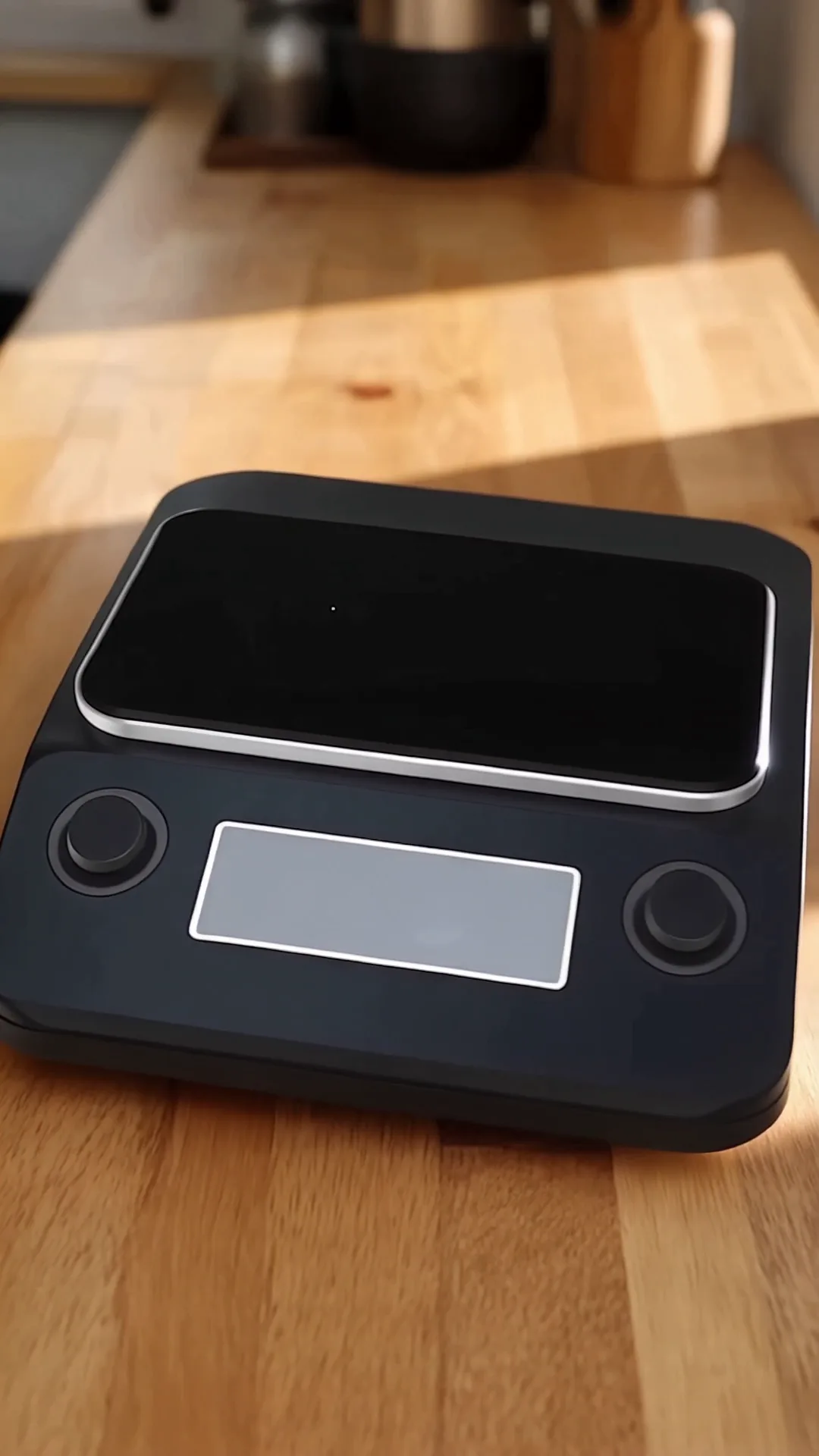
Open the Chat panel.
Attach the clip or paste its link.
Tell Flux what to change and what to keep.
Put your product into a video
Tell Flux which object in the clip to replace and provide an image of your product.
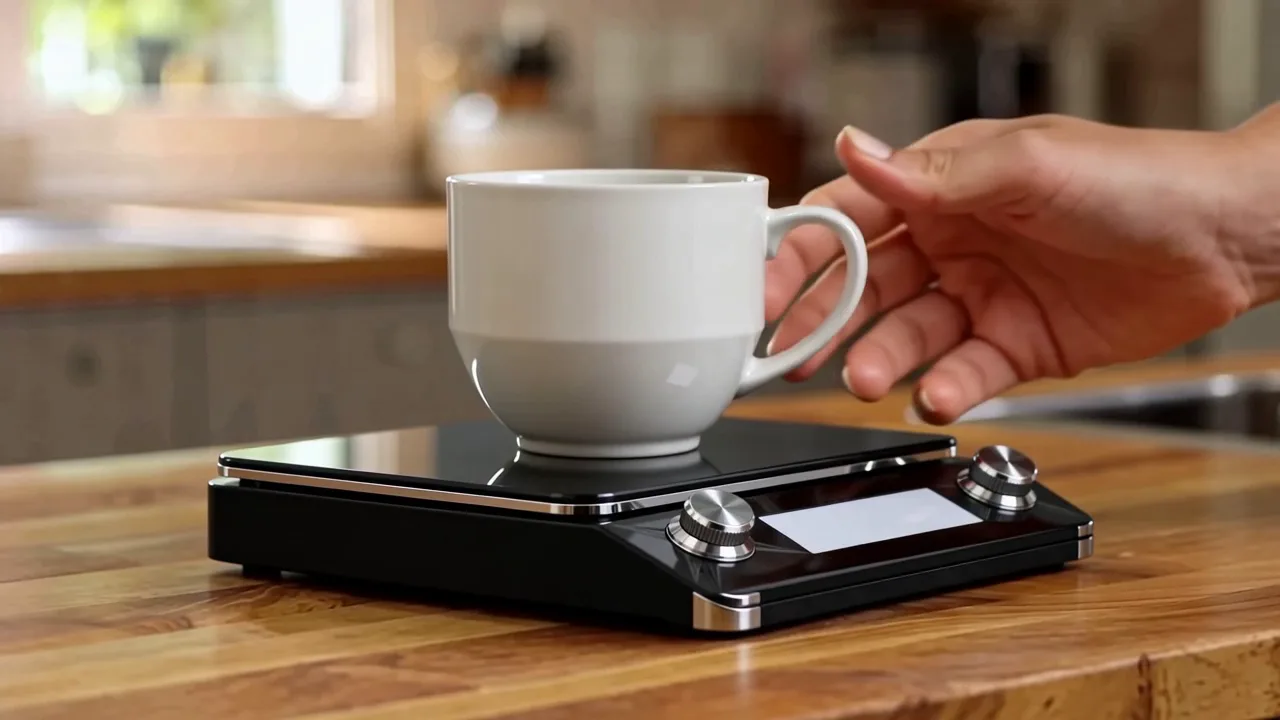
Open the Chat panel.
Attach the video and product image, or paste their links.
Tell Flux which object to replace.
Make a promo video with a presenter
Ask Flux to make a short promo with a presenter and your product.
Attach a photo of the presenter and a product image, and Flux makes a short clip of the presenter showing the device.
Open the Chat panel.
Attach a photo of the presenter and a product image.
Tell Flux what the presenter should do.