Create a part from an MPN or source material
Give Flux a manufacturer part number, datasheet, product page, drawing, or photo. Flux can use the source details to create the part's symbol, footprint, properties, and 3D model.
In the part project, add the MPN, datasheet, product page, drawing, or photos to Flux's chat. Review the generated part, then place it in a design or publish it to your library.
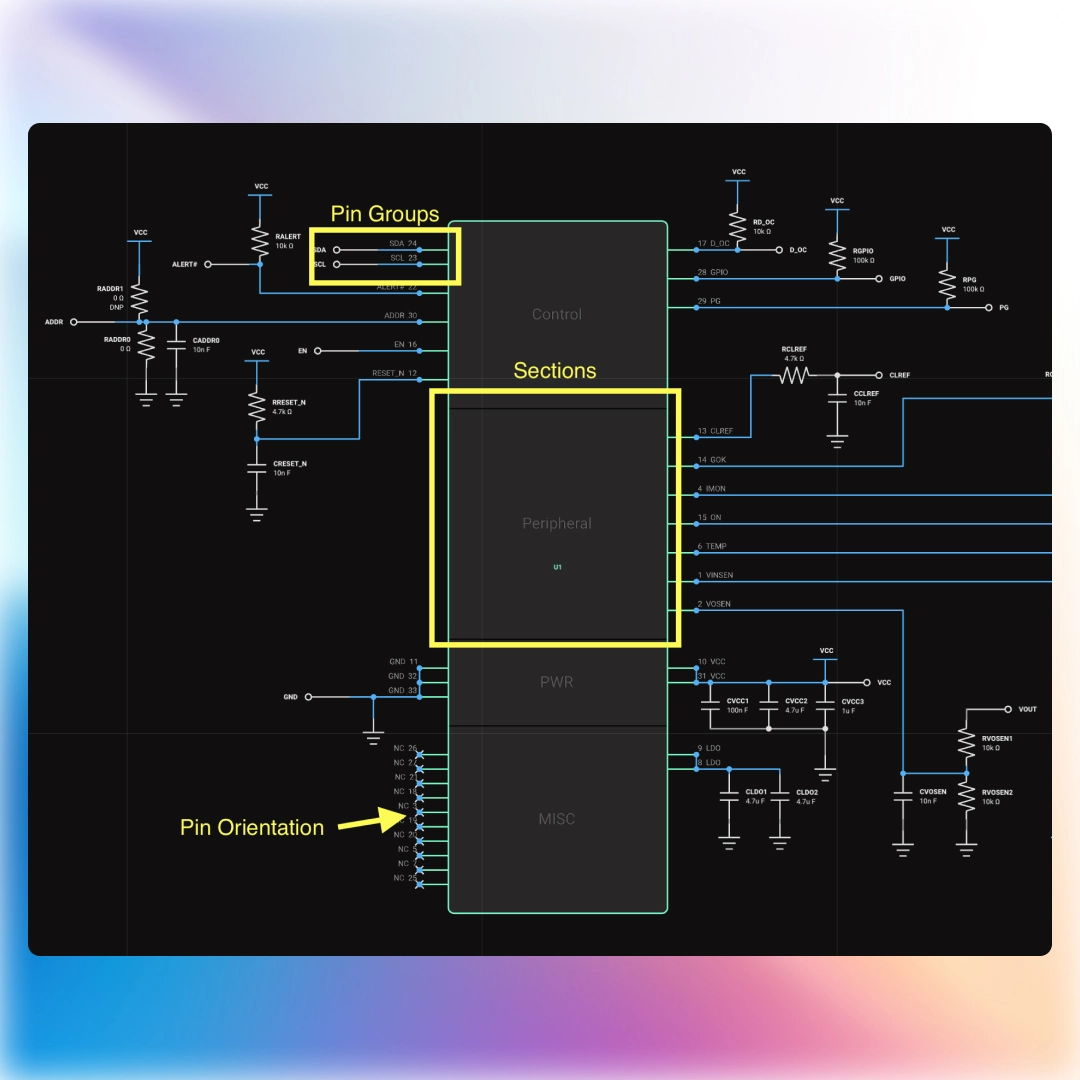
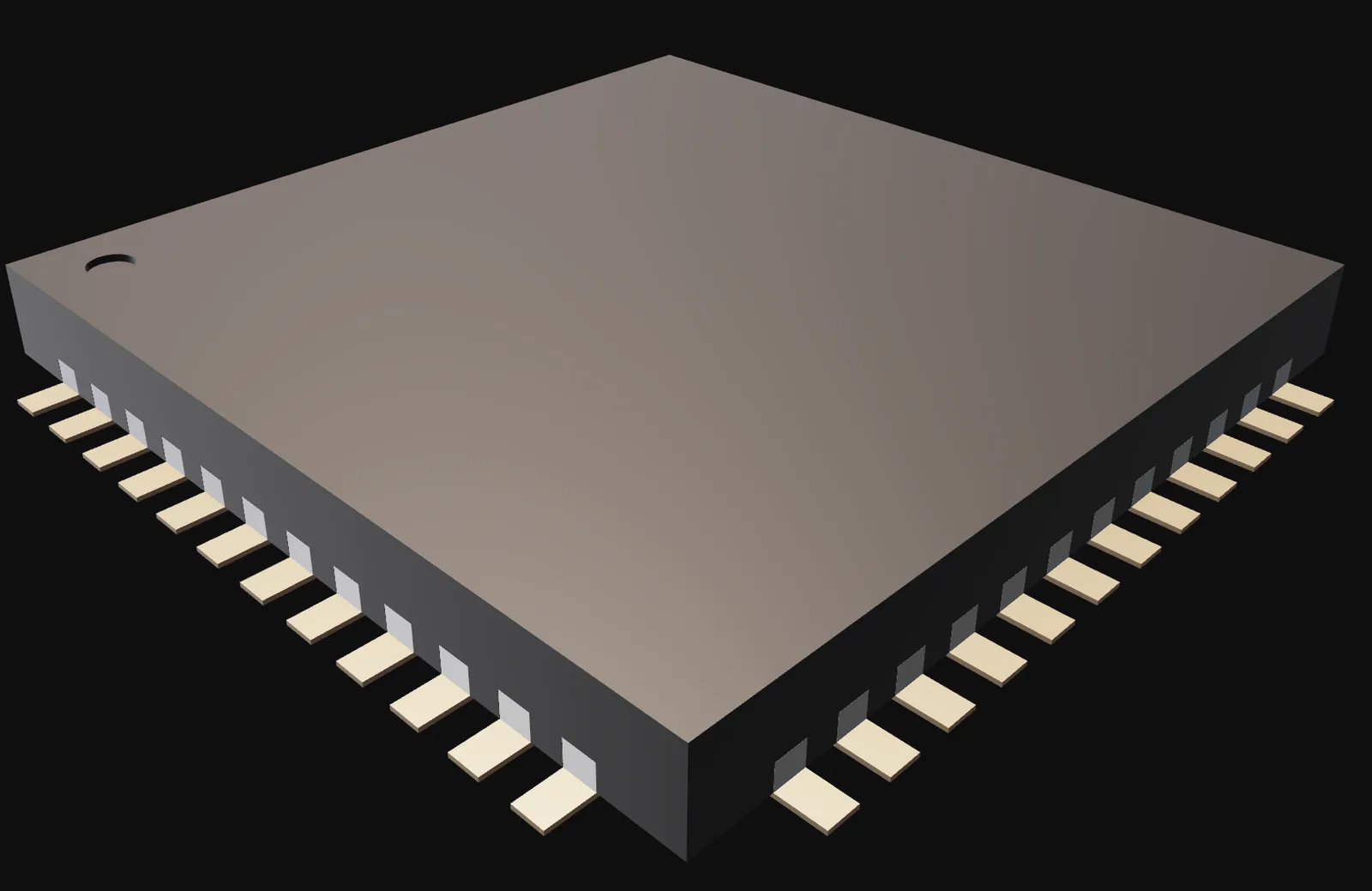
IC example. Ask Flux to use the exact MPN suffix and the pin names in the datasheet. Flux can create the symbol and map each pin to the package land pattern, including the exposed pad. It can use the package drawing to create the IC's 3D model.
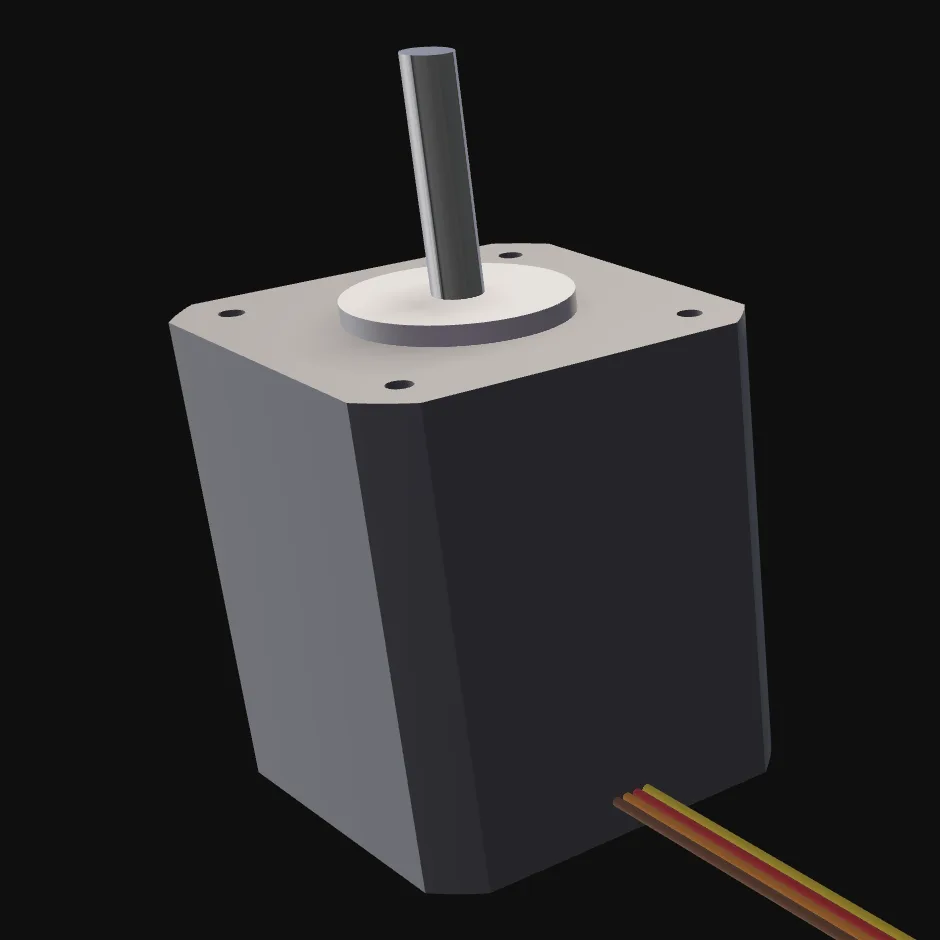
Stepper motor example. Give Flux the supplier drawing and dimensions. Flux can create a STEP model that includes the body, mounting holes, and shaft. It can also add the motor's rated current, holding torque, step angle, weight, and mounting thread as cited properties.
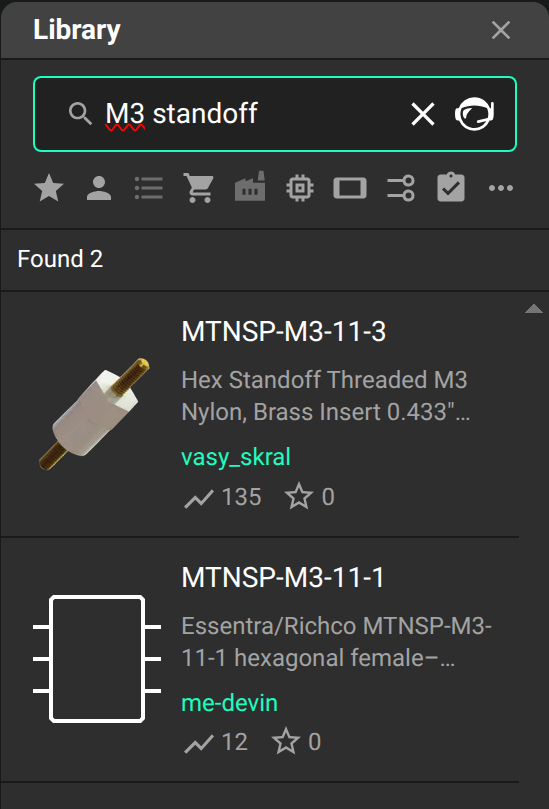
M3 fastener example. Give Flux a supplier drawing or standard dimensions for an M3 screw, standoff, or nut. Flux can create a STEP model for each part and add the dimensions and material details to its part record.
Create 3D models from photos
Give Flux one or more photos and one known dimension. Flux can use them to create a 3D model for a part such as a bracket, knob, or display module.
For the full workflow for photos, sketches, renders, and drawings, see Create a 3D model from a photo, sketch, or drawing.
Open the part project and attach the photos in Flux's Chat panel. Include one known dimension and tell Flux which part the photos show.
Create other part types
Give Flux the key properties, dimensions, and mounting needs for each part. Flux can create parts for display modules, connectors, batteries, propellers, and rotors.
In the part project's Chat panel, give Flux the source material for each part. Review the part records and models, then add the parts to your design.
Place and publish a part
Tell Flux where the part belongs in your design and which library should own it. A part created in an organization project belongs to that organization.
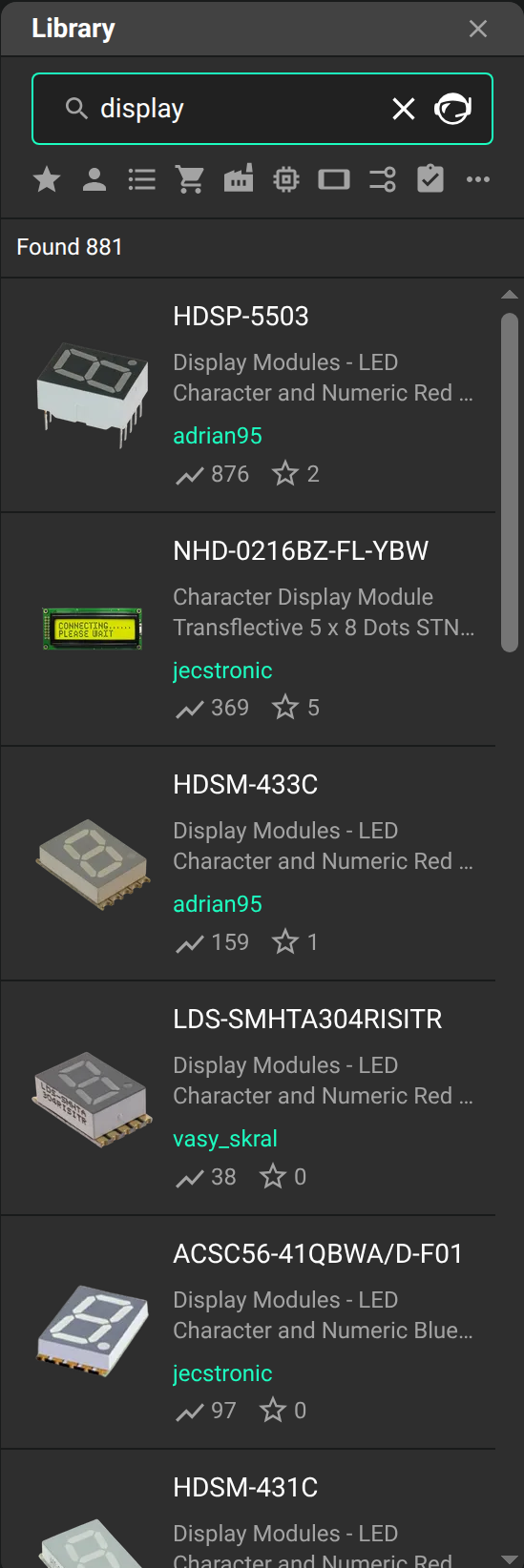
Open a part project in your user or organization context. In a design, search for the part in the Library tab and select it to place it. Set the part project's visibility from its profile page. See How the library works for ownership and visibility.
Edit parts manually
Tell Flux which symbol, footprint, property, or model to change. You can also open a part project and edit its symbol, footprint, properties, and assets.
In the part project, edit the symbol and footprint, then update the properties and 3D model. Use the Inspector to edit properties and assets. See Inspector properties, Inspector assets, Mechanical parts, and Design new mechanical parts.