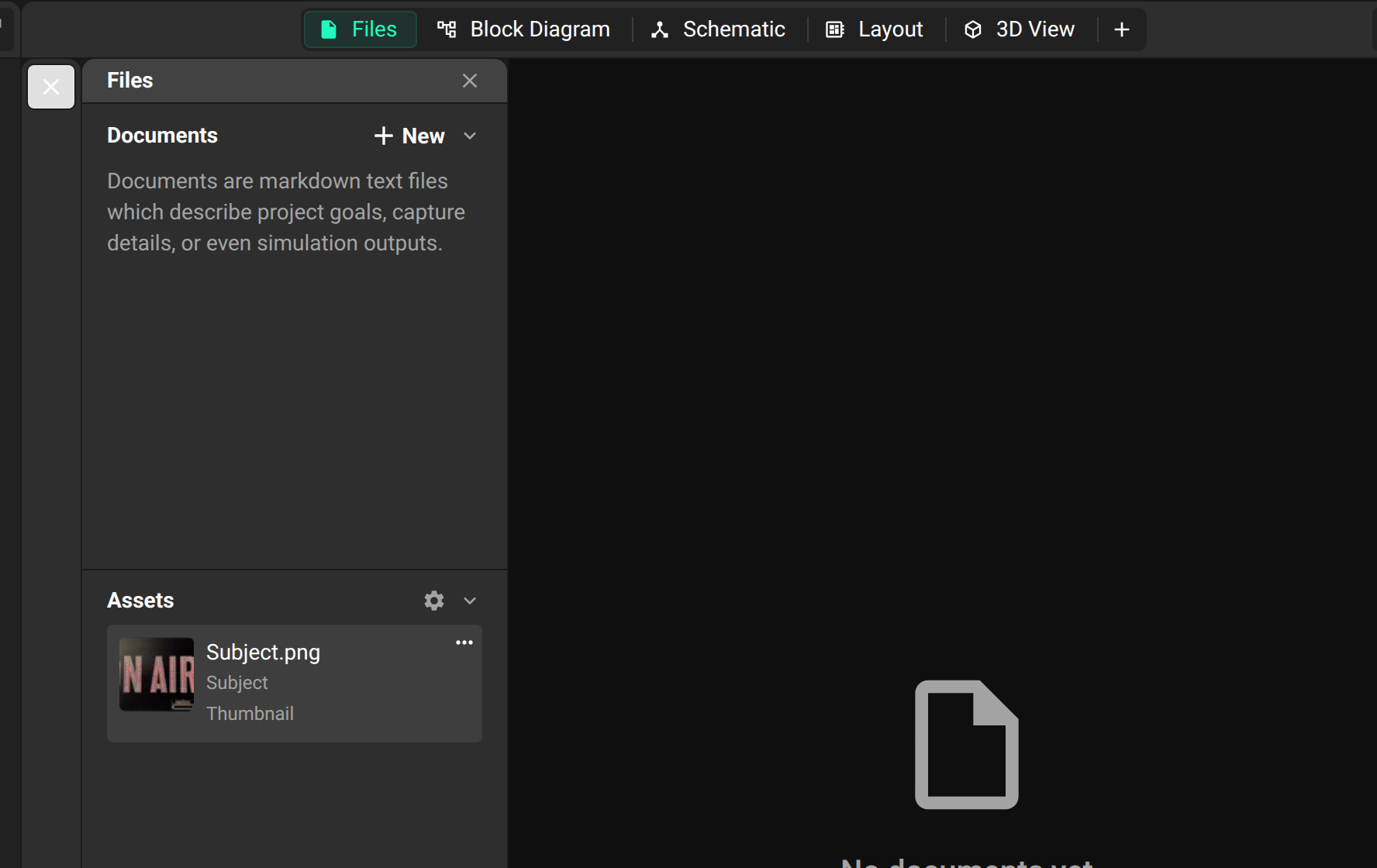
Use external assets to add existing files (STEP, SVG, KICAD_MOD, and other formats) to your Flux design. Every format the Assets panel accepts:
.step,.stp,.glb,.gltf: 3D models.flx_ftp,.kicad_mod,.mod,.pcblib: footprints, from Flux itself, KiCad, or an Altium PCB library.svg: Symbols, PCB outline and custom pad shapes.dxf: PCB outline and custom pad shapes.png,.jpg,.jpeg: images kept alongside the design, for reference artwork in the assets panel
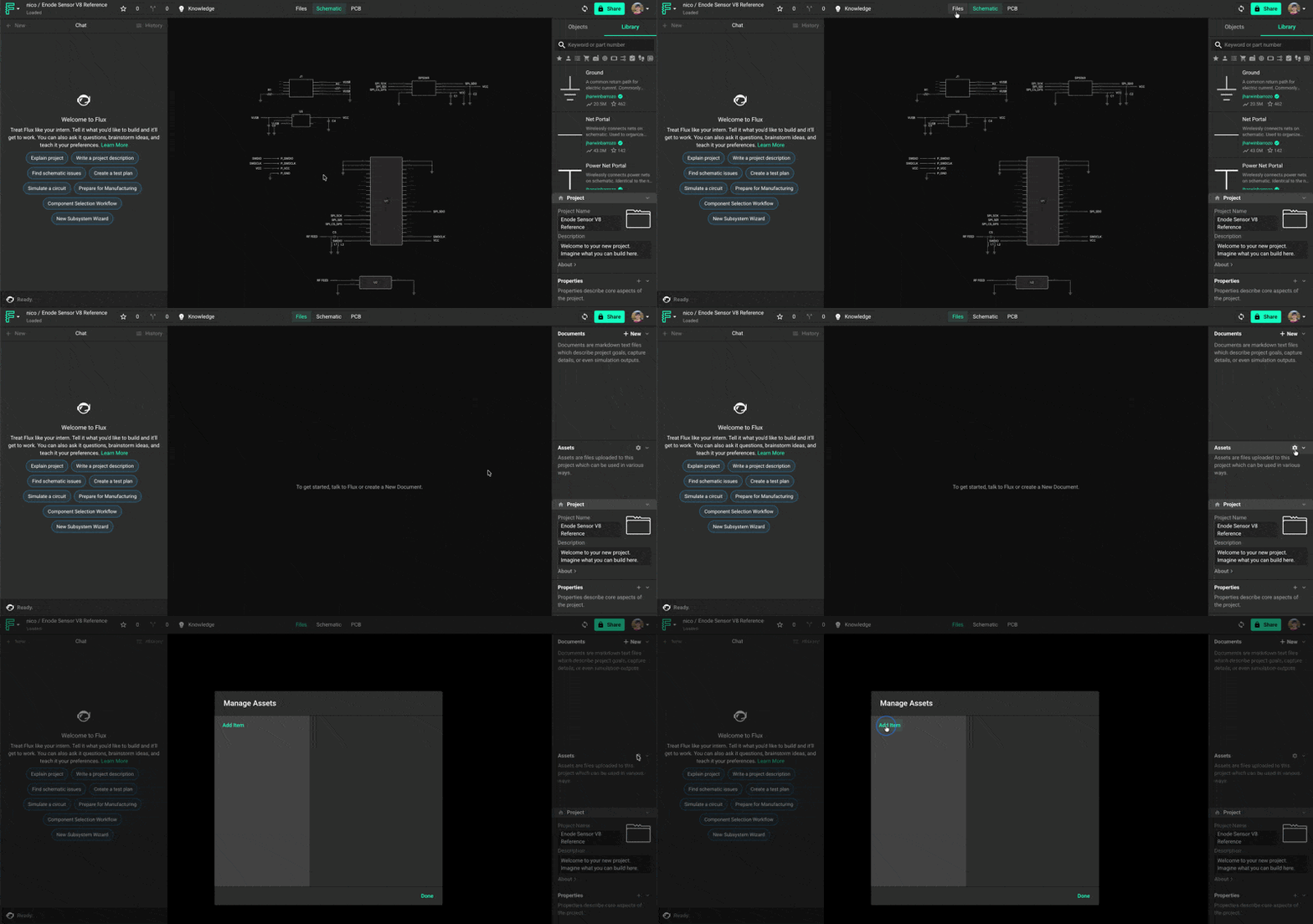
Adding an external asset
Attach the file to the chat, and ask Flux to add it to the project assets or to use it on an object.
To do it in the UI:
To add an external file as an asset:
Open the "Files" tab on the top center of the app.
On the right drawer, scroll down until you find the assets panel. Click on the cog-like icon to manage your assets.
Then click on "Add item" and select the file from your local drive.
Set the symbol of a part
In a part project, add the SVG file in the Assets panel and select it. Select Set this as default symbol to use it as the symbol of the part. The default symbol shows Default Symbol in the asset list. To use a drawing for one sub-symbol only, enter the sub-symbol suffix in Assign to Sub-symbol. See Edit part symbols.
File Requirements
Depending on what element you'll be using the shape in, there might be specific requirements:
Symbols
Set the line color to white, the stroke width to 1 px, and the fill to none.
Set pin lengths to 10 to 18 pixels.
Fit basic parts such as resistors, capacitors, and transistors in a 40 x 40 px area. Use a larger area for ICs and other complex parts.
Pads, Zones and Layout
Draw the shape as a single closed outline.
Add holes and cutouts as hole features after you link the shape to the element. See how to add holes.
Convert multiple lines into a single polyline. For an SVG, use one uninterrupted path.
Silkscreen
Use any shape geometry for silkscreen artwork.
Specific Requirements for DXF
A DXF is a type of vector file commonly used in CAD software. Learn more
To work in Flux, a DXF file must meet the following criteria:
Specific Requirements for SVG
The SVG is a type of vector file commonly used to display illustrations online. Learn more
To work in Flux, an SVG file must meet the following criteria:
Unless it is being used for a silkscreen, the shape must be composed of a single, uninterrupted path. If you encounter issues with an SVG, try reducing the shape into a single, uninterrupted path: in most tools, like Inkscape, the "Join selected nodes" tool combines several shapes into one.
Scale the SVG down. Due to a mismatch between SVG and Flux units, you will need to scale it down.
Scaling SVG Files
Ask Flux to scale an SVG asset to the size that you need.
To do it in the editor:
Most SVG files have no units, so Flux does not know which units (m, mil, cm, and others) the SVG file uses. Flux assumes that the file is in meters.
If you need to change the scale of the file, you need to add a "Scale" rule (see Object-Specific Layout Rules) to the object you're linking the asset to.