
Get a placed board that fits your device, without hours of manual placement. Flux places the parts by function, next to the connectors and inside the enclosure outline. Flux is an AI hardware engineer. It places the board as one part of the complete device that you design.
Place components by function and keep the board aligned with the device that contains it.
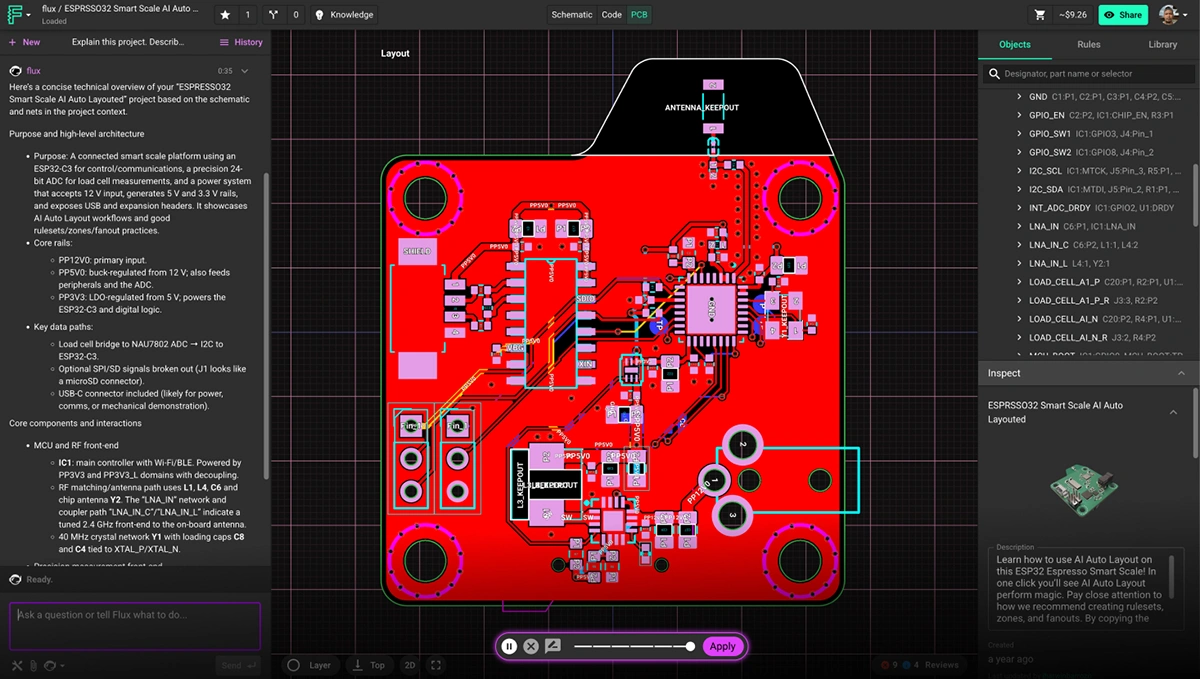
Plan the board and place components
Ask Flux to plan the board size, connector and I/O edges, layers, and component groups.
Tell Flux the device dimensions, enclosure openings, mounting points, connector locations, and layer plan. Flux uses this context to plan the board outline and place components.
Ask Flux to check the placement against the board outline, component clearances, connector access, and the device envelope.
Place silkscreen labels with the components and assembly needs in mind.
For label placement, see Silkscreen. For manual component placement, layer changes, and routing, see Positioning and routing.
Run Auto Layout
Use Auto Layout in the PCB editor to place and route the board.
Open the PCB editor.
Select Auto Layout.
Review the resulting placement and routing.
For the routing workflow, see Route with Flux.
Fit the board in the device
Ask Flux to use the enclosure and other mechanical parts when it plans the board.
Add the board to the product assembly with its mounting holes, connector edges, and component models. See Assemblies and mechanisms for device fit and clearance.