
Flux is an AI hardware engineer. Flux can set up the schematic symbol of a part for you: the symbol style, the side of each pin, the pin groups, the sections, the pin order and the sub-symbols. You can also edit the symbol yourself in the Symbol tab of the part project.
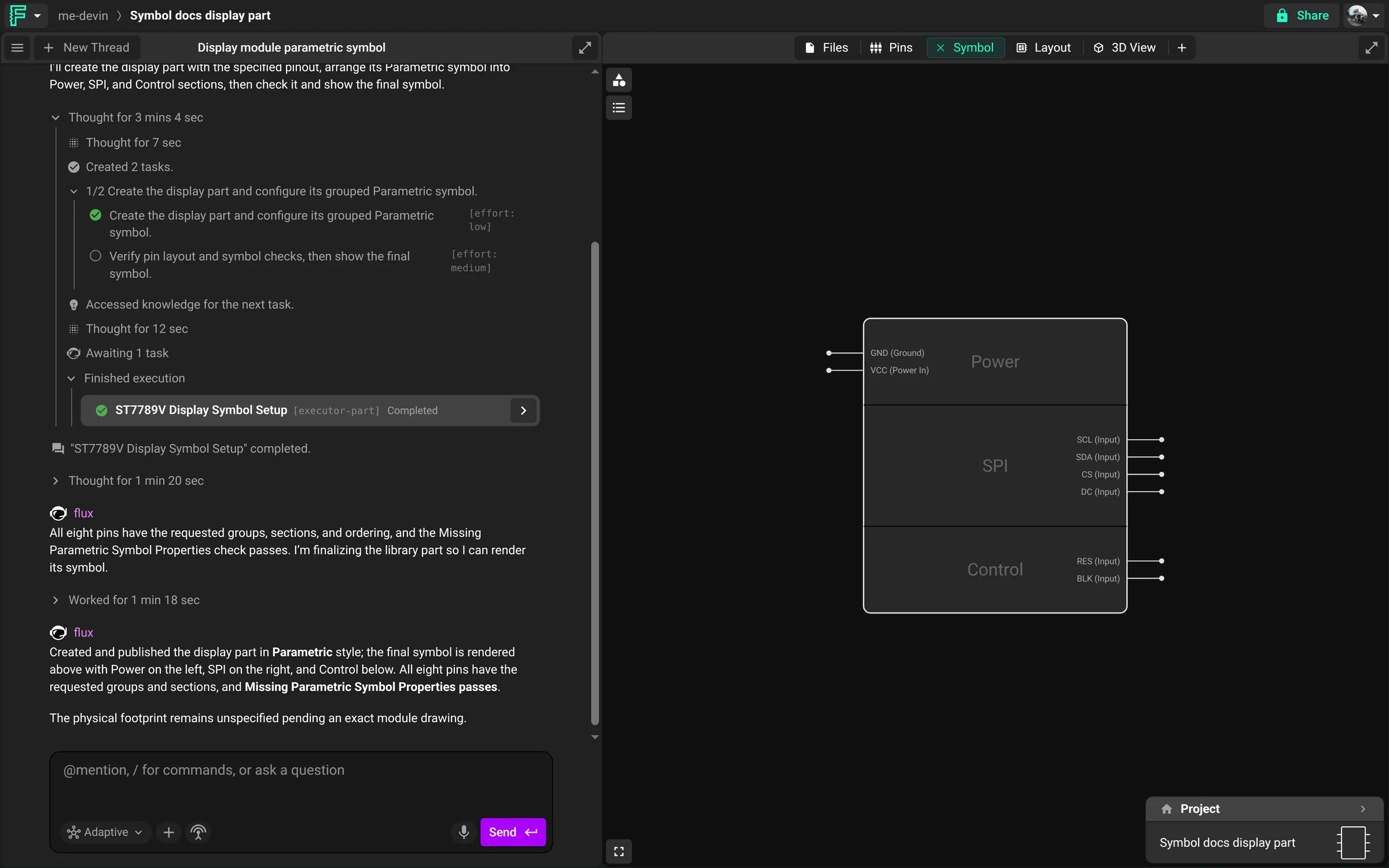
A parametric symbol is drawn from the pin properties of the part. When you change a pin property, Flux draws the symbol again, and the symbol grows with the number of pins. The pin properties are Pin Orientation, Pin Group, Section, Terminal Order and Sub-symbol Designator Suffix. See Inspector properties.
Set up a parametric symbol for an IC
Ask Flux to do the full setup in one message. Flux reads the datasheet, sets the pin properties, checks the result, and shows you the final symbol.
To set it up yourself:
Open the part project.
In the editor mode strip, select Add tab → Symbol. The Symbol tab shows each sub-symbol of the part side by side.
Select the part and, in the Inspector, set Symbol Style to Parametric.
Set the pin properties in the Symbol tab, the Pins table, or the Inspector, as the sections below show.
Put pins on a side
In the Symbol tab, drag a pin to another side of the symbol. Flux sets Pin Orientation of the pin to Left, Right, Top or Bottom. To move more than one pin, drag a box around the pins first, then drag one of the selected pins.
In the Pins table, you can also set the Orientation column of each pin.
Group pins and add sections
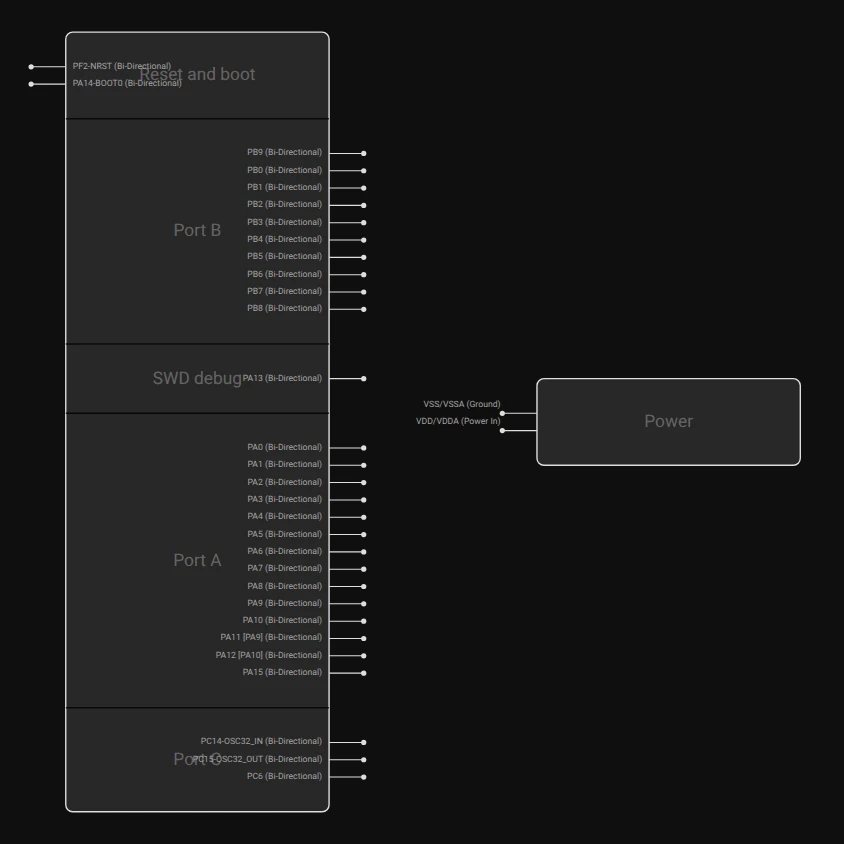
Pins with the same Pin Group stay close together on one side. Pins with the same Section go in one labeled part of the symbol, with a divider between sections.
In the Symbol tab:
Drag a pin onto a group to add it to that group.
Drag a group to move all of its pins to another side or position.
Drag a section up or down to change the order of the sections.
In the Pins table, you can also set the Pin Group and Section columns.
Set the pin order
In the Symbol tab, drag a pin up or down on its side, or between two groups. Flux sets Terminal Order for the pins on that side. In the Pins table, you can also set the Order column.
Split a symbol into sub-symbols
A part with sub-symbols shows one symbol for each Sub-symbol Designator Suffix, for example U1.A and U1.B. You can place each sub-symbol at a different location in the schematic.
In the Symbol tab:
Drag pins outside every symbol to make a new sub-symbol.
Drag pins onto another sub-symbol to move them to it.
In the Pins table, you can also set the Sub-symbol column.
Rename pins, sections, and groups
In the Symbol tab, double-click a pin name, a section name or a group name. Type the new name, then press Enter. Press Escape to keep the old name.
Fix the Missing Parametric Symbol Properties check
The Missing Parametric Symbol Properties check lists the pins that have no Pin Group, Pin Orientation or Section. To see it, select the part and open Reviews in the Inspector. Select each listed pin and set the missing properties in the Symbol tab, the Pins table or the Inspector.
Use a standard or custom symbol
Standard Symbol sets a standard schematic symbol, for example NPN Transistor, N-Channel MOSFET, Bridge Rectifier, Op-Amp or Optocoupler. The Part Type of the part also sets its symbol. See Part types.
To use your own drawing, add an SVG file in the Assets panel and select Set this as default symbol. To give a sub-symbol its own drawing, enter its suffix in Assign to Sub-symbol. Set Symbol Pin Position on each pin to place it on the drawing. See Inspector assets.
The Symbol tab shows custom symbols too. To edit the pin sides, groups and sections in the Symbol tab, set Symbol Style to Parametric.