
Parts typically carry additional metadata like designator, value, part number, etc. The properties menu allows users to load this type of information for each part. To edit a property, click to select the target element and the "Properties" menu will appear on the right-side panel.
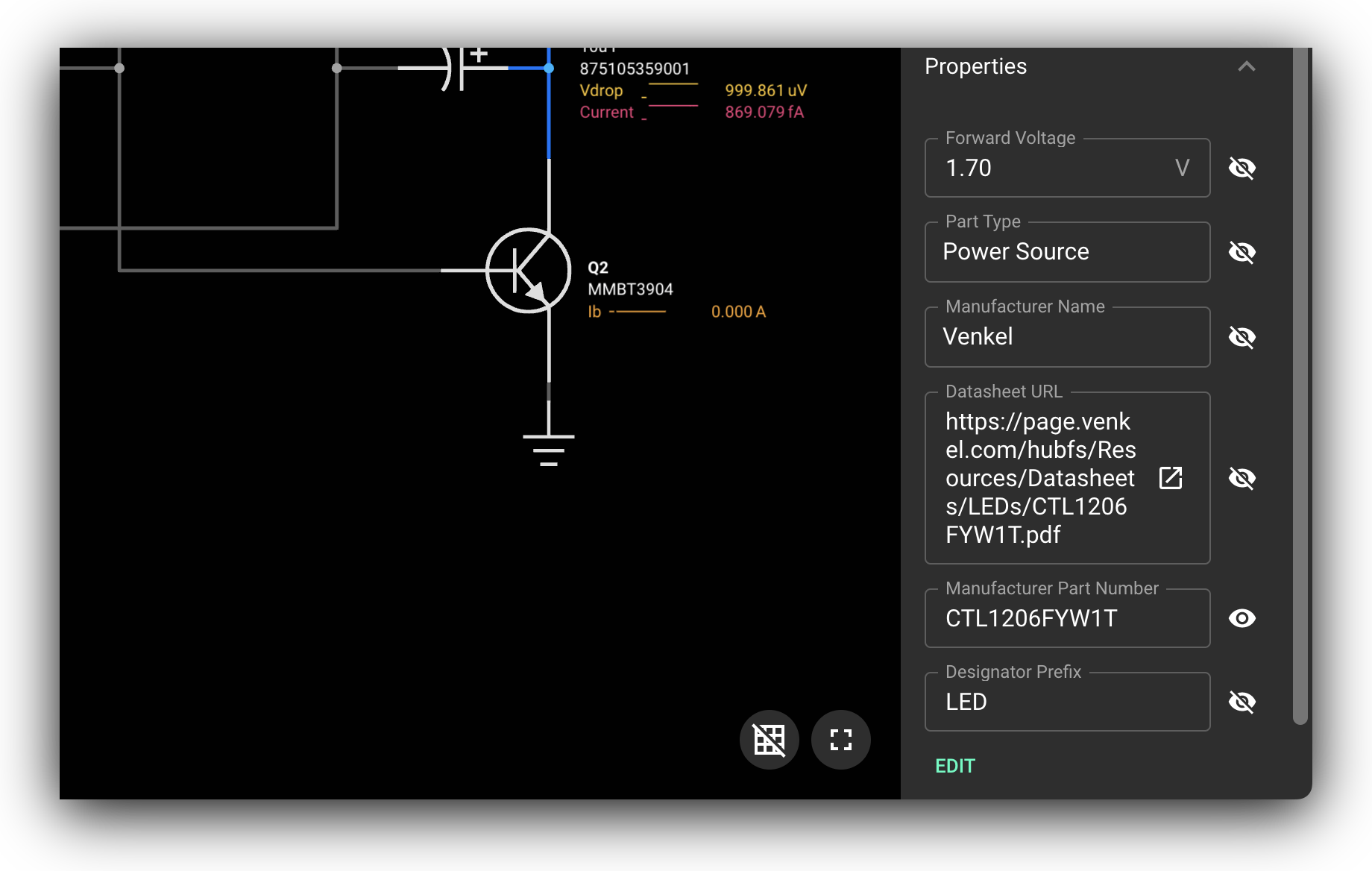
If the property you need to modify is already in the list, type the new value in the text box. Otherwise, click the "Edit" button to create a new property.
Visibility
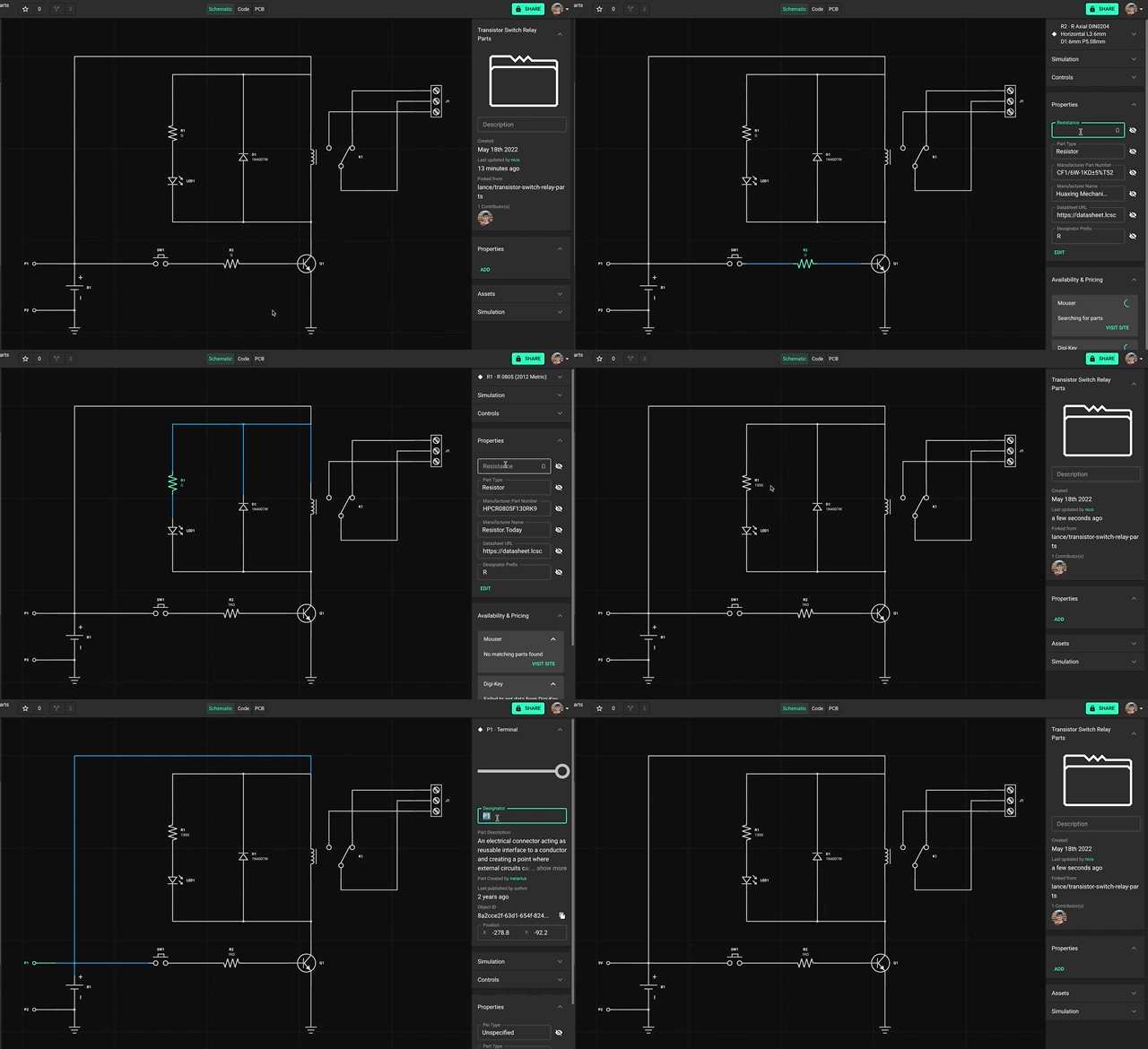
Most properties will be hidden from the schematic canvas by default. To make them visible:
Select the part you'd like to make the property visible.
Open the "Inspector" menu on the right and scroll down to "Properties".
Click on the eye-like icon to show or hide the property.
Formulas
You can also use a formula to calculate a value by adding the "=" sign. For example, if you type "=10*13", the result will be a value of 130.
Special Properties
Some properties have additional functions in Flux. Modifying these properties configures specific behaviors in the app.
BoM Management
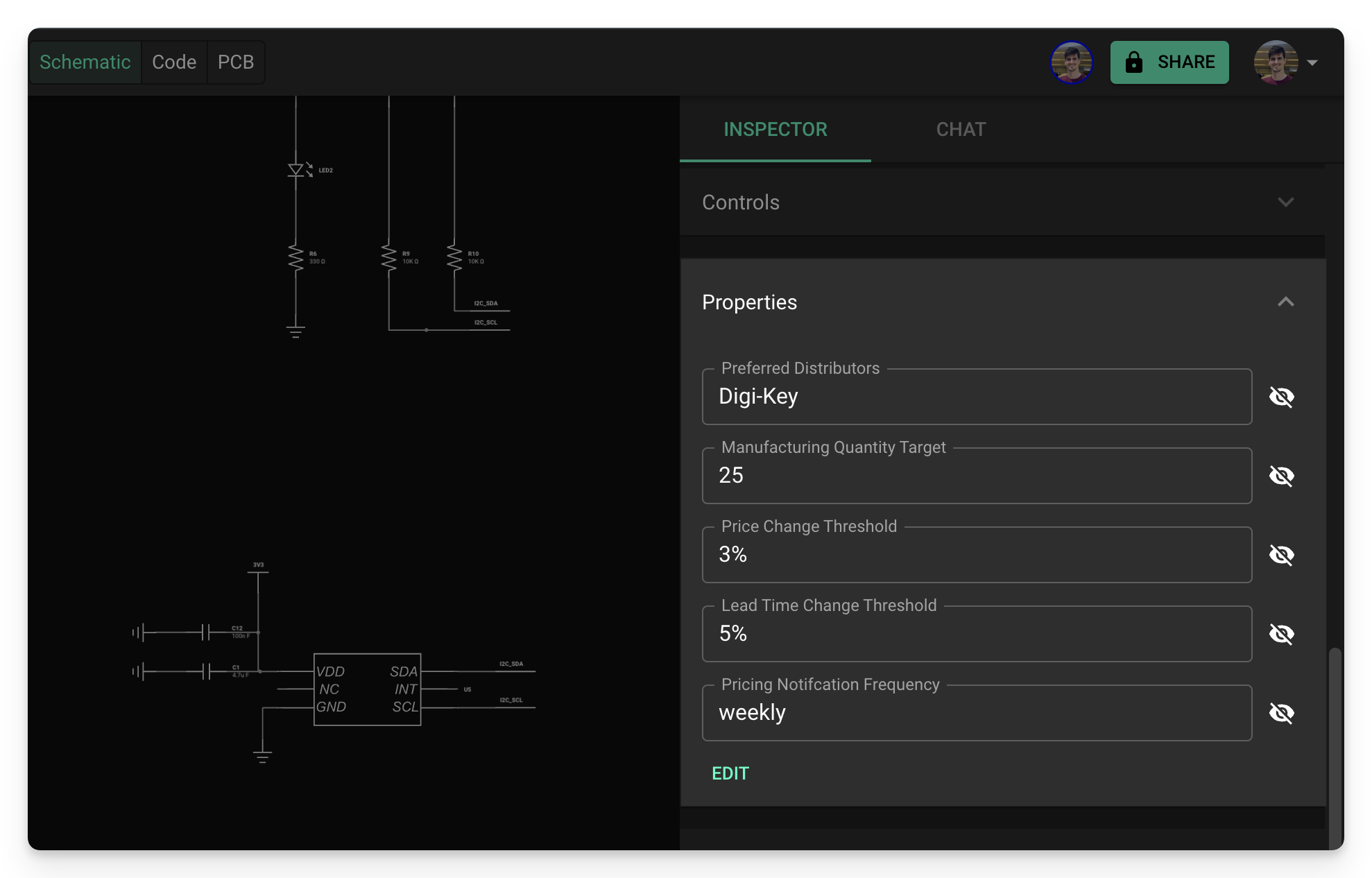
These properties allow you to configure your bill of materials (BoM) and the corresponding email notifications.
Property: Exclude from BoM
Applicable to: elements
Use case: Components with this property will be removed from the Bill of Materials.
Property: Manufacturer Part Number
Applicable to: elements
Use case: Flux uses the information in this property to search for availability across suppliers. Learn more here.
Property: Preferred Distributors
Applicable to: Project or Element
Use case: Sets the distributor from which to look for pricing and availability. We currently support DigiKey, LCSC and Mouser.
Property: Manufacturing Quantity Target
Applicable to: projects
Use case: Sets the number of boards to be manufactured. This will be used in email alerts to check the availability of parts.
Property: Price Change Threshold
Applicable to: projects and elements
Unit: %
Use case: Sets the minimum change threshold for pricing alerts.
Property: Lead Time Change Threshold
Applicable to: Project or Element
Unit: %
Use case: Sets the percentage that the lead time must change since the last notification for it to be included in the next notification email.
PCB Layout Management
Property: Exclude from PCB
Applicable to: Element
Use case: Components with this property will be excluded from the PCB layout.
High-Speed Routing
These properties configure impedance matching and length tuning capabilities.
Applicable properties: Bus Type, Bus Group, Pair Role, Controlled Impedance Pair, Controlled Impedance, Controlled Impedance Tolerance, PN Skew Max, Pin Delay and Pair to Pair Skew Max
Applicable to: Element
Use case: Defines the use of impedance control and differential pair routing. Learn more.
Symbol Configuration
These properties configure how the pins will be aligned with the symbol. Remember that you need to publish the part to the library and place it on a project in order to see its symbol.
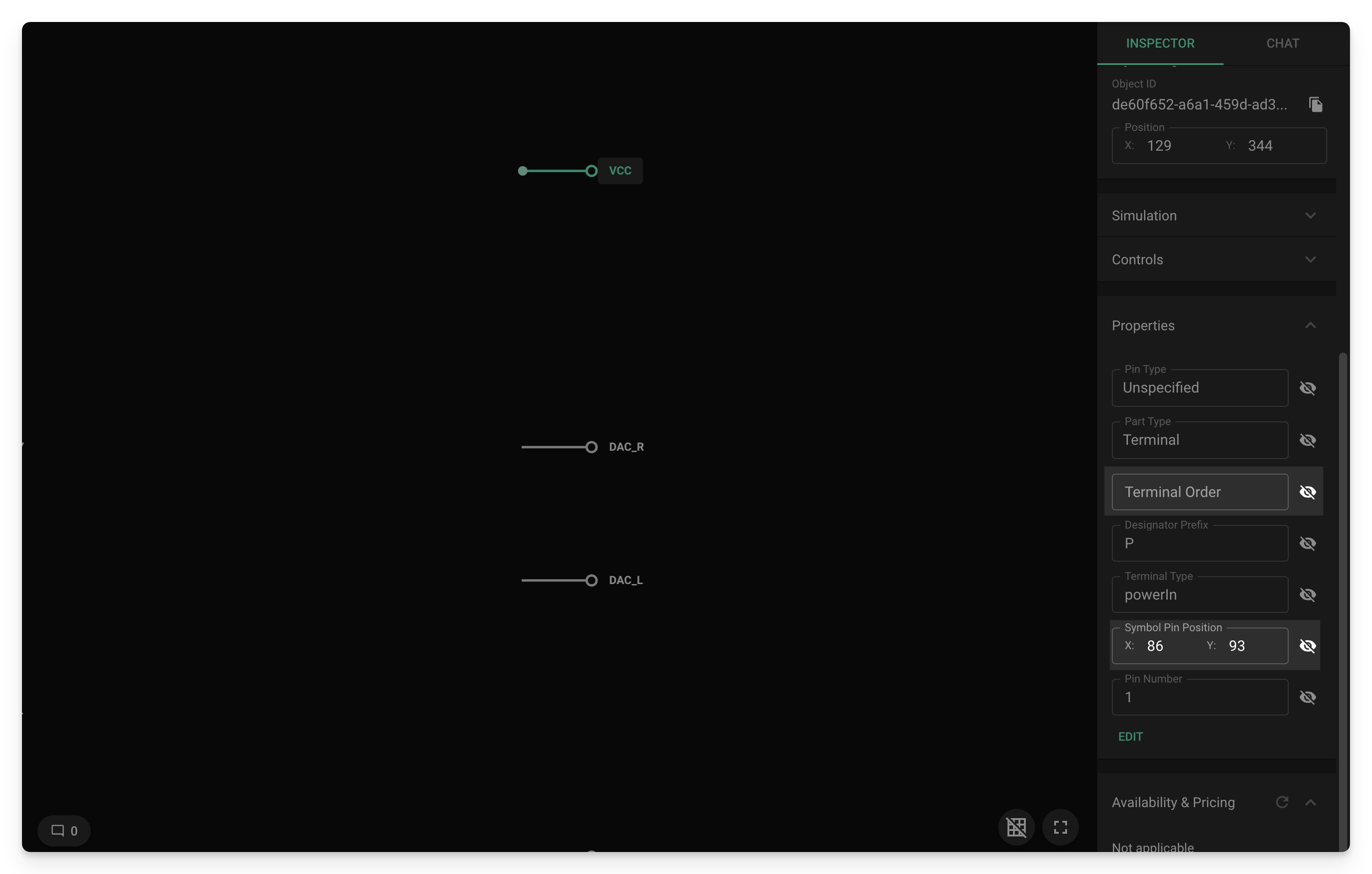
Property: Pin Number
Applicable to: Terminals
Use case: Defines the pin number of said terminal. The assigned pin number will be assigned in the PCB editor as well.
Property: Pin Orientation
Applicable to: Terminals
Use case: Defines the pin orientation in the symbol. For example
Pin Orientation = leftlocates the target pin on the left side of the symbol,Pin Orientation = rightlocates the target pin on the right side of the symbol,
Property: Pin Group
Applicable to: Terminals
Use case: Terminals with the same Pin Group property will be grouped closer together in the symbol. If a terminal's Pin Group property is left empty, they will not be grouped in the final symbol, and will have a larger gap between them.
Property: Section
Applicable to: Terminals
Use case: Terminals with the same Section property will be located in a specific section in the symbol, labeled the same as the Section property. If a part has multiple sections, each will be labeled accordingly and they will be separated with horizontal dividers.
Property: Terminal Order
Applicable to: Terminals in parts with default symbol
Use case: Defines the pin position in the default symbol. For example, in a 4 pin symbol,
Terminal Order = 1is the top left pin in the symbol,Terminal Order = 2is the bottom left pin,Terminal Order = 3is the top right pin andTerminal Order = 4is the bottom right pin.
Property: Symbol Pin Position
Applicable to: Terminals in parts with custom symbol
Use case: Defines the position of the pin in a custom symbol.
Property: Sub-symbol Designator Suffix
Applicable to: Terminals in parts with parametric symbols
Use case: Splits the symbol into multiple parts, each with its own suffix
Impedance Control
Property: Part type
Applicable to**:** Parts
Use case: Selecting one of the following part types, automatically configures impedance control for the appropriate pins. Works with part types USB A, USB B, USB C, HDMI, PCIe x1, PCIe x2, PCIe x4, PCIe x8, PCIe x16, Ethernet
Licenses
Consider adding a license property when sharing or making your project public.
Property: License
Applicable to: Any project or part
Use case: Defines the type of license that applies to the project or part. Any license can be added, but Flux come preloaded with a few options: