
Try an idea without a risk to the main design.
Get your own copy of a project or a component with forking or cloning.
Overview
Flux gives you two ways to copy a project: forking and cloning.
Forking
When you fork a project, its history of changes is preserved.
Ask Flux to fork a project. Give the project link or name, and the owner of the new copy.
To do it in the UI:
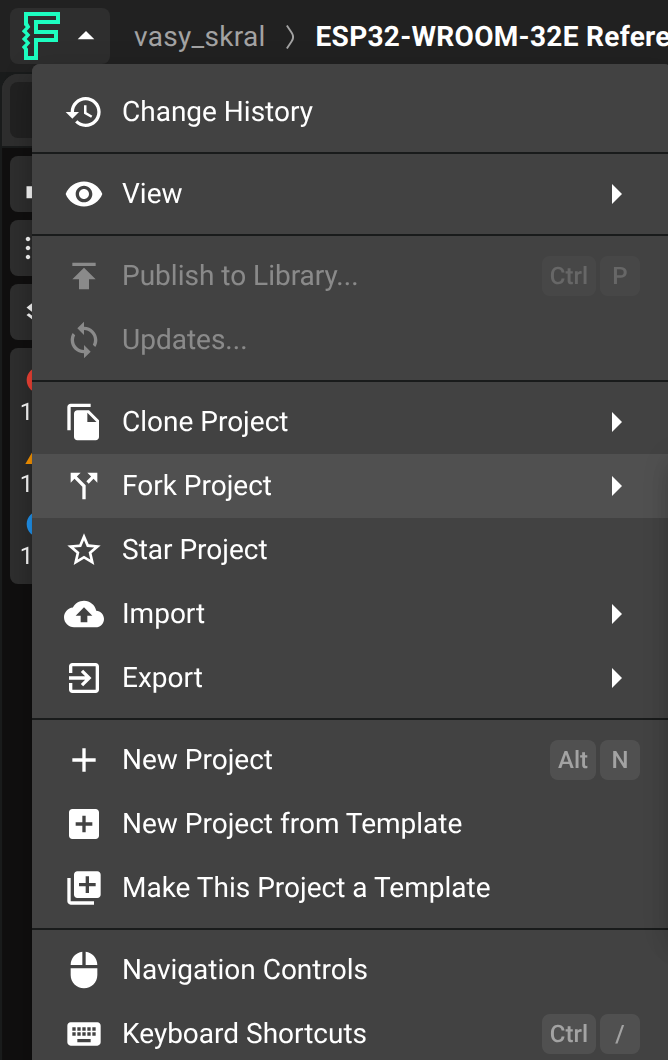
To fork a project, open the project you want to fork. Then select Flux menu → Fork Project.
Alternatively, you can use the "Fork" shortcut next to the "Star" icon in the top left.
Cloning
Cloning a project makes a clean copy without any history preservation.
Ask Flux to clone a project.
To do it in the UI:
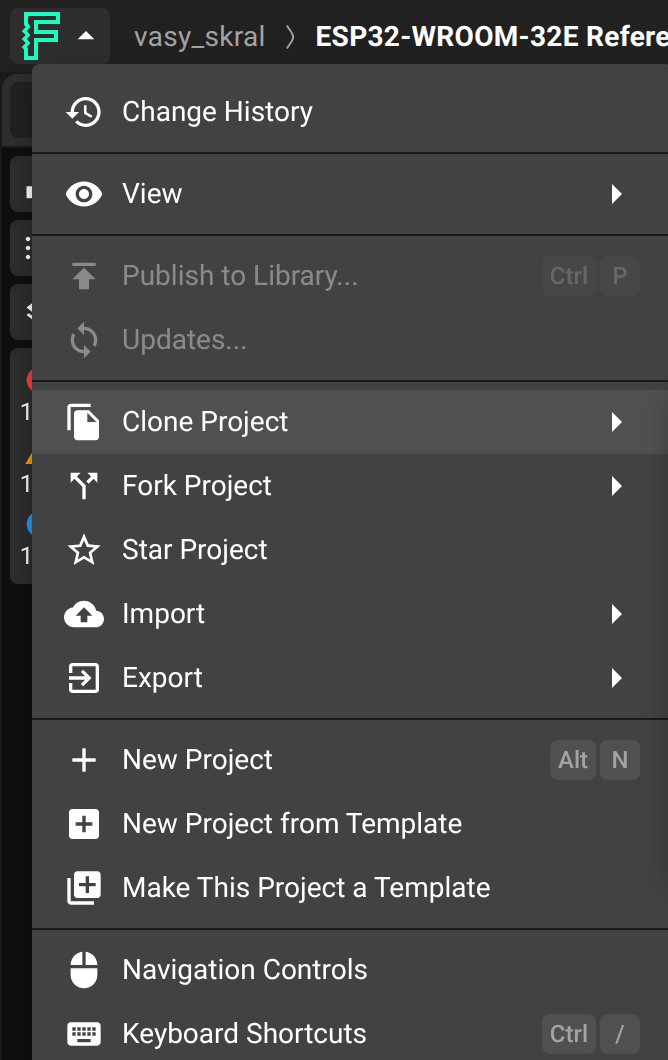
To clone a project, open the project you want to clone. Then select Flux menu → Clone Project.
Try a change on a separate copy and merge it back
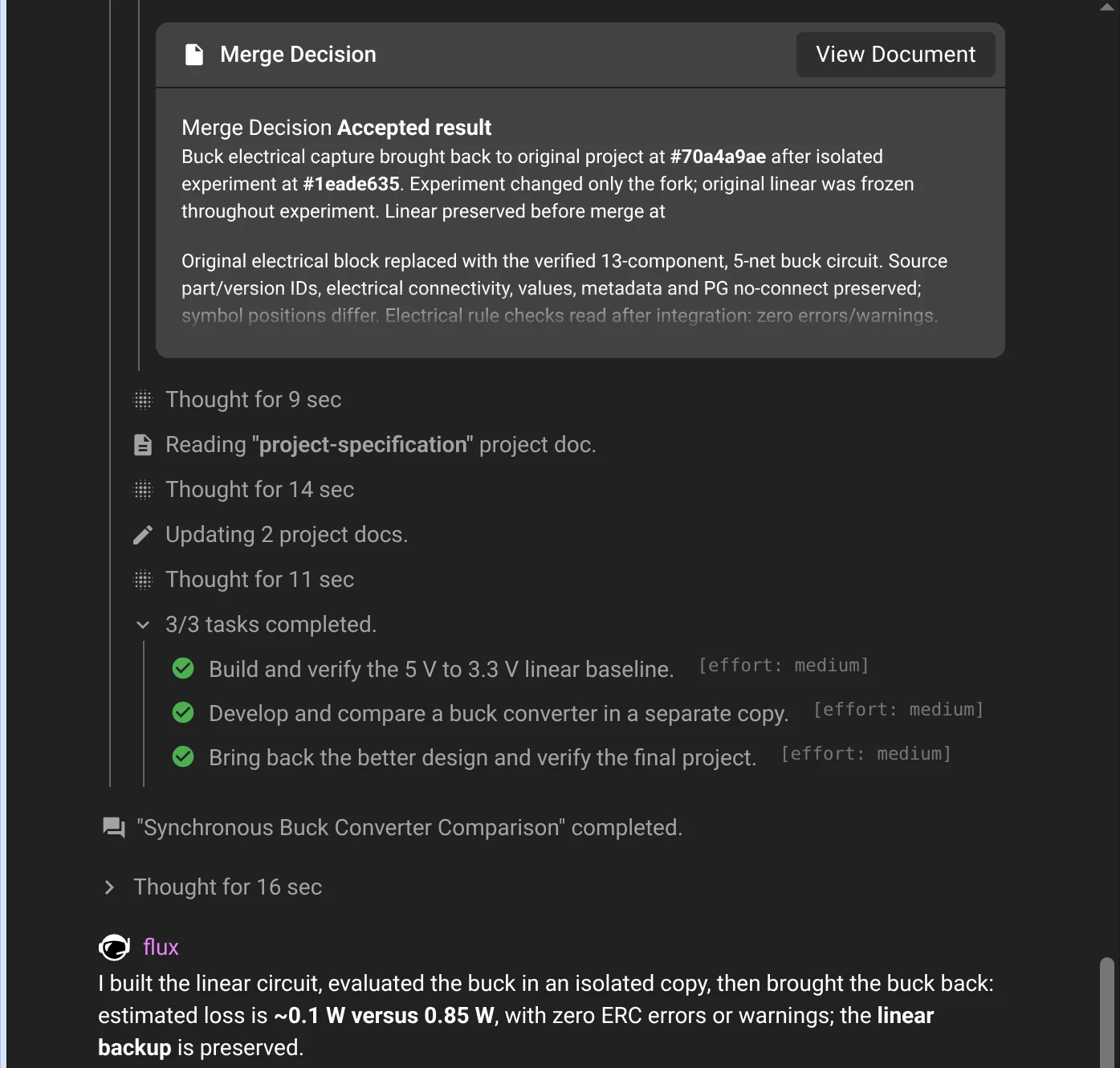
Ask Flux to try a change on a separate copy of the design. Flux forks the project and does the work in the fork. Your design does not change while Flux works. Flux then compares the two designs and merges the better result back into your project. Flux also keeps a copy of your design from before the merge.
Flux shows each step in the chat:
The fork that Flux works in.
The comparison of the two designs.
A Merge Decision project document that records what Flux merged back and why.
A link to the copy of your design from before the merge.
To do it in the UI:
Fork the project with Flux menu → Fork Project.
Make the change in the fork.
Compare the fork with the original project.
Ask Flux to merge the change from the fork back into the original project.
When to Clone Versus Fork
Whenever you find a publicly accessible project or part in the library, and you decide to duplicate the project, then you will need to decide whether to clone or fork the project.
If you want to maintain access to all earlier versions of the project in your duplicate version, then you should fork the project. This is a common option you would use when experimenting with an earlier version of a design. However, if you do not need to have access to the earlier versions of the duplicate project, then you should clone the project.