
Flux is an AI hardware engineer. It prepares mechanical parts for manufacturing and helps you get quotes and place orders.
Prepare a part for manufacturing
Ask Flux to prepare the part for a manufacturing process. Name the process and the material.
You can also do it step by step:
Start with the model and describe how you want to make the part. Flux supports 3D printing, CNC machining, sheet metal, laser cutting, injection molding, and casting. The right process depends on the part's shape, material, quantity, and product requirements.
Select the part or assembly in the project.
Tell Flux the intended process and material.
Describe the dimensions, finish, and product requirements that matter.
Ask Flux to prepare the model for that process.
Export a model or drawing file for a quote.
3D printing processes include FDM, SLA/DLP, SLS, MJF, material and binder jetting, and metal powder-bed fusion. CNC machining works with machined parts. Sheet metal and laser cutting use flat-part geometry. Injection molding and casting support molded or cast parts.
Use plain material names in your requests. For example, ask for PA12 nylon, black resin, or aluminum 6061. Name the part and process with the material so the request is clear. A motor bracket may need a metal part. A display enclosure may need a printed prototype before you prepare the production design.
Make CNC toolpaths and G-code
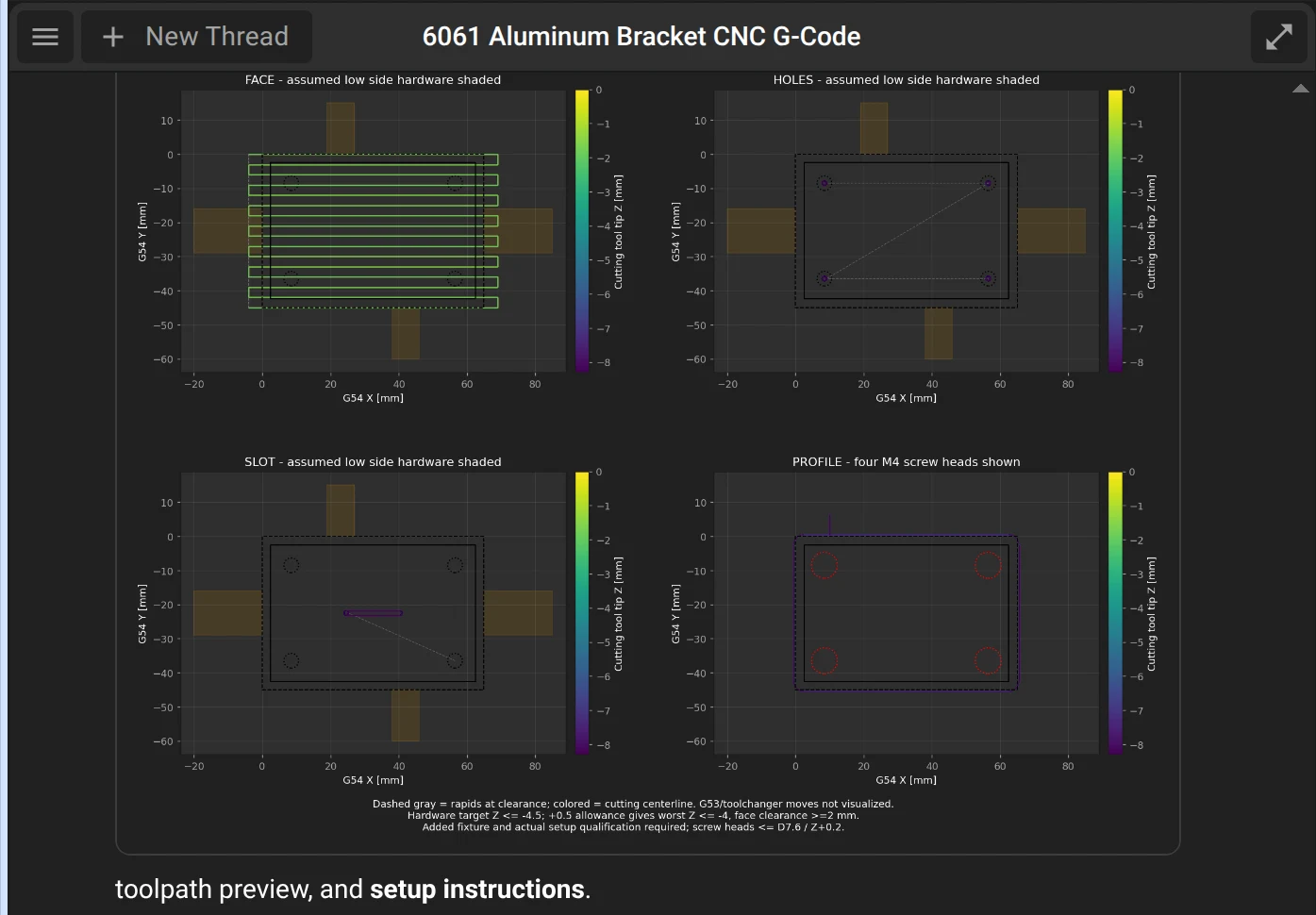
Ask Flux to make the CNC toolpaths for a part. Flux makes the toolpaths on its cloud computer and gives you the G-code file and a toolpath preview.
Tell Flux the machine, the stock, the cutters, and how you hold the part. Flux then has all the data that it needs to make the toolpaths.
Flux makes these files:
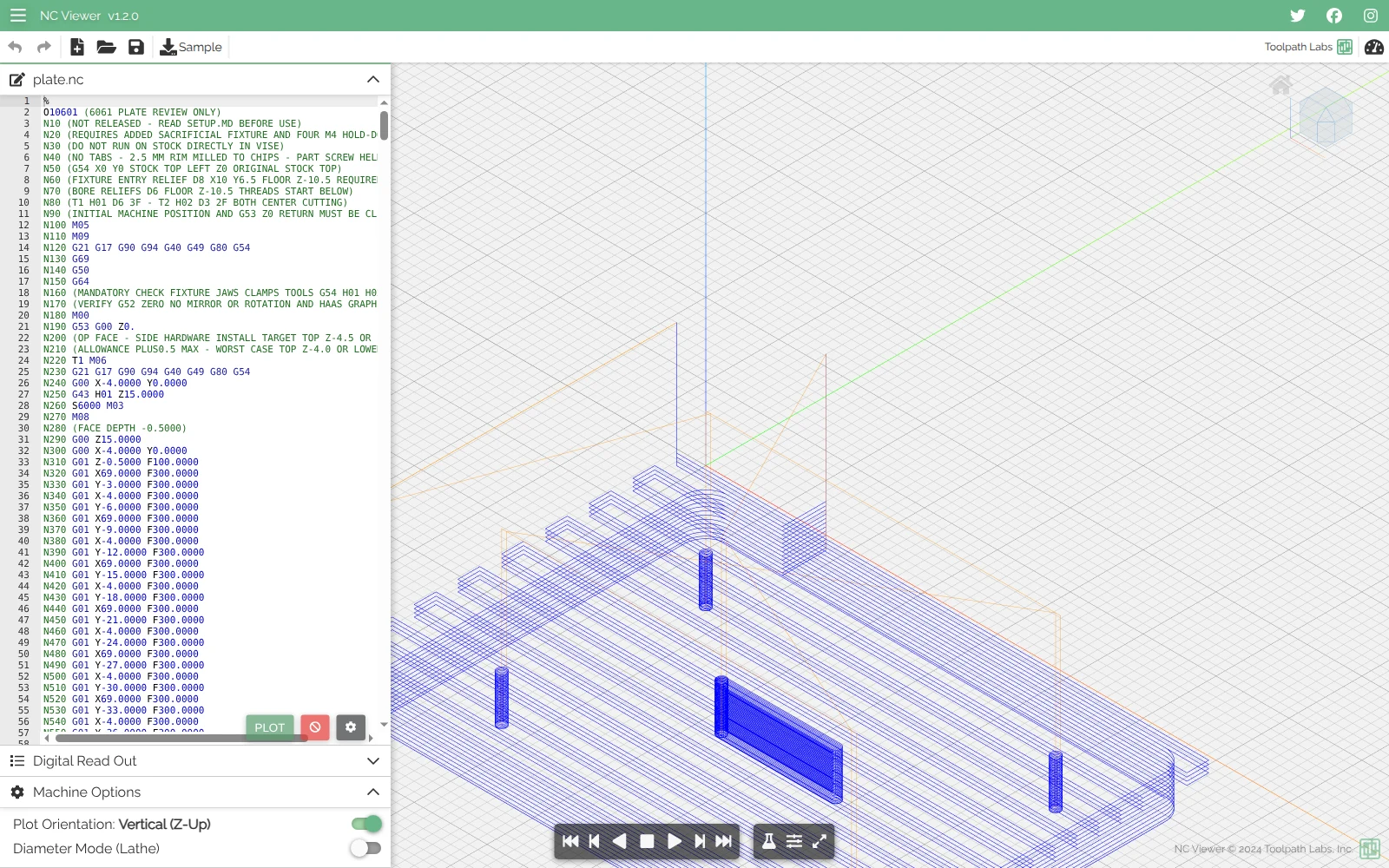
The G-code file (
.nc) for your machine.A toolpath preview that shows each operation, for example facing, holes, slot, and profile.
A setup document with the stock, the tools, the work zero, and the workholding.
To get the files in the UI:
Open the thread where Flux made the toolpaths.
Select the G-code file link in the reply of Flux to download the file.
Select the toolpath preview to see it larger.
Open the Files tab to read the setup document.
Open the G-code file in your machine controller or in a G-code viewer.
Get a quote and order the part
Ask Flux to prepare a quote or order the selected offer.
See Get quotes for 3D prints and CNC parts to compare offers, then order 3D prints and CNC parts from Craftcloud.
Match the file to the process
Ask Flux to export the file format that your vendor needs.
Use a 3D model file for a part that needs its solid geometry. Use DXF or another drawing format for flat-part work. Prepare the output that matches the vendor's workflow.
Choose STEP, STL, OBJ, 3MF, or BREP for the part model.
Choose DXF or SVG for a flat outline or artwork.
Include the material and process in the quote request.
Keep the exported file with the design files for the product.
Flux can prepare model assets and drawing files from the project. A 3D-printed bracket may use an STL file. A machined housing may use STEP. A laser-cut cover may use a DXF outline. Name the file for the part and its purpose.