
Flux is an AI hardware engineer. Flux finds, imports, creates, verifies, and maintains every part of your device: ICs, passives, connectors, displays, motors, propellers and rotors, fasteners such as nuts, bolts, screws and standoffs, bearings, brackets, enclosures, and batteries.
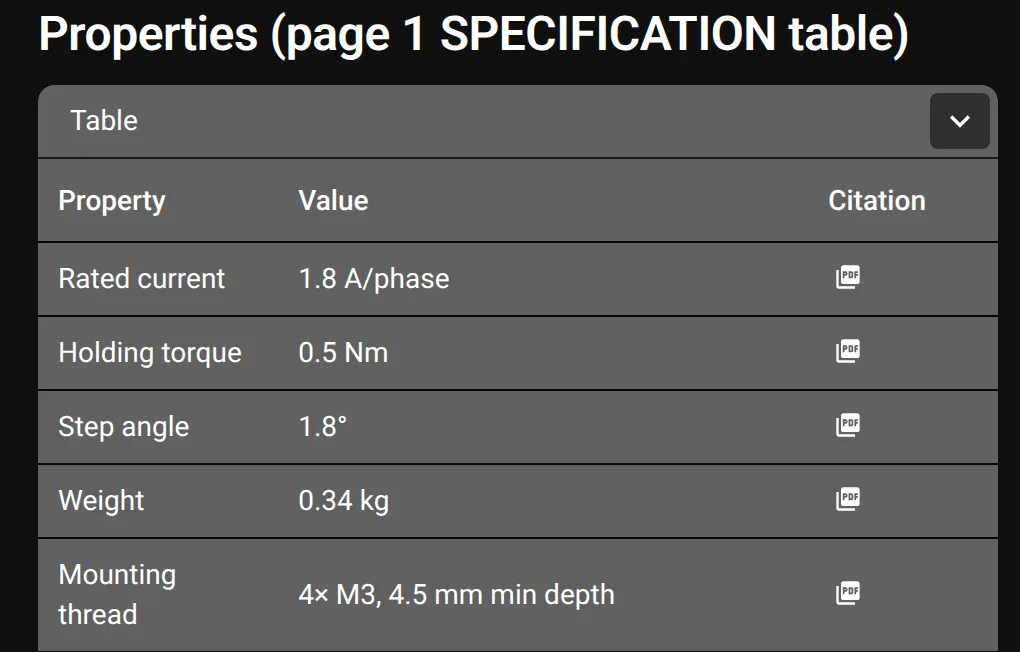
What Flux does with your library
Tell Flux which parts your design needs and how you organize them. Flux can help you find and import existing parts, create new parts from product information, add cited properties, and keep library records current.
In the editor, open the Library tab to search for parts. Use these guides for each library task:
Import part libraries covers libraries, design files, and mechanical CAD.
Create parts with Flux covers MPNs, datasheets, drawings, and photos.
Verify and enrich parts covers cited properties, design checks, and updates.
Keep your part library current covers sourcing, standards, reviews, and suppliers.
How the library works
Part ownership works like GitHub: every part has an owner, a user or an organization. Public manufacturer and distributor organizations can publish parts, reference designs, and modules. Private organizations keep parts for their teams. You can own parts, and vendors or suppliers can share parts with you.
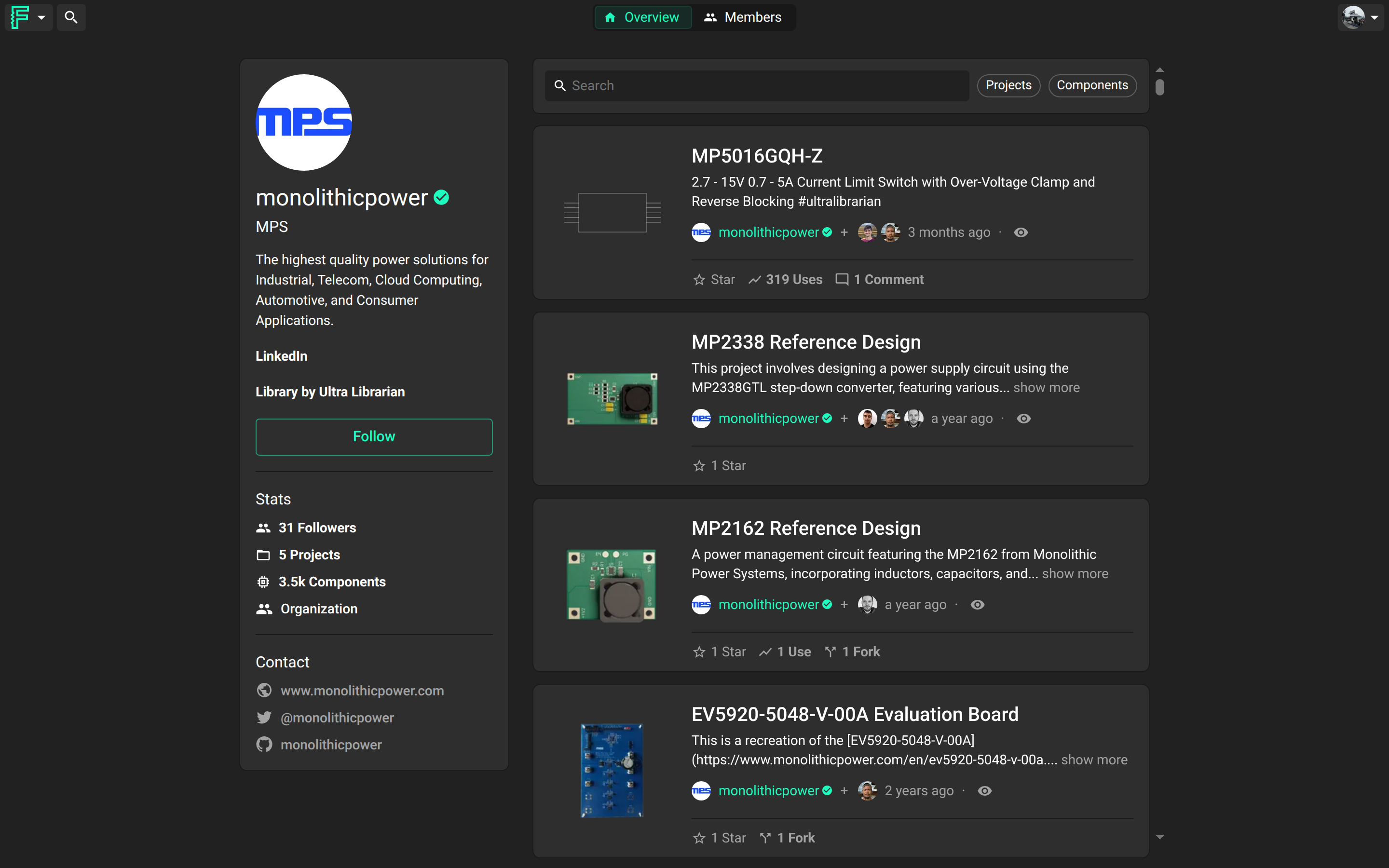
Open the Library tab to search parts. Open a user or organization profile to browse its projects and components.
Sources in the library
The library is one of the core parts of the editor. It contains 1M components. The parts available to you include:
Publicly available — Parts that their owners made public for anyone to use.
Shared with you — Parts that other users or organizations shared with you.
Owned by an organization — Parts that belong to an organization you are a member of.
Owned by you — Parts that you created and published to the library.
Browse an organization's parts
Ask Flux to find parts from a manufacturer or distributor organization, or browse the organization profile to see its components and reference designs.
Open the public Monolithic Power Systems profile or another user or organization profile. Select All, Projects, or Components to filter the profile. See Manage your projects.
Filter search by owner
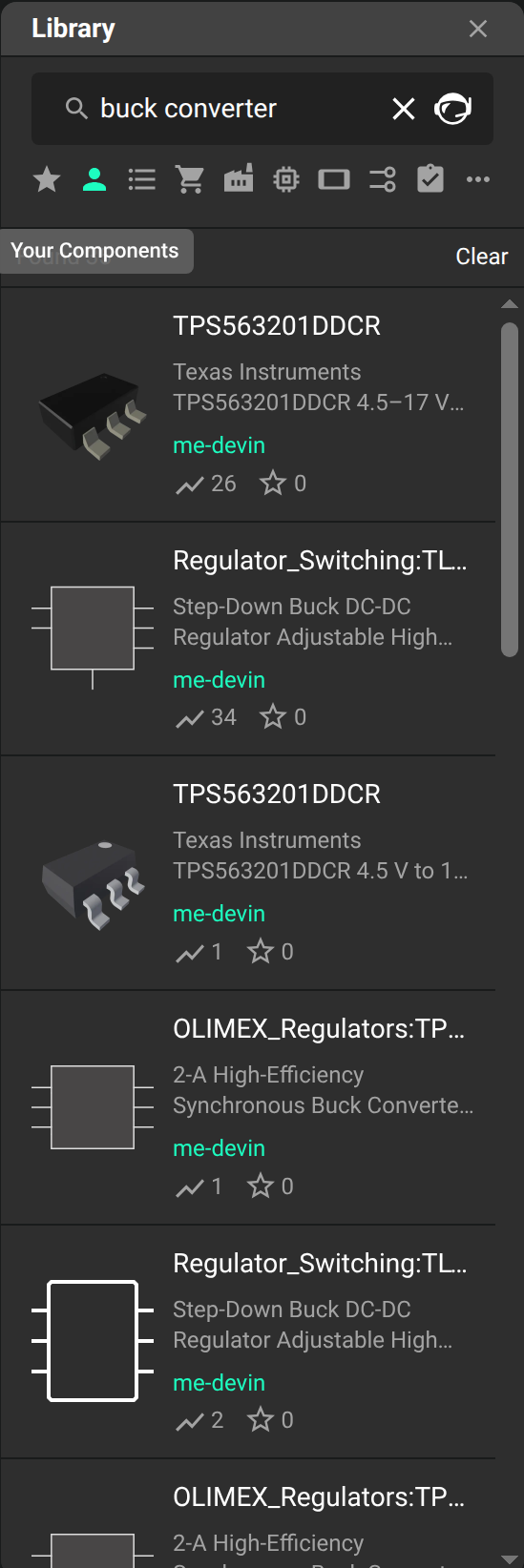
Tell Flux the organization's name or handle when you search for its parts. To show only your own parts, use the Filter by owner toggle.
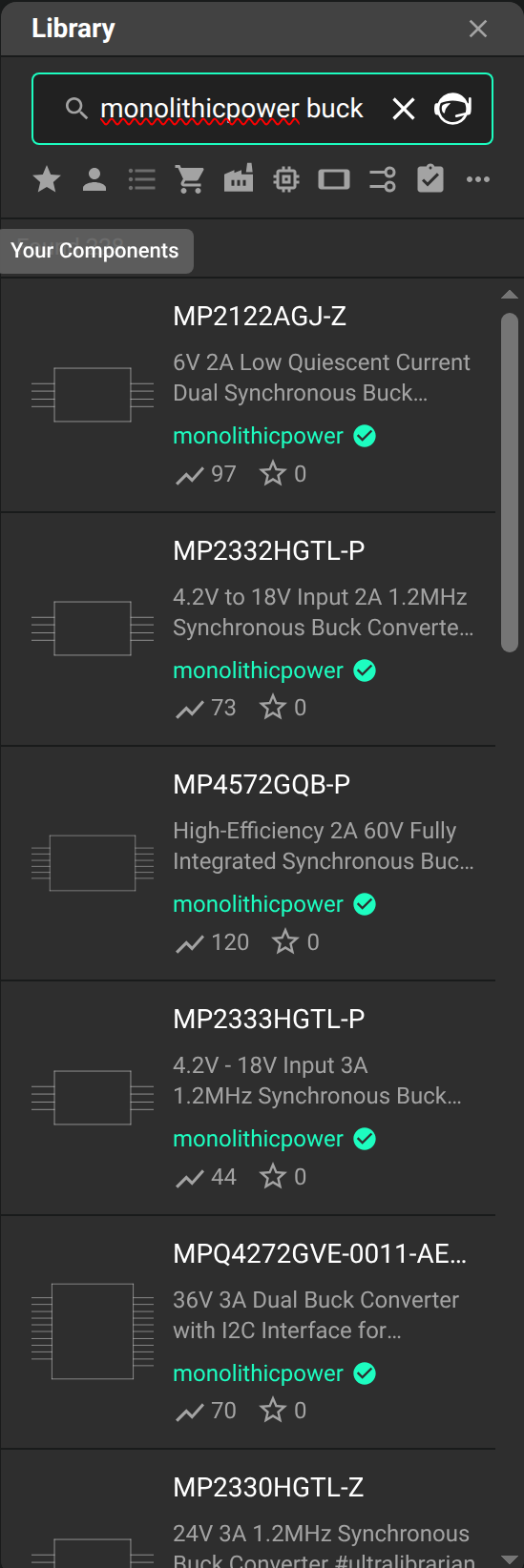
In the Library tab, search for an organization's handle and the part type or name, such as monolithicpower buck. This search returns only parts owned by that organization. To find your own parts, turn on Filter by owner; it shows Your Components.
Publish parts to your organization
Tell Flux which parts to create or import for your team. Parts created in an organization project belong to that organization.
The import dialog shows the user or organization that the imported parts go to. Parts created in an organization-owned project belong to that organization. Use Flux menu → Import → Part… to import a part library. To publish a part project to the library, select Flux menu → Publish to Library....
Public and private parts
Ask Flux to set the visibility that matches how you share a part. A part's visibility follows its project.
In the project share dialog, select an access option. See Private and public projects and Sharing and permissions.
Fork or copy a part
Ask Flux to start from a similar public part and adapt it to your design. Flux can fork the source into a new part project and edit that part.
Open the part project and select Flux menu → Fork Project. See Forking and cloning.
Invite vendors and suppliers
Share a part or project with a vendor or supplier by email. Choose view, comment, or edit access for the work you want them to do.
Open the part or project share menu and invite the supplier by email. See Sharing and permissions and Permission Tiers and Access Control.
Find parts
Tell Flux the part's function, exact MPN, key properties, or owner. Flux can search electrical and mechanical parts by their names and properties.
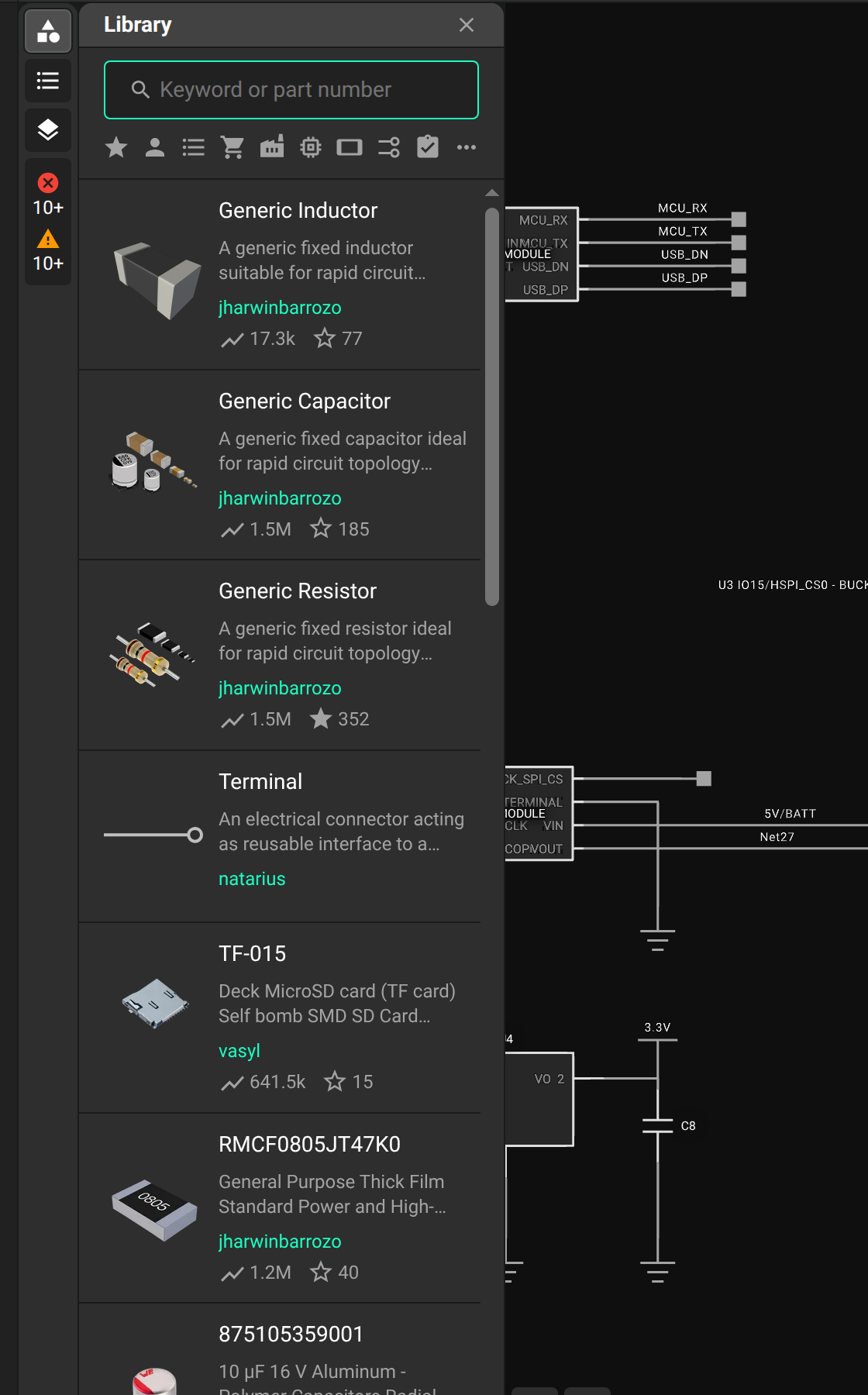
In the editor, open the Library tab in the left drawer. Search by part number or keywords. Select a result to add it to your project.
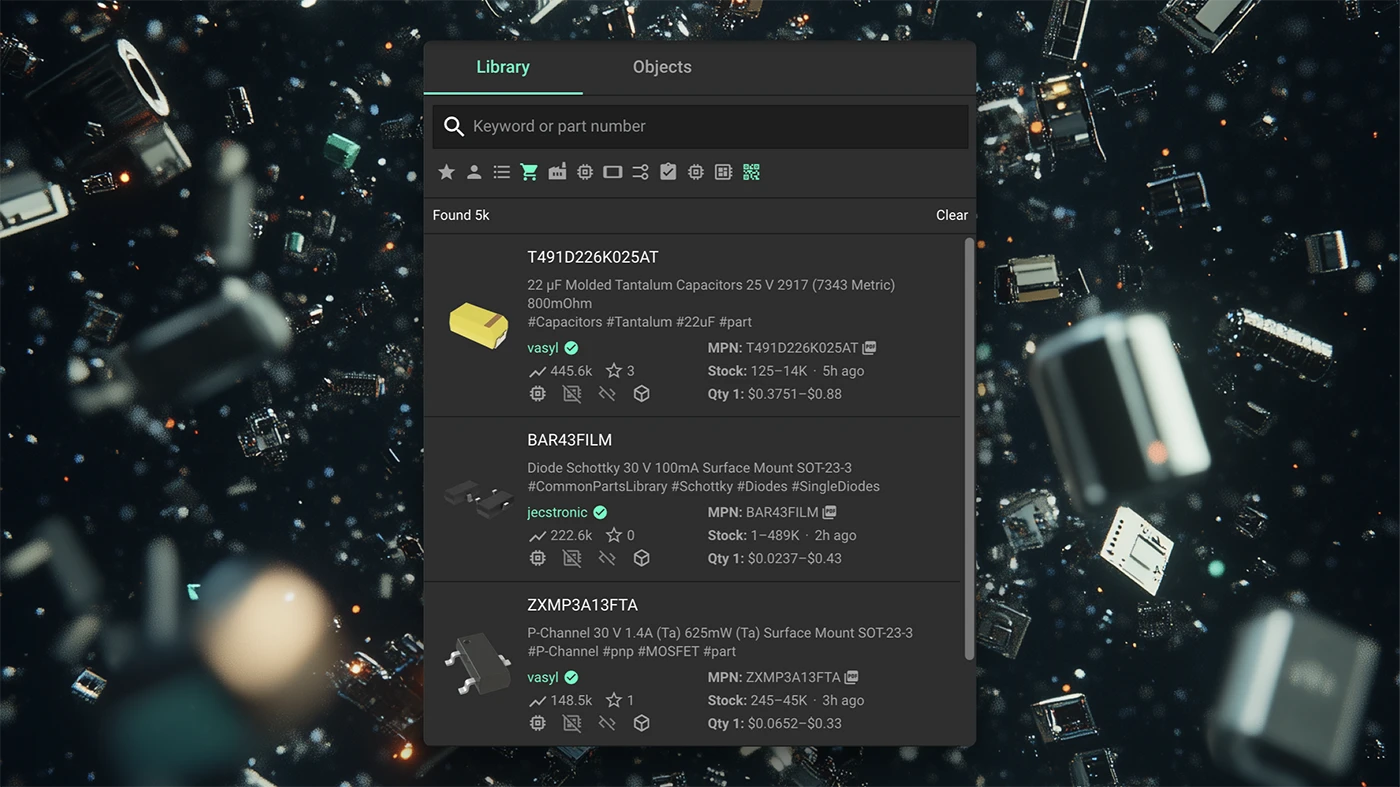
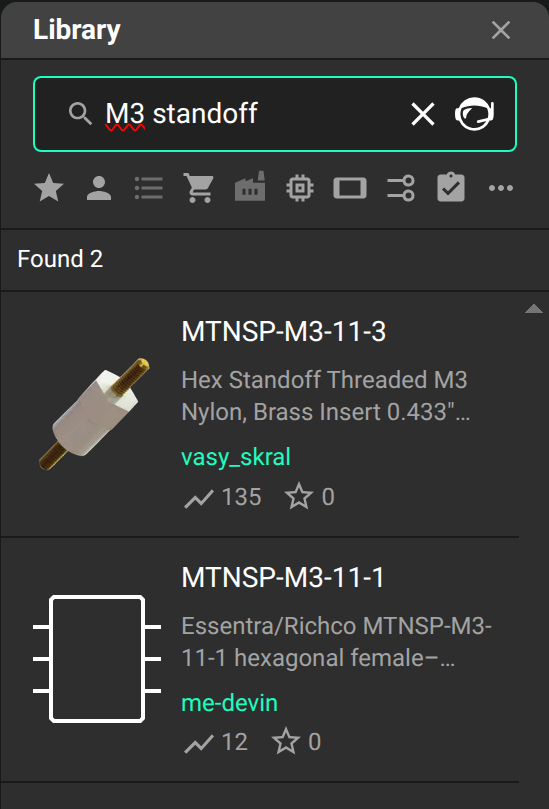
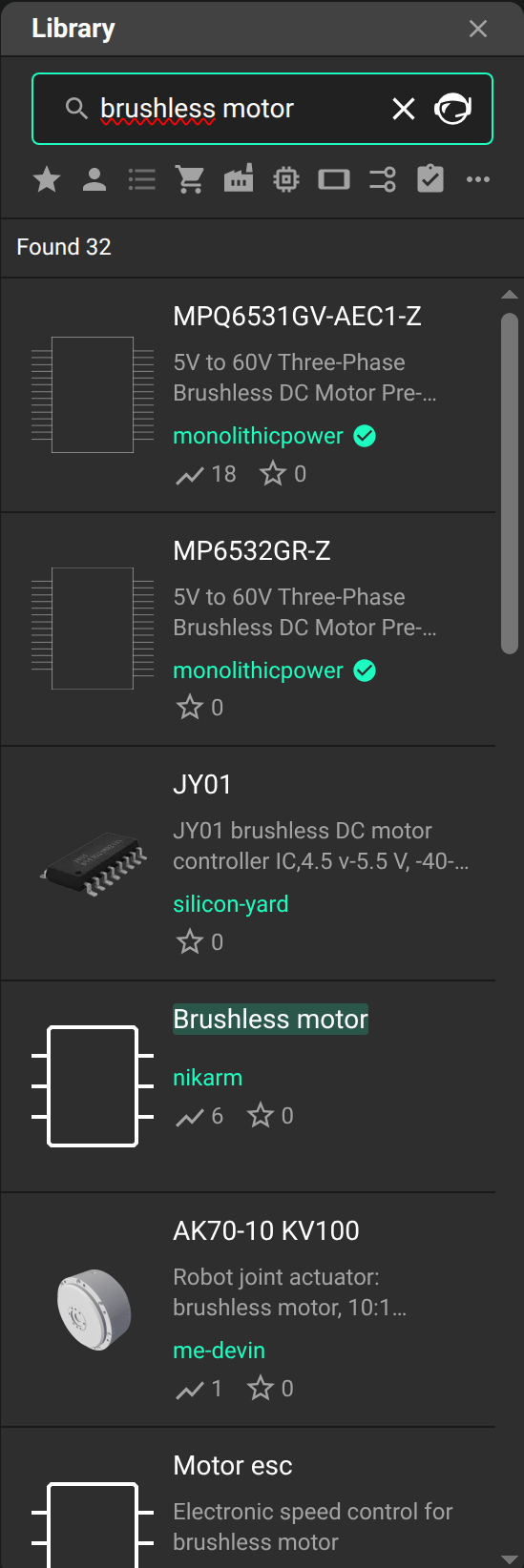
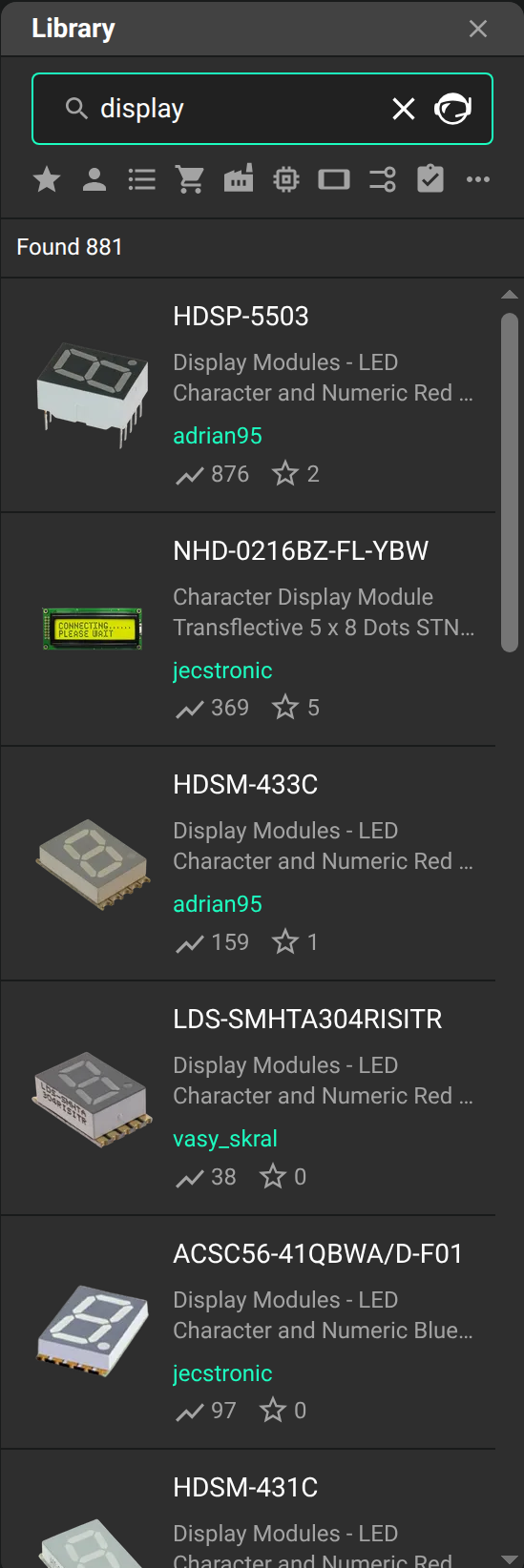
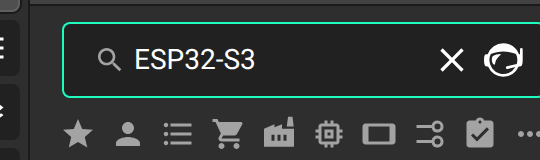
To search by an exact phrase, put the words in double quotes. For example, "Arduino Compatible" returns a record when the phrase appears together in an attribute. Typo tolerance is disabled inside a phrase.
To exclude a term, put a minus sign at the start of a word:
-arduinoexcludes records that contain “arduino”.-arduino compatiblereturns records that contain “compatible” but not “arduino”.-compatiblereturns records that do not contain “compatible”.arduino-compatiblesearches for the combined term; a minus sign in the middle of a word does not exclude it."-arduino"searches for the literal text “-arduino”; quotation marks make the minus sign part of the phrase.Arduino -Compatiblereturns records that contain “Arduino” but not “compatible”.
Use the Library refinements to filter results by part type and other properties:
You can use the filters section to find your desired part quickly. When a filter is selected, only parts that have such characteristic(s) will be shown.

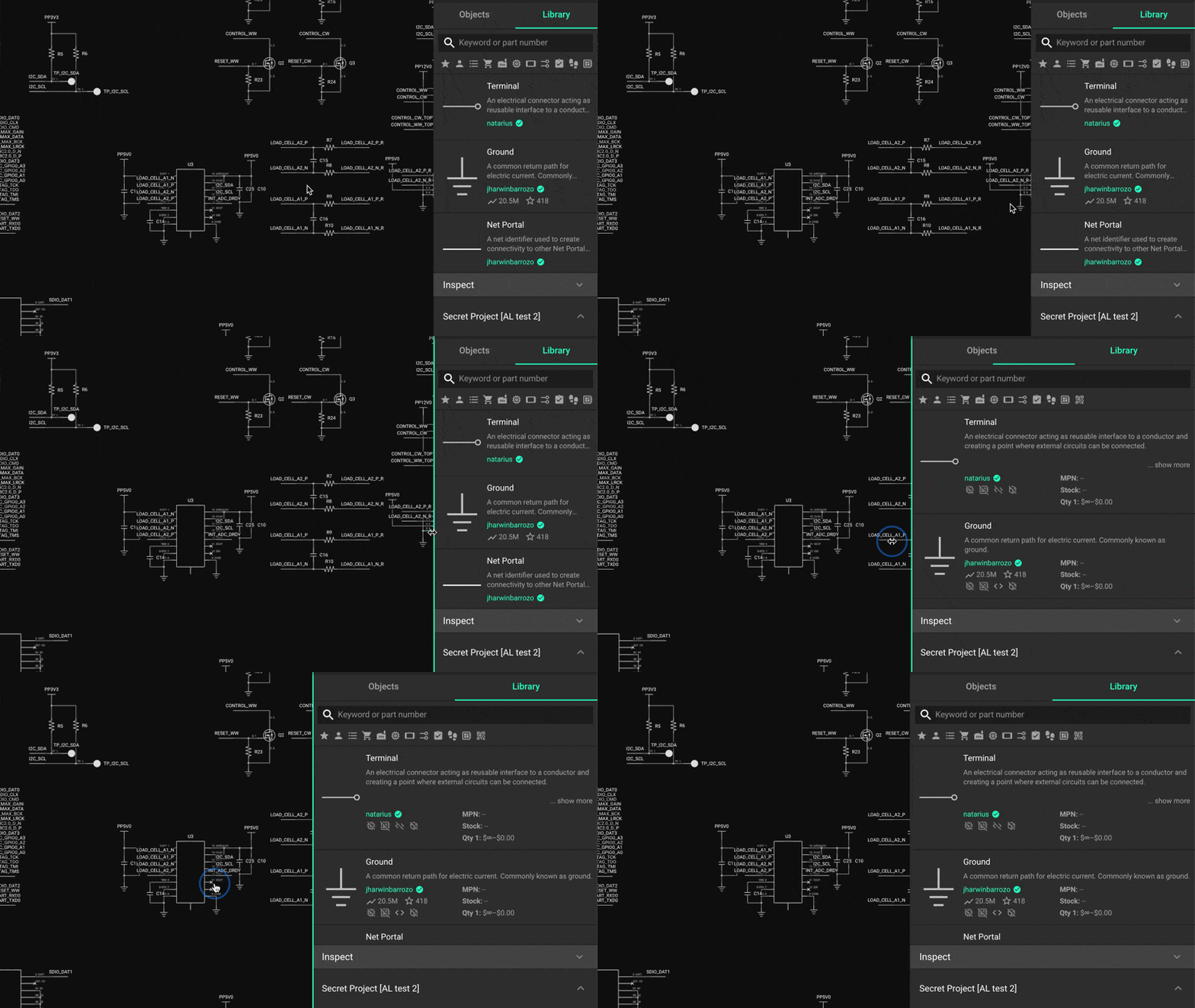
Use the search results to compare part records. Expand the Library panel to see more information about each part. Hover over the edge of the panel, then drag it to the right. Drag it to the left to hide the panel and make more room for the canvas.
Import libraries and project files with Import part libraries. Create new parts from MPNs, datasheets, product pages, drawings, or photos with Create parts with Flux.
Report a bad part
Tell Flux when a library part's 3D model does not line up with its pads. Flux reports the part issue for review and leaves the footprint unchanged. The footprint pads define the manufactured board.