
Get a routed board without hours of manual routing. Flux routes the whole board or the nets you name, while you keep working. Flux is an AI hardware engineer. It routes the board as one part of the complete device that you design.
Route the board with its placement, stackup, and electrical constraints in view.
Prepare the board for routing
Ask Flux to review the routing inputs before it routes the board.
Give Flux the board stackup, layer roles, trace widths, clearances, and any critical nets. For stackup and impedance setup, see Impedance control and the Stackup Editor.
Route the board or selected nets
Ask Flux to route the whole board or the nets you name.
Flux can route a complete board or selected nets while you continue working. If a net remains unrouted, ask Flux to report what blocks it and what changes are needed to complete the route.
If a route needs a change to existing traces or vias, ask Flux to request your approval before it makes that change.
Set power trace widths
Ask Flux to set the power and ground trace widths before it routes the board. For example prompts and trace-width rules, see Set power trace widths.
Choose routing layers
Tell Flux which layers to use for power, signals, and high-speed routes.
Flux uses the stackup and net rules to route traces on the selected layers. See Stackup Editor to set the board's layers and layer properties.
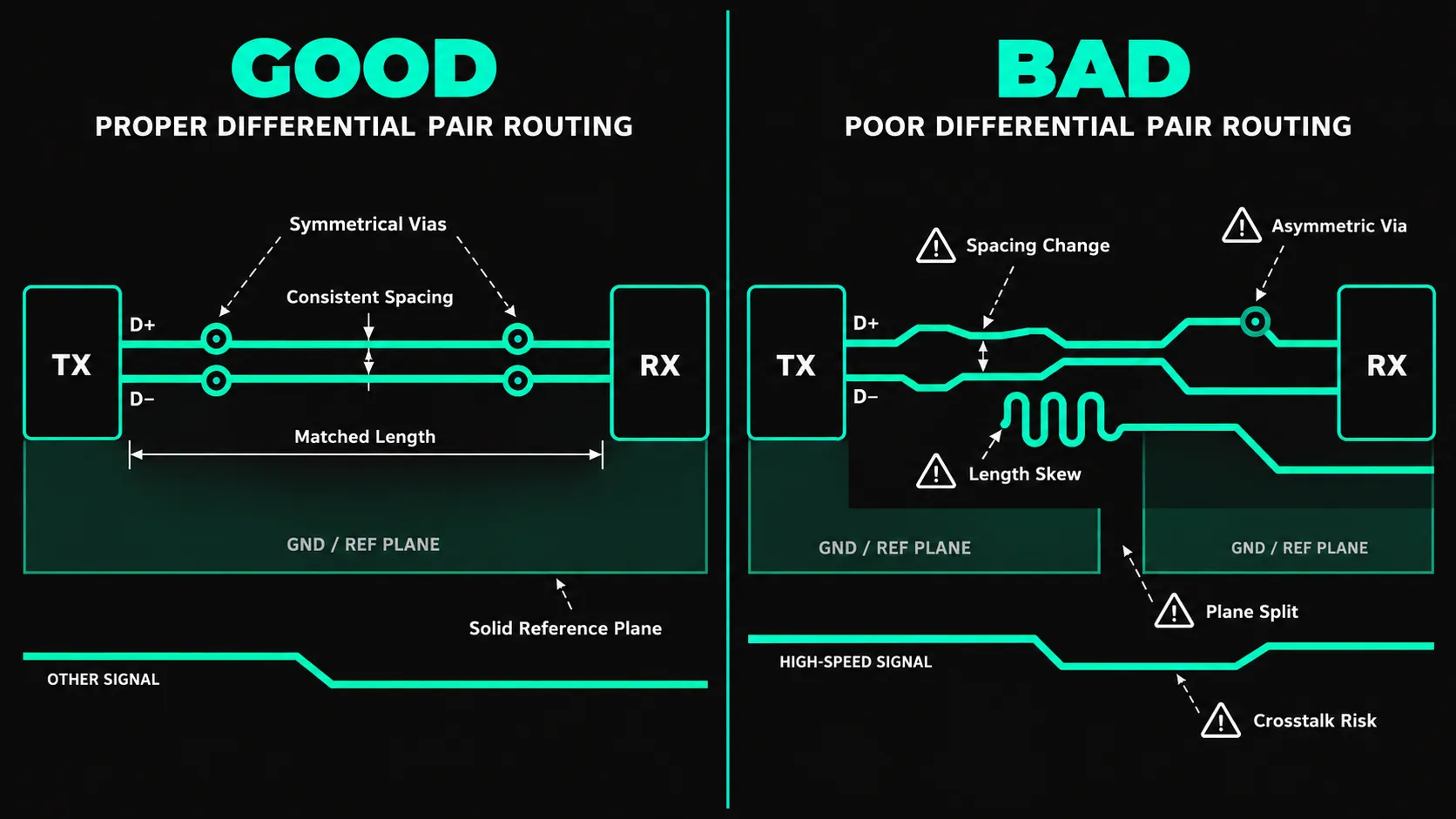
Route differential pairs
Ask Flux to route a differential pair with its target impedance.
Set the pair properties and target impedance before routing. See Impedance control for pair setup and Positioning and routing for the editor workflow.
Break out a USB-C connector
Ask Flux to connect the USB-C pins to the board nets and route the required signals.
For connector placement and board fit, see PCB placement.