
Flux is an AI hardware engineer. It imports your designs, part libraries, and mechanical CAD files from other tools, and continues the work in Flux.
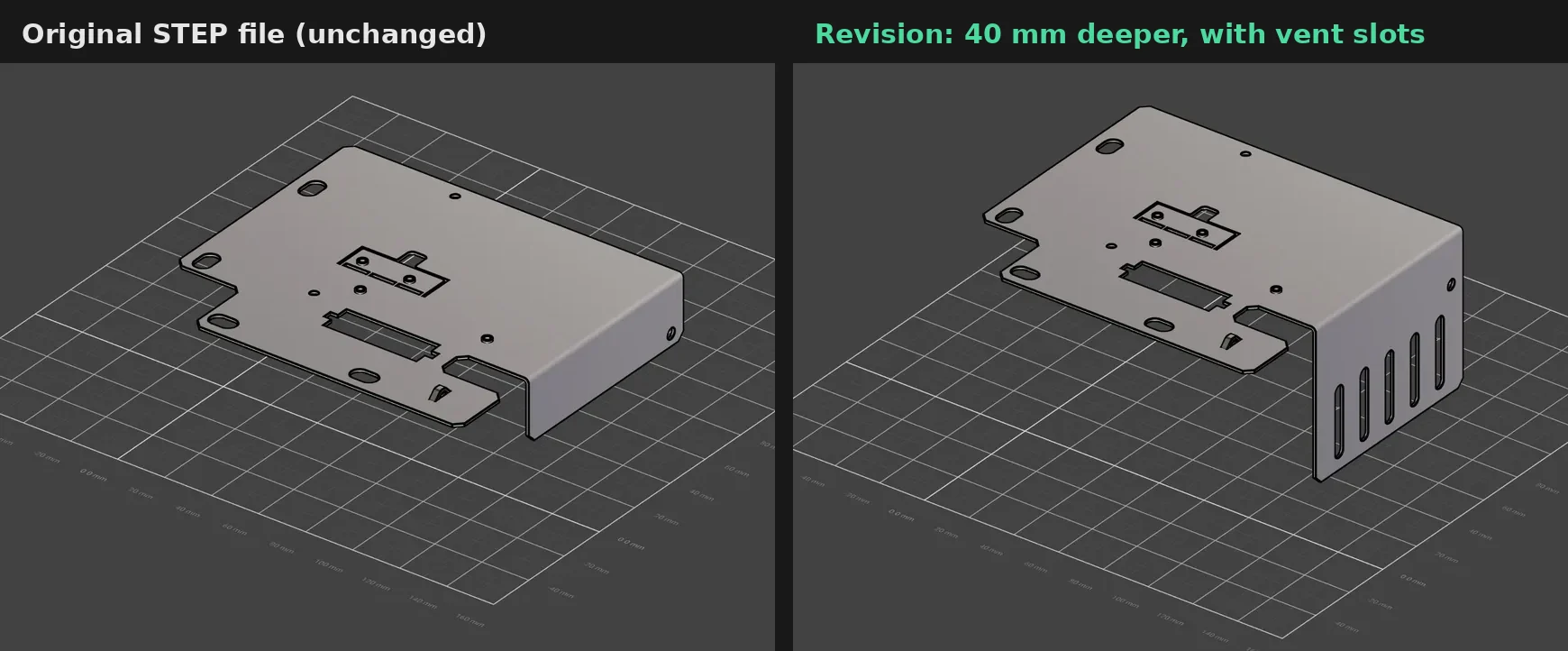
An import always creates a new project or new parts. It does not change an existing project or part.
Import with Flux
Attach the files, a folder, or a ZIP file to your message, and ask Flux to import them. Flux finds the format, creates the new project or parts, and tells you what it imported.
Import in the UI
The Flux menu → Import submenu has one item for each kind of import:
Menu item | Use it for |
|---|---|
Flux menu → Import → Project… | Electronics projects, schematics, and boards. Also creates library parts from design files. |
Flux menu → Import → Part… | Part libraries: symbols, footprints, and their 3D models. |
Flux menu → Import → JEP30 PartModel (.xml)… | JEP30 PartModel part files. |
Flux menu → Import → 3D part or assembly… | Mechanical CAD parts and assemblies. |
To import:
Open the import item for your files.
Select Choose files or Choose folder, or drop the files, a folder, or a ZIP file into the dialog.
Review what Flux finds, and select the projects or parts to import.
Start the import. Each import creates a new project or new parts.
For a project from a tool that stores data in many files, upload the whole project folder or a ZIP file of it.
To add a 3D model, drawing, or image to a project as an asset, open Assets in the Inspector, select Manage Assets, then select Add Item. See Assets.
Supported formats
Electronics projects, schematics, and boards
Use Flux menu → Import → Project…, or ask Flux.
Tool or format | Files |
|---|---|
Altium Designer and SOLIDWORKS PCB |
|
Autodesk Fusion electronics |
|
CADSTAR |
|
DipTrace | DipTrace XML: |
Eagle |
|
EasyEDA Standard and Pro |
|
EDIF |
|
IPC-2581 (revisions B and C) |
|
KiCad |
|
ODB++ | folder, |
OrCAD and Allegro |
|
PADS ASCII |
|
Proteus |
|
When a source includes a board, Flux imports its outline, stackup, footprints, placement, traces, and vias. A project with many schematic sheets becomes one Flux schematic. Flux keeps the sheet of each part in its Functional Group property. Each board layout becomes its own Flux project. Flux also creates the parts of the design in your library.
A flex or rigid-flex board in an IPC-2581 or ODB++ file opens with its rigid and flex area stackups, its Stackup Areas, and its coverlay layers. IPC-2581 boards also keep their stiffener layers. A KiCad board with a polyimide dielectric opens as a flex board. See Flex and Rigid-Flex Boards.
Part libraries
Use Flux menu → Import → Part…, or ask Flux.
Tool or format | Files |
|---|---|
Allegro |
|
Altium Designer |
|
Autodesk Fusion electronics |
|
DipTrace |
|
Eagle |
|
EasyEDA and LCSC |
|
| |
KiCad |
|
OrCAD |
|
PADS |
|
You can also make library parts from the project files in the table above. A board-only file, such as IPC-2581 or ODB++, creates parts from its footprints. See Import part libraries.
Mechanical CAD
Use Flux menu → Import → 3D part or assembly… for native CAD files, or ask Flux.
Tool or format | Files |
|---|---|
Autodesk Fusion |
|
NX and other Parasolid-based tools |
|
OpenUSD |
|
SOLIDWORKS |
|
For an assembly, Flux keeps the position, color, and repeated instances of its parts. From an OpenUSD file, Flux makes a new mechanical part, and each body keeps its name and color.
Add these 3D files as project assets, or attach them in the chat:
Format | Files |
|---|---|
STEP |
|
IGES |
|
BREP |
|
Mesh |
|
OpenSCAD |
|
See Import and edit CAD files.
Drawings and images
Attach drawings and images in the chat, or add them as project assets.
Format | Files |
|---|---|
Drawings and outlines |
|
Images |
|
Flux uses a DXF or SVG file as a board outline, a symbol, a pad shape, or a silkscreen logo. Flux creates a 3D model from a photo or a drawing, and reads datasheets, drawings, and schematics from PDF files and images.
Tool-specific details
KiCad
Upload the whole project folder or a ZIP file, because a KiCad project keeps its data in many files. Flux reads bus aliases from the .kicad_pro file and from the schematics. A KiCad symbol with many units becomes one Flux symbol for each unit, with one footprint.
DipTrace
Save a DipTrace project as DipTrace XML (File → Save As → DipTrace XML) before you import it.
EDIF with ODB++
An EDIF file brings the netlist, parts, and connections. Import it together with an ODB++ archive of the same design to get the board in the same project.
Open design files from other tools on a computer
Ask Flux to inspect, check, convert, or simulate a design file from your computer.
Attach the design files to your message and tell Flux what you need. Flux can render schematics and boards, export netlists and bills of materials, run checks on the source files, convert supported files, and run SPICE decks. Flux returns the generated reports and files in the chat.
What you can do after the import
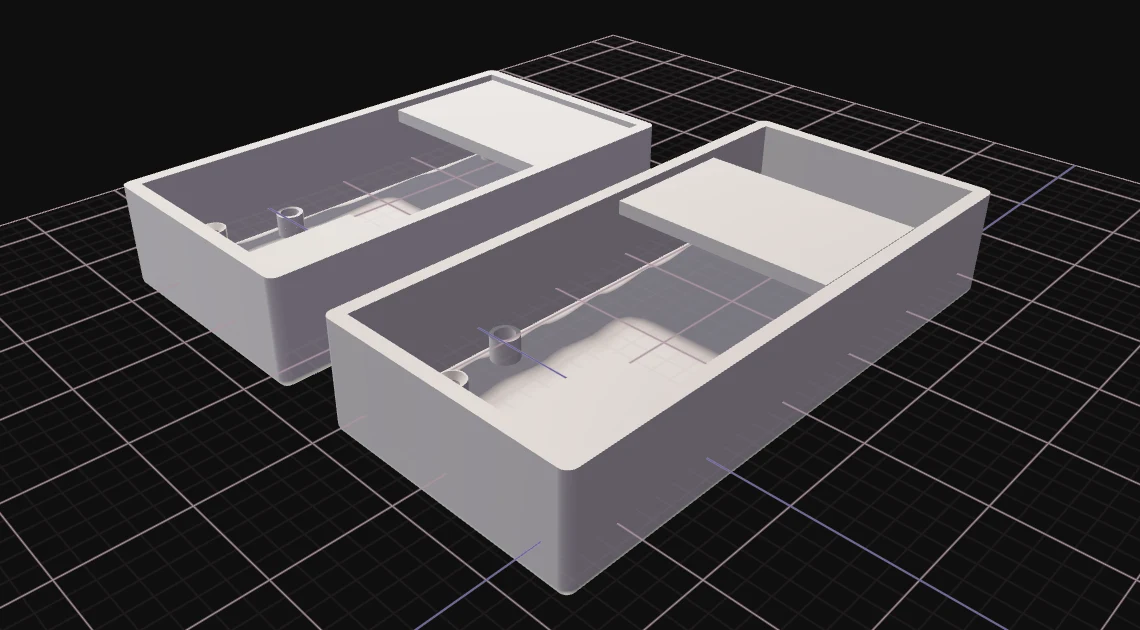
After the import, ask Flux to turn the imported design into a complete device. Flux reviews and changes the schematic, places and routes the board, simulates the design, designs and analyzes the mechanical parts, writes the firmware, and gets manufacturing quotes and orders. Flux also edits imported CAD models.
For more use cases by source tool, see the migration guides:
Electronics: Altium, CADSTAR, DipTrace, Eagle, EasyEDA, KiCad, OrCAD and Allegro, PADS, Proteus, and Upverter.
Mechanical: Autodesk Fusion, CATIA, Onshape, Siemens NX, and SOLIDWORKS.
For mechanical parts, see Mechanical Design.