
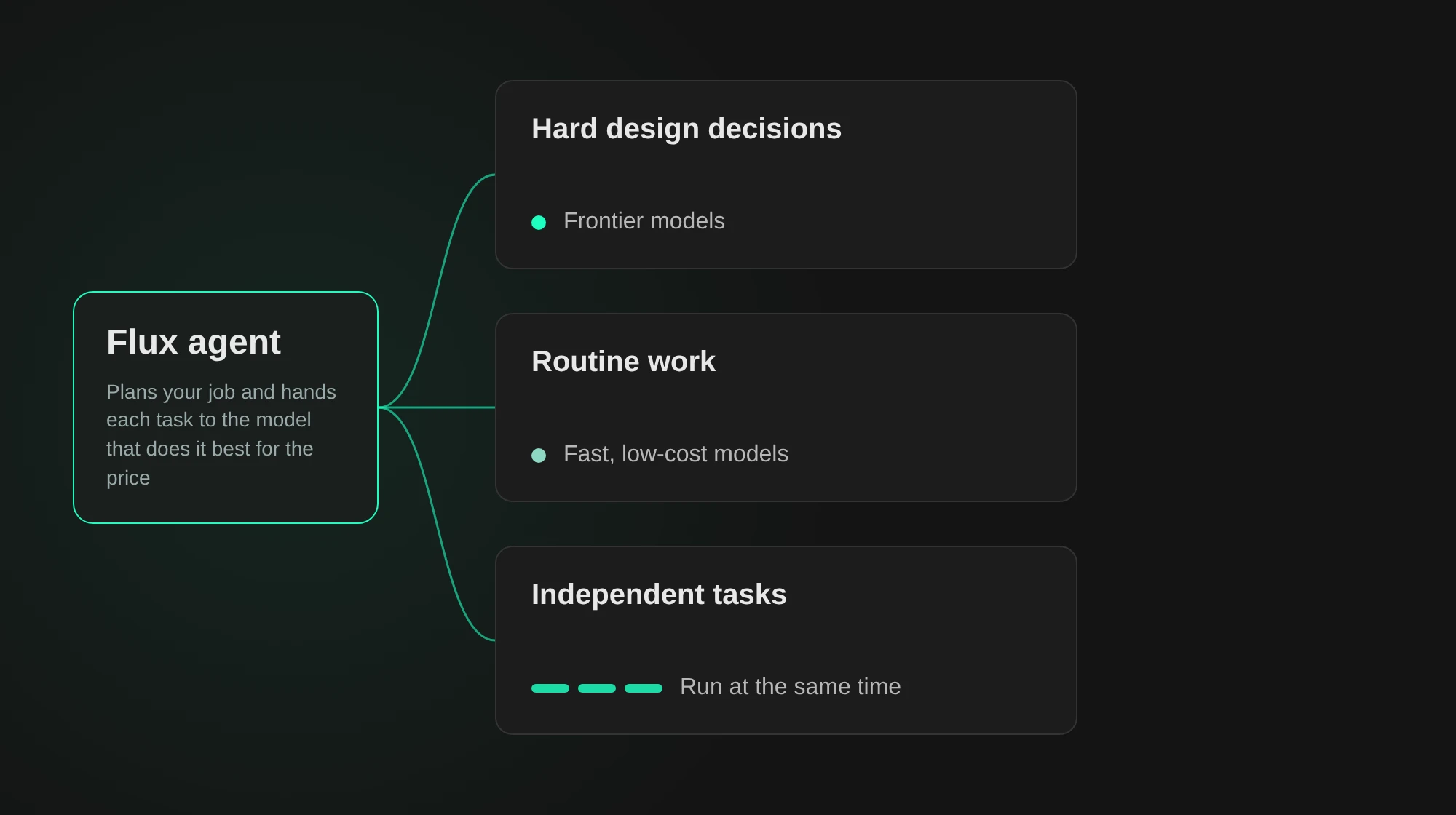
Flux is an AI hardware engineer. Give Flux a device goal, and Flux plans the work, designs the complete device, checks it, and prepares it for manufacturing.
Start with a goal
Ask Flux to turn your device goal into a complete design.
Describe what the device must do. Include its size, operating conditions, interfaces, power needs, and manufacturing requirements. Flux uses the project context and your requirements to plan the design.
Open the project's Chat panel.
Select Agent.
Describe the device and its requirements.
Answer Flux's questions about missing values or design choices.
Review the plan and ask Flux to continue with the design.
Design the complete device
Ask Flux to plan work across the areas that make your device.
Flux works across the areas that make a device:
Electronics: select parts, create the schematic, and design and route the PCB.
Firmware: write and check firmware for the device.
Mechanical design: create parts and assemblies that fit the board and its components.
Wire harnesses: connect boards and devices with wires and matching connectors.
Simulation: check circuit behavior, electromagnetic performance, temperature, flow, and motion.
Manufacturing: prepare fabrication files, compare quotes, and order parts and assemblies.
Flux keeps these areas connected in the project. For example, the board and its components can guide the enclosure design, and the design can guide firmware and manufacturing work.
Check the design
Ask Flux to check the design and explain the results.
Flux runs engineering checks and simulations as it works. Ask Flux to review results, compare design changes, and update the project.
Ask Flux to run ERC and DRC checks, create an FMEA report, or prepare regulatory project documents such as a safety analysis or an FCC/CE Technical Construction File. To talk with an electrical engineer, select Get Free Expert Help in the chat card and request a free review call.
For work across separate projects, see Parallel threads. For simulation examples, see Simulation with Flux.
Get a second opinion
Ask Flux for a second opinion on a datasheet interpretation or wiring plan.
Flux compares the interpretation or wiring plan with the component datasheet and summarizes the second opinion.
Ask Flux to explain, calculate, or change the design
Ask Flux to select, add, edit, or remove parts. Flux can explain a design, calculate a value, compare design options, and extract information from datasheets. Flux records project changes so you can review the design history.
Open the project and select Show Chat to open the Chat panel. Select Agent for a design change or Chat for an explanation, calculation, or comparison.
Prepare the device for manufacturing
Ask Flux to prepare the files, quotes, and parts list for your device.
Flux can prepare manufacturing files, compare prices and lead times, and create a bill of materials. Review the complete design in the project, then ask Flux to prepare the files or quotes you need.
Wire harness quotes
Ask Flux to design, quote, and order a harness in Wire harnesses with Flux and Wire harness quotes and orders.
Steer Flux while it works
Send Flux a message while it works to change its course at the next step. Earlier work stays in the project.
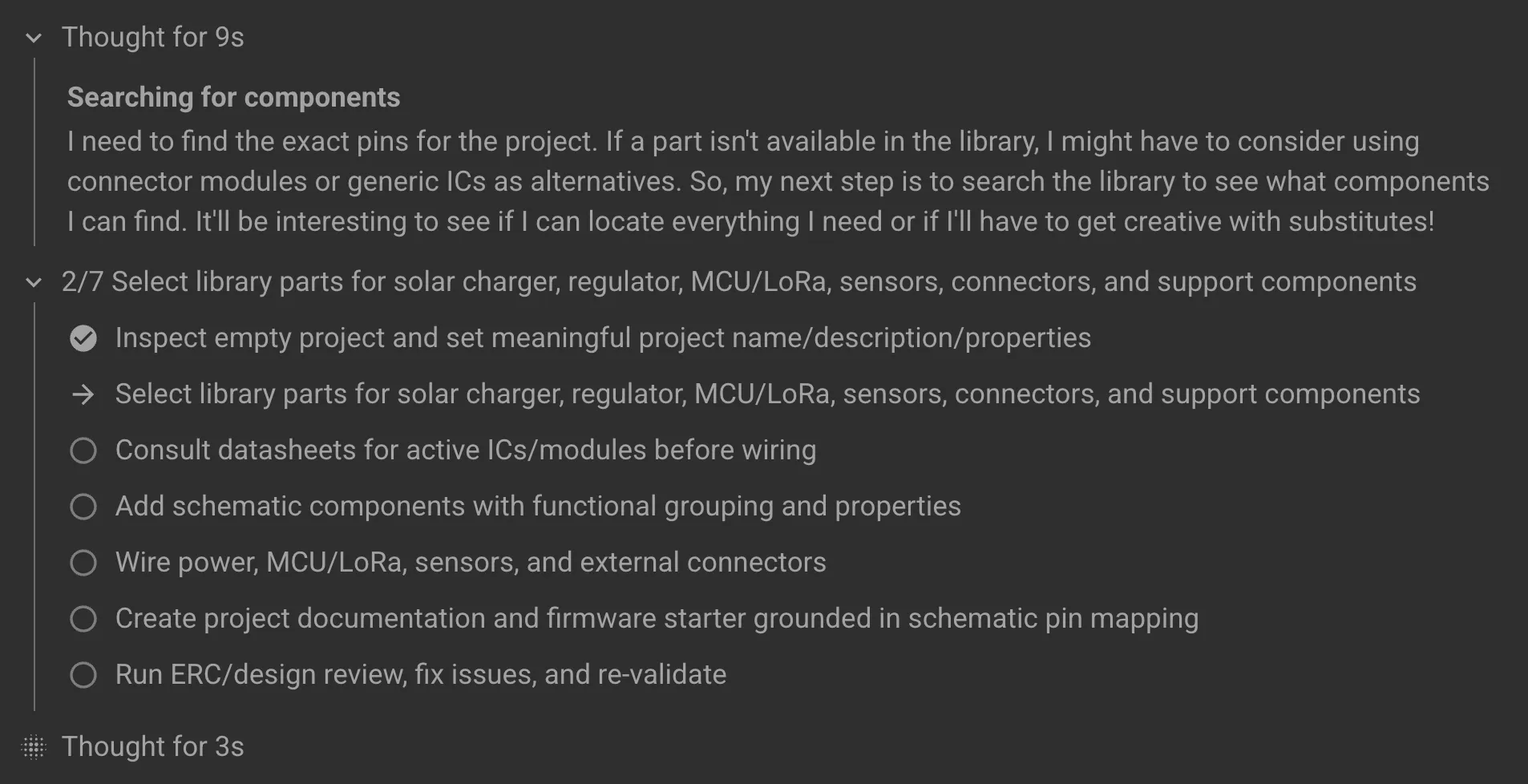
Send your message in the chat while Flux works. Flux reads it at its next step and changes course. Select Stop agent to stop Flux. The chat shows Flux stopped.
Flux works in the background
Ask Flux to continue with a task that can take several steps.
Flux works on its own cloud computer, not on your computer. Flux keeps working when you close the tab or browser. Open the project again to see the result and what Flux did in the chat.
Choose a model or let Flux choose
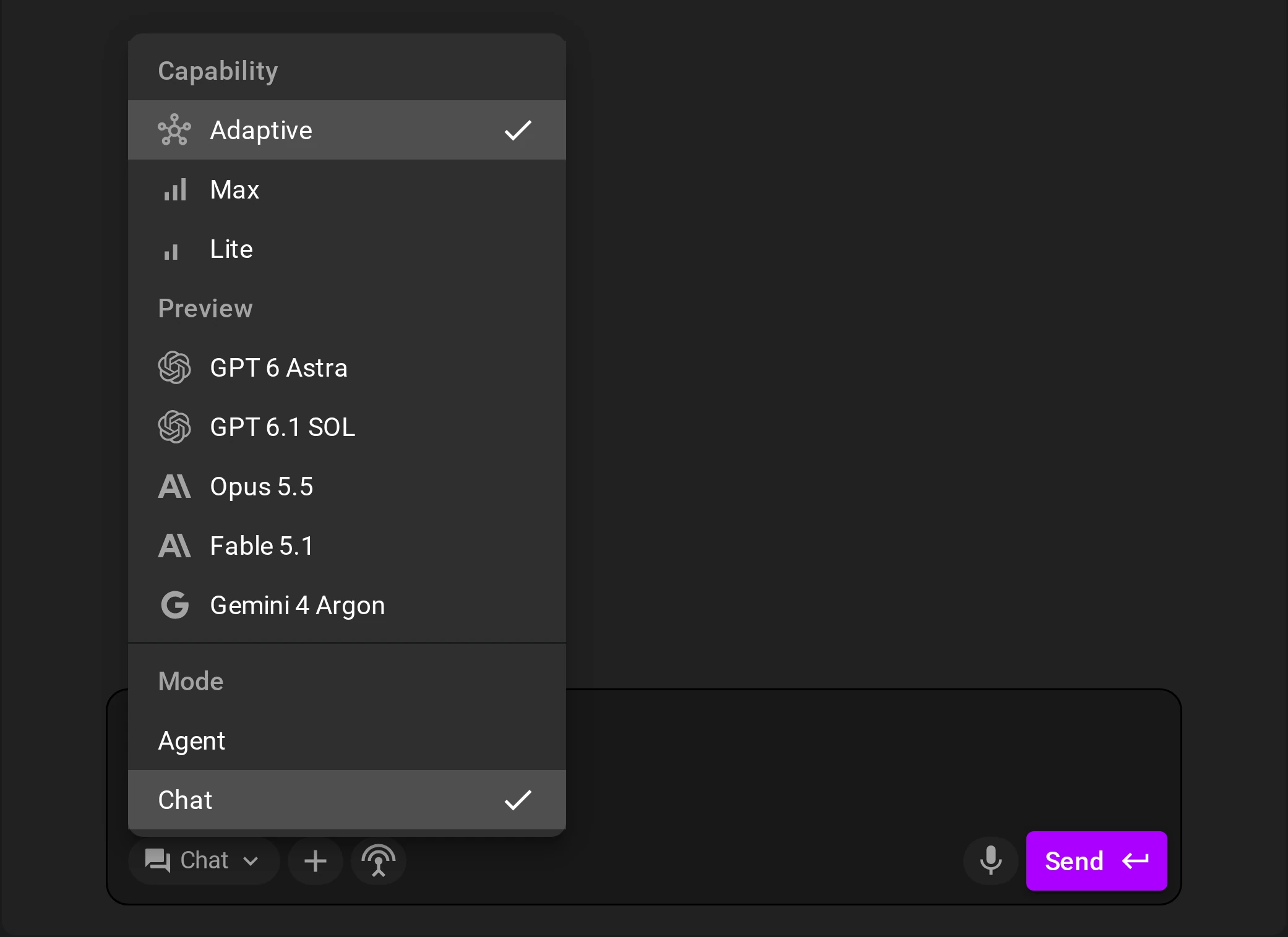
Ask Flux to use Adaptive or a model that fits the task.
Flux uses frontier models from OpenAI, Anthropic, and Google. Select Adaptive (the default) to let Flux choose a model for each task. You can also select Max, Lite, or a specific model. See Model selection.
Work in parallel threads
Ask Flux to work on separate tasks in side threads or in other projects.
See Parallel threads to follow work across threads and projects.
Full project context
Ask Flux to use the whole hardware project when it plans or changes the design.
Flux reads and edits the whole hardware project. This includes requirements and project documents, the schematic, PCB layout, 3D and CAD models and assemblies, firmware, simulation results, design checks such as ERC and DRC, parts, and pricing and availability. See Project files, Mechanical Design, Simulation with Flux, and Part Library.
Connect your tools (MCP servers and secrets)
Flux can call any web API and use any MCP server for you. Give Flux a key, and Flux gets your distributor prices, your PLM and ERP data, your device telemetry, and your test results, and uses them in the design. Ask Flux to use a connected tool or to connect to a service that needs a key.
When Flux needs an API key, Flux asks you for it in chat. See Integrations and secrets and Use Flux in your AI tools.
Flux's computer desktop
Ask Flux to use its graphical desktop to inspect a design or a web page.
Flux can open desktop apps and web pages, click, type, and look at the screen. While Flux uses the desktop, the chat step shows the live desktop with a Live badge. The live view is view-only. You watch while Flux controls the desktop. When the step is done, the live view changes to a screenshot. Select the screenshot to open it larger.
How Flux differs from general coding agents
Ask Flux to design hardware in the project, then use a connected coding agent to work with the same project through the Flux MCP server.
Flux works directly with a complete hardware project. General coding agents such as Claude Code and Codex work with code and files in a repository.
Area | Flux | General coding agents such as Claude Code and Codex |
|---|---|---|
Project context | Reads requirements, project docs, schematic, PCB, 3D CAD, firmware, simulation results, and checks together | Read code and text files in a repository |
Editors | Edits the schematic, PCB layout, and 3D CAD in the Flux editors | Edit code and text files |
Parts data | Searches the Part Library with live pricing and stock from suppliers | Use part data that you give them or that a connected tool supplies |
Simulation and checks | Runs circuit, electromagnetic, and thermal simulation, and ERC and DRC, on the design | Run the scripts and tools that you install for them |
Manufacturing | Prepares fabrication files, gets quotes, and places orders | Write files that you then send to a manufacturer |
Background work | Works on its own cloud computer with hardware design tools installed, and continues when you close the tab | Work in a terminal, an editor, or a cloud environment with the tools that you set up |
You can use Claude Code or Codex together with Flux through the Flux MCP server.
Keyboard shortcuts
Action | Shortcut |
|---|---|
Open the command list |
|
Move through commands | Up and down arrows |
Select a command |
|
Close the command list |
|
Privacy and security
Read the Privacy Statement for information about Flux data and privacy.
Continue with Flux
Ask Flux to continue from the current project context.