
Give Flux a key, and Flux calls any web API for you. Flux uses your distributor and supplier accounts, your fabricators, your PLM and ERP systems, your device and test-equipment clouds, and the services that your team built. You get your own prices, quotes, stock, part numbers, and field data in the design, without copying them by hand.
You do not have to set up anything first. Ask Flux for the result. When Flux needs a key, Flux asks you for it in the chat. Flux sees only a placeholder, and sends the key only to the websites that you allow.
Connect AI integrations, custom MCP servers, and API keys to give Flux access to the APIs and systems your team uses.
Let Flux ask for a key while it works
Ask Flux to use a service that needs a key. Flux asks you for the key in chat when it needs one.
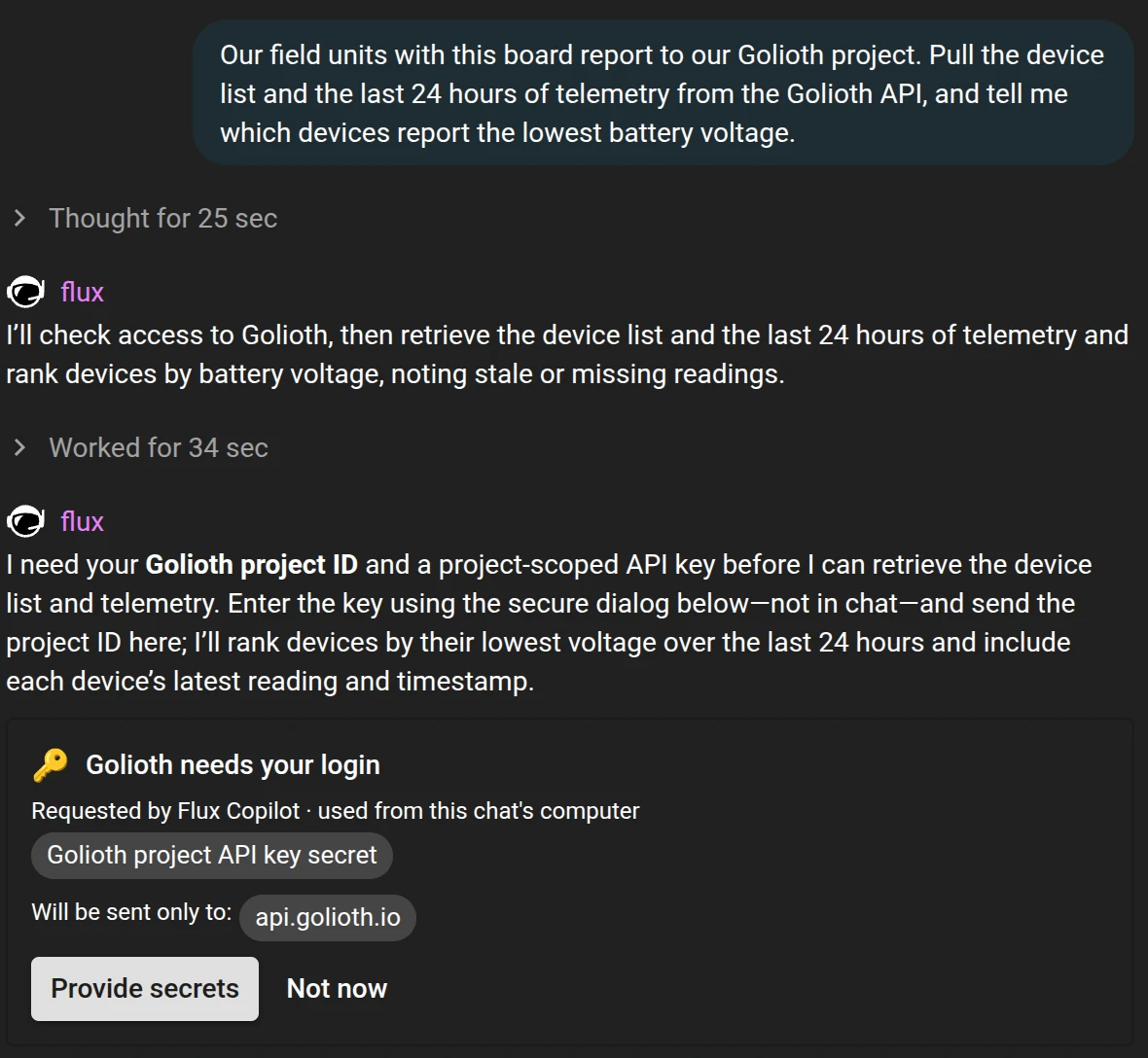
When Flux needs a key or login, a request card appears in chat. The card title is <Service> secret request, or <Service> needs your login when the service needs your login. Each field is labeled <Field> secret. The card lists Will be sent only to: and the allowed websites. Select Provide secrets to continue or Not now to decline. The card shows that Flux asks for the values and uses the key from the chat's computer.
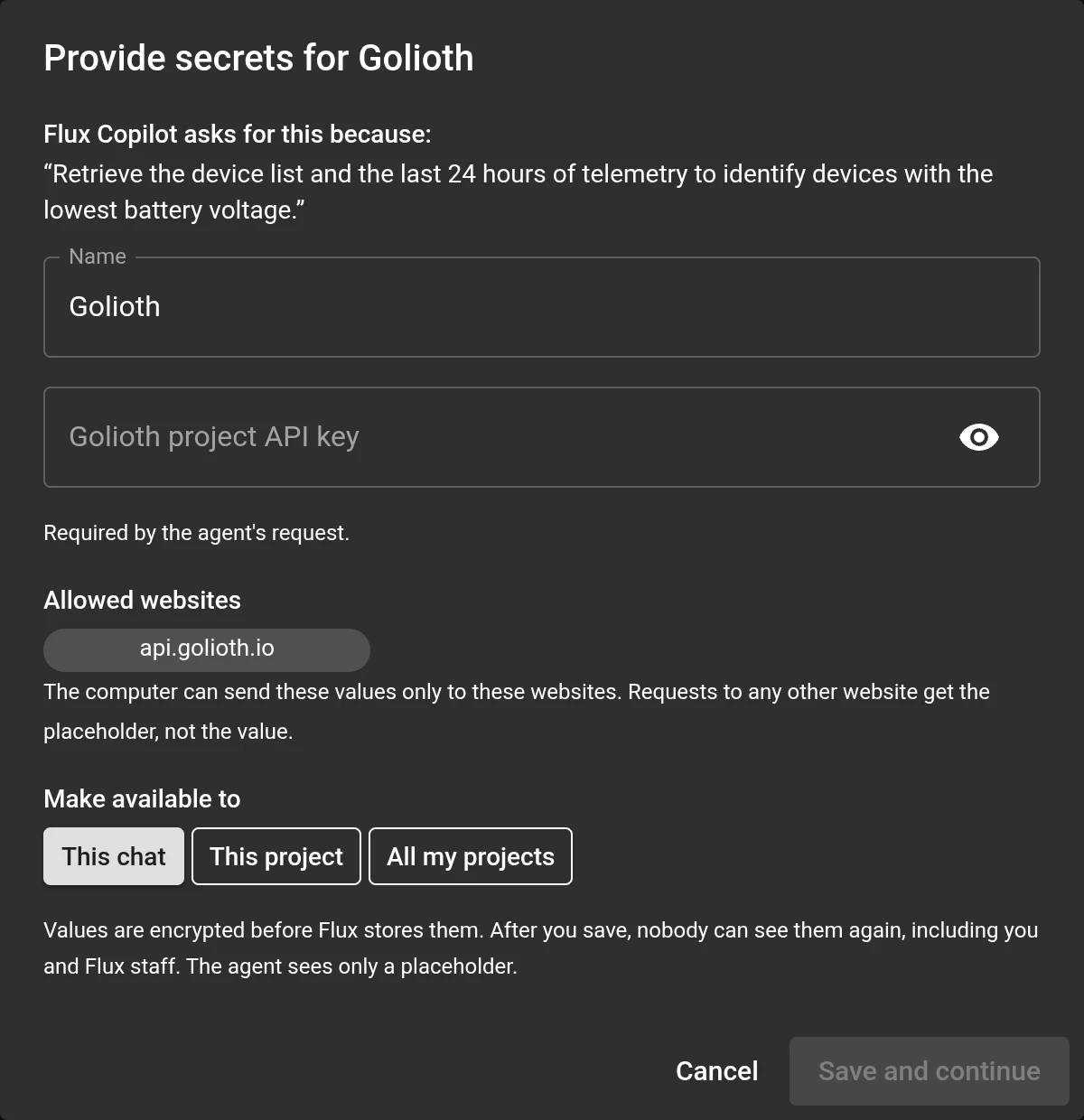
Select Provide secrets to open Provide secrets for <Service>. The dialog explains why Flux needs the key. Choose Use a saved secret or Enter new values, then enter or select the value for each field. Review Allowed websites. Flux sends values only to these websites and sends a placeholder to other websites. Under Make available to, choose This chat, This project, All my projects, or Everyone in [organization name].
The values are encrypted. Nobody sees them again, and Flux sees only a placeholder. Select Save and continue, or select Use this secret for a saved value. Select Cancel to close the dialog.
After you provide a value, the card shows Provided and Manage. If you select Not now, the card shows Declined, “You chose not to provide these secrets.”, and Provide now. Flux continues the task with the key after you provide it.
Digi-Key, Mouser, and Arrow use your key for part pricing. JLCPCB and PCBWay use your key for manufacturing quotes and orders. Craftcloud uses your key for 3D-printing quotes and orders. Flux can also use web APIs from its computer, including device-cloud services, product lifecycle management and bill-of-materials tools, part-data sources, and testing tools.
Connect an AI integration
Ask Flux to use a connected AI integration in your hardware workflow.
To connect an integration in the UI:
Open the Chat panel and select AI Integrations. Choose an integration from the Integrations tab and follow the connection steps.
Add a custom MCP server
Ask Flux to use the tools on your custom MCP server after you connect it.
To connect a custom MCP server in the UI:
Open the Chat panel and select AI Integrations.
Select the Custom MCP tab.
Select Add MCP Server.
Enter the server's Name and URL.
Choose an Auth Type:
No Authentication
Bearer Token
OAuth
For Bearer Token, enter the token value.
For OAuth, enter the OAuth Client ID and OAuth Client Secret.
Set Enable for Chat or Enable for Autopilot.
Select Save.
Add API keys
Ask Flux to use a key to access a web API, such as a repository, device, or team-built tool.
To save a key in the UI:
Flux can use API keys to access web APIs. For example, connect an API to push firmware to your repository, read crash reports from devices, or use a tool your team built.
Save a personal key in Settings → Secrets. An organization admin can add each key once for the organization in Organization settings → Secrets → Add secret. Flux uses organization secrets without showing the key value.
Set Allowed websites for each key. Flux adds the key only to requests for the websites you allow.
Example requests
Ask Flux to use one of your connected APIs for a hardware task.
For the Flux connection to external AI clients, see Use Flux in your AI tools.