
Flux is an AI hardware engineer. It turns your mechanical requirements into editable parts that fit the hardware in your project.
Start with the requirement
Ask Flux to design the part from its requirements.
Describe the part's purpose before you describe its shape. Name the hardware it must hold, the forces or motion it must handle, and the space available around it. Include dimensions, materials, and how you plan to make the part when those details guide its design.
If you have a photo, sketch, render, or drawing, create a 3D model from that reference.
Open the product project and identify the board, motor, display, or other real hardware that the part must fit.
Tell Flux what the part must do and which existing parts define its mounting points.
Add overall dimensions, hole locations, clearances, and material requirements.
Ask Flux to create the part and place it with the related hardware.
Refine the geometry through prompts that change one design requirement at a time.
This approach works for brackets, mounts, housings, enclosures, covers, structural parts, and custom pieces around hardware. A part can connect two components, locate a board, support a motor, protect a display, or give an assembly the shape it needs.
Design around real hardware
Ask Flux to design the part around the hardware in the project.
Use the actual board and component models from the project as design references. Tell Flux which surfaces, holes, axes, and connectors matter. A mounting bracket can align to a motor's mounting face. A display bezel can place its opening around the display area. A board support can match the board outline and mounting holes.
Name the hardware that the part must fit.
State the dimensions and reference surfaces that control the fit.
Describe the shape and purpose of the new part.
Ask Flux to add the part to the project and position it with the hardware.
Refine the model with changes to dimensions, ribs, openings, bosses, or mounting features.
For a housing, give Flux the product's outer dimensions, the locations of user-facing features, and the hardware that must fit inside. For a bracket, describe the members it joins and the points where it attaches. For a mount, state the component's orientation and the features that hold it in place.
Refine a part
Ask Flux to change the part with measurable values.
Describe edits with measurable values. Say which face or feature changes, what dimension it should have, and how it relates to the surrounding geometry. Keep requirements that do not change in the same request, such as the board position or the connector openings.
You can ask Flux to change wall thickness, move a hole, add a recess, adjust a boss, or reshape a support. You can also ask for a variation of a part for a different motor, board, or display. Each edit creates an updated model that you can continue to refine.
Use specific geometry names when the part already has a clear feature. If you do not know the feature name, describe its position and purpose. For example, say "the two mounting holes on the left flange" rather than "the holes" when a part has several hole groups.
Use modeling operations
Ask Flux to build the part with the solid-model operations that define its shape.
Open the project that contains the hardware for the part.
Open Chat and describe the part, its dimensions, and any operations you want Flux to use.
Open the part in the 3D view.
Open Files to read the verification report.
Flux builds exact solid parts with extrude, revolve, sweep, loft, shell, fillet, chamfer, holes, and linear or circular patterns. Flux keeps the part editable. See Editable CAD code to learn how to work with editable parts.
Operation | What it does | Example |
|---|---|---|
Extrude | Extends a profile into a solid. | Extrude a rectangle to make a mounting plate. |
Revolve | Rotates a profile around an axis. | Revolve a profile to make a bearing hub. |
Sweep | Moves a profile along a path. | Sweep a channel along a curved cable route. |
Loft | Joins profiles across sections. | Loft a handle from a wide grip to a narrow end. |
Shell | Makes a solid hollow with a set wall thickness. | Shell an enclosure with 2 mm walls. |
Fillet | Rounds an edge. | Add a 2 mm fillet to a bracket edge. |
Chamfer | Cuts a bevel on an edge. | Add a 0.5 mm chamfer around a hole. |
Hole | Creates a hole in a solid. | Add a 22 mm bearing bore. |
Linear pattern | Repeats a feature along a straight line. | Repeat four slots along a flange. |
Circular pattern | Repeats a feature around an axis. | Repeat six M4 holes around a hub. |
Name the operation and its size when you need a specific feature. Otherwise, describe what the feature must do and Flux chooses the operations. Flux states its assumptions, such as hole sizes and threads. Flux models a tapped hole at its tap-drill size. Flux saves a verification report in the project files.
Design sheet metal parts
Ask Flux to design a formed sheet-metal part with a flat pattern.
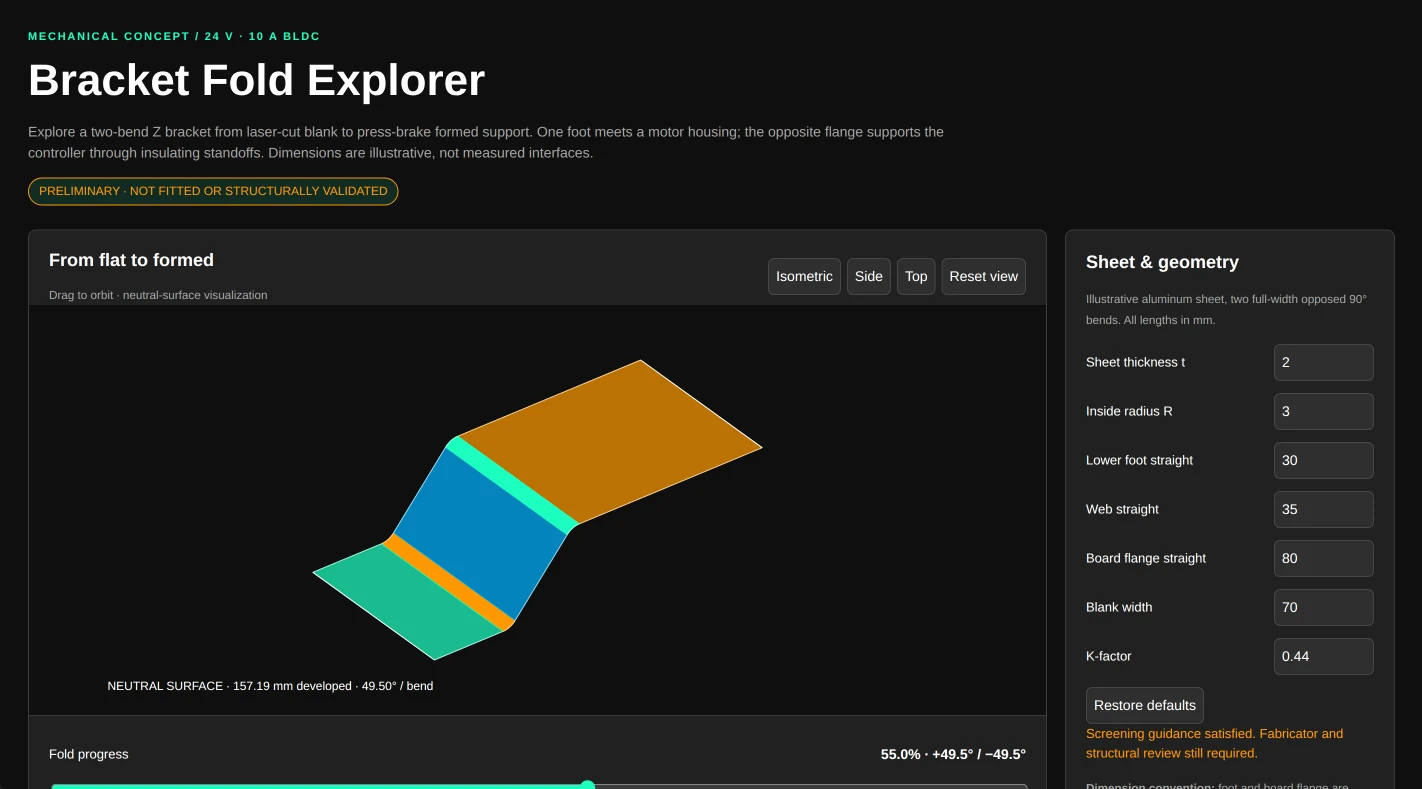
Open the project with the hardware that the part must fit.
Open Chat and provide the material, thickness, bend radius, bend angles, flange lengths, and hole or slot features.
Ask Flux to create the formed model and export the flat pattern as DXF.
Open Files to access the project outputs.
Flux designs formed sheet-metal brackets, covers, chassis, and panels with uniform thickness, bends, flanges, bend reliefs, holes, and slots. Flux creates the flat pattern as DXF for laser cutting and the formed 3D model as STEP. Flux states the K-factor it uses for the flat length.
Ask Flux for a dimensioned drawing with bend lines. Ask Flux to prepare the part for manufacturing.
Coordinate the product
Ask Flux to add parts for the complete device.
Mechanical parts belong to the complete device. Keep the board and its components in the project as you design around them. This gives Flux context about the connectors, displays, motors, and mounting features that the part must accommodate.
Add or select the relevant hardware in the project.
Ask Flux to create a part for a clear role in the device.
Ask Flux to place the part with the hardware it supports.
Add the next part or assembly requirement.
Ask Flux to refine the design as the product takes shape.
This workflow supports a single bracket, a group of board supports, a display mount, a motor housing, or a set of parts for a complete device. You can use the same product context for handheld devices, instruments, machines, and robots.
Example prompts
Ask Flux to design a mechanical part from its role and fit requirements.
For a board fixture, see Test stands and fixtures.