
Get a board that bends where your device needs it to bend. You design rigid areas and flex areas on one board, and Flux keeps each area on its own stackup for routing, checks, simulation, 3D, and manufacturing files. Flux is an AI hardware engineer. It designs the flex and rigid-flex board as one part of the complete device, together with the enclosure and the firmware.
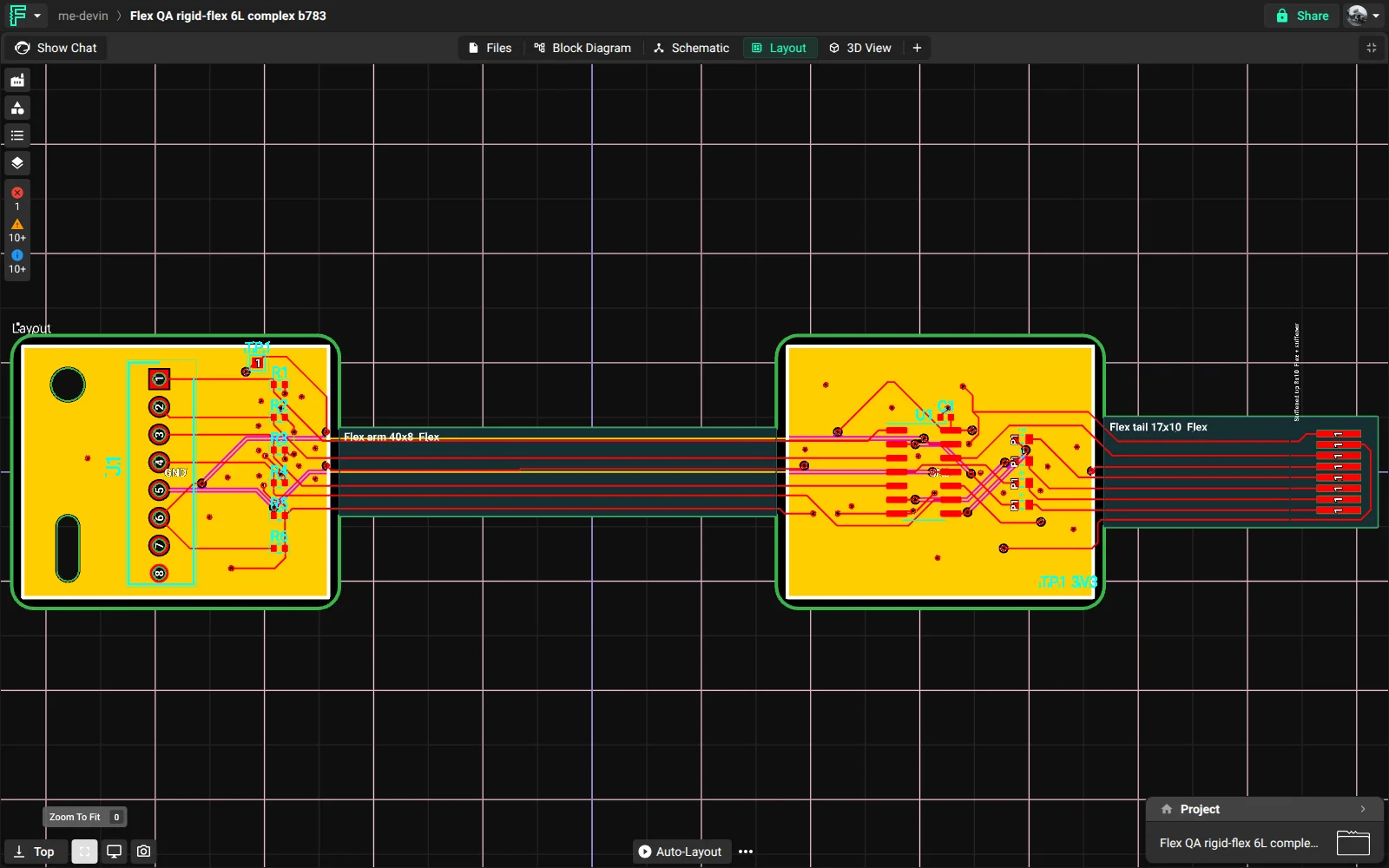
How a flex or rigid-flex board works
A board has one stackup. The stackup has one list of layers, and each area stackup uses some of these layers:
An area stackup is a named set of layers from the stackup, for example "Rigid" or "Flex". Each area stackup has a kind: Rigid or Flex.
One area stackup is the default. The default area stackup applies to all of the board that is not in a Stackup Area.
A Stackup Area is a shape on the board. It applies one area stackup to the board inside the shape.
Because all area stackups use the same layer list, a copper layer has the same name and number in each area. A trace on layer 1 continues from a rigid area into a flex area on the same layer.
A pure flex board has one area stackup of the kind Flex. A rigid-flex board has Rigid and Flex area stackups, and Stackup Areas that set where the board is flex.
Create a flex or rigid-flex board
Ask Flux to set up the stackup of the board. Tell Flux the template, or the layers and materials of each area.
To do it in the UI:
Open the Stackup Editor.
In Stackup, select a flex template. You can also start from your current stackup.
Click Add area stackup to add an area stackup.
Draw the Stackup Areas on the board. See Draw Stackup Areas.
These flex templates are available:
Template | Construction |
|---|---|
Flex 2 Layer | 2 copper layers on a polyimide core, with coverlay on both sides |
Rigid-Flex 4 Layer | 4 copper layers in the rigid areas and 2 copper layers in the flex area |
JLCPCB Flex 1 Layer | 1 layer of rolled annealed copper on polyimide, with coverlay |
JLCPCB Flex 2 Layer | 2 layers of electro-deposited copper on polyimide, with coverlay |
JLCPCB Flex 4 Layer (ED copper) | 4 layers of electro-deposited copper, with coverlay |
JLCPCB Flex 4 Layer (RA copper, bend-rated) | 4 layers of rolled annealed copper for flex areas that bend, with coverlay |
The JLCPCB Flex templates match the flex constructions that JLCPCB makes.
Set the area stackups
Ask Flux to add or change area stackups.
In the Stackup Editor, each area stackup has a column on the right side of the layer table:
Click Add area stackup to add a column.
In the column, select the check box of each layer that the area stackup uses.
Click ⋯ next to the column name to open the area stackup menu. Use it to Rename, change the kind (Rigid or Flex), Set as default, Duplicate, or Delete the area stackup.
Read the total thickness and number of copper layers at the bottom of each column.
Click Done.
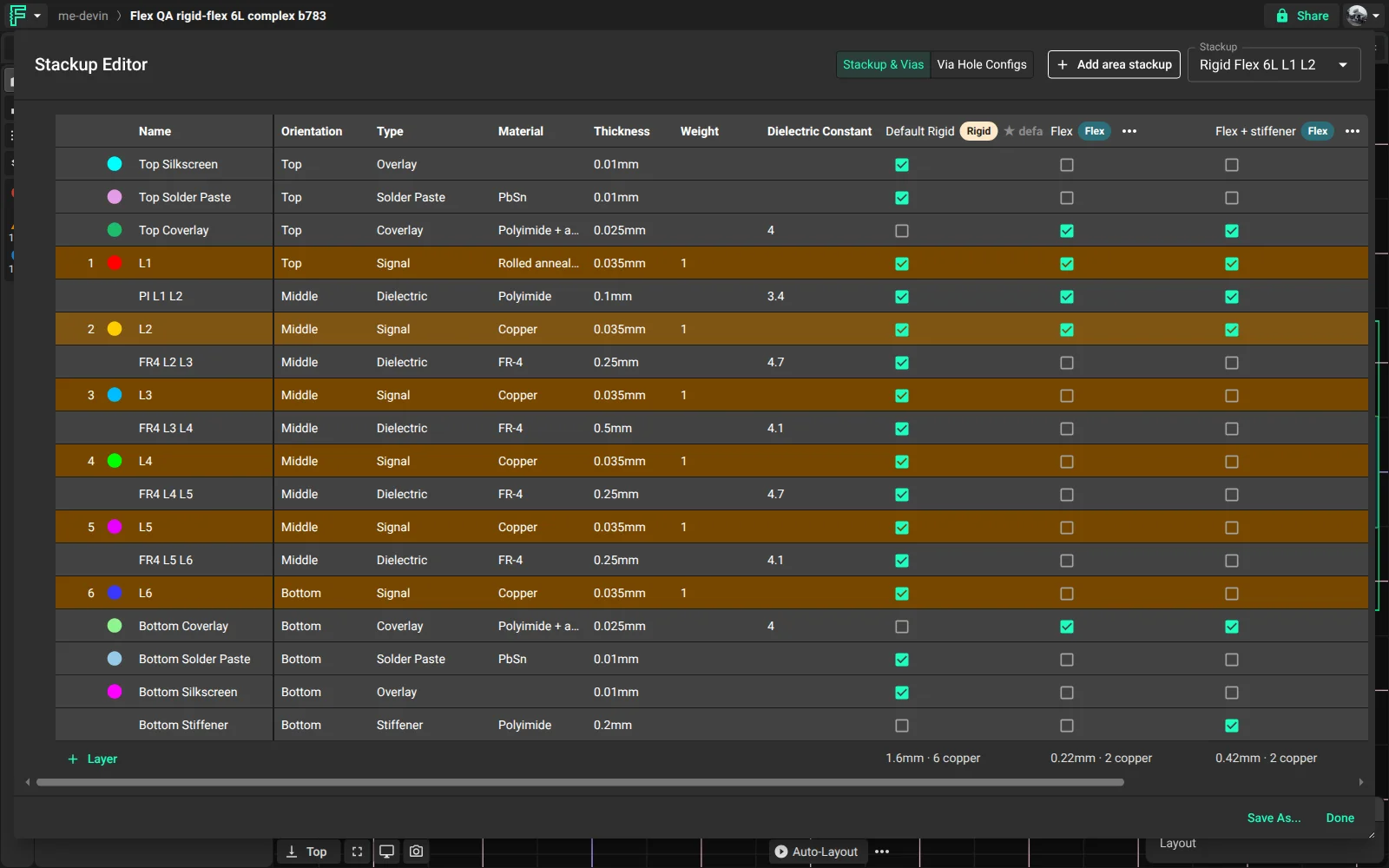
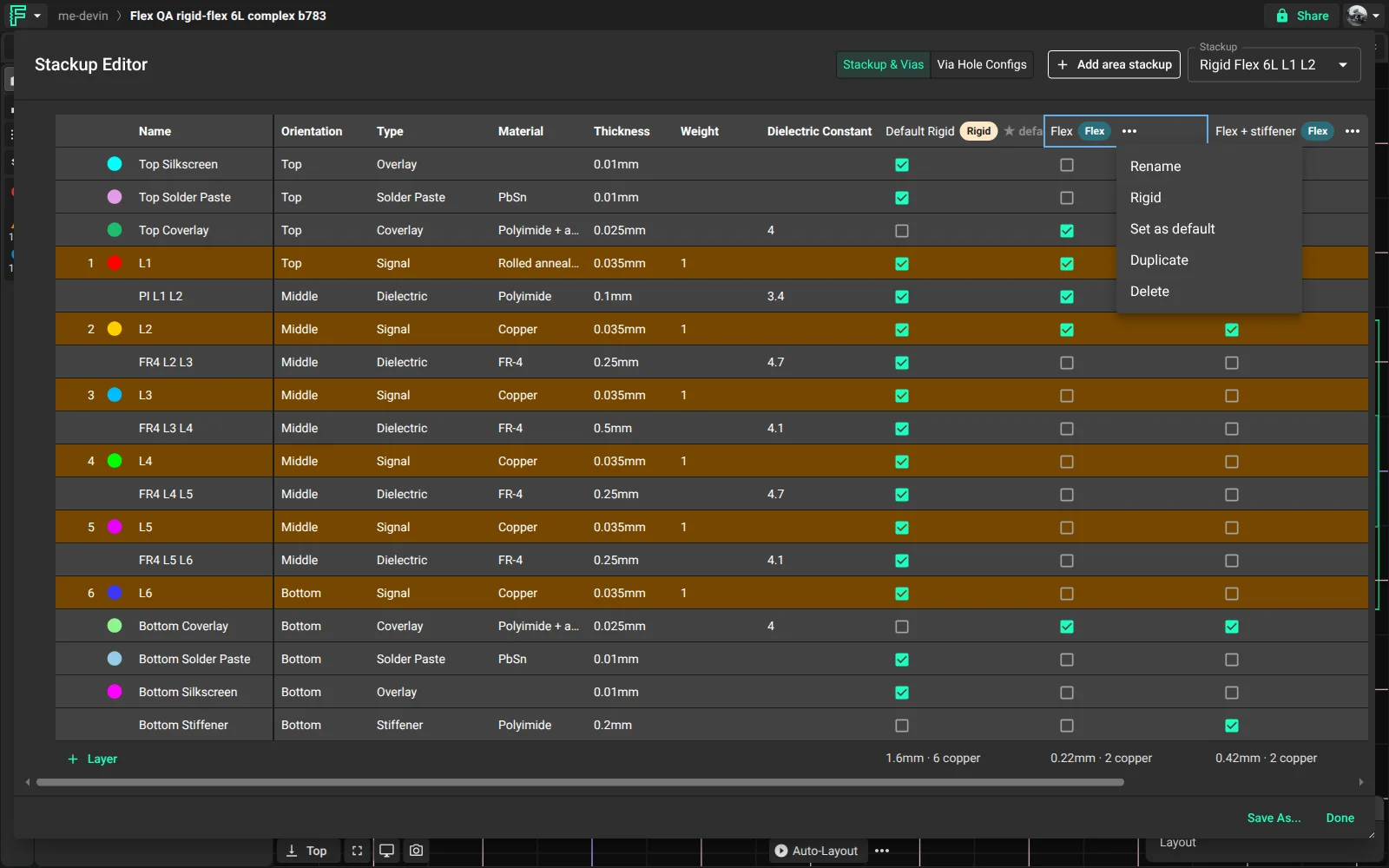
Flex layers and materials
You can add these layer types and materials to the stackup, in addition to the rigid layers:
Layer or material | Use |
|---|---|
Coverlay layer | Protects the copper on a flex area. Coverlay replaces solder mask on the flex part of the board. |
Stiffener layer | Makes a flex area stiff, for example under a connector or a part. |
Shield layer | A shield film on a flex area. |
Polyimide | Flex core and dielectric material. |
Polyimide + adhesive | Coverlay material. |
Bondply | Bonding layer between flex layers. |
Shield film | Shield layer material. |
Rolled annealed copper | Copper for flex areas that bend many times. |
Electro-deposited copper | Copper for flex areas, for example in the JLCPCB Flex 2 Layer template. |
For layer properties, see Stackup Editor.
Draw Stackup Areas
Ask Flux to draw the Stackup Areas.
To do it in the UI:
Right-click the canvas and select Add → Stackup Area.
Move and resize the Stackup Area to cover the flex part of the board.
In the Inspector, select the area stackup for the Stackup Area.
Read the kind, the Copper layers, the thickness, and the Design checks for the area in the Inspector.
The PCB editor shades each Stackup Area and shows its name and area stackup on the canvas. To show or hide this overlay, open the View panel and use Stackup areas. See Layer view control.
Route a flex or rigid-flex board
Ask Flux to route the board. Flux routes each net only on the copper layers of the area that the trace goes through. Flux does not put a via in an area where the area stackup does not allow it.
When you route by hand, the PCB editor uses the layers of each area. It does not accept a trace or a via on a layer that the area does not have. Impedance-controlled trace widths come from the stackup of the area. See Route with Flux and Impedance control.
Copper pours in flex areas
Copper pours in a flex area are hatched. Hatched copper makes the flex area bend more easily. Rigid areas, and boards without flex areas, keep solid pours. You do not set the hatch. Flux applies it to each pour that is in a flex Stackup Area.
Ask Flux to add pours as on a rigid board.
To do it in the UI, enable the copper fill on the layer. See Copper Fills.
The hatch in a flex area has these dimensions:
Property | Value |
|---|---|
Line width | 0.25 mm, or the minimum width of the pour if it is larger |
Gap between lines | 0.5 mm |
Line angle | 45° |
Solid border at the edge of the pour | 0.5 mm, or the minimum width of the pour if it is larger |
The pour keeps a solid copper ring around each pad and via of the same net. The hatched pour shows in the 2D editor and the 3D view, and it is in the design checks and the manufacturing files.
Check the flex design
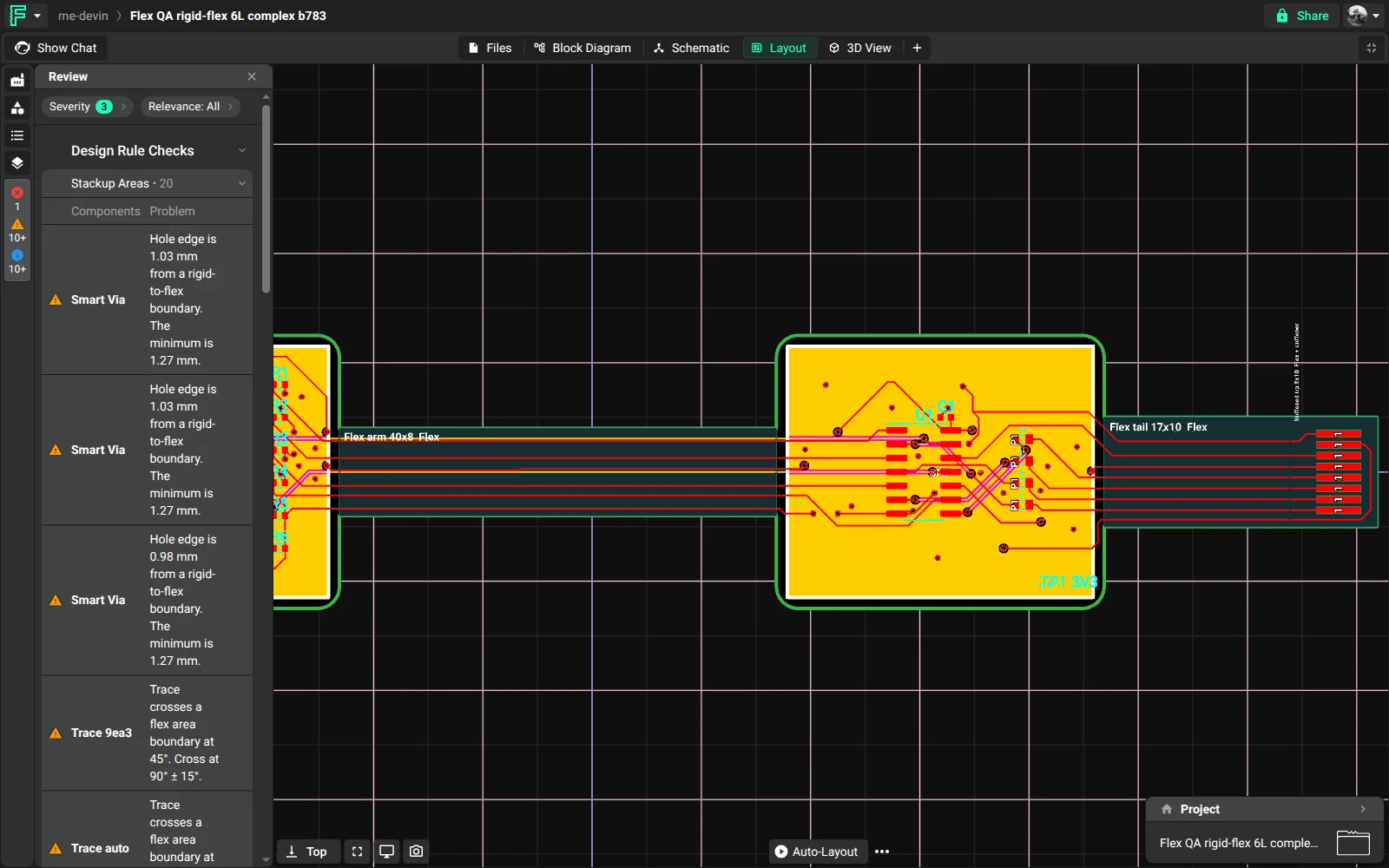
Flux runs flex and rigid-flex design checks on each board that has Stackup Areas. The results show in the Review panel, in the Stackup Areas category.
The checks find these issues:
Parts on bare flex without a stiffener.
Pads too near the edge of a stiffener.
Vias and plated holes in a bare flex area.
Holes and pads too near a rigid-to-flex boundary.
Traces that do not cross a boundary at 90°, and trace corners or width changes near a boundary.
Traces on adjacent flex layers that are on top of each other.
Sharp trace corners in a bare flex area.
Copper too near the board edge in a flex area.
Pads and vias in a bare flex area without teardrops.
Coverlay openings that are too small for the pad.
Flex area stackups without coverlay on an outer copper layer.
Bend radius information for each flex area.
Stackup Areas that use an area stackup that is not in the stackup.
The board density check does not count bare flex as room for parts.
Flux also uses the stackup of each area when it checks signals: impedance, crosstalk, electrical length, differential pairs, vias, and DC resistance. See Design Rule Check (DRC).
Simulate a flex or rigid-flex board
Ask Flux to simulate the board. Electromagnetic and thermal simulations use the stackup of each Stackup Area.
See Simulation.
See the board in 3D
The 3D view shows each area at its own thickness. Flex areas show coverlay, rigid areas show solder mask and silkscreen, and stiffeners touch the coverlay or the copper face of the board.
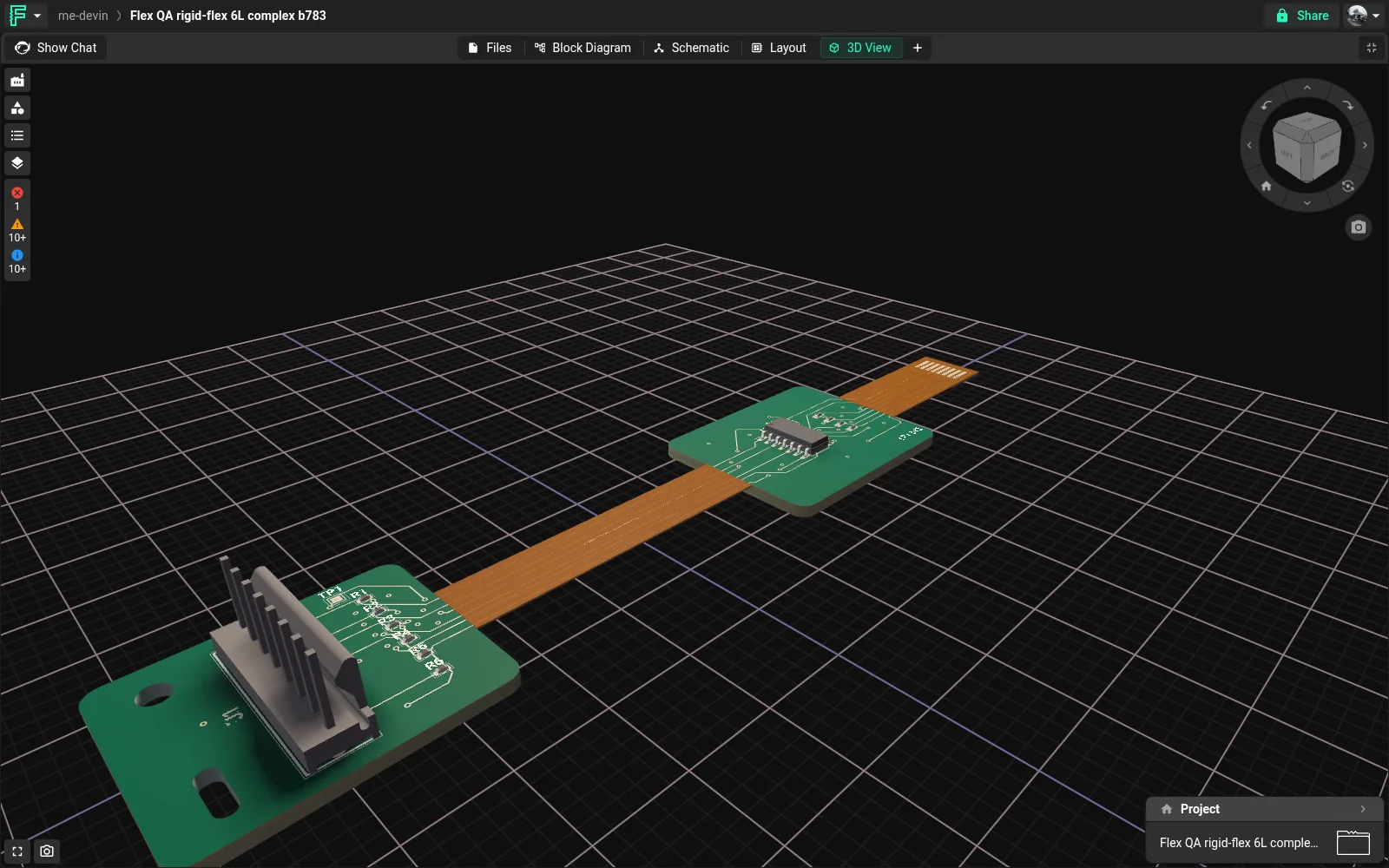
See 3D View.
Export a flex or rigid-flex board
Ask Flux to export the files that your fabricator needs.
The manufacturing files of a board with Stackup Areas include:
Gerber files for each coverlay layer, each stiffener layer, and the Stackup Area outlines. These files align with the copper and the board outline.
A fabrication drawing (
fabrication-drawing.pdf). The drawing shows each area with its area stackup, finished thickness, and size.A stackup area list (
stackup-areas.txt).In IPC-2581C and ODB++, one stackup for each area stackup and the area of the board where each one applies.
3D downloads (STEP, compressed STEP, BREP, XAO, GLB, STL, OBJ, and COLLADA) show each area at its own thickness, with coverlay and stiffeners.
See Board Manufacturing Files and Mechanical Drawings and Exports.
Quote and order a flex or rigid-flex board
Ask Flux for quotes and orders as for a rigid board. Flux reads the construction of the board from the stackup and sends it with the quote request: the number of copper layers, the finished thickness, the dielectric, the copper type and weight, the coverlay, the stiffeners, and the thickness of each layer.
JLCPCB quotes and makes flex boards. When you order, Flux sends the same construction as in the quote that you approved.
PCBWay quotes flex boards and rigid-flex boards. PCBWay gives the price of a rigid-flex board after it reviews the files. Flux gives you the upload link for the PCBWay site.
For the full quote and order steps, see Order from Flux.
Open a flex or rigid-flex board
A saved flex or rigid-flex board shows its Stackup Areas, 3D view, design checks, and exports for each person who opens the project.