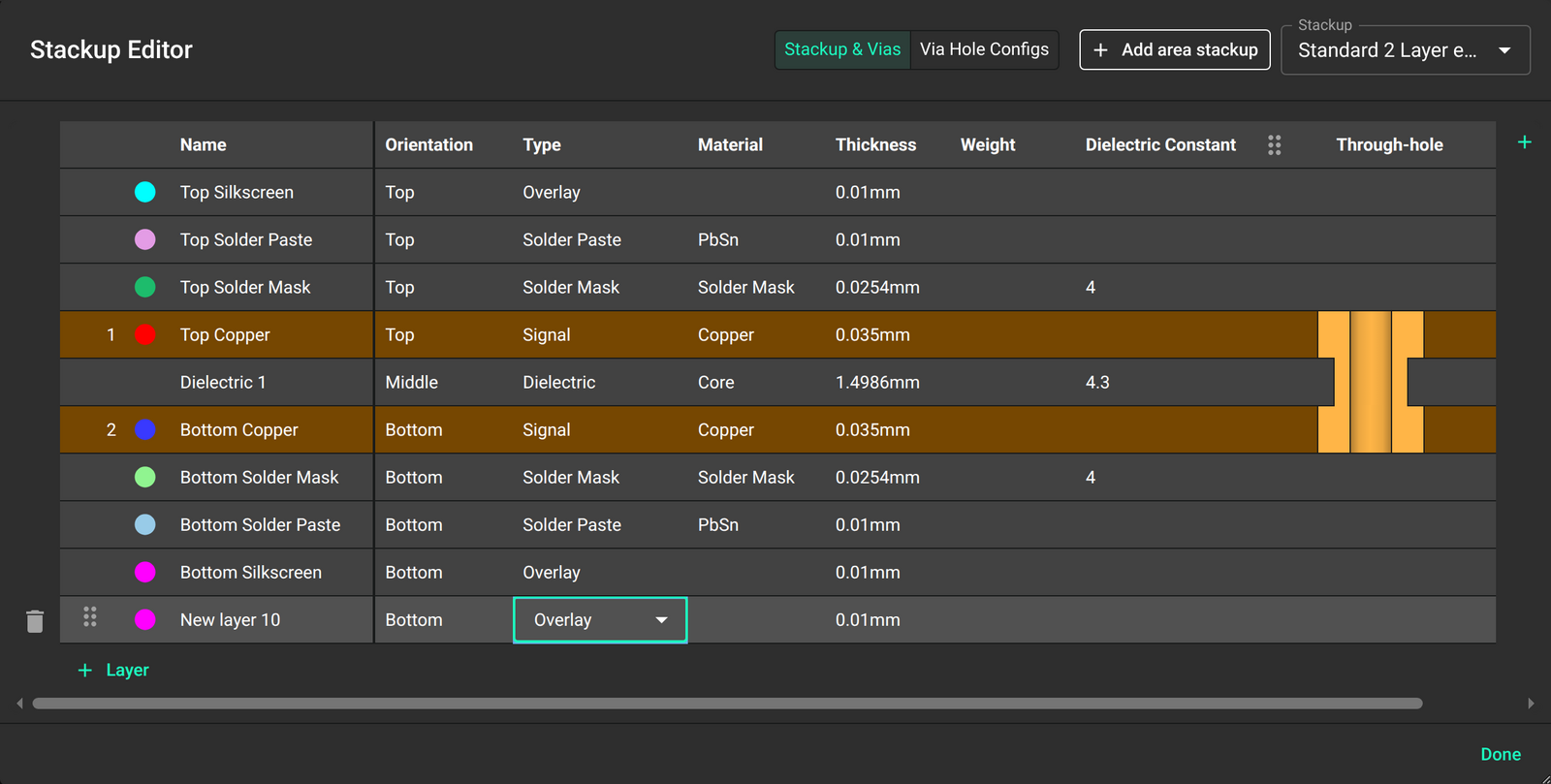
Create and modify PCB layer stackups.
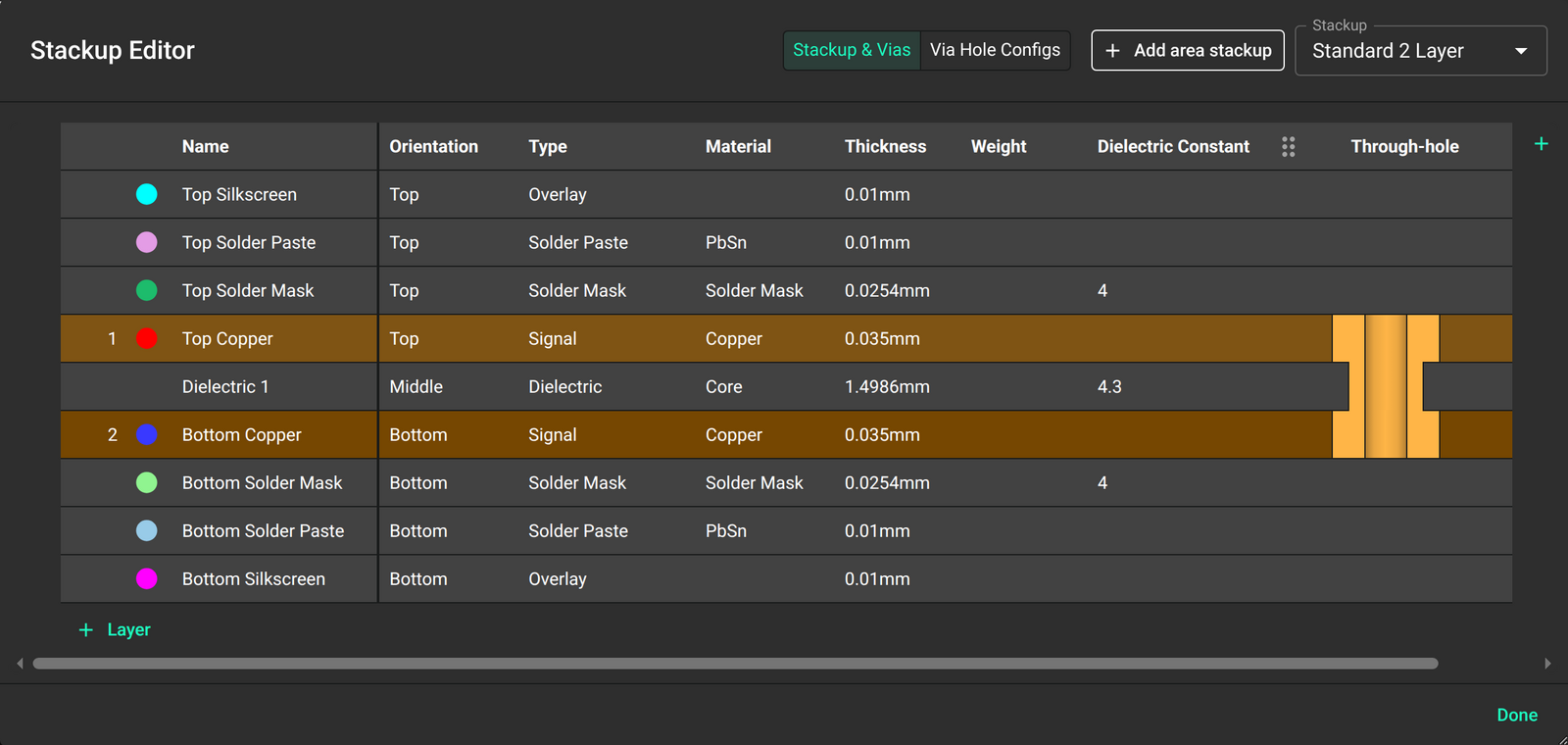
Overview
Community resources: Flux has a community of over 175,000 electrical engineers. You can use their project templates and resources in Flux.
Fabrication house templates: Fabrication houses add their stackup options to Flux as templates. Start from one of these templates to get a stackup that matches production.
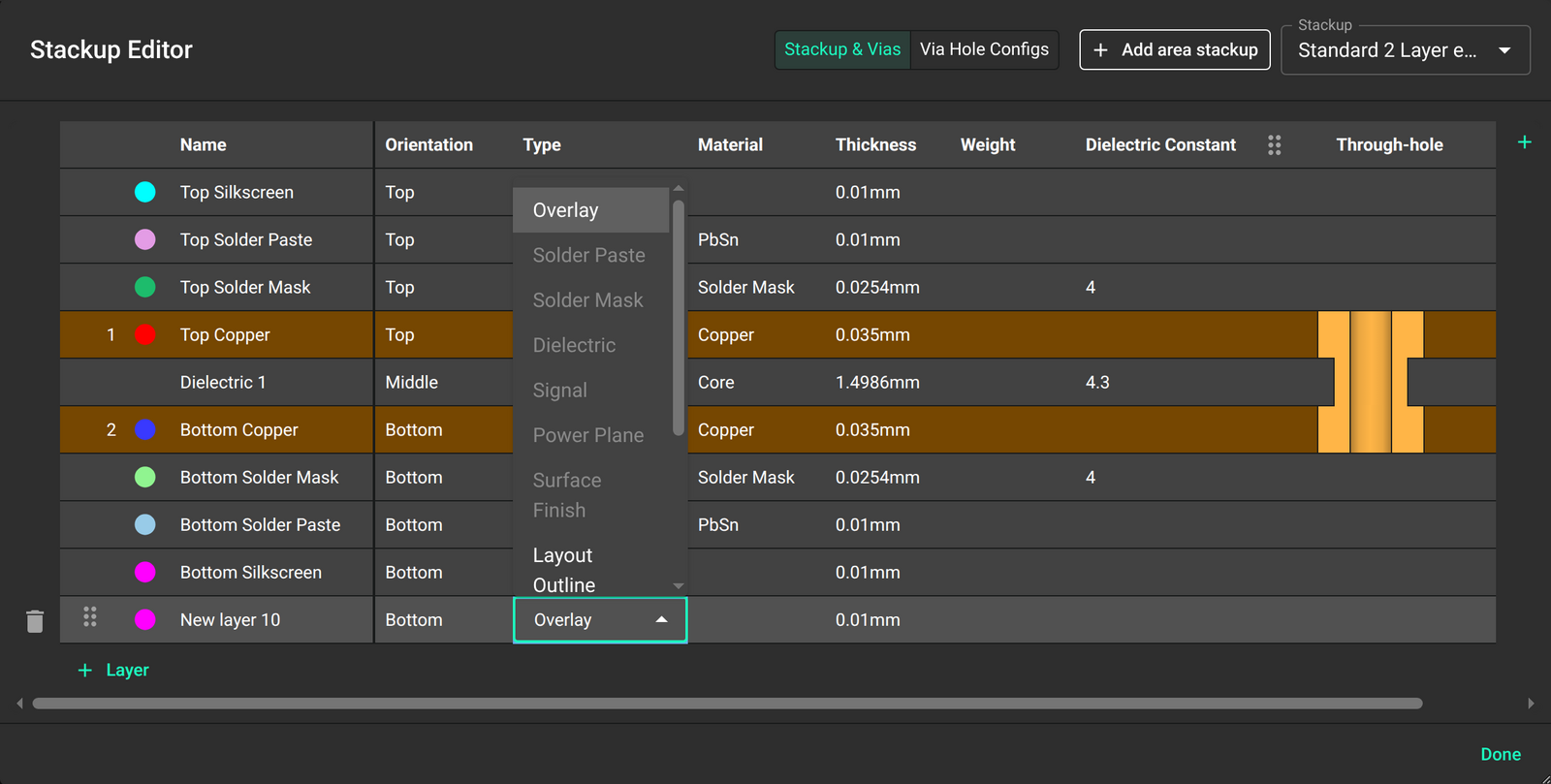
Layer management: Use the Stackup Editor to create and rearrange layers. Save and load stackup presets from other users and fabrication houses, and change the values of each layer.
Getting Started
Ask Flux to set up the board stackup and impedance rules.
For impedance setup, see Impedance control.
Selecting a Stackup Template
Ask Flux to set up the stackup from a template.
To do it in the UI:
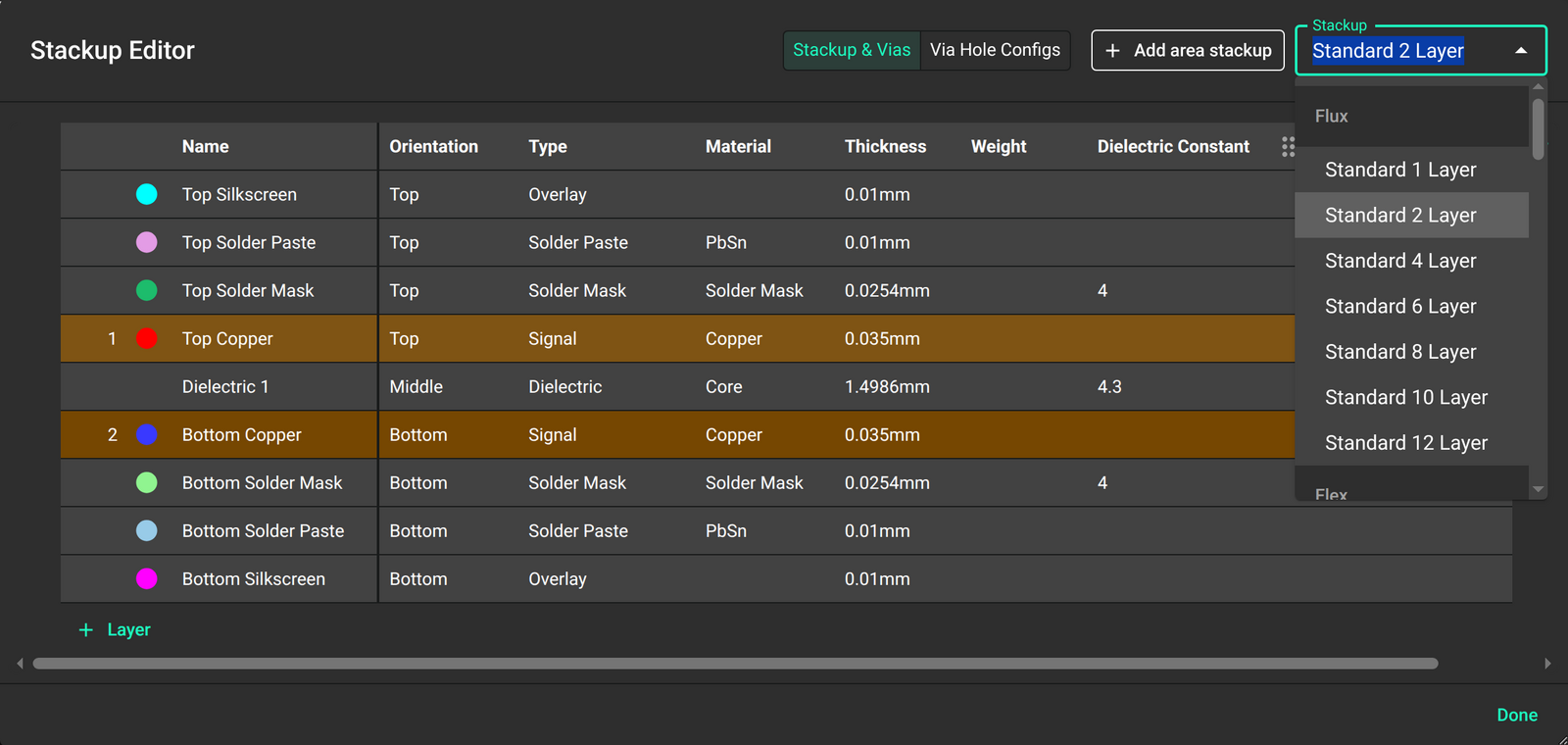
Flux comes with stackup templates that you can use as a base for your customized template. To select a template, click on the arrow in the top-right corner of the menu.
Once a template has been selected you can use the stackup editor to modify any properties or add/remove any layers.
Adding and Removing Layers
Ask Flux to add or remove layers.
To do it in the UI:
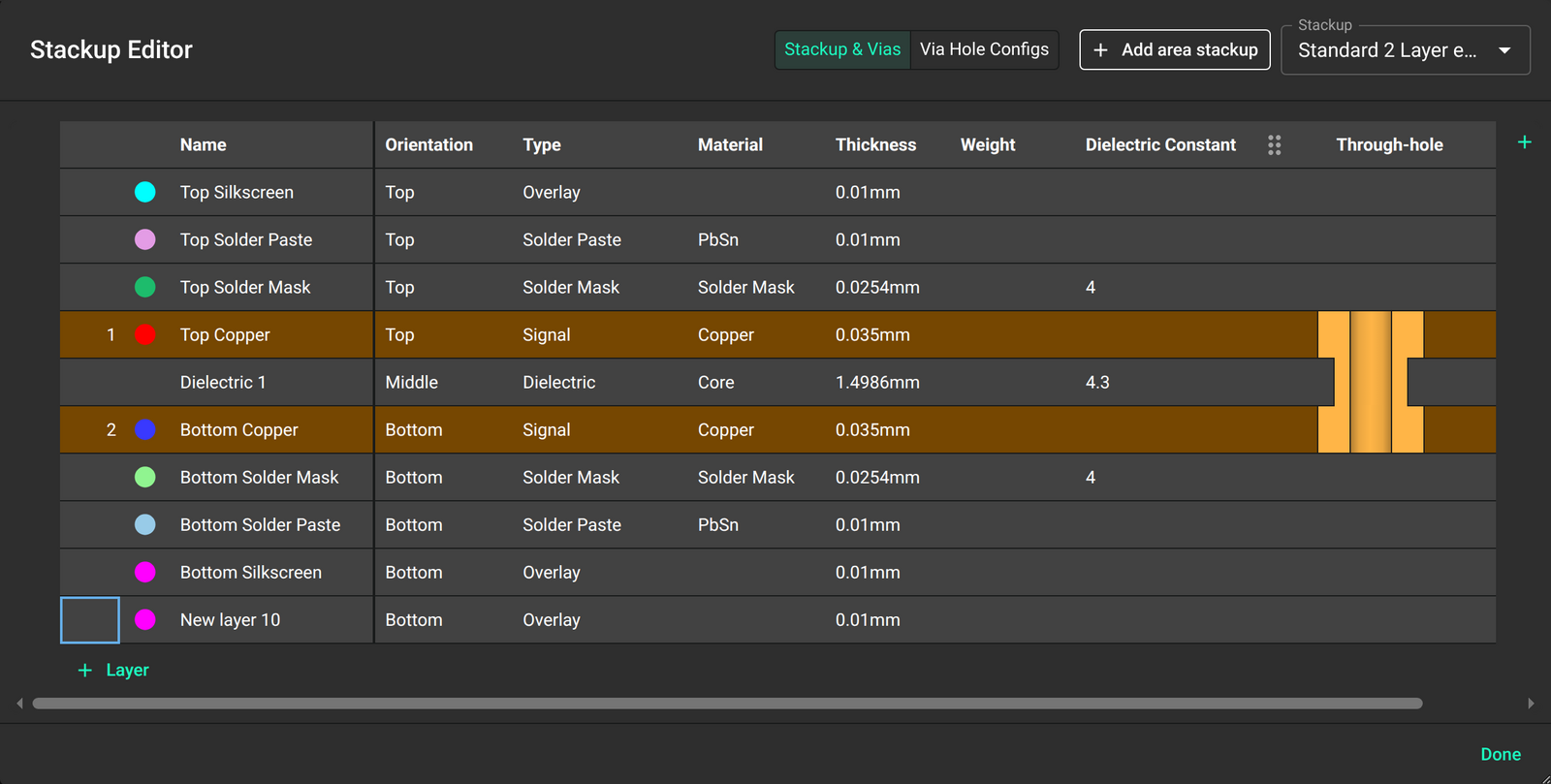
To add a new layer to your stackup, click on the "+Layer" button at the bottom-left corner of the menu. To remove a layer, select the target layer and click on the trash can button on the left of the layer's name.
Editing Layer Properties
Ask Flux to change the properties of a layer.
To do it in the UI:
Every layer's properties can be modified by clicking on the target property. Some of those properties will have preloaded options, and some others can accept any input.
Rearranging Layers
Ask Flux to change the order and the roles of the layers.
To do it in the UI:
To change a layer's position in the stackup, hover over the target layer and click and drag the six dots button.